
Accolent ERP’s physical inventory system allows you to take a physical count of your inventory by Cycle Counts or a Full Count by product. The physical inventory system involves a number of sequential steps that must be performed in order. This wiki posting is the sixth of six detailing the Inventory Counting process.
Sequence of Wiki Posts
- The Physical Inventory system is explained in 6 wikis that lay out the sequential series of steps involved. Read the wikis in this order:
Inventory Discrepancy Report
- The Discrepancy report will indicate any differences found between the QOH at the time of the Create Batch/Capture QOH step, and the counted quantities.
- A review/evaluation of this report will determine if a recount is necessary.
- Select the batch to process, and the report options for the Display which are: All Items or Discrepancy Only.
- Normally there is no value in displaying All Items since this will print every product included in the count, even if no change to inventory has been found.
- Since the discrepancies are what are of concern, it’s normally best to only report these.
- To report on the Discrepancies Only in Batch 447, click on the Discrepancy button

- The report shows QOH, Counted Qty, Diff (Qty) and Diff (Amt):
- QOH is the original quantity at the time of the Create Batch/Capture QOH step,
- Counted Qty is the quantity entered on the Count Sheets,
- Diff (Qty) and Diff (Amt) are respectively the difference between the Counted Qty and the expected QOH and the extension of that difference based on Average Cost and Standard Cost.
- The GL Posting is based only on Average Cost.
Recounting based on Inventory Discrepancy Report
- If it is determined that a recount for certain items is necessary, these steps should be followed in sequence:
- First go to the Unprocess Counts screen,
- Print the count sheets for the products to be recounted, then
- Reenter the new counts when completed; it is not necessary to reenter counts for count sheets where the counted quantities are correct.
- Then process the following in order:
- Enter and Finalize Counts,
- Discrepancy Report, and
- Review the Inventory Discrepancy Report again.
- This process can be repeated as many times as necessary.
Automatic Inventory Adjustments
- Go to the Adjust Inventory Counts and Close Batches screen.
- This is the final step in the Physical Inventory process.
- Do not take this option until the counted quantities have been reviewed and confirmed.
- This step cannot be easily reversed.
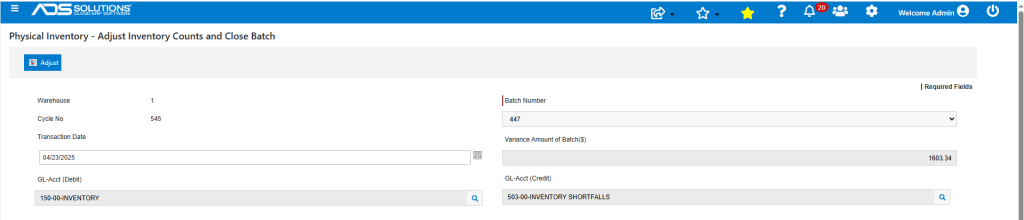
- Select the appropriate Batch No.
- Select the GL Accounts to Debit (usually a periodic expense account to record inventory shrinkage, e.g., Inventory Variances) and Credit (usually the Inventory account).
- Then click on the Adjust button.
- Note: Batch numbers will only appear on this screen if the Discrepancy Report has been run.
- When the process completes the following success message will be displayed.
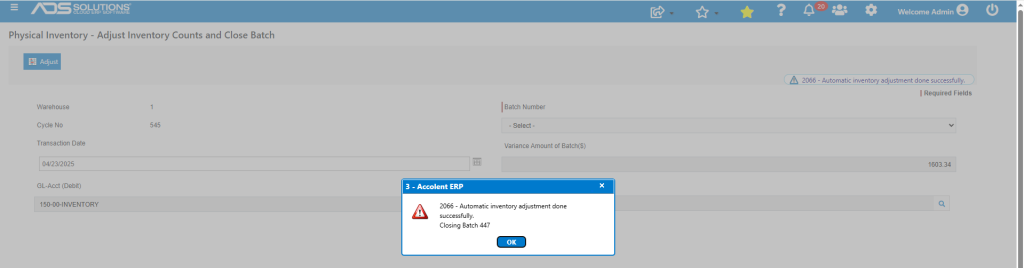
- An adjustment will have been made for the difference between the QOH at the time of the Create Batch/Capture QOH step and the counted quantity
- For example, product C5H12O2 the Ledger Card showed the 10 Bags that were found for Lot No 850652.

- This completes the Physical Inventory process.
Unprocess Counts
- Use this option if a recount is necessary.
- This option will not remove the entries from the count sheets; it will clear the stored values and will use the newly updated values when the Finalize Counts option is rerun.
View Batch Status
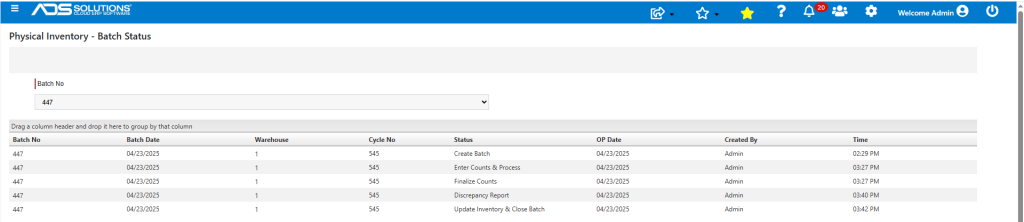
- This is a useful utility if processing multiple batches at the same time such as if the Inventory Count is done by the Cycle Count method.
- Since the physical inventory process must be run in sequential order, the status of each batch can easily be viewed using this menu.
Cancel Batch
- This option will remove a batch and remove any count sheets associated with the batch.
- Only use this option if a batch has been started in error, e.g., if there is an unforeseen delay in the counting process, or to clear a test run.
- A cancelled batch will display on the Physical Inventory – Batch Status screen with a status Count Batch Cancelled.