
Accolent ERP’s physical inventory system allows you to take a physical count of your inventory by Cycle Counts or a Full Count by product. The physical inventory system involves a number of sequential steps that must be performed in order. This wiki posting is the fourth of six detailing the Inventory Counting process.
Sequence of Wiki Posts
- The Physical Inventory system is explained in 6 wikis that lay out the sequential series of steps involved. Read the wikis in this order:
Enter Counts
- As count sheets are returned from the warehouse the counted values may be entered.
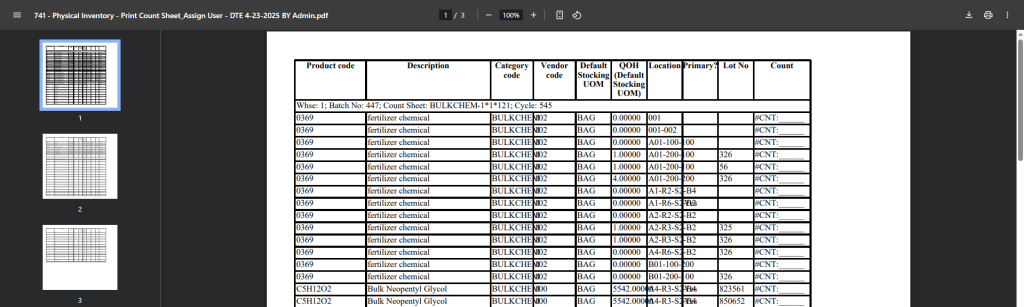
- Select the Batch Number and the unique count sheet identifier. The identifier is shown in the heading portion of the count sheet.
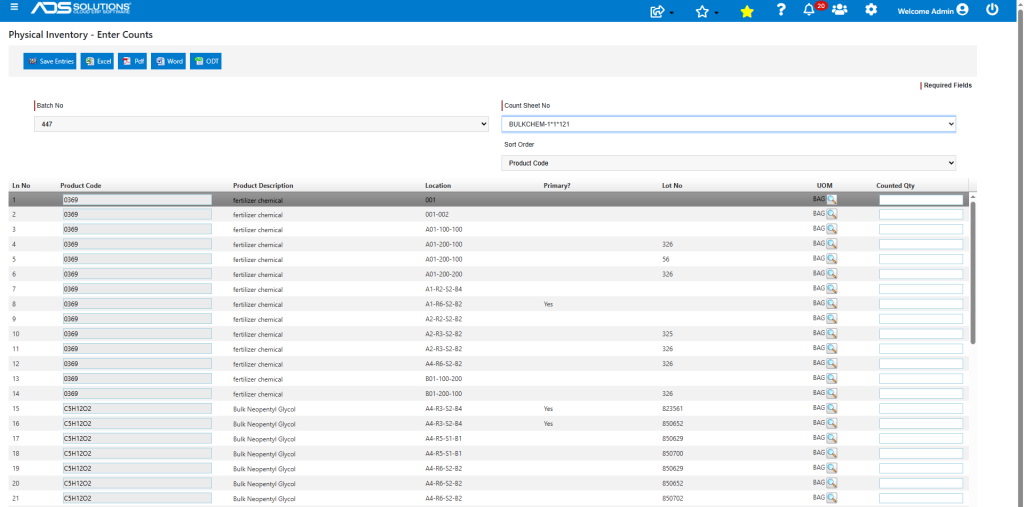
- A grid will be displayed with an entry field for the counted quantity.
- Note: The Counted field may already have values if this count sheet was processed before, and this is a recount; only make entries for the products that have been corrected.
- Enter the counts from the Count Sheets.
- Note:The Enter key is a keyboard shortcut that will position the cursor to the next line item.
- The Counted Qty field will interpret entries as follows:
- A numeric entry will adjust inventory to that value,
- A zero entry will adjust the inventory to zero quantity on hand, and
- A blank entry means that no adjustment to inventory is necessary.
- There will be a blank line at the bottom of each count sheet to enter products that were not included in the original selection.
- If an entry is made on this line, additional blank lines will appear, allowing as many entries as necessary.
- For any new lines added, the Counted Qty will become the new inventory value. Since these products were not part of the Create Batch/Capture QOH step, there won’t be any baseline for comparison.
- When the entries for this count sheet are completed, or the user decides to stop and continue entry on this sheet at a later time, click on the Save Entries button.