
Accolent ERP’s physical inventory system allows you to take a physical count of your inventory by Cycle Counts or a Full Count by product. The physical inventory system involves a number of sequential steps that must be performed in order. This wiki posting is the fifth of six detailing the Inventory Counting process.
Sequence of Wiki Posts
- The Physical Inventory system is explained in 6 wikis that lay out the sequential series of steps involved. Read the wikis in this order:
Finalize Counts and Process
- Once all the Count sheets have been entered, then click on the Finalize Counts button.
- Take care to ensure that all count sheets have been entered before taking this option and moving to the next step.
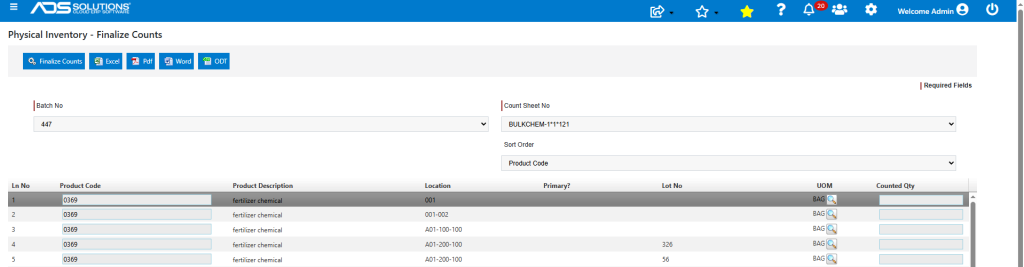
- After clicking on the Finalize Counts button, the Unprocess Counts option can be used to reverse this step. The entered values will remain on the sheets and may be further edited and/or corrected.
- The report of the entered counts can be saved to Excel, PDF, or a Word document.