Accolent ERP’s physical inventory system allows you to take a physical count of your inventory by Cycle Counts or a Full Count by product. The physical inventory system involves a number of sequential steps that must be performed in order. This wiki posting is the third of six detailing the Inventory Counting process.
Sequence of Wiki Posts
- The Physical Inventory system is explained in 6 wikis that lay out the sequential series of steps involved. Read the wikis in this order:
- Physical Inventory System Overview
- Selecting Products for Inventory Counting
- Creating a Batch and Printing Count Sheets for Inventory Counting
- Entering Counts for Inventory Counting
- Finalizing Counts for Inventory Counting
- Recording Results of Inventory Counting
Create Batch/Capture QOH
- After selecting the Products to be counted, the next step is to capture the inventory counts that will be used as the baseline for the Inventory Count, by creating a unique Batch.
- This step is referred to as Capturing QOH (Quantity on Hand) and sometimes as Freezing the Inventory.
- Before running this, complete all transactions affecting inventory.
- After running this, products must not be added or removed from the locations until counted
- The Inventory Count will be compared to the “frozen” quantity to determine discrepancies.
- For example, select Warehouse 1-Adssolutions to be processed with this Batch. Select Created By: Full Count or Cycle Count. If the selection of products to be counted was for a Cycle Count, select Cycle Number and then enter the cycle number that was assigned.
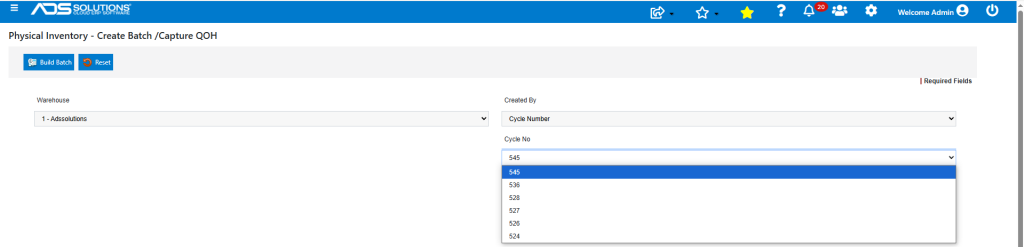
Build Batch
- When complete, click on the Build Batch button, and a Batch Number will be assigned.
- Record this number which will be required later.
- You may also lookup up created Batch Numbers using the View Batch Status menu option.
- For example, Cycle No 545 was created previously to count Category BULKCHEM, which created Batch No 447.

Count Sheets
- Once the population of products to count is defined and the Batch created, the system automatically breaks up the Batch (which may have thousands of items) into individual Count Sheets.
- Once the Count Sheets are created, they may be assigned to specific users. This is particularly important if the counting is to be done using the Wireless WMS system which uses this to control counting, since there is no physical paper count sheet.
- Count Sheets are numbered based on the method of selection used to determine the products to be counted.
- For a Cycle Count by Category the count sheet number will have the category*warehouse; for example, categories 800, 801, and 802 in Warehouse 1, will have count sheet numbers 800*1, 801*1, and 802*1.
- On the Configuration Settings screen set the maximum number of lines per count sheet page.

- For example, set count sheet maximum lines per page to 500; after the first page, subsequent pages will be numbered with “-1”, “-2”, etc. So, if category 800 has 700 products; 800*1 has 500 products, and 800-1*1 has the remaining 200 products.
- Note: It is possible, although not advised, to print a count sheet before the Create Batch/Capture QOH process is run. While it may help to distribute Count sheets in advance it may lead to steps being missed.
Print Count Sheet/Assign User
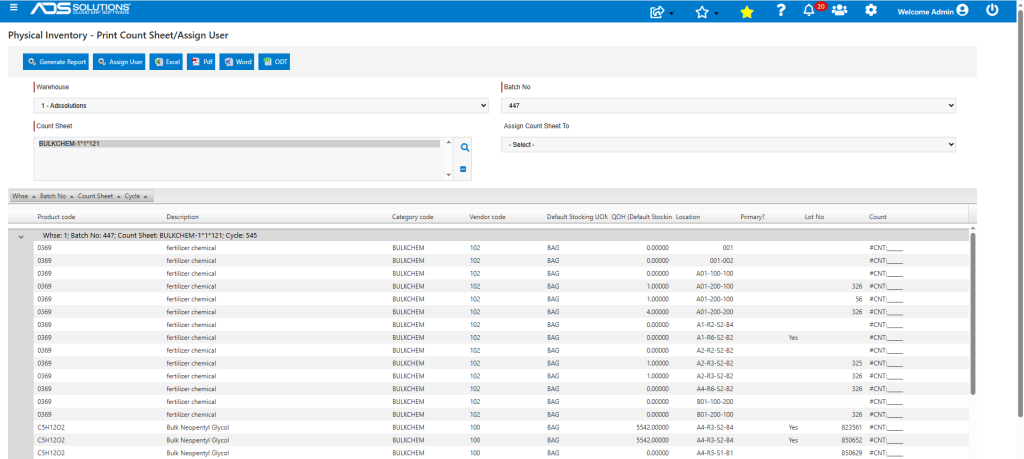
- On the Print Count Sheet/Assign User screen, select the Warehouse 1-Adssolutions, the Batch Number 447 and select the Count Sheets.
- When selections are complete, click on the Generate Report button.
Export and Print
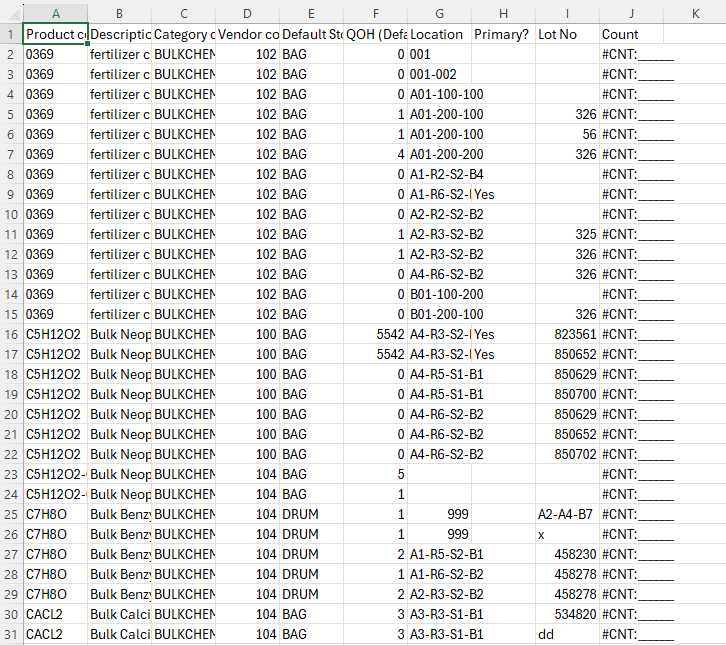
- The resulting Count Sheets will be able to be exported to Excel, PDF, or Word document and printed then distributed to warehouse personnel for counting.
- In this example, create Count Sheets for Cycle No 545 for Category BULKCHEM.
- Using the sorting functionality in the grid, the Count Sheets may be sorted by Product Code, Location or even Lot No in order to facilitate counting.