
The Accolent WMS system allows for shipping orders one at a time. To ship an order the picker will select the order in WMS, and then set the status of each box on the order to Shipped. The weight and cubes were assigned to each box in Packing. From the Accolent ERP Pack/Ship screen, the Carrier, Service, were selected and a Tracking number, Freight and a Shipping Label generated for that box. Using Accolent WMS, record each box in the order as shipped, enter a Shipped Date and a Shipped Comment and update the order to the status of shipped. At that point the order may be invoiced.
Set Order Status to Packed in Accolent ERP
- To be available in WMS to be packed, the order must have a sub-status of Packed on the Accolent ERP List Shipments screen
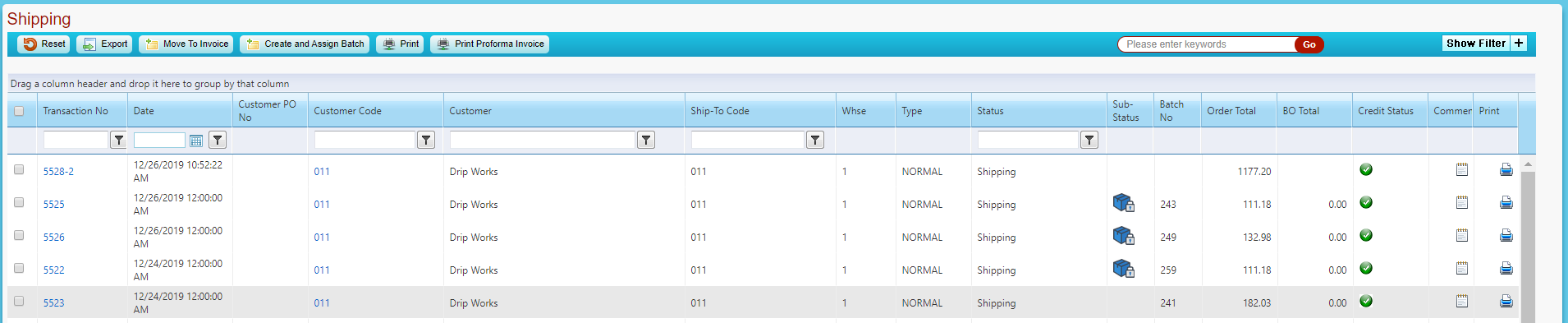
- To change the sub-status on any order in shipping, open the order and click on the sub-status icon
- For example, open order 5523, and set sub-status to Picked
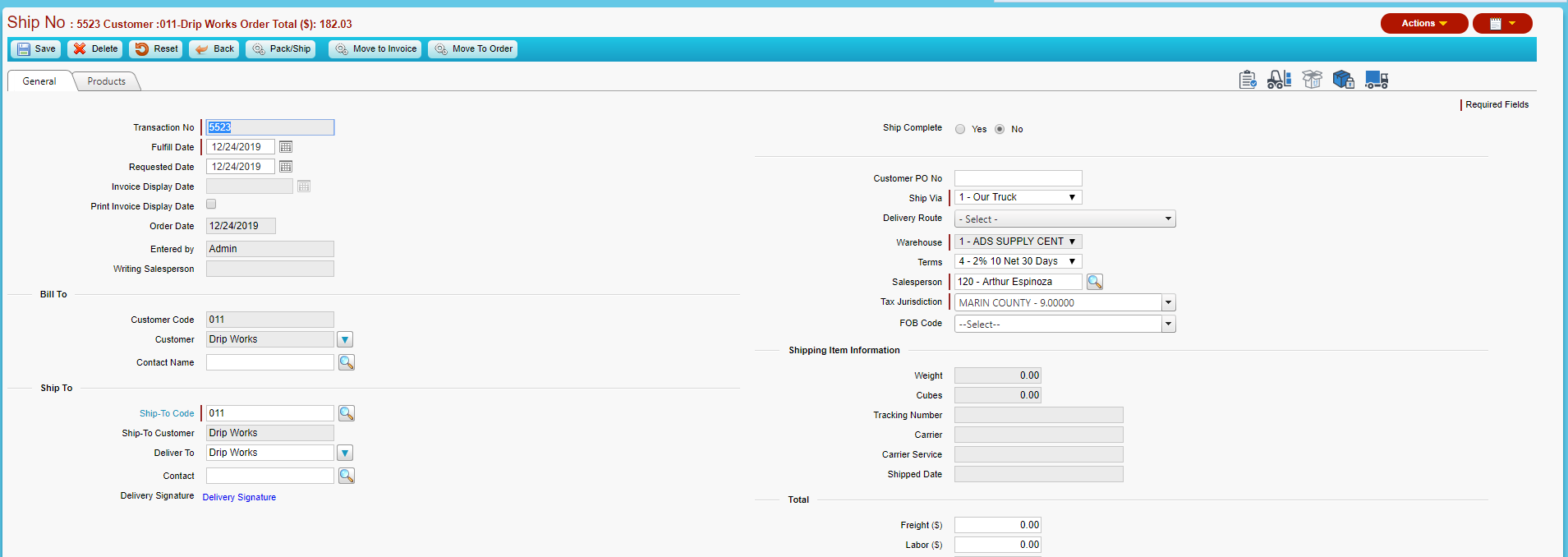
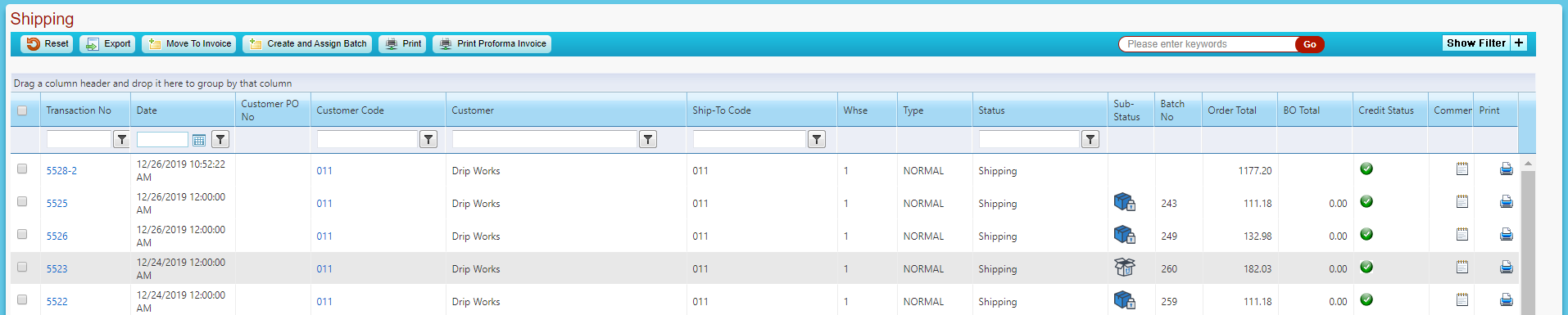
- On the List shipments screen, order 5523 now has sub-status Picked
- Note that to use the WMS Shipping the order has to be packed and boxed – so will have to do that first before shipping; however, in WMS Packing there is the option to auto box the order and add freight
WMS Shipping an Order
- Login to WMS on the handheld device
- Select Shipping – opens the Order Search screen which shows all orders in status of Packed
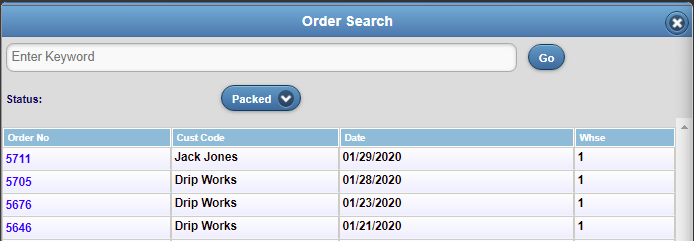
- Select Order 5676, brings up the Ship Preview screen
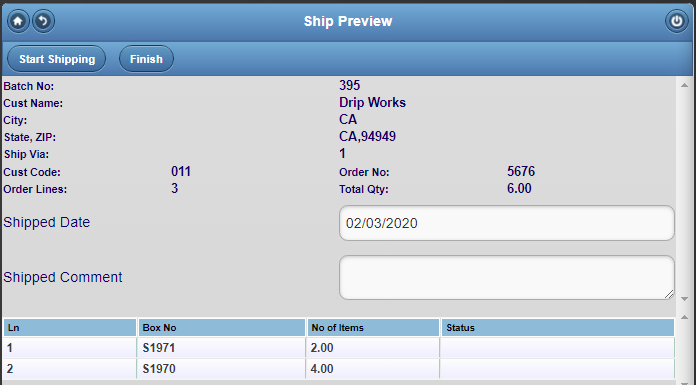
- Click Start Shipping brings up the Ship Screen
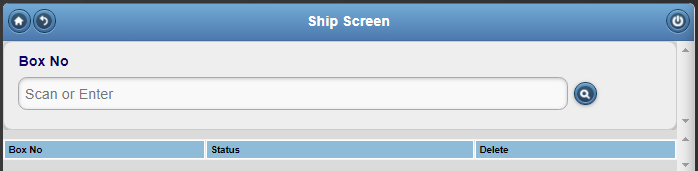
- Click on Box No lookup
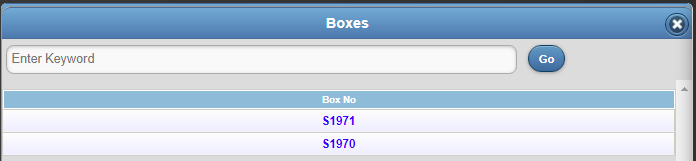
- Select Box S1971 which updates to shipped status
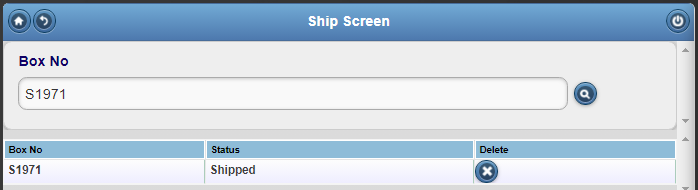
- Then from lookup, select Box No S1970 and update in the same way
- Then since all boxes are shipped – immediately brings up the Ship Preview screen
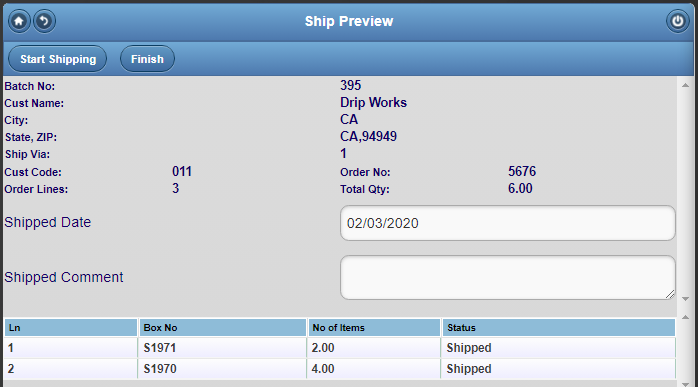
- Date will default in, use date picker to set to 1/31/20
- Update Shipped comment
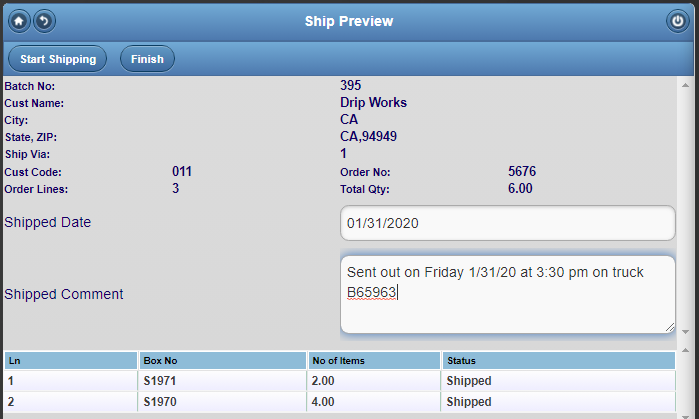
- Click Finish, then OK to redirect to Order Search screen
- Since order 5676 is no longer in packed status it will not be displayed
Accolent ERP Updated
- In Accolent, order 5676 now shows sub-status of Shipped
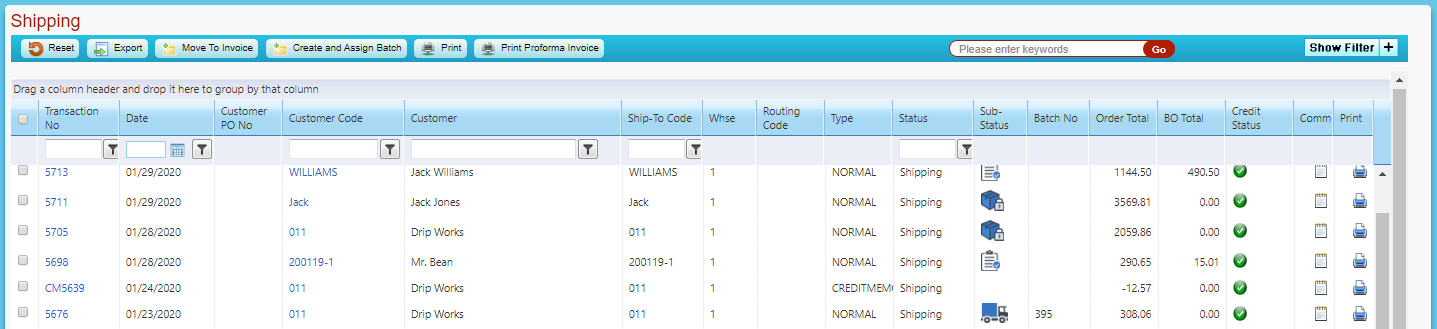
- Open order 5676 – status updated
- Shipped Date updated from WMS
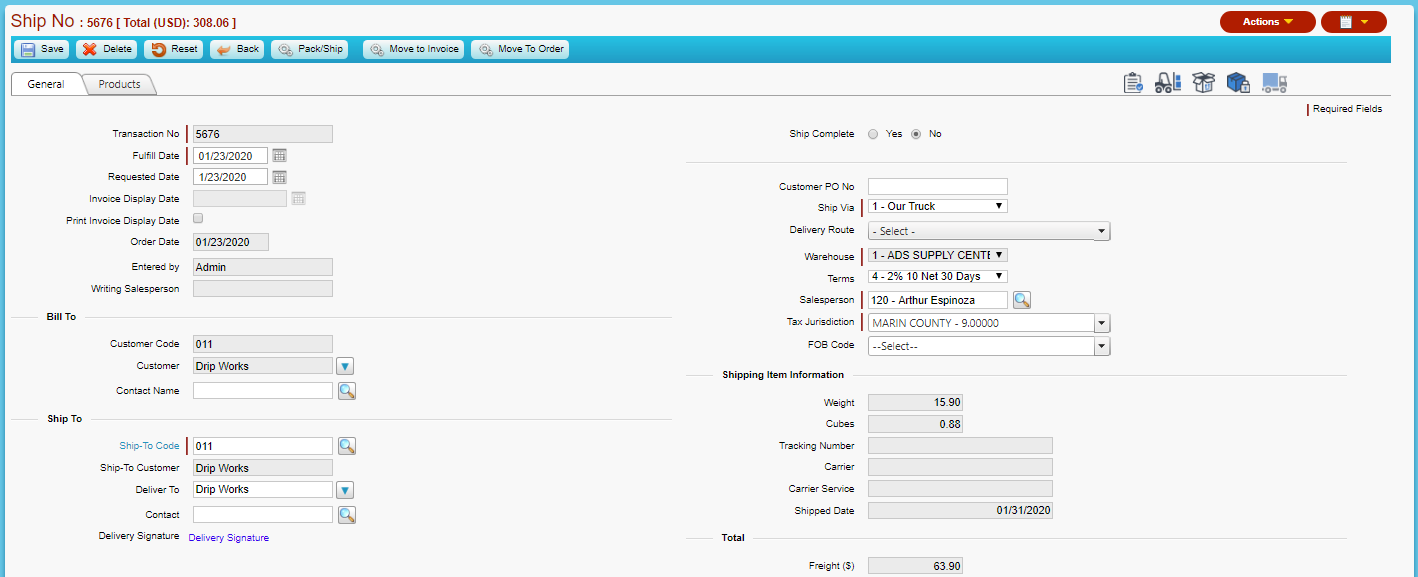
- Internal Notes – shows the Shipped Comment entered from WMS
