
Accolent ERP allows delivery orders to be assigned as a batch to a driver who is a licensed Accolent ERP mobile user. The delivery addresses can then be downloaded and the optimal delivery route calculated using third-party route optimization apps. The optimized route with assigned delivery stops for each order can be pushed to the driver’s mobile device. Then using the ADS POD App on a mobile device, the driver can collect proof-of-delivery information consisting of Customer signatures, images of deliveries, and GPS Co-ordinates of delivery points. The delivery information is automatically sync’ed back to Accolent ERP.
Assign Orders for Delivery to a Mobile User
- Go to Sales > Fulfillment > List Fulfillments.
- Select orders and create a batch to be assigned to a mobile user.
- If the orders to be delivered are on a specified Delivery Route, filter by that and select orders.
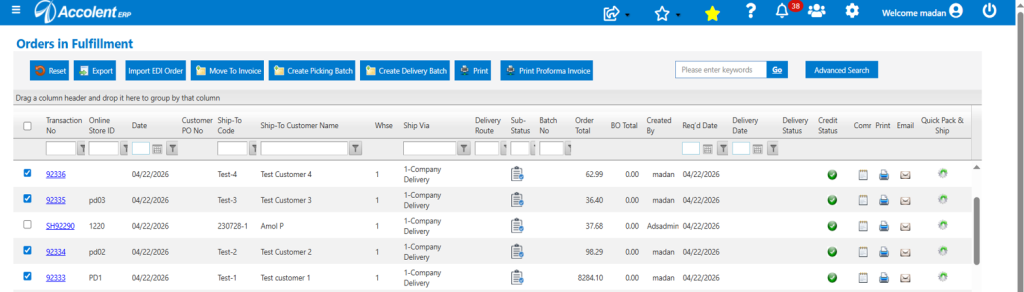
- Select orders then click on Create Delivery batch, to create batch assigned to mobile user.
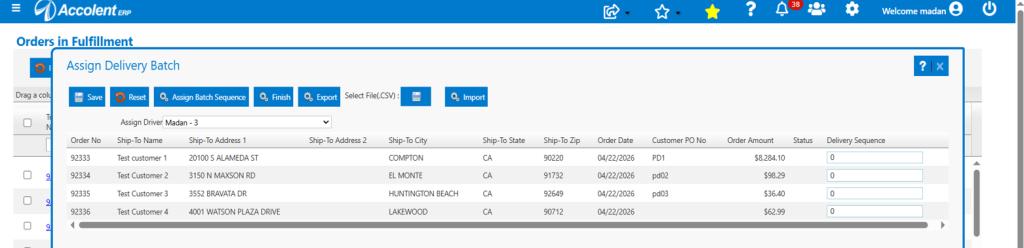
Export Delivery Addresses
- Click the Export button to download the data in CSV format.
- Manually enter the Warehouse Address as the starting point and ending point.

Log In to Route Optimization App (E.g., RouteXL)
- Upload the CSV file with the warehouse address set as both the starting and ending point.
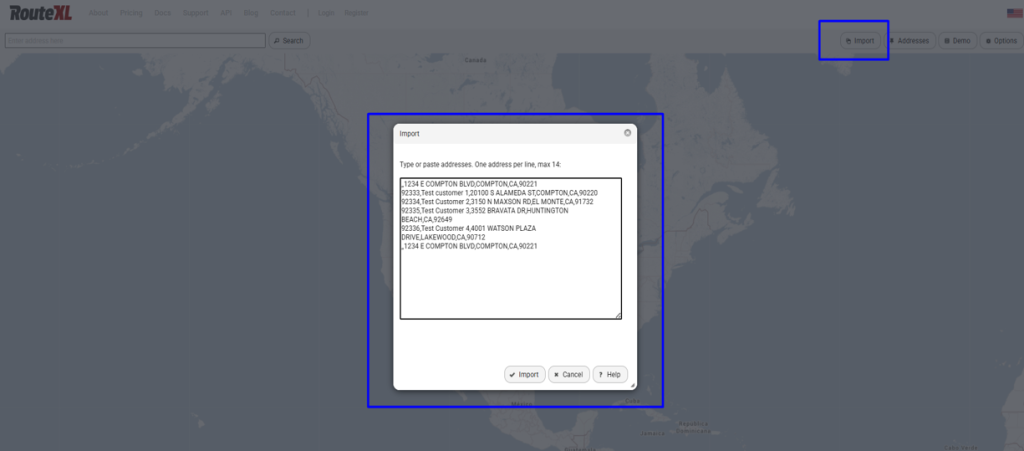
- The optimal route is then calculated and displayed on the map and stop numbers assigned to each delivery.
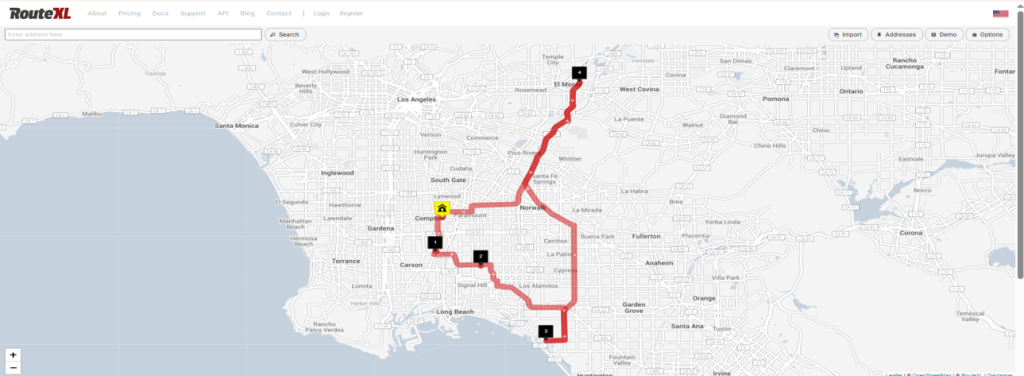
- The optimized route can be downloaded as a CSV file then imported into Accolent ERP.
- Click the Assign Batch Sequence to enter the stop numbers.
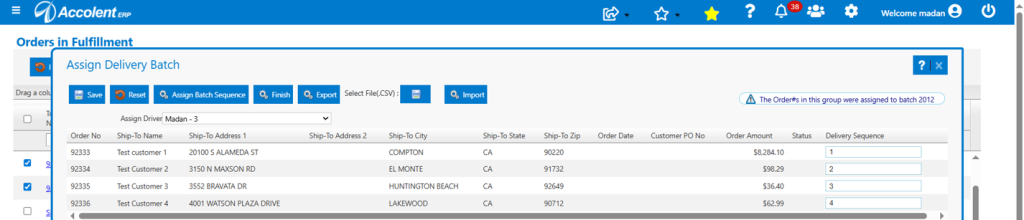
- The orders with the optimized route stops will then be pushed to the driver’s ADS POD App.
- Using the ADS POD App, the driver can make deliveries and collect proof-of-delivery information which will be sync’ed back to Accolent ERP.
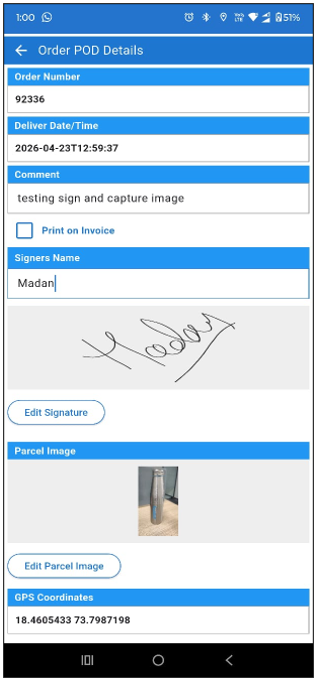
- See this wiki: https://help.accolent.net/using-the-ads-pod-app/
Re-Optimizing the Route
- If there is some need to re-optimize the route, the driver can call dispatch and the remaining stops can then be re-sequenced and re-sent to the driver’s mobile device.