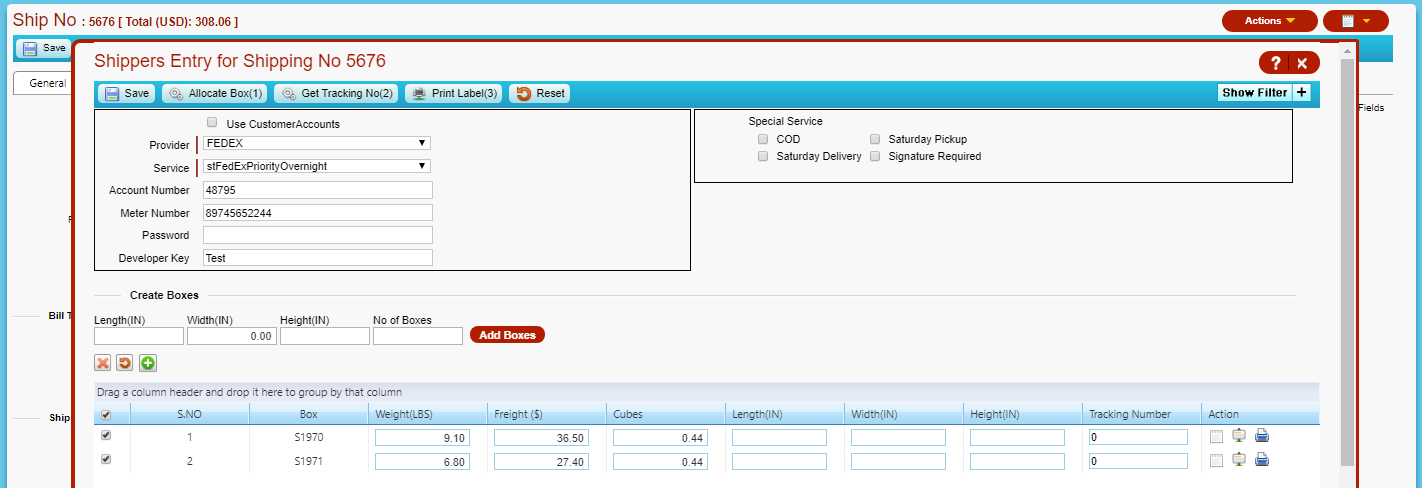
The Accolent WMS system allows for packing orders one at a time. To pack an order the picker will select the order in WMS, and then allocate each of the lines on the order to a box. Then weigh and enter dimensions of each box and print a Packing List for that box. When all line items have been assigned to a box, the system will automatically update the order to the status of packed. At that point the order may be shipped and invoiced. To assign a carrier, a service and add freight charges and a tracking number, open the order in Accolent ERP and open the Pack/Ship screen.
Set Order Status to Picked in Accolent ERP
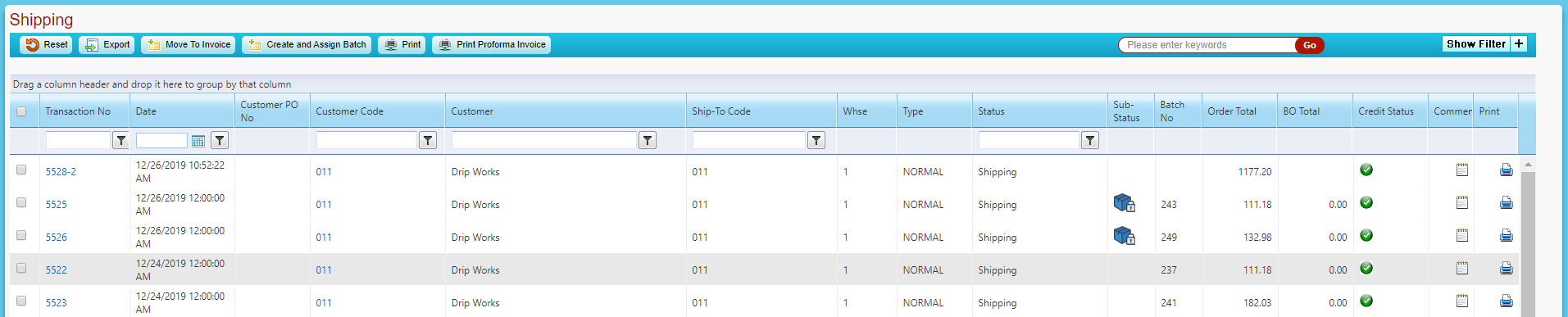
- To be available in WMS to be packed, the order must have a sub-status of Picked on the Accolent ERP List Shipments screen
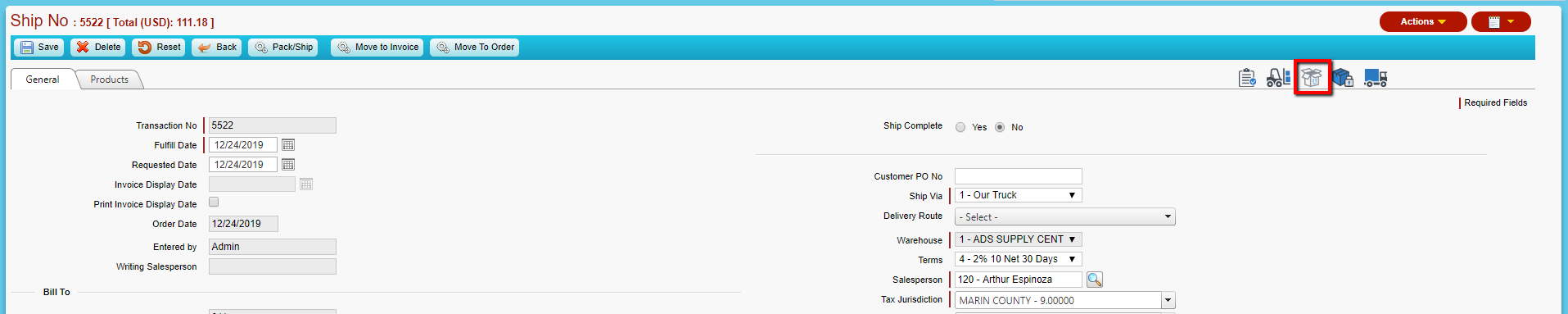
- To change the sub-status on any order in shipping, open the order and click on the sub-status icon
- For example, open order 5522 and set sub-status of Picked
- On the List shipments screen, order 5522 now has sub-status Picked
WMS Packing an Order
- Login to WMS on the handheld device
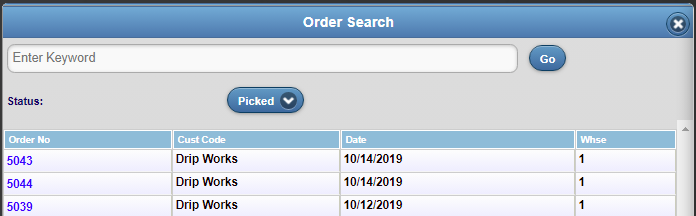
- Select Packing – brings up the Order Search screen which shows all orders with status of Picked
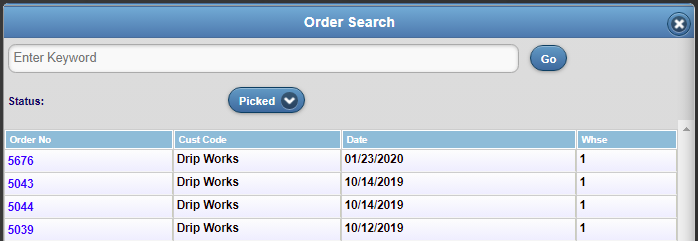
- Select Order 5676 goes to Pack Preview screen
- Brings up the Pack Preview screen which shows that this Order has 3 Order Lines and a total Qty of 6 items
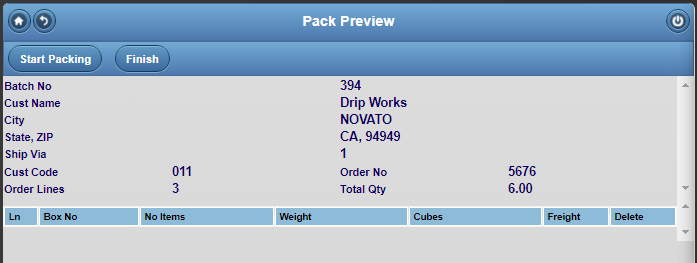
- Click Start Packing to bring up the Pack Screen
- Click Start to begin to pack a box and End to complete a box
- Click lookup to see the list of products on the order
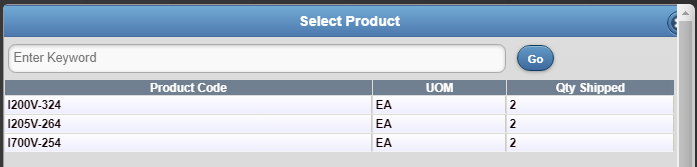
- Scan or enter or select item I200V-324 to go in this box and enter Qty Packed
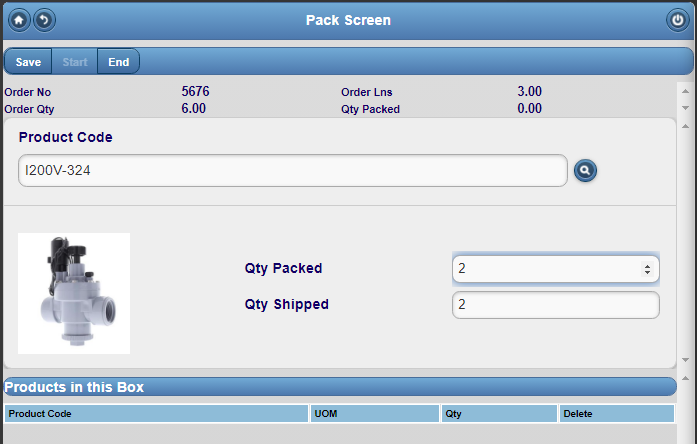
- Click Save to add to the grid that records the items in this box
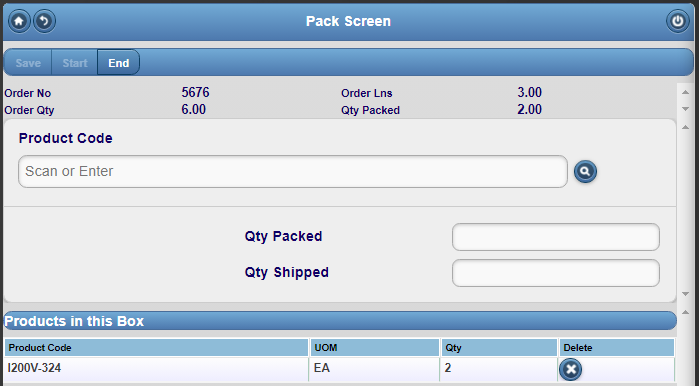
- Click Product lookup which will now have only two line items remaining
- Select I205V-264 to add to the box and scan or enter Qty Packed
- Click End to end the box
- Enter weight and cubes details for box S1970
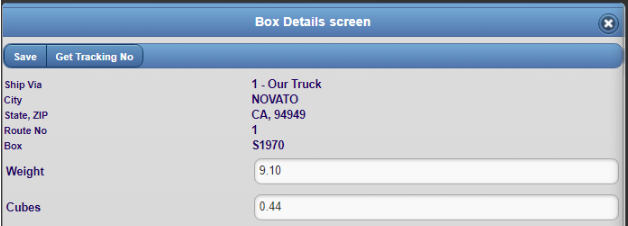
- Click Save to complete this box
- Then click Start to begin a new box
- Then scan or enter the next product, or use the product lookup and select a line item from the grid
- Enter Qty Packed for the product then Save
- Continue to add other products
- When complete, click End to finish the box
- Enter details for Box S1971
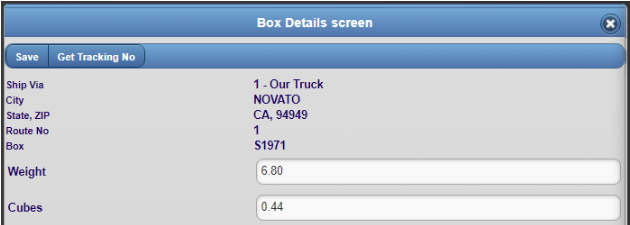
- Since order is fully packed, Save brings up the Pack Preview screen
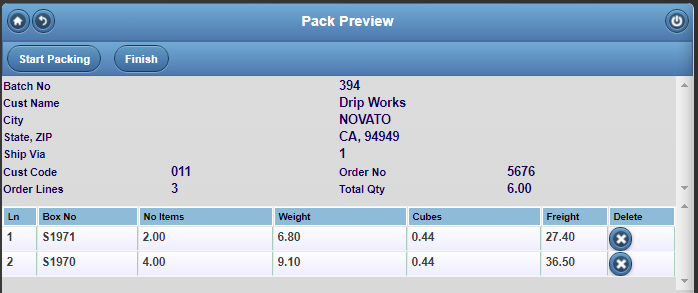
- Click Finish to bring up the Packing Result message
- Click OK to return to Order Search – 5676 is no longer in Picked status and so no longer appears on the list
Accolent ERP Updated
- Go to List Shipments in Accolent ERP – order 5676 was updated to Sub-Status of Packed

- Open order 5676
- Sub-status is updated to Packed, and weight and cubes are updated
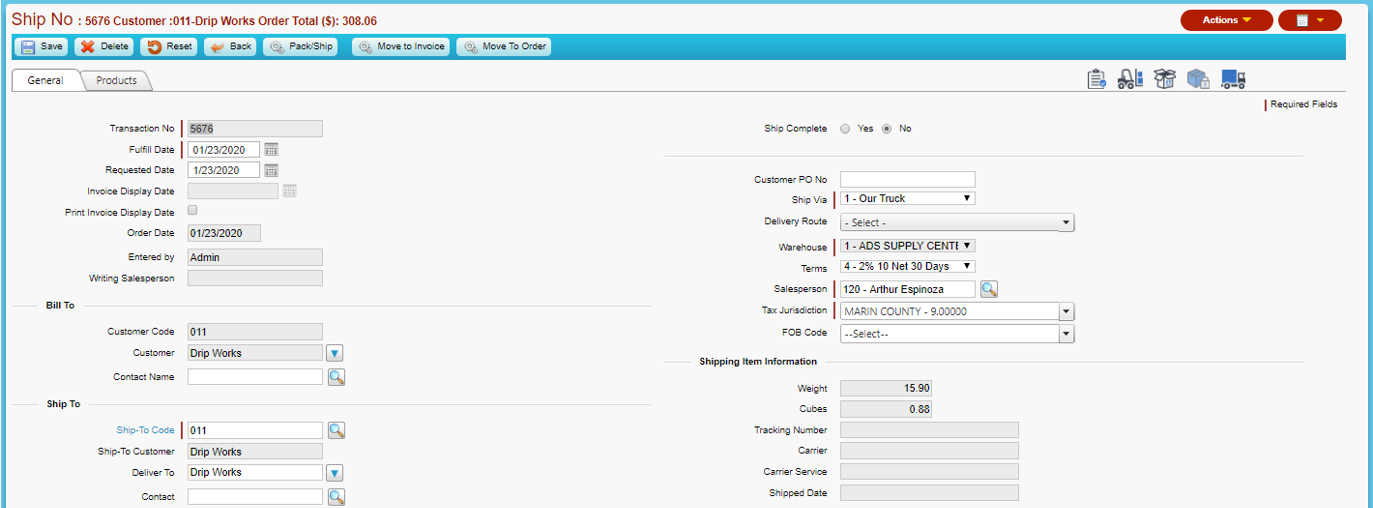
- Open Pack/Ship screen, which shows that weight and cubes were updated here too
- Select Carrier, Service and get Freight and Tracking numbers