
Accolent ERP supports Container Tracking which allows individual PO lines to be imported from Submitted POs that are ready to ship. In this way, Containers can be created to include lines from multiple POs and the total load weight and cubes of the combined PO lines can be kept within the maximums allowed. The Container can then be shipped, and the Container Costs incurred on the Container can be paid. Subsequently when the POs are received, the Container Costs can be apportioned between the POs in the Container as Landed Costs. The GL Posting on payment of the Container Cost vendors automatically debits Unconfirmed AP and credits AP. When the POs are received the Landed Costs apportioned to each PO debit Inventory and credit Unconfirmed AP.
Create and Submit POs
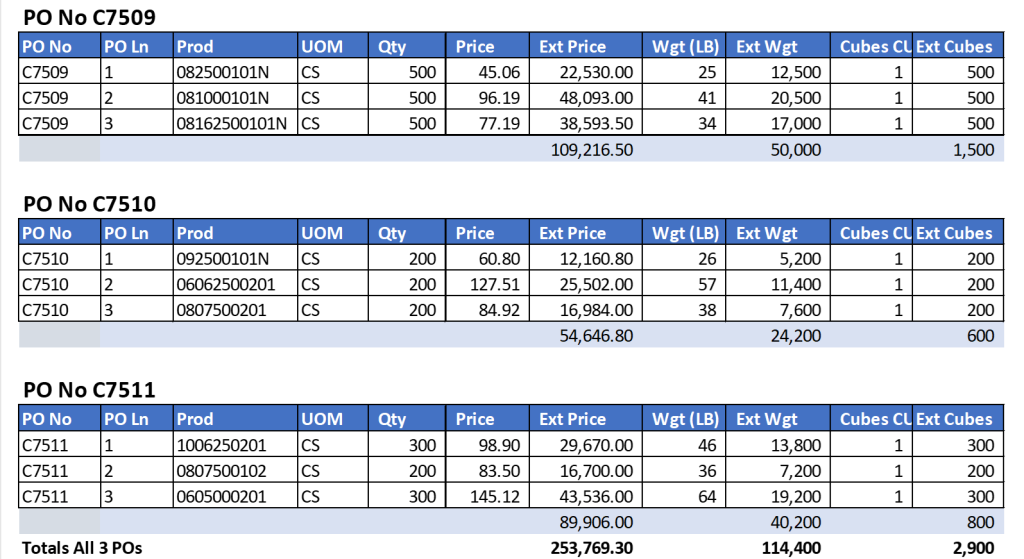
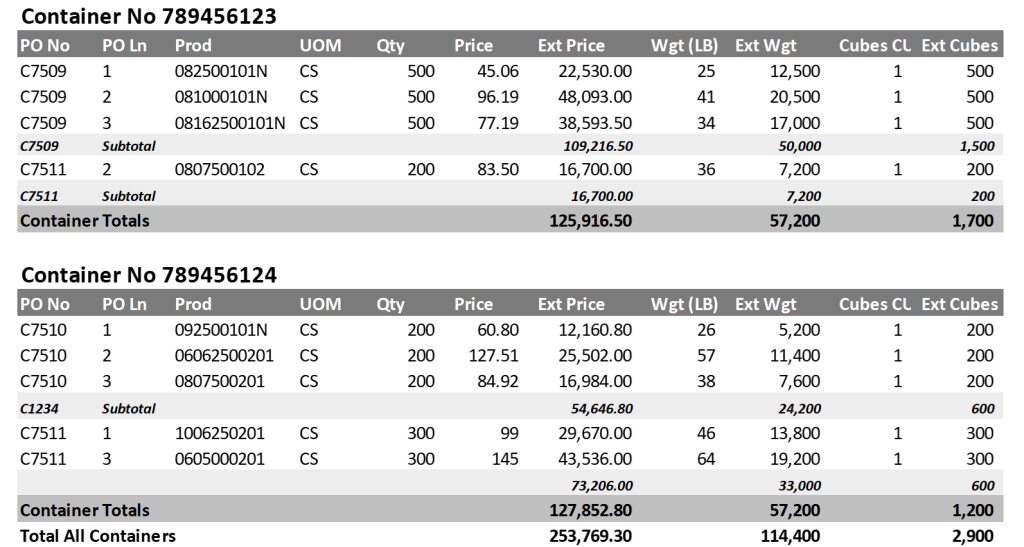
- 3 POs C7509, C7510 and C7511 with a total of 9 PO lines are placed with Vendor TN0567-Taiwan Heavy Industries
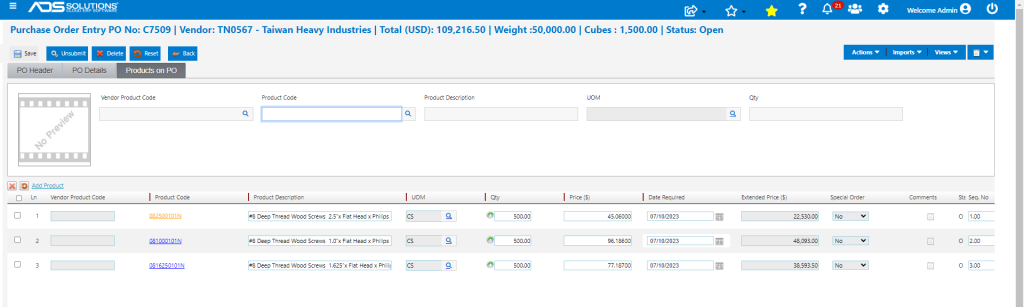
- PO C7509, has: Total Price: $109,216.50, Weight: 50,000, and Cubes: 1,500
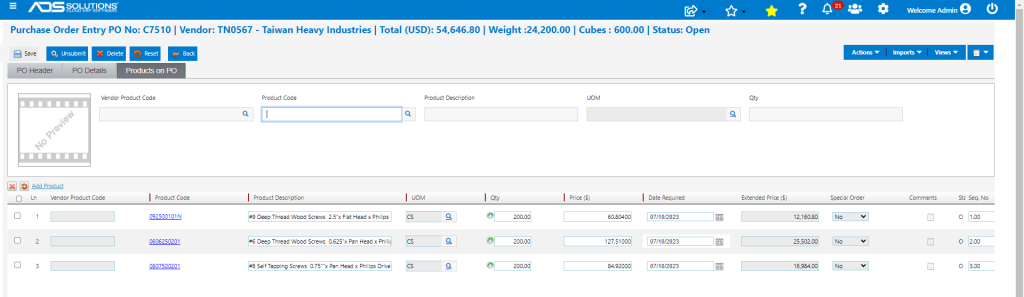
- PO C7510 has Total Price: $54,654.00, Weight: 24,200, and Cubes: 600
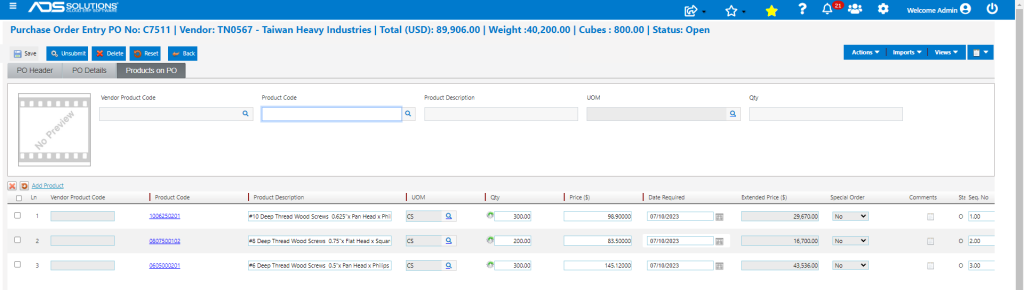
- PO C7511 has Total Price: $89,906.00, Weight: 40,200, and Cubes: 800
- The 3 POs Total Price: $253,769.30, Weight: 114,400 and Cubes: 2,900
- These POs can be shipped in 2 standard 40 Ft Shipping Containers
- So, for example, these 3 POs can be split up like this:
Create Containers
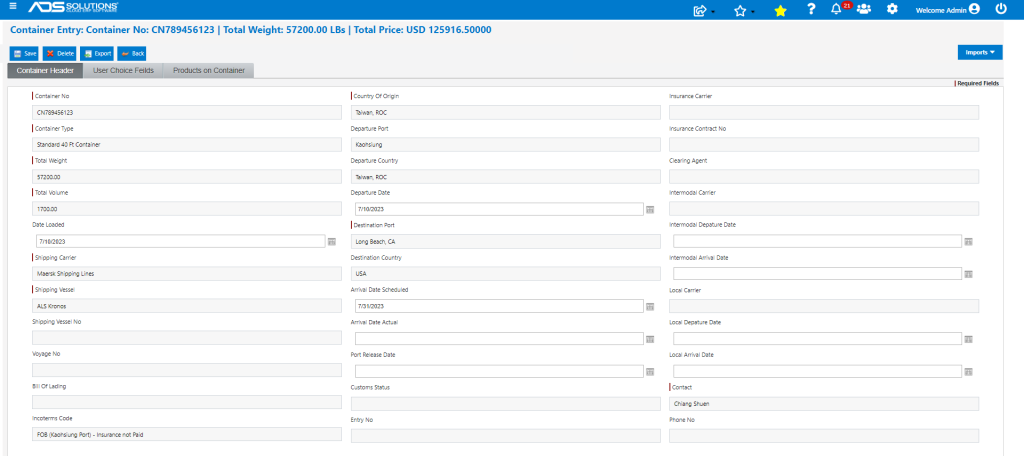
- Go to Purchasing/Vendors > Purchase Orders > Create Containers
- Enter information on the Container header if known; if not known, information may be added or updated subsequently when it becomes known
- Set up the first container
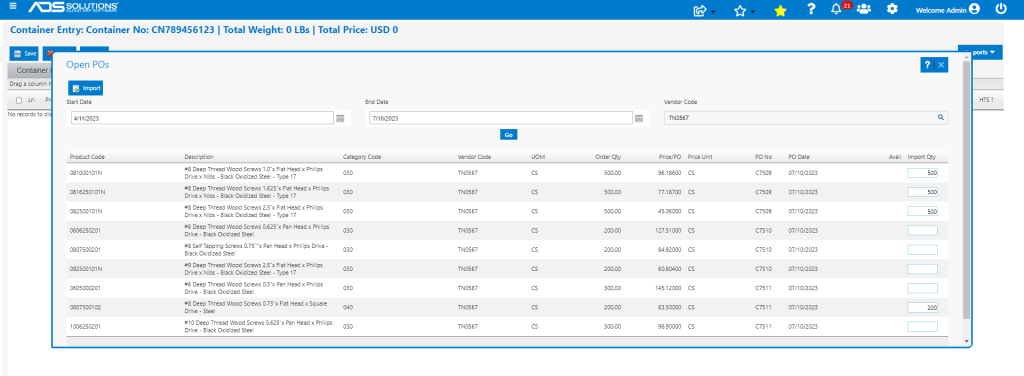
- To select PO Lines for the Container, go to Imports to select lines from various POs for that Vendor
- POs have to have beeen Submitted and have Status Open
- Set up the second Container 789456124
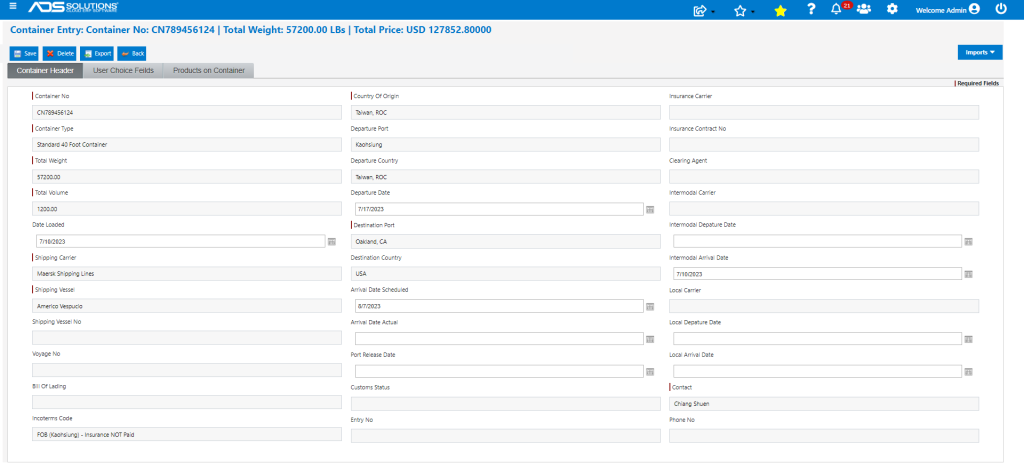
- Import remaining PO lines
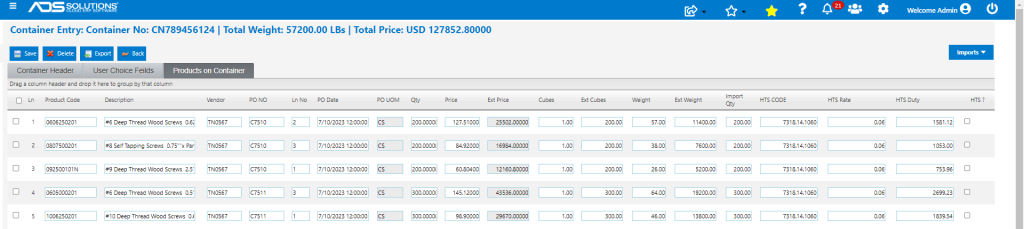
- The lines on any Container can be exported to Excel and filtered as needed to get the allocation of the total Extended Price, Weight and Cubes by PO
- For example, these are the lines on 7879456123 exported to Excel and filtered by PO

- Both Containers are now made

List POs Screen
- On List POs screen, clicking the PO Tracking Details for any PO shows the Container(s) associated with that PO
- Clicking on the Container hyperlink opens that Container screen

- For example, PO No C7511 is split between 2 Containers

Container Costs
- Typically, ownership is passed from seller to Importer once goods are packed in the Container and the Container is loaded onto the shipping vessel, but other terms may apply (See Using Incoterms wiki)
- The Importer will pay for the goods, the ocean freight, insurance, import duties (when cleared from the port) and other costs (collectively “Container Costs”) when these are due; NOTE the Container Costs vendors should all be set up as inventory vendors
- The GL Postings of the Container Costs will automatically be recorded as a Debit against Unconfirmed AP and a Credit to AP
PO Receipt
- When the POs are received, enter the Container Costs together with a Factor to apportion the total Container Costs between the PO lines in the container; these are the PO Landed Costs (see this Landed Cost wiki)
- So, for example, assume Container 789456123 is charged $25,740 for ocean freight which will be apportioned between the 2 POs C7509 and C7511 based on their relative weights in the container (87.4% to 12.6% respectively by weight)
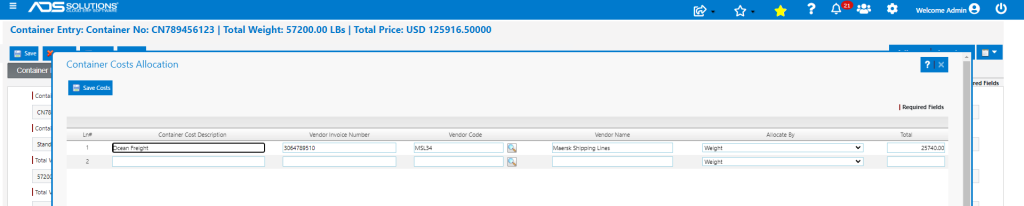
- The Container Costs can be saved on the Container and paid to the Vendor
- When one of the POs in the Container (e.g., PO C7509) is received the Landed Cost for ocean freight can be entered as $25,740 with a factor of 87.4%
- The result will be that $22,500 in ocean freight will be allocated to PO No C7509 and $3,340 to PO C7511
- The Landed Costs will be recorded as a Debit to Inventory and a Credit to Unconfirmed AP
- When all POs are received, the Unconfirmed AP posting of the Container Costs will be cleared out and capitalized into Inventory