
Accolent ERP allows the recording of the Landed Costs associated with receipt of a Purchase Order. In accordance with GAAP direct costs of products, such as Landed Costs, must be spread over the products on the PO and capitalized into inventory to be amortized to expense through COGS. The Landed Cost screen allows the various Landed Costs to be assigned to the PO. Select whether to allocate each such Landed Cost by (1) Extended Price, (2) Weight or (3) Cubes. When the PO is received the Average Costs of the products reflect the ex-works vendor price plus the allocated Landed Costs.
Set Up Landed Cost Types
- Go to Settings > Other Value Lists (A to L) > Dynamic Lookup.
- Search for Landed in the Keyword Search.
- This brings up the Landed Cost types already set up in the system.
- Click New to add another type if necessary.
- There are no limits on the number of Landed Costs types.

Create PO and Save Landed Cost Invoices or Estimates
- Create PO C9114.
- Prior to Receipt of the PO go to Purchase Orders > Receive Purchase Orders > Actions > Landed Cost, and record estimated Landed Costs.
- Note all Landed Cost Vendors must be already set up in the system.
- The Allocate By column allows each Landed Cost to be allocated to the products based on Extended Price, Weight or Cubes.
- The Factor column allows a single Vendor’s Landed Cost to be split among several POs (e.g., a single shipping vendor charge for freight on a container that includes multiple POs).
- When done click Save Landed Costs to record these in the system.
- These estimated Landed Costs can continue to be edited as documentation on the PO shipment continues to be received.
Receive PO and Enter Landed Costs
- Receive C9114 for Vendor 104.
- When PO is received, the Landed Cost entries should reflect the best available estimates of actual costs that will be incurred.
- The estimated Landed Costs at the time of PO Receipt will be capitalized into the Average Costs of the products in the shipment.
- If Landed Cost estimates differ from the actual vendor invoices, any overage/underage relative to the estimates will be treated as period costs when the invoices are paid.
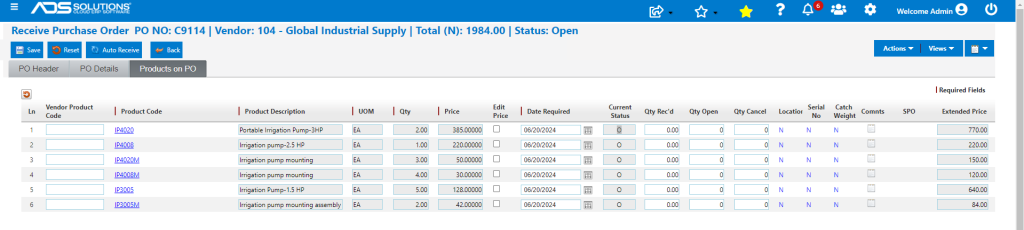
- Enter the Landed Costs; use the Factor field to apportion vendor invoice between various POs, if needed.
- Note that each Landed Cost vendor must have been previously set up as an Inventory Vendor.
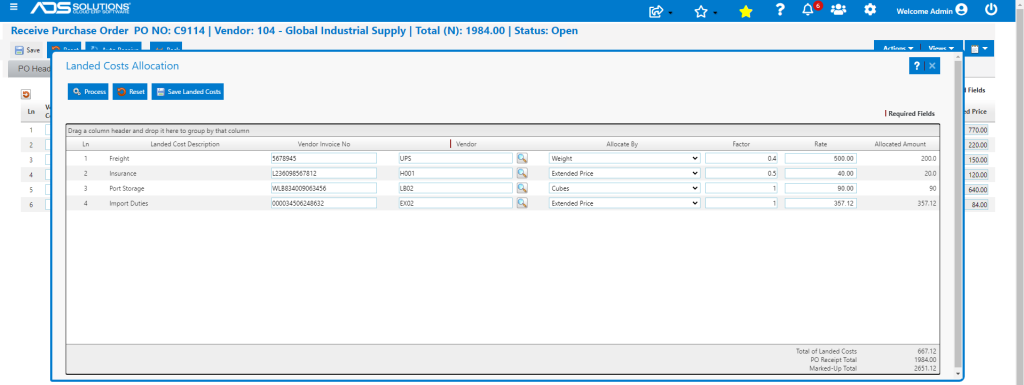
- Select for each Landed Cost whether it is allocated by (1) Extended Price, (2) Weight or (3) Cubes.
- Note to allocate by Weight or Cubes, these values must be set up on the product and will then populate on the PO.
Allocation into Product Average Costs
- Based on the selected allocation method, the Landed Costs will be allocated to the product lines as follows:
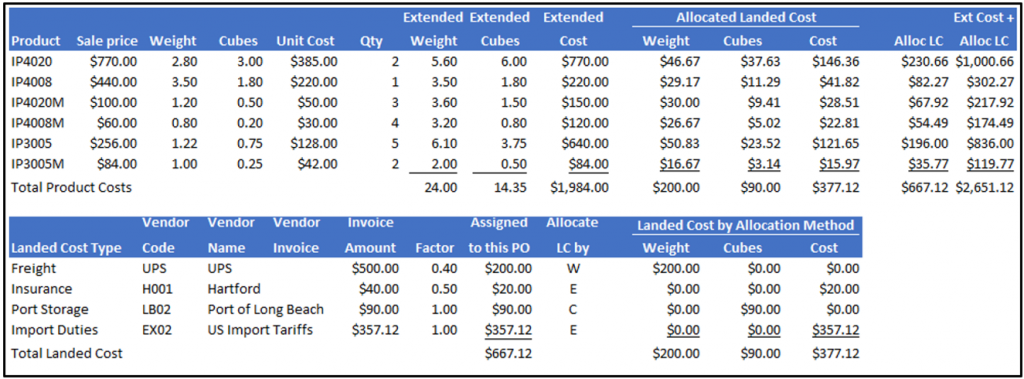
- These Allocated Landed Costs will be included in the Average Costs of the products.
- For example, look up the Average Cost for IP4020.
- The extended cost is $770.00, and the allocated landed cost is $230.66.
- Ending Avg Cost = [($496.17204 x 4) + $770.00 + $230.66] / 6 = $497.55793.
- Extended cost and landed cost are both capitalized into the new Average Cost.

GL Posting
- Go to General Ledger > Manage GL > Evaluate Transactions.
- The GL posting is through the PO Receipts/Inventory Adjustment journal.
- PO Receipt 9460 represents the ex-works cost of the goods.
- PO Receipt 9461 represents the freight costs.
- PO Receipt 9462 represents the insurance costs.
- PO Receipt 9463 represents the port storage costs.
- PO Receipt 9464 represents the duty and tariffs.
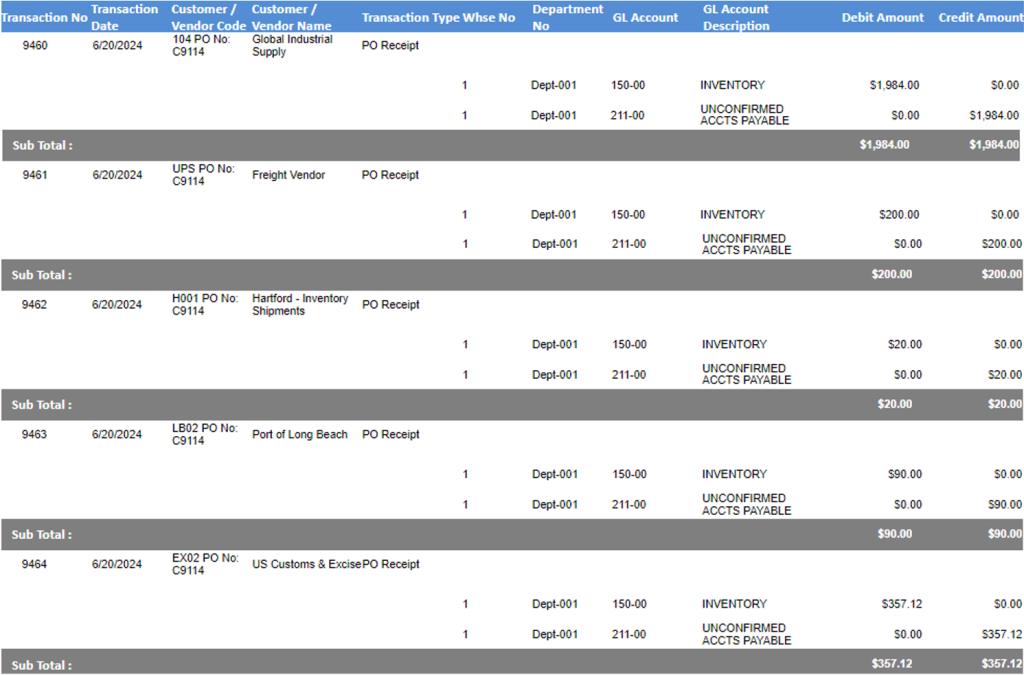
- The extended cost of $1984.00 and the landed cost total of $667.12 are debited to Inventory and credited to unconfirmed AP.
- Since each landed cost is separately receipted, and all landed cost vendors are inventory vendors, when a voucher is created to pay any of these vendors, the voucher can be linked to the PO No and Receipt.
Create Voucher to Pay Landed Cost Vendor
- Create Voucher to pay UPS.
- Look up and link to PO No No C9114 and Receipt 9461.
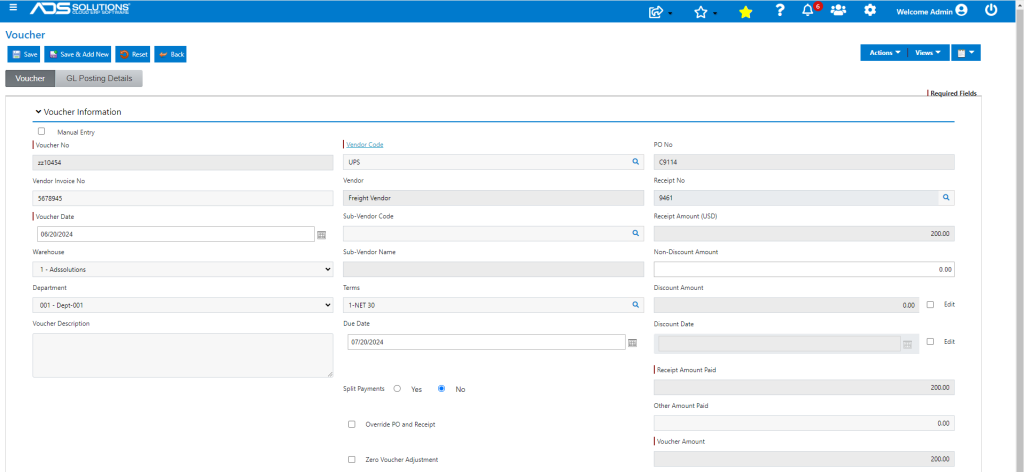
- GL Posting is a debit to Unconfirmed AP and a credit to AP
