
Accolent ERP uses an embedded third-party Business Intelligence and Reporting solution to deliver reports across the system. Accolent ERP forms are special-purpose reports. Accolent ERP is delivered with multiple standard forms and variants. All reports and forms may be viewed and edited directly from a web browser using HTML5 technology. This in-browser editing allows users to customize forms, as needed.
Accolent ERP Forms
- Accolent ERP includes multiple standard forms, which may be customized by users.
- Go to Settings > Printing & Sending > Forms Setup to see the list of forms.
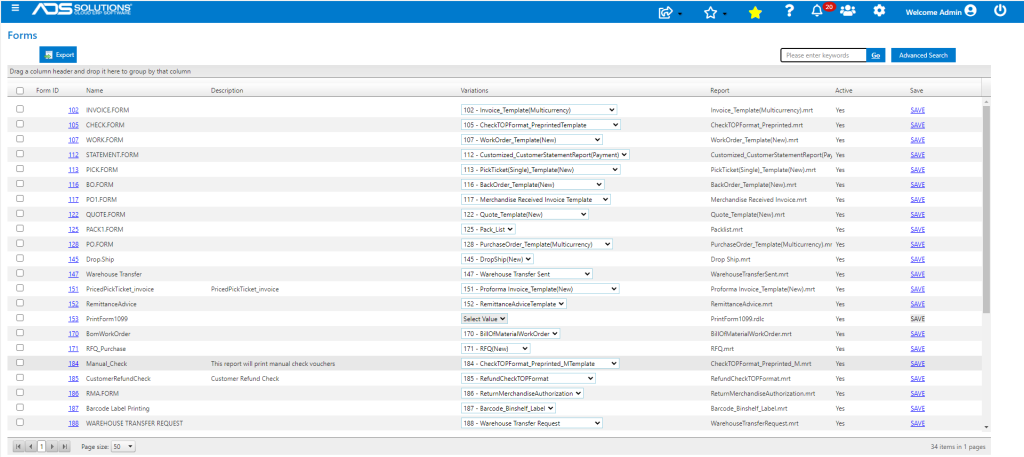
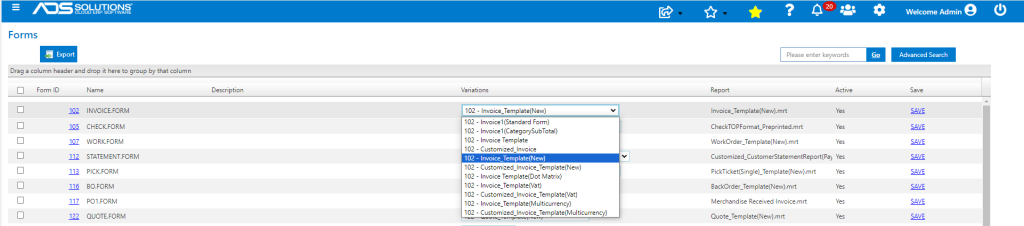
- For each form there are multiple pre-designed variations.
- Select the variation desired for each form.
- Select the form (e.g., 102 INVOICE.FORM), then select the Invoice Template Variation and click SAVE.
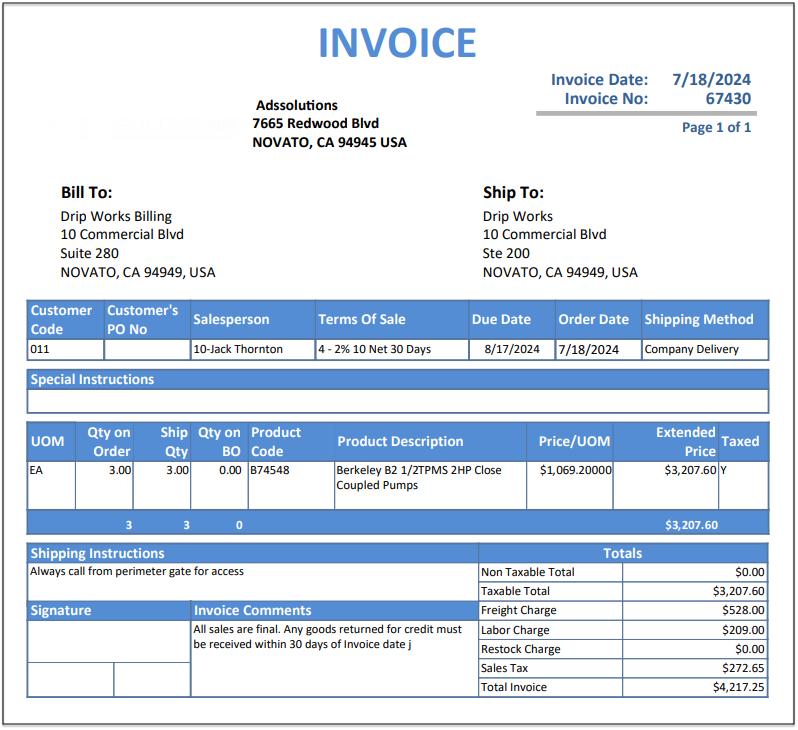
- Once this is done, any invoice printed from Accolent ERP will be printed using the Invoice Template form.
- The Accolent ERP forms are designed to print on laser printers using US Letter sized paper.
Customizing Accolent ERP Forms
- Accolent ERP forms and reports are delivered by Stimulsoft which allows all forms and reports to be customized using the in-browser report designer and editor.
- The report designer is fairly intuitive and there are several how-to videos that can be viewed on the Stimulsoft YouTube Channel
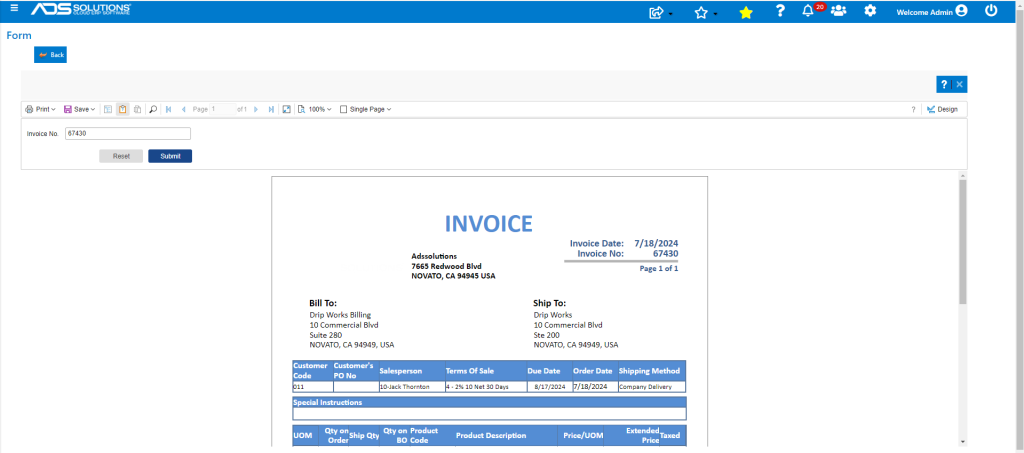
- To edit a form, select the variation from the dropdown and SAVE, then select the form using the form number (e.g., 102 INVOICE.FORM).
- Use the Design button on the top right of the screen to open the report designer.
- To use the report designer to change the look and feel of the forms and to make other simple changes, review this help wiki Modifying Layout of Standard Forms.
- To add/change your logo, see this wiki Adding Logos to Standard Forms.
- You can also use the report designer to add or remove fields or modify the grids or change the groupings or sorts, although these kinds of changes are more complex.
- Once you are satisfied with the changes, Save the edits.
- Your edits will appear in a Customized variation of the form; you will need to select the Customized variation then SAVE in order for your customized form to be used.
- The original standard form will be unchanged by your edits.
- Note that for each form you can have only one Customized variation.
- If you don’t want to customize the forms yourself, we can do this for you.
- If you want us to customize your forms for you, give us a detailed markup of what you want.
- We will charge you, based on our standard rates, for the time our professional services team spends modifying an existing form or creating a new form.