
Accolent ERP uses an embedded third-party Business Intelligence and Reporting solution to deliver reports across the system. Accolent ERP forms are just special-purpose reports. Accolent ERP is delivered with multiple standard forms and variants. All reports and forms may be viewed and edited directly from a web browser using HTML5 technology. This in-browser editing allows users to customize forms, as needed.
Using the Report Designer
- Accolent ERP forms and reports are delivered by Stimulsoft which allows all forms and reports to be customized using the in-browser report designer and editor.
- The report designer is fairly intuitive and there are several how-to videos that can be viewed on the Stimulsoft YouTube Channel
- If you need help customizing your forms, please contact ADS Solutions for Professional Services.
Selecting the Form Template
- Go to Settings > Printing & Sending > Forms Set Up.
- For a given form (e.g., Invoice) select the form 102 – Invoice Template from the dropdown and click SAVE.
- The Invoice Template form will have the extension “mrt.”

Changing Text Format
- Using the report designer, you can change the formatting of the text: font, font size, text color, fill color, bold, italics, etc., and you can change the text itself.
- To change the text format, first, select the text box you want to change.
- The ribbon on the Home tab shows all the text format options, similar to Microsoft Word, that will allow modifying the text format or changing the text.
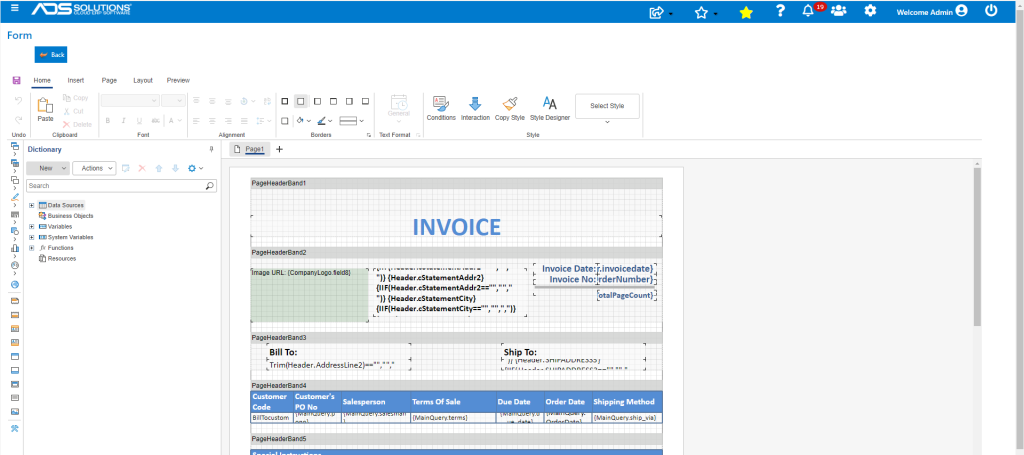
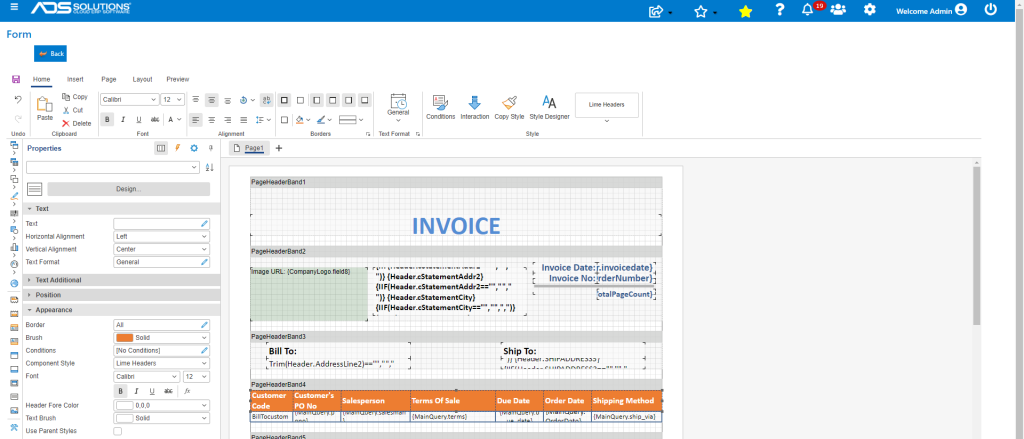
- To change the font of the fields in PageHeaderBand4, select them and use the Test controls to change from Calibri 12 to Arial 10.
- To change the fill of the fields in PageHeaderBand4, select them and use the Appearance controls to change the fill color to Orange.
Changing Labels in Existing Columns
- To modify an existing column in the form, double click on a column to select it.
- For example, select the “Terms of Sale” field in the PageHeaderBand4.
- To change the column name, double click on the cell to open up the Text screen.
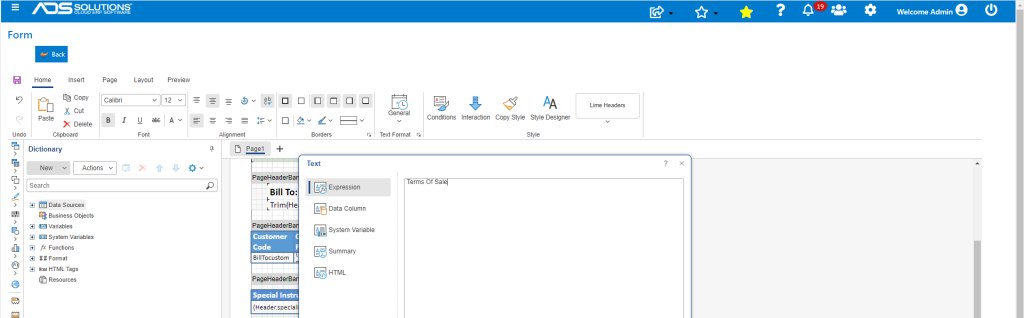
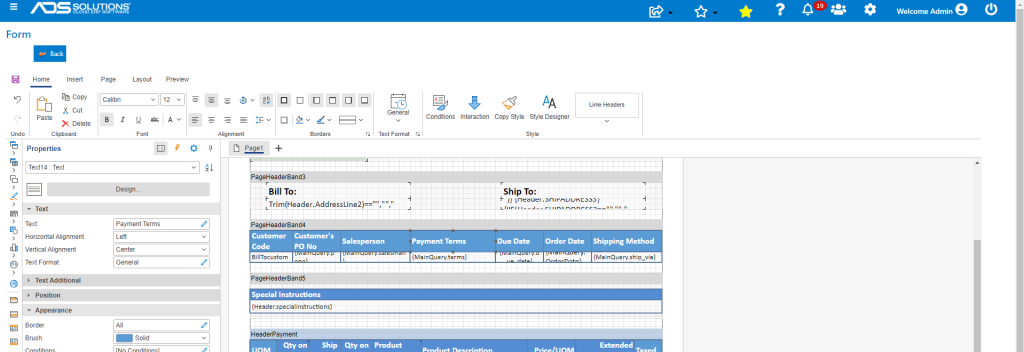
- Edit the label: “Terms of Sale” for example, and replace with “Payment Terms” and click OK – the text change is now made in the form.
Changing Data in Existing Columns
- To change the data displayed in the column, double click on Data Sources.
- Then change selection from “terms” to “comments” and click OK.
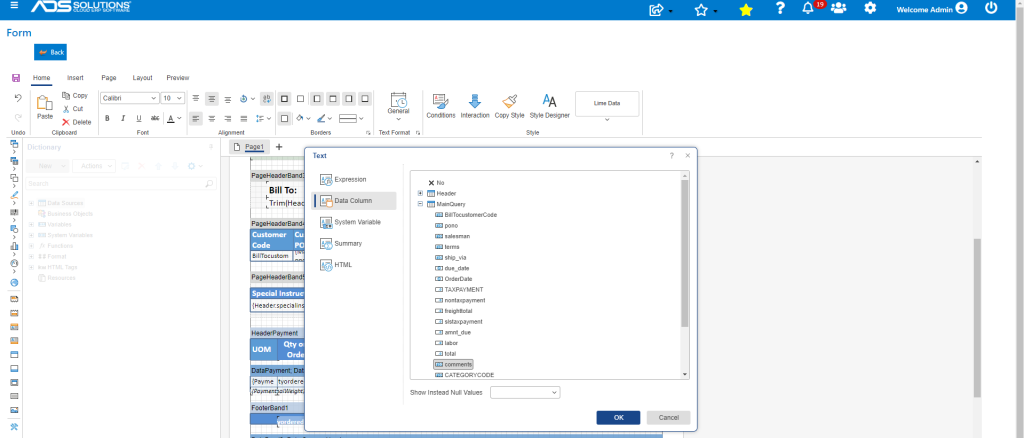
- This field on the form will now no longer display Terms but instead will display Comments.
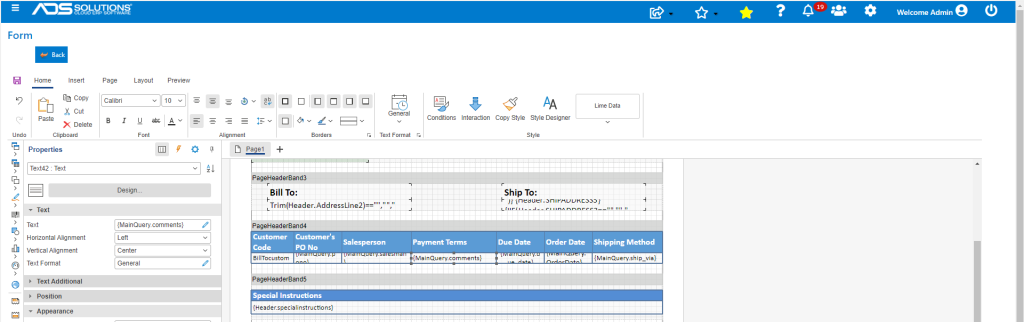
Adding Blank Rows/Space
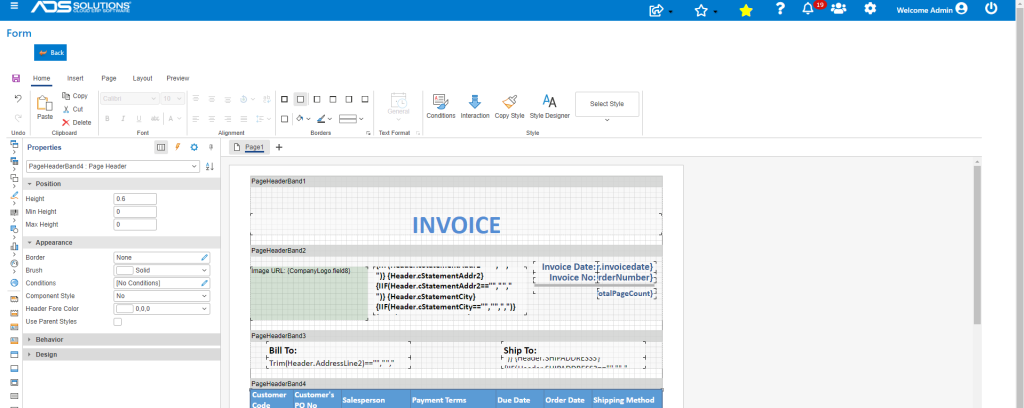
- To add more space in PageHeaderBand4, select the field to change and modify its properties.
- Currently the PageHeaderBand4 has a height of 0.6”.
- Change to something else if desired.
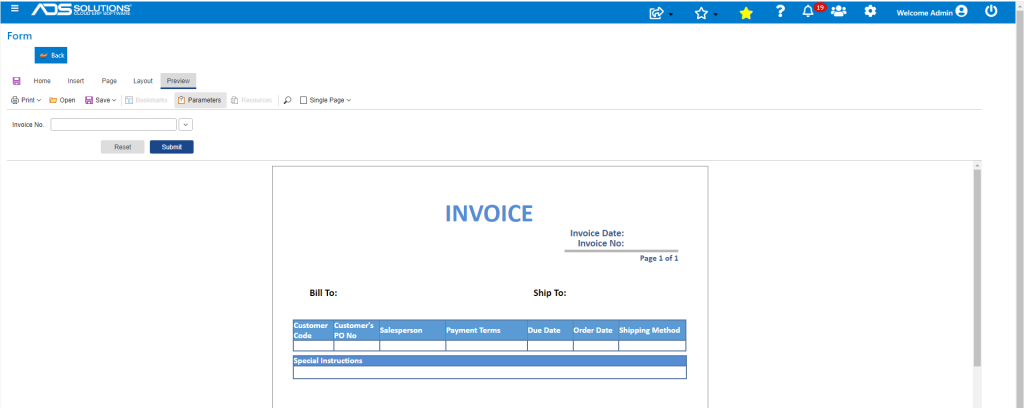
- Preview the form.
Saving Changes
- When done Save the form and it will create a Customized version of the original form.
- The original form will remain unchanged.
- You will have to then select the Customized version in Accolent ERP to use the form you just customized.