Accolent ERP allows Standard GL Adjustments to be entered into a CSV and imported into the system. Once imported the GL Adjustment entries will be posted to the General Ledger. This import capability has particular applicability to GL Adjustments that are made each month (e.g., recording depreciation). The GL Adjustment import cannot be used for recurring or reversing entries, these need to be made manually. Accolent ERP data Import Template Instructions provide field-by-field information on the data needed to fill out the CSV templates. Always review these instructions before populating a CSV import template.
Import Template
- Go to Utilities > Imports > Bulk Imports.
- Select Import Category: Value List and Select Import Type: GL Adjustment.
- Then click on Download Sample.
- Save CSV file.
Import Template Instructions
- Fill out the CSV import template according to the below field-by-field instructions.
| Field Name | Required Field? | Field Data Instructions | Sample data |
| GL ADJ NO | Required | Must be a unique alphanumeric identifier | 1950 |
| GL ADJ DATE | Required | Date in US date format of GL posting of entry | 3/30/2024 |
| DESCRIPTION | Required | Description of GL Adjustment | To record depreciation |
| WAREHOUSE | Required | Existing Warehouse | 1 |
| DEPARTMENT | Required | Existing Department | 1 |
| GL ACCOUNT NO | Required | Existing GL Account No | 525-00 |
| DR GL AMOUNT | Required | Debit amount for that GL Account No | 150.00 |
| CR GL AMOUNT | Required | Credit Amount for that GL Account No | 150.00 |
- Fill out sample.

- Then save file in Zipped CSV format.

Import File
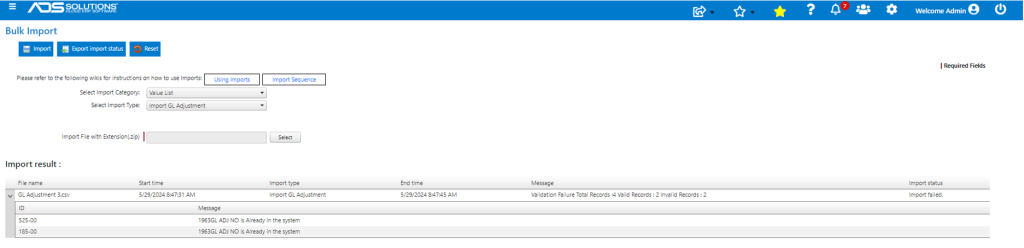
- Then click Select Import File with Extension(.zip) and browse to saved Zipped file.
- Click Import.
- Imports the GL Adjustments and reports on errors – in this case a previously imported GL Adjustment is identified and skipped.
GL Adjustments Made
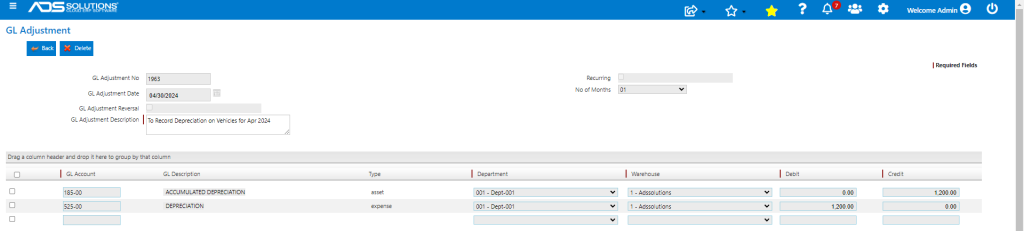
- Go to General Ledger > Manage General Ledger > General Ledger Adjustments.
- Shows GL Adjustments 1963 and 1964 made in the system.

- Open GL Adjustment 1963, which matches import.
GL Adjustments Posted
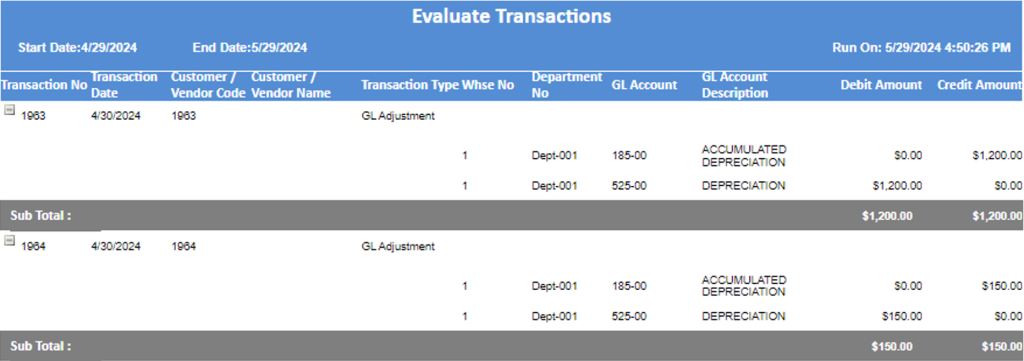
- Go to General Ledger > Manage General Ledger > Evaluate Transactions.
- Shows GL Postings made as of 4/30/2024.