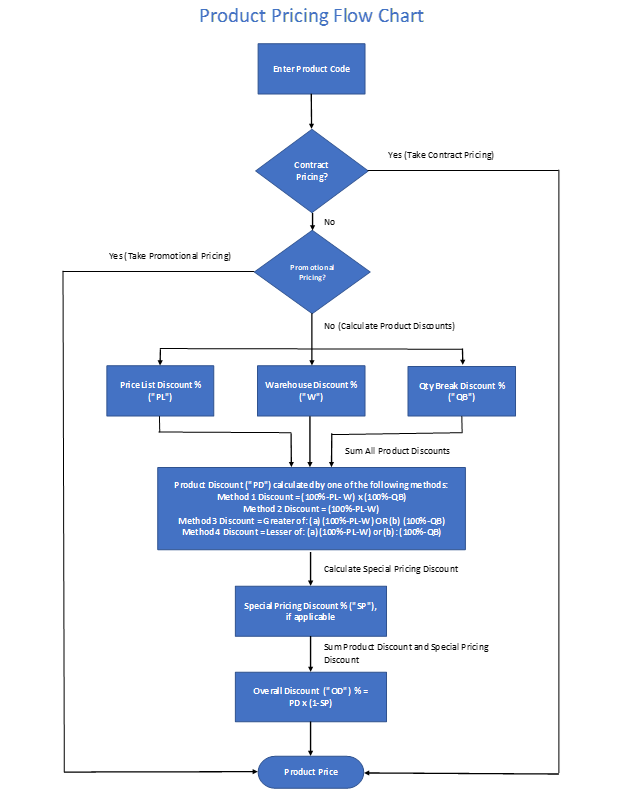
Accolent ERP allows the use of complex pricing tools that are also easy to maintain. These pricing tools pricing systems are designed to be both flexible in their application and powerful in their capability. Using the Accolent ERP pricing tools, distributors have unlimited flexibility to implement almost any desired pricing scheme. The pricing options include the use of Contracts, Promotional Pricing, Price Lists and Price Tiers, Quantity Breaks, Special Pricing and other discount methods.
Contract Pricing
Contract pricing is the top tier of the pricing system hierarchy. If Contract pricing is used, no other discounts apply.
- Contract pricing discounts can be specified as:
- percent discounts off list price
- percent markups from standard cost
- specific dollar amounts
- and specific quantity break levels
- Specific dollar prices are not available when entering Contracts by product category or sub-category
- With the appropriate permissions, Contract pricing may be overridden when entering a line item during order entry
- There will be a message displayed when a line item price is determined by a Contract
- An expiration date can be assigned to each item on a Contract. An Accolent ERP report can be generated at any time to show Contracts and expiry dates
- Contract pricing may be applied to specific products or to product categories or sub-categories. For specific products, different Contract pricing may be set up for different units of measure (“UOM”) for that product
- Contracts once created, can be linked to specific customers or to multiple customers
- When linking multiple Contracts to a customer, the user specifies the hierarchy in which the Contracts are considered. The first applicable Contract price is always taken
- See this wiki: Using Contract Pricing
Promotional Pricing
Promotional pricing can be used to discount products temporarily on sale. Promotional pricing is specified by product and allows specification of a start date and an expiration date for the sale. If Promotional pricing is used, no other discounts apply.
- If there is no Contract pricing, then Promotional pricing is considered
- Promotional pricing is similar to Contract pricing in that it overrides all other pricing features except Contract pricing
- See this wiki: Using Promotional Pricing
Product Discounts
There are 3 types of product discounts: Price List Discounts, Warehouse Discounts and Quantity Break Discounts, which may be specified separately for each product. Since Price List discounts are specified for a customer and Warehouse discounts are set for a warehouse and Quantity Break discounts are set for a product, there are several possible “methods” that can be specified for how to combine these.
Product Discounts by Price List (Matrix Pricing)
A Price List specifies for each product a set of discounts for various types of customer Pricing Tiers (e.g., Gold-tier customers get 5% discount, Silver-tier customers get 4% discount and Bronze-tier customers get 3% discount). Each customer is then assigned to a particular pricing tier (e.g., Silver-tier). The sale price of a product is then be determined from the Price List and the Pricing Tier to which the customer is assigned.
- Because many similar products can share the same Price List, Price List discounts are easy to maintain
- By changing a Price List, all products that use that Price List will automatically use the changed price
- Similarly, moving a customer from one Pricing Tier to another will affect all price discounts for that customer
- See this wiki: Using Price Lists
Product Discounts by Warehouse
Discount by warehouse allows for a discount based on the warehouse from which the sale took place.
- Warehouse discounts can be positive or negative
- A negative discount will cause a higher price and a positive discount will cause a lower price
- Warehouse discounts are not commonly used
- See this wiki: Using Warehouse Discounts
Quantity Break Pricing
A very common type of pricing involves giving discounts based on the quantity sold.
- Quantity breaks are defined through tables that provide percentage discounts at specified break levels
- Once built, a quantity break table can be assigned to as many products as desired
- Quantity Breaks can be applied through Contract Pricing or directly assigned on the Product
- If assigned directly to the product, Quantity Breaks will be combined with other product discounts from Price Lists and Warehouse Discounts
- See this wiki: Using Quantity Breaks
Pricing Methods and Pricing Combinations
- Products may be priced using Price List discounts, Warehouse discounts or Quantity breaks, or combinations; see this wiki: Using Price Lists
- Because Price Lists are set by customer, Warehouse Discounts are set by warehouse and Quantity Breaks are set on the product, there may be situations in which you don’t want all to apply
- Accolent ERP allows 4 different “methods” in which these discounts may be combined
- The method of combining the discounts is set on the Pricing Tier screen
- Method 1: The Price List discount (e.g., 5%) and Warehouse discount (e.g., 4%) are combined and applied to the list price (e.g., $100.00) of the product, and then the Quantity Break discount (e.g., 12%) is applied. So, the net price of the product is:
$100.00 x (100% – 5% – 4%) x (100% – 12%) = $80.08
-
- Method 2: Only the combination of the discounts by Price List and Warehouse are applied. The Quantity Break discount is ignored. So, the net price of the product is:
$100.00 x (100% – 5% – 4%) = $91.00
-
- Method 3: The combination of the discounts by Price List and Warehouse is calculated and compared to the Quantity Break discount The lower of the two prices is applied. So, the net price of the product is:
$100.00 x (100% – 12%) = $88.00 — since (100% – 5% – 9%) > (100% – 12%)
-
- Method 4: The combination of the discounts by Price List and Warehouse is calculated and compared to the Quantity Break discount The higher of the two prices is applied. So, the net price of the product is:
$100.00 x (100% – 5% – 4%) = $91.00 — since (100% – 12%) > (100% – 5% – 4%)
Web Discounts
Web discounts offer an additional product discount that can be applied to products sold through the Accolent Self-Service Portal or other linked Online Stores.
- Web discounts are defined for specific Pricing Tiers (e.g., Gold-tier Web discount of 1.5%) and are set on the Pricing Tier screen
- When a customer in a Pricing Tier that has a specified Web discount places an order from the Accolent Self-Service Portal, the additional Web discount will be applied
- For example, if a Gold-tier customer that otherwise qualifies for a total product discount of 12.7%, purchases from the Self-Service Portal, the price of a $100 purchase will be:
$100.00 x (100% – 12.7%) x (100 % – 1.5%) = $85.99
Special Pricing Discount
Special pricing is applied after all other product discounts are applied. Special pricing is defined as a percentage discount on top of the normal discount price. Special Pricing does not apply on top of Contract Pricing or Promotional Pricing
- During the entry of a sales line item, if Special prices have been applied, then a message to that effect will appear at the bottom of the screen, to notify the user of the pricing status
- Special pricing can be overridden in order entry
- Special pricing may be defined for specific products or for categories or sub-categories of products and for specific customers or for shared list of customers
- Special Pricing discounts if they are specified, will be applied on top of the product discounts calculated
- For example, if a Gold-tier customer that otherwise qualifies for a total product discount of 12.7%, gets a Special Pricing discount of 2%, the price of a $100 purchase will be:
$100.00 x (100% – 12.7%) x (100 % – 2%) = $85.55