Contracts are the highest level in the pricing hierarchy and are checked before any other method of pricing. Multiple Contracts may be specified for a customer, and each assigned a priority level. The system’s pricing check starts with the Contract with the highest priority and continues through all linked Contracts in order of priority until a Contract match is found. The first match found on a Contract will be the price returned to Order Entry.
Contracts Overview
- Contracts are the highest level of the pricing hierarchy.
- Contracts may be assigned a priority and the linked Contracts will be searched in order starting with the highest priority Contract.
- Once a match is made on a Contract, this price is returned to Order Entry.
- Contracts may be created by Product, by Category, by Sub-Category, or by Vendor.
- Contract pricing may be defined to calculate sales prices as fixed prices, based on markups from Standard Cost, discounts from List Price, target margins based on Standard Cost, or or may reference Price Lists or Quantity Breaks.
- Expiration dates may be assigned by Contract line and by Contract (a report is available to show Contracts that are nearing expiration).
- Once Contracts have been set up, they can be assigned to customers.
- One or more contracts may be assigned to a customer.
- A priority set at the customer level, determines the order in which the contracts are applied.
Setting up a Contract
- Contracts are created from Settings > Value Lists > Other Value Lists (A – L) > Contract Master List.
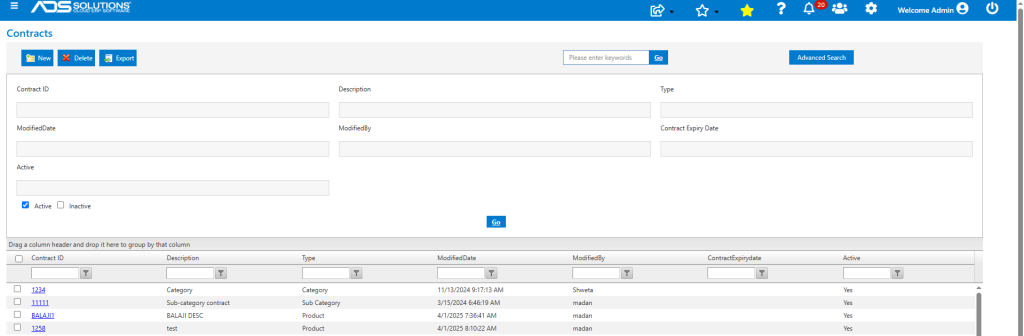
- Select New to create a contract master record.
- Based on the Contract Type, enter the Product, Category, Sub-Category or Vendor.
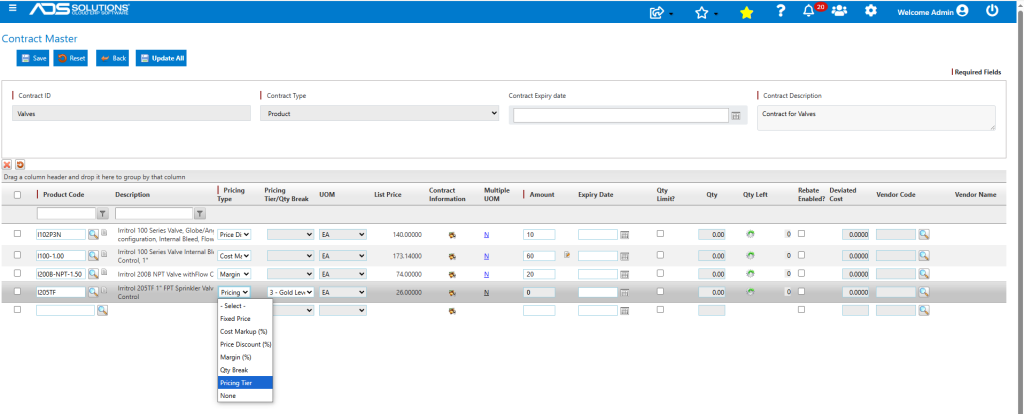
- Select the Pricing Type from the dropdown options.
- If the Pricing Type is (i) fixed price, (ii) discount from List Price (iii) markup from Cost or (iv) margin, enter respectively the price or the discount or the markup or the margin in the Amount field.
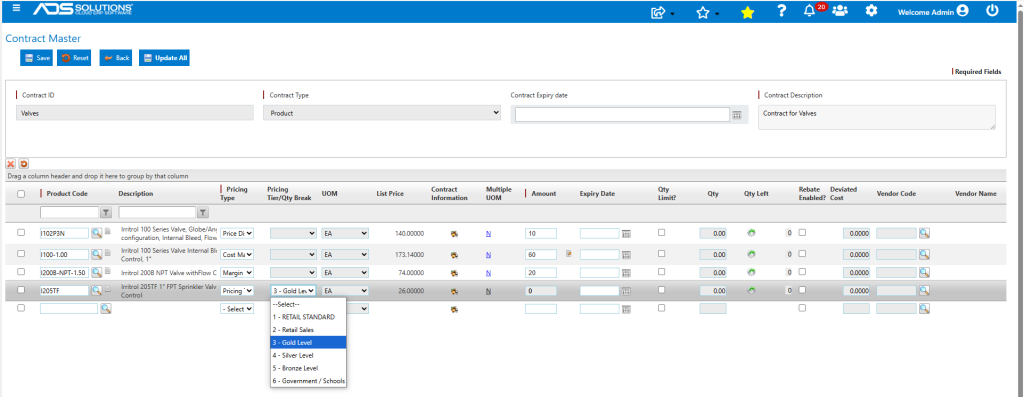
- If the Pricing Type is Pricing Tier or Quantity Break, select the specific tier or quantity break.
- If desired, enter an expiration date and a quantity under this contract.
- When done click Save to set up the contract.
Detailed Field Instructions
- Below are the descriptions and uses of the fields on this screen.
| Field Name | Description |
| Contract Code | Enter the unique Contract Code |
| Contract Type | Contracts may be based on individual Products, an entire Category, Sub-Category or Vendor (Note-vendor selections are based on the primary vendor assigned on the product master record) |
| Contract Description | Enter a Contract Description |
| Contract Expiry Date | Enter the expiry date for the whole contract |
| Product, Category, Sub-category or Vendor Code | Enter the specific Product, Category, Sub-category, or Vendor depending on the Contract Type |
| Pricing Type | Select how the contract price will be calculated from the dropdown. Selections are: (1) a fixed dollar amount (2) a markup percentage from Standard Cost, (3) a discount percentage from List Price, (4) a target margin percentage based on Standard Cost, (5) an existing Pricing Tier or (6) an existing Quantity Break |
| Pricing Tier/Quantity Break | If the Pricing Type selected was Quantity Break, this entry defines the specific Quantity Break table to use. if the Pricing Type selected was Pricing Tier, this entry defines the specific Pricing Tier to use. if any other Pricing Type was selected, this field will be grayed out |
| Amount | Enter the percentage (as a whole number) if the method is a markup or discount (e.g., 10% will be entered as 10). If the method is a fixed dollar amount enter that amount here. This field is not used if the method is quantity break or pricing tier |
| UOM | This is a display only field that is only shown if the Contract Type is Product. The default pricing UOM for the product will be shown. Click on Multiple UOM to add contract pricing for different units of measure |
| List Price | This is a display only field that is only shown if the Contract Type is Product. The current List Price for the product is shown as a reference |
| Contract Information | Once you have entered the percentage or fixed price, hover over this icon to see the calculated contract price |
| Multiple UOM | This field is only shown if the Contract Type is Product. If the product has multiple UOMs, a separate contract price may be entered for each UOM. This would only be necessary if you wish to give a contract price that would be different than the price based on the pricing unit of measure * the factor. For example, if a product has UOMs of EA and DZ (=12 EA), and if the contract price for EA is $1.00, and the contract price for DZ is $12.00, then no entry would be needed. However, if the price for DZ is $11.50, then a separate contract entry should be made |
| Expiry Date for this line of the Contract | If this field is entered, the contract price will only be valid until the expiration date |
| Qty Limit? | Select this checkbox if the contract has a quantity limit |
| Qty | This is the quantity on the contract |
| Qty Remaining | This is a read-only field that will keep track of the quantity left on the contract |
| Rebate Enabled | This should be checked if this is a rebate contract |
| Deviated Cost | This is the cost from the Vendor after giving effect to the rebate |
| Vendor Code | This is the Vendor Code for the vendor providing the rebate |
Assigning Contracts to Customers
- Once the contracts have been entered, assign one or more contracts to any customer.
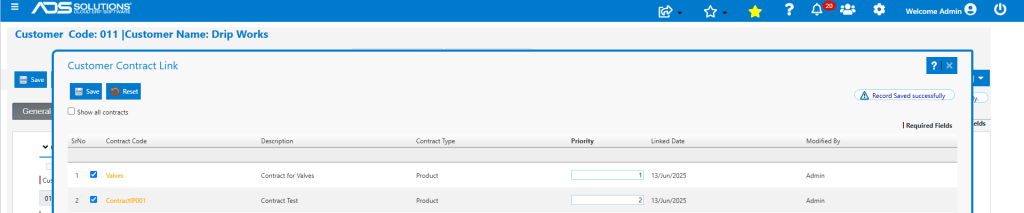
- From the Customer master, select Actions > Customer Contract Link.
- Select one or more contracts by placing a check mark to the left of the Contract No field.
- Enter a sequence number to determine in which order contracts should be accessed. Note, it is possible that a product may appear on more than one assigned contract.
Returned Contract Pricing
- In Order Entry, if the order has a bill-to customer different than the ship-to customer, the system will first search for Contracts on the ship-to customer, if none exist it will search for Contracts on the bill-to customer.
- If there are applicable Contracts found, the system will select the first Contract (in order of priority) that specifies pricing for that Product.
- This first Contract found will determine pricing of the Product even if there are other Contracts that also include this Product.
- Check the pricing by using the Price Quote option on the Views tab of the Customer master or the Product master, or by simply entering a test Quote or Sales Order.
- For example, for Customer 011, Contract Valves has priority 1, so Product I102P3N is priced at a 10% discount to List Price of $140.00 at $126.00.
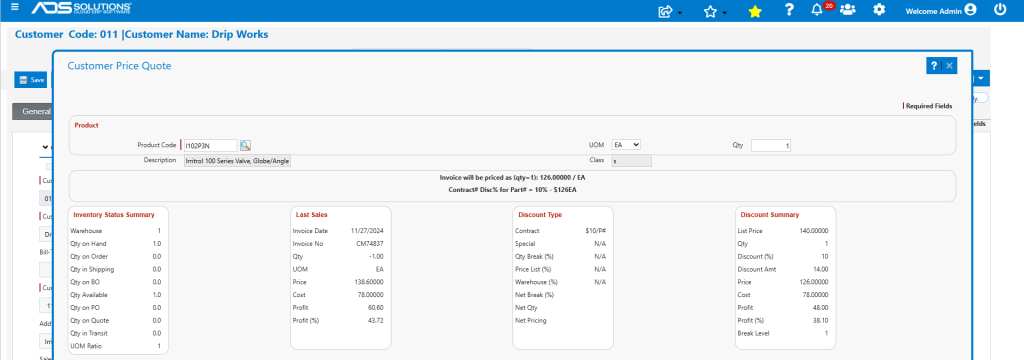
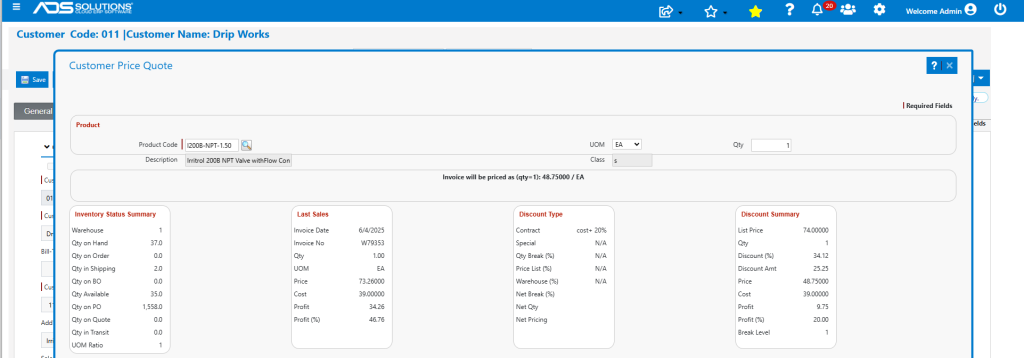
- Similarly Product I200B-NPT-1.50 for Customer 011 on Contract Valves is priced at a 20% margin, so Price is $48.75 which yields a 20% margin with a Cost of $39.00.