
Accolent ERP has a very comprehensive pricing system. One of the core pricing features is Price Lists. To use Price Lists, first set up Pricing Tiers to reflect the different types of customer groupings that get the same pricing (e.g., Gold Level, Silver Level, Bronze Level, National Accounts). Then specify a Price List that defines pricing methods for all Pricing Tiers. Once the Price List is set up it can be applied to a specific product, multiple products or multiple categories of products. Pricing by Price Lists is sometimes referred to as “Matrix Pricing.” Price Lists are sometimes used in conjunction with Warehouse discounts and Quantity Breaks. In these cases, the Pricing Tier also specifies the “method” used to combine these discounts.
Price Lists Overview
- Price Lists specify a set of discounts that apply to each customer Pricing Tier.
- A Price List once saved can be assigned to a product, or multiple products, or categories.
- Each customer then is assigned to a specific Pricing Tier.
- The pricing of a Product is then determined from the Price List and the Pricing Tier; this is also sometimes referred to as “matrix pricing.”
- Price Lists are sometimes used in conjunction with Warehouse Discounts and Quantity Breaks; if this is intended, there are 4 “methods” which specify how these different discounts are combined and these are specified by Pricing Tier.
Set Up Pricing Tiers
- The first step is to set up Pricing Tiers that will be applied to various customers.
- Go to Settings > Value Lists > Other Value Lists (M – Z) > Pricing Tiers.
- Set up the desired Pricing Tiers which could be for example, Gold, Silver Bronze, Retail.
- Each Pricing Tier will specify the method by which pricing is calculated for customers in that tier.
- The 4 methods available are:
- Combine discounts from Price Lists and Warehouse discounts then apply, then apply Quantity Breaks;
- Combine discounts from Price Lists and Warehouse discounts then apply, ignore Quantity Breaks;
- Combine discounts from Price Lists and Warehouse discounts then apply only the higher of this discount or the Quantity Breaks; and
- Combine discounts from Price Lists and Warehouse discounts then apply only the lower of this discount or the Quantity Breaks.

Set up Price Lists
- Go to Settings > Value Lists > Other Value Lists (M – Z) > Price Lists.
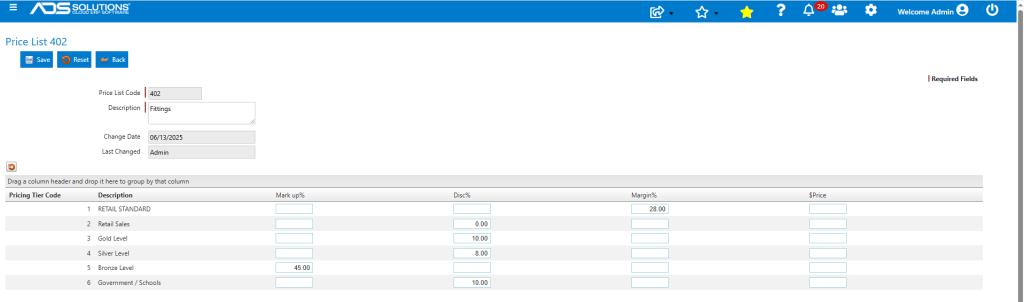
- Create a Price List that specifies pricing for each Pricing Tier.
- Prices can be set as mark-ups from cost, discounts from list, a target margin or as fixed dollar prices.
- There are no limits to the number of Price Lists that can be created.
- Click on the Save button and the Price List can then be linked to any product or categories or sub-categories of products.
Assign a Price List to a Product
- Go to Inventory/Products > Products > List Products then select the product and open up the product record.
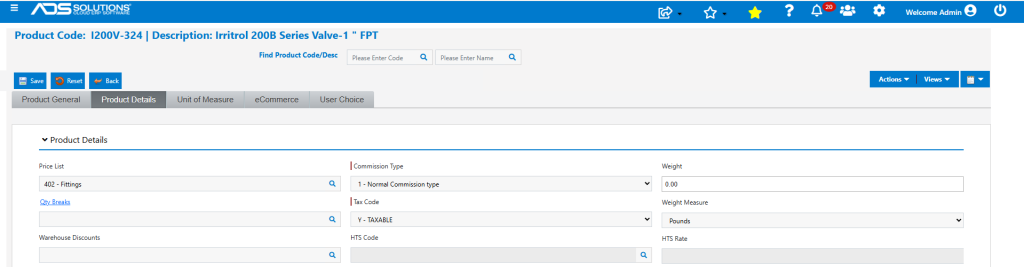
- From the product record, enter the Price List using the discounts tab.
- A Price List may be the only discount offered, or it may work in conjunction with Warehouse discounts and Quantity Break discounts.
- A Price List may be used for a single product, or multiple products, or multiple categories.
- Assigning a Price List to multiple products or categories simplifies maintenance and upkeep.
- For example, assign Price List 402 to Product I200V-324.
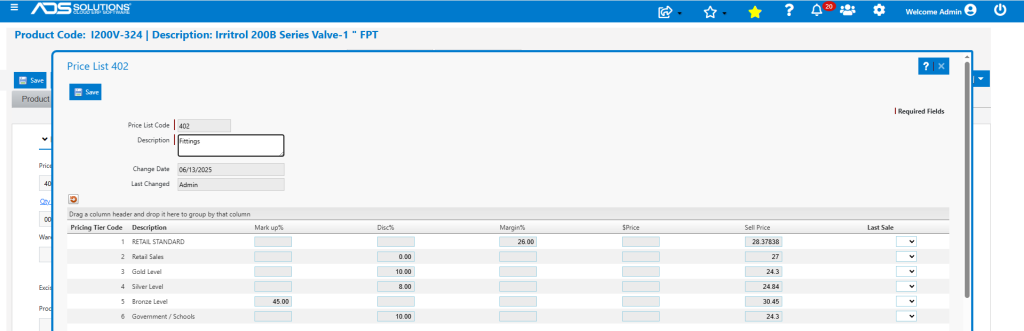
- Open Price List 402 to see the prices for this product.
- For example,
- For Pricing Tier 1, Cost = $21.00, Target Margin = 26%, so Price = $21.00 / (1 – 26%) = $28.37838.
- For Tier 3, List Price = $27.00, so Price = $27.00 x (1 – 10%) = $24.30.
- For Tier 5, Cost = $21.00 so Price = $21.00 x (1 + 45%) = $30.45.
- To verify pricing, go to Views > Price Quote.
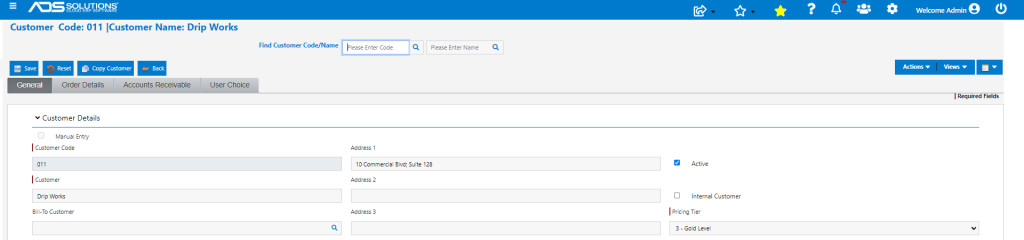
- Customer 011 is in Pricing Tier 3-Gold Level.
- Get Price Quote for product I200V-324 for Customer 011.
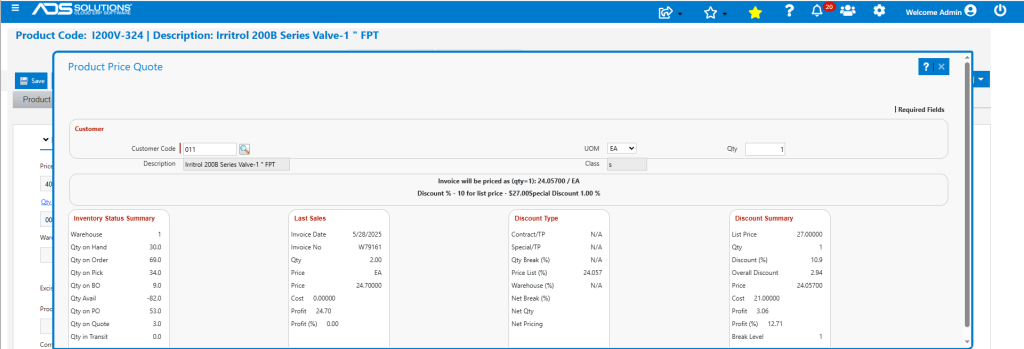
- Price reflects the 10% Price List discount for a Gold Level Pricing Tier plus a Special Pricing overall discount of 1%.
- The net price is List Price of $27.00 x (100% – 10%) x (100% – 1%) = $24.057.
Assign a Price List and a Warehouse Discount to a Product
- Go to Settings > Value Lists > Other Values Lists (M to Z) > Warehouse Discounts.
- Select Warehouse Discount to assign.
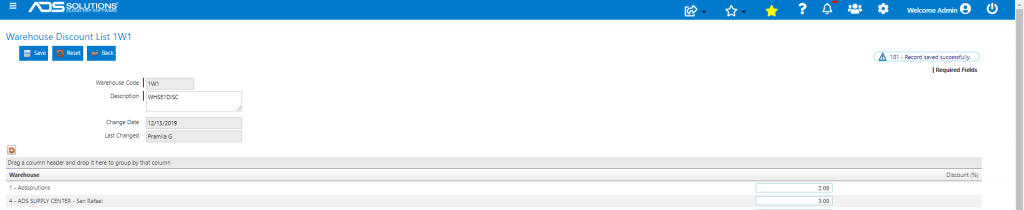
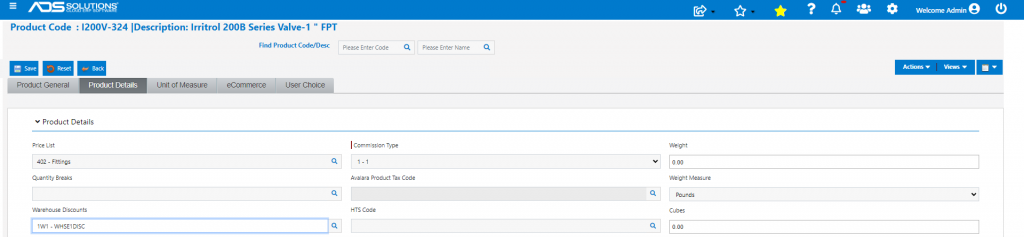
- Then select product I200V-324.
- Product I200V-324 already has Price List 402 assigned; also assign Warehouse Discount 1W1.
- To verify pricing, get Price Quote for Customer 011 in Pricing Tier 3-Gold Level.
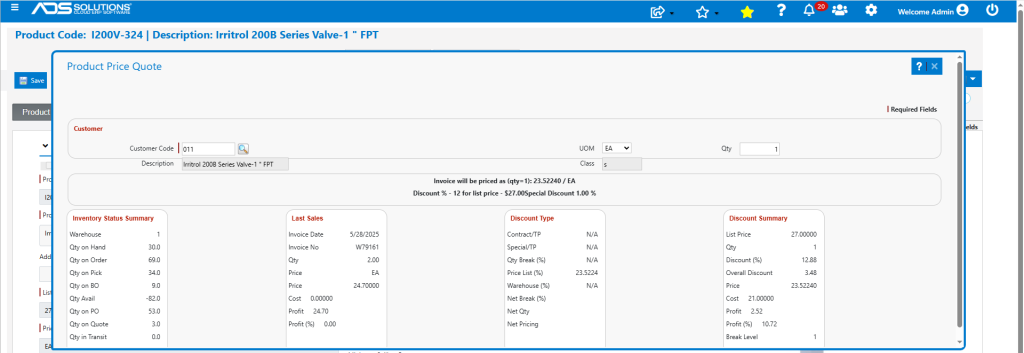
- Price reflects the 10% Price List discount for a Gold Level Pricing Tier plus a 2% Warehouse Discount for Whse 1, plus a Special Pricing overall discount of 1%.
- Net price is List Price of $27.00 x (100% – 10% – 2%) x (100% – 1%) = $23.52240.
Assign a Price List, a Warehouse Discount, and a Quantity Break to a Product
- Go to Settings > Value Lists > Other Values Lists (M to Z) > Quantity Breaks.
- Select Quantity Break to assign.
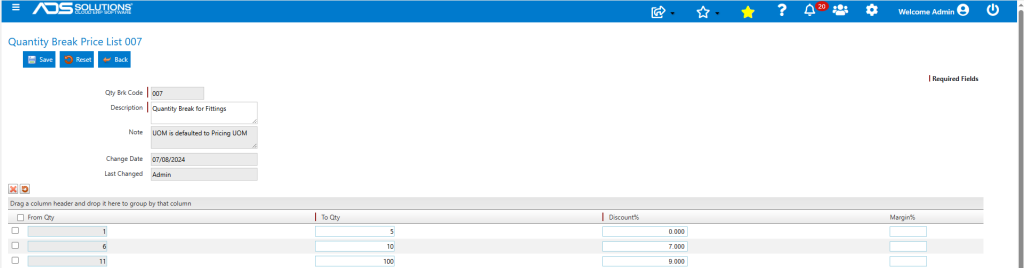
- Then select product I200V-324.
- Product I200V-324 already has Price List 402 and Warehouse Discount 1W1 assigned; now also assign Qty Break 007.
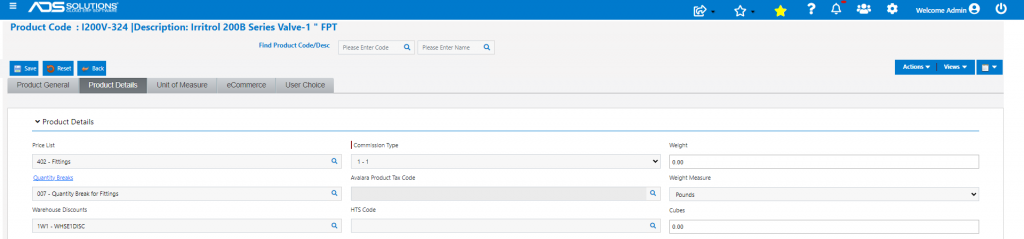
- To verify pricing, get Price Quote for Customer 011 in Pricing Tier 3-Gold Level that uses Method 1 for Qty of 6 EA.
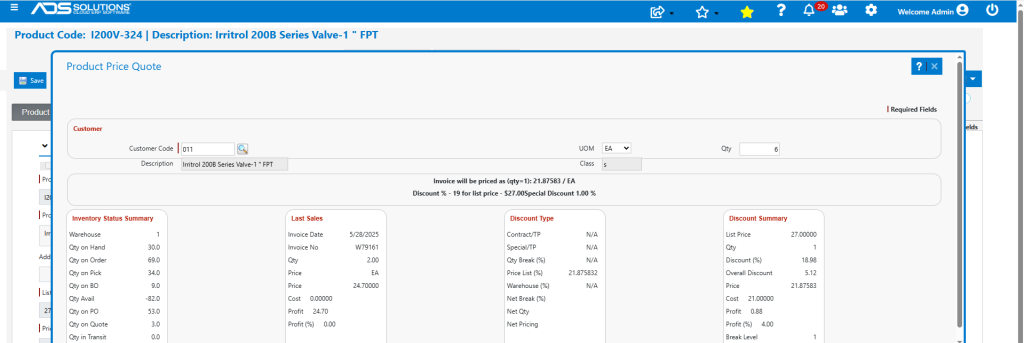
- Price reflects the 10% Price List discount for a Gold Level Pricing Tier plus a 2% Warehouse Discount for Whse 1, plus a 7% Quantity Break discount for a quantity of 6 EA plus a Special Pricing overall discount of 1%.
- Under Method 1: (i) first the Price List and Warehouse Discount are combined (10% + 2%) = 12%, (ii) then the Qty Break discount of 7% is applied and (iii) then the Special Pricing overall discount of 1% is applied.
- The Net price is List Price of $27.00 x (100% – 10% – 2%) x (100% – 7%) x (100% – 1%) = $21.87583.