
Accolent ERP allows for internal warehouse transfers between warehouses. To initiate a warehouse transfer, the Receiving Warehouse creates a Warehouse Transfer Request (WTR) similar to a PO. When the WTR is submitted, the system automatically creates a corresponding Warehouse Transfer Sales (WTS) order on the Sending Warehouse. Inventory is committed on the WTS order just as for any other sales order and reduces Qty Available in the Sending Warehouse. The WTS order can be picked, packed, shipped and invoiced just as for any third-party sales order, except that pricing will be at cost. When the WTS is invoiced and the goods get to the Receiving Warehouse, the WTR can be received and updates inventory just as for any third-party PO.
Internal Customers and Vendors
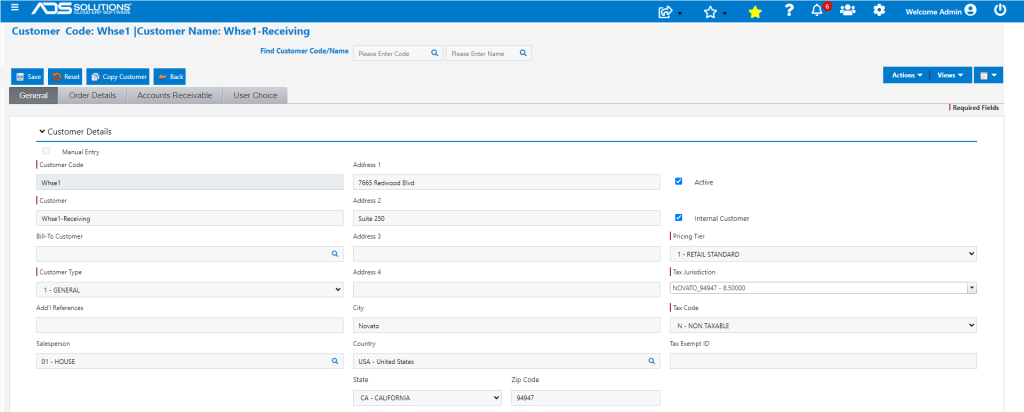
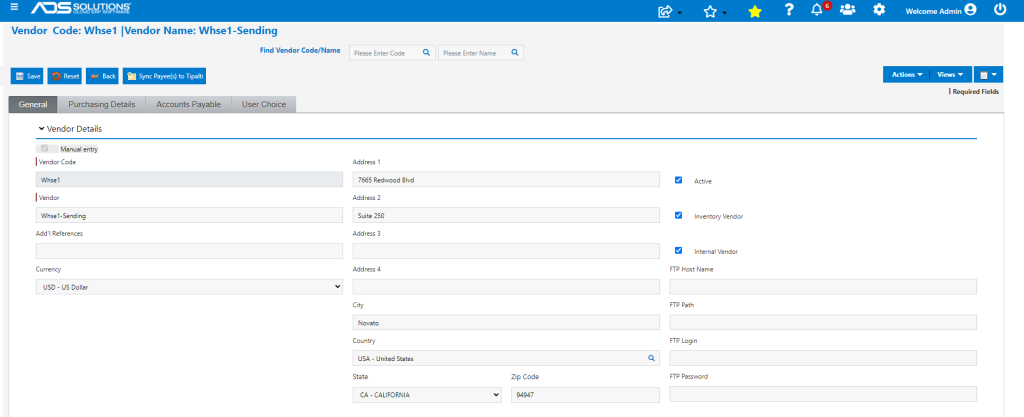
- Set up each Warehouse as an Internal Customer and as an Internal Vendor and mark as Non-Taxable.
- Internal Customer Whse1-Receiving for Warehouse 1.
- Internal Vendor Whse1-Sending for Warehouse 1.
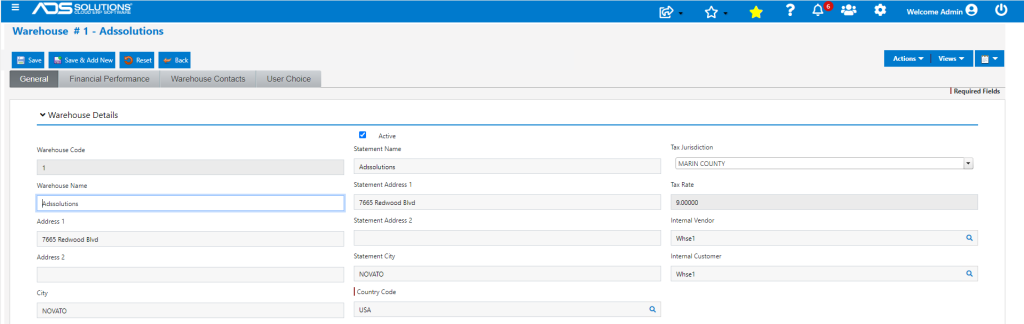
- Once each warehouse has been set up as an Internal Customer and Vendor, link these to the warehouse.
Initiate a WTR from the Receiving Warehouse
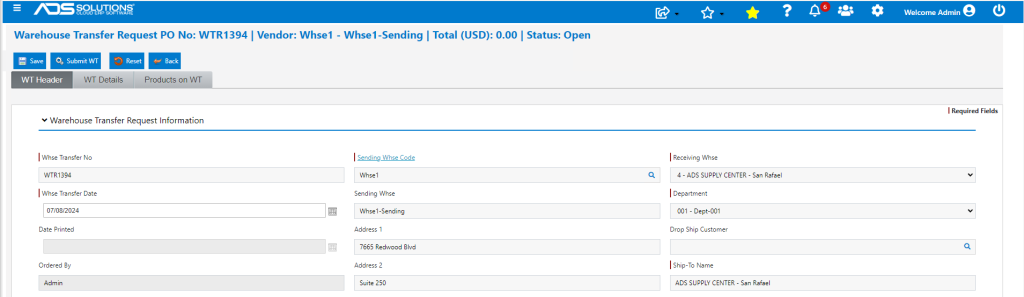
- Create WTR1394 to transfer goods from warehouse 1 to warehouse 4.
- Go to Inventory/Products > Warehouse Transfer Request > Create Warehouse Transfer Request.
- This works exactly the same as for POs to third-party vendors.
- Enter Sending Warehouse and Receiving Warehouse.
- Enter products to be transferred and then Save.
- Note that the Product Code is a hyperlink; clicking on the hyperlink will open the product in another tab allowing user to review inventory levels.
- WTR1394 will be created at the Alternate Cost of the Receiving Warehouse ($144.00/CS or $18.00/EA) just as for any PO.
- Then click on Save to save WTR1394.
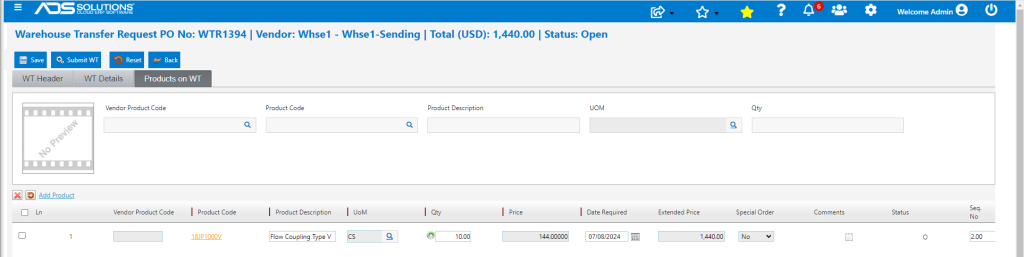
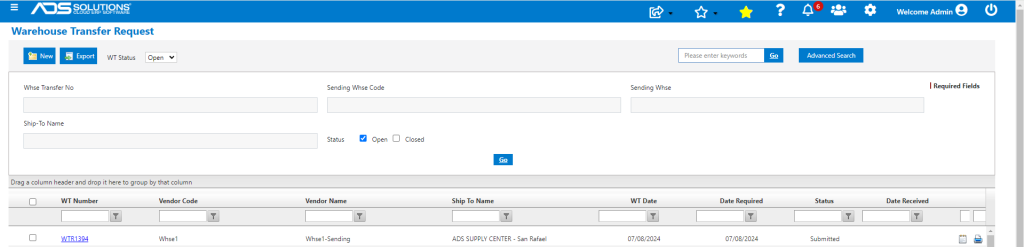
- This will create WTR1394 which will be shown on the List Warehouse Transfer Requests screen.
- Note, that until Submitted the WTR may be opened and added to.
- When complete, click on Submit WT to send WTR1394.
- The WTR form can be printed if desired.
Creates WTS Order on the Sending Warehouse
- Once submitted, sales order WTS1394 will automatically be created on the Sending Warehouse and will appear in the List Orders screen.
- The Customer PO No will reference WTR1394.

- Inventory will be allocated for this order.
- The Inventory status screen for the Sending warehouse will reflect the quantity on WTS1394 in QOO, thereby reducing Q-Avail.
- Order WTS1394 can be processed to Fulfillment, picked, packed, shipped then Invoiced.
- The process of fulfilling and invoicing the WTS works exactly the same as for any third-party sales order.

- When invoiced, the price and the cost on the WTS order is automatically changed from Alternate Cost for the Receiving Warehouse to Average Cost for the Sending Warehouse.
- Average Cost for the Sending Warehouse is $18.70488/EA, so extension for 10CS is $1,496.39.

Receive WTR
- The WTR will not be able to be received until its associated WTS order on the Sending Warehouse has been processed and invoiced.
- When the WTS is invoiced, the WTR will automatically be repriced to the price on the WTS.
- Prior to receipt, the WTR will show up on the Receiving Warehouse under Q-PO.
- When the transfer physically arrives at Receiving Warehouse it can be Received. To receive the WTR, go to Inventory/Products > Warehouse Transfer Request > Receive Warehouse Transfer.
- The process of receiving the WTR works exactly the same as third-party PO Receiving.

- Note that the total price of $1,496.39 on the WTR is the same as the price and cost on the sales order.
- Receive WTR1394 to complete the Warehouse transfer.
- Ledger card for Sending Warehouse shows 10CS or 80EA quantity transferred.

- Ledger card for Receiving Warehouse shows quantity received.

GL Posting
- All warehouse transfers are recorded at the average cost for the Sending Warehouse.
- A Warehouse Transfers GL Account must be set up on each warehouse.
- The GL posting at the Sending warehouse is through the Sales Journal.

- The GL posting at the Receiving warehouse is through the PO Receipts Journal.

- The Warehouse Transfer account at each warehouse reflects the outgoing transfers (debits) and the incoming transfers (credits).
- The aggregate of the Warehouse Transfers account for all warehouses should net out to zero upon cosolidation.