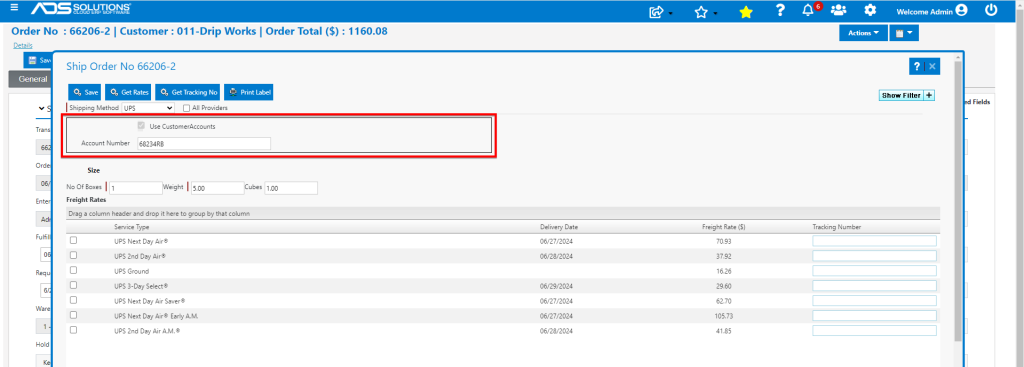
Accolent ERP uses EasyPost to provide users with access to over 70 common carriers and regional shipping companies. Accolent ERP also allows a user’s Customer’s Carrier Account settings to be saved on the cudstomer master screen. Then, if requested by the Customer, an order for that Customer may be shipped using the Customer’s indicated carrier and service and the shipment charges billed directly to the Customer’s account.
Create User’s EasyPost Account
- Accolent ERP supports multiple common carriers and regional carriers through EasyPost. See this wiki: Using EasyPost Multi-Carrier Shipping
- First set up an EasyPost Account, then specific carrier accounts may be set up, or imported if already existing. See this wiki: Setting Up an EasyPost Account
- Go to Settings > System > System Configuration, and enter the credentials.

- Once the EasyPost account is set up, all pre-existing Carrier Accounts can be added.
- EasyPost will then automatically pull in the rates and terms from these pre-existing carrier accounts.
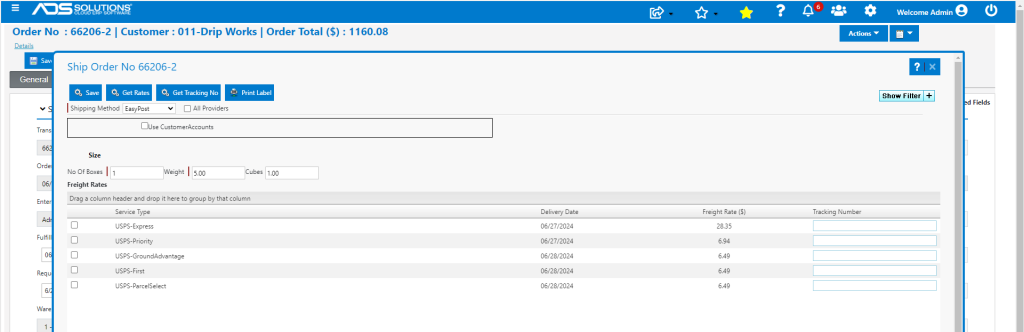
- On the Accolent ERP shipping screen the set up carrier accounts and terms will be automatically available
Enter Customers’ Carrier Accounts
- Some Customers may prefer to pay for shipping using their own Carrier Accounts.
- Each Customer’s carrier accounts should be set up on the customer master under Actions > Customer Carriers.

Charge Shipment to Customer’s Account
- Once Customer’s Carrier Accounts have been saved, on an order select the Use Customer Accounts checkbox.
- This will bring up the Customer’s account settings and allow the shipment amount to be charged to the Customer’s Account.
- Note that the Customer’s credentials need to be valid for the screen to populate with the Customer’s settings