
Accolent ERP organizes products by Groups, Categories and Sub-Categories. Filters can also be used to further sort entries in a particular product sub-category by any specific attribute. For example, a filter can be set up for HP (Horse Power), then all pumps in a sub-category can be filtered by Horse Power quickly. Filters can also be created at the product level and used to identify Configurable Product Variants. This is covered in a separate wiki: Configurable Products and Variants.
Use of Sub-Category Filters
- Accolent ERP organizes products hierarchically by Groups, Categories and Sub-Categories.
- Filters can be used to further sort a specific Sub-Category to enable quickly finding products.
- Berkeley Close-Coupled Pumps are in Group IRG-Irrigation, Category 122-Close-Coupled Pumps, Sub-Category ALL-All Products.
- This sub-category can be further filtered by (say) pump Horse Power.
Set up Filters and Values
- Go to Settings > Value Lists > Product Only Lists > Filters.
- Create a new Filter such as HP with description Horse Power.
- Then assign possible values to the HP filter, 1.5 HP, 2.0 HP, 3.0 HP, 5.0 HP and 15.0 HP.
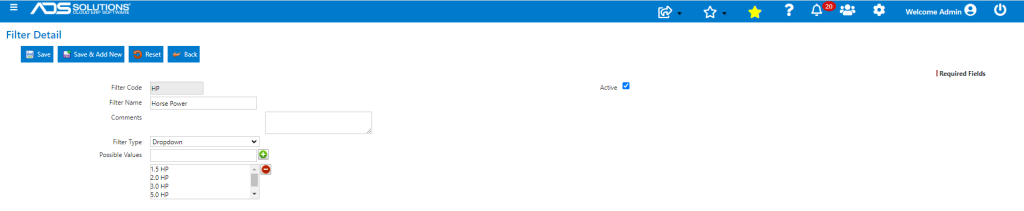
- As many Filters as desired may be created, and each such Filter can specify as many allowable values as needed.
- The Filters are independent of the Sub-Category; so, for example, the HP filter could be used for another sub-category for motors, for example.
Filter Types
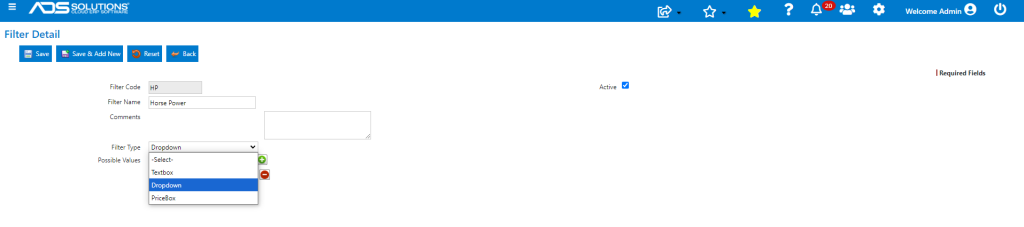
- The available Filter Types are Textbox, Dropdown, and Pricebox.
- The Dropdown Filter Type allows for the creation of a dropdown list with values to be selected from.
- The Textbox Filter Type allows for the assignment of certain text to search on.
- The Pricebox Filter Type allows for the filtering to show all products within a given price range.
Associate Filters with a Sub-Category
- Once the Filters are set up, they can be associated with Sub-Categories.
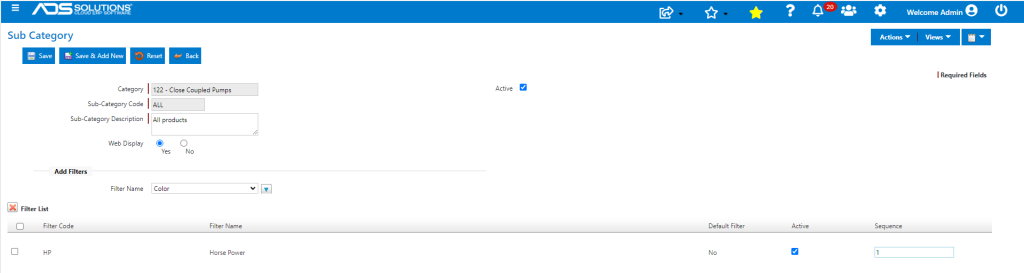
- Go to Settings > Value Lists > Product Only Lists > Sub-Categories.
- Select the Sub-Category ALL linked to Category 122-Close-Coupled Pumps.
- Select the filter from the Filter Name dropdown and click on the down facing arrow to add the Filter to the Sub-Category.
- Save the Filter added.
Assign Filter Values to Products
- There are several products in Group IRG-Irrigation, Category 122-Close Coupled Pumps, Sub-Category-ALL Products to which the Filter HP is now added.
- Products in the Sub-Category can now be assigned specific filter values.
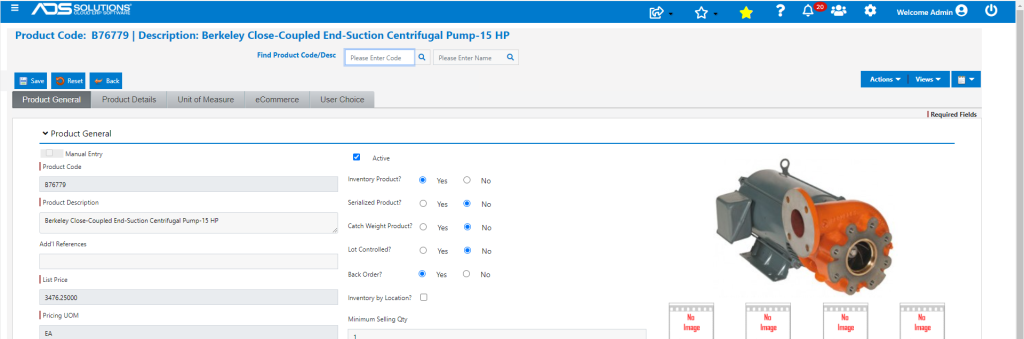
- Open B76779 for example, this is a 15.0 HP pump.
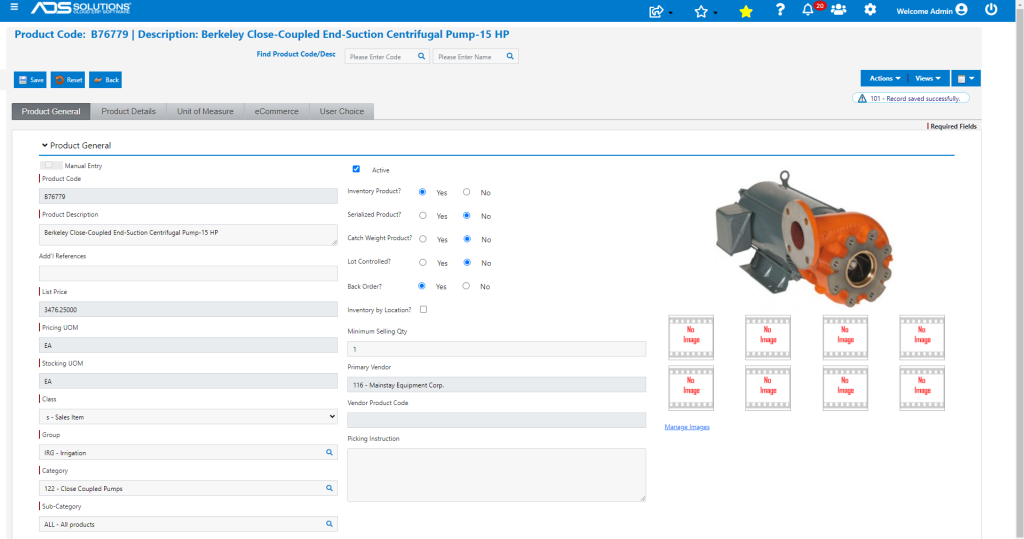
- Go to the eCommerce tab and the set the Filter associated with this sub-category to a Value of 15.0 HP.
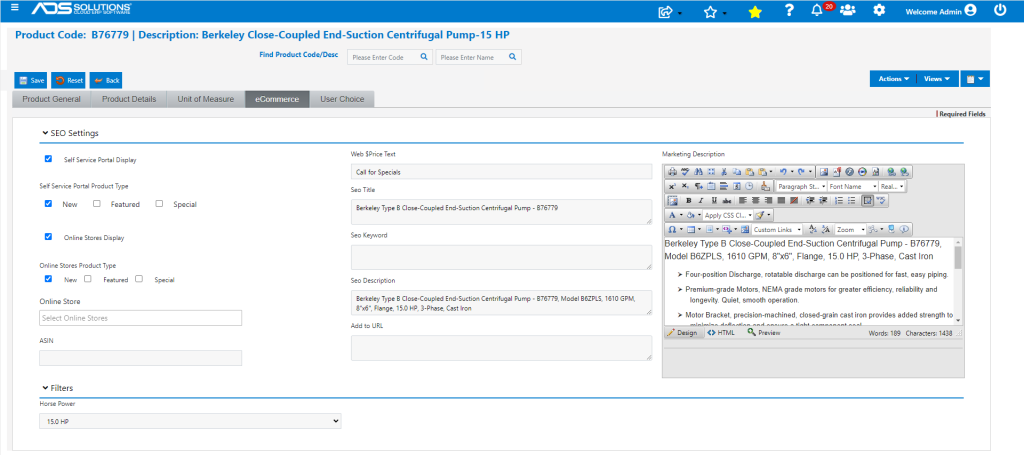
- Similarly, add filter values to several other pumps in this Sub-Category.
Use Filters to Refine Search
- Once set up, Filters are available from Accolent ERP, the Self-Service Portal and Online Stores (in the latter two cases, assuming the relevant products are set up for web display).
- Now when a Sub-Category is selected in the Advanced Search, the Filters related to the Sub-Category will also display.
- Using the Filters, the search may be narrowed to isolate not just the products in Category 122-Close Coupled Pumps and Sub-Category ALL-All Products, but also those with a specific Filter Value (e.g., 15 HP).
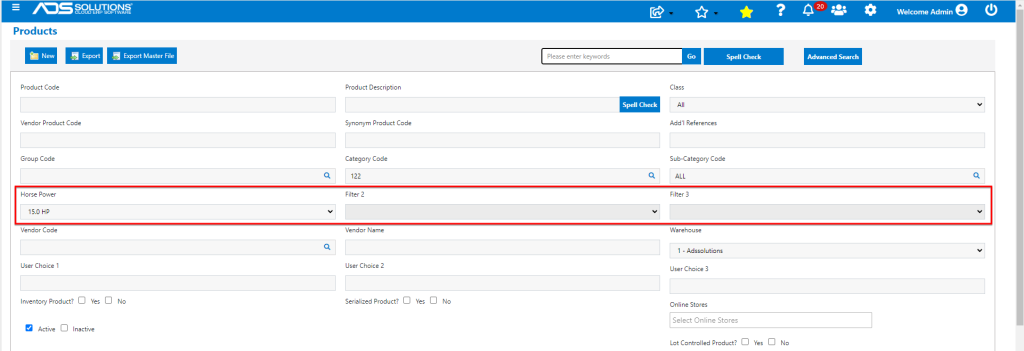
- Clicking on Go to run the search will immediately find the B76779 15 HP pump, since this is the only 15.0 HP pump.
Display on the Self Service Portal
- All these Close Coupled Pumps are marked for web display and so will appear in the Self Service Portal.
- Login to the Self Service Portal.
- Search the Catalog for Irrigation > Close Coupled Pumps.
- The display shows 12 products that meet the search criteria and shows that there are 4 that have the HP filter set.
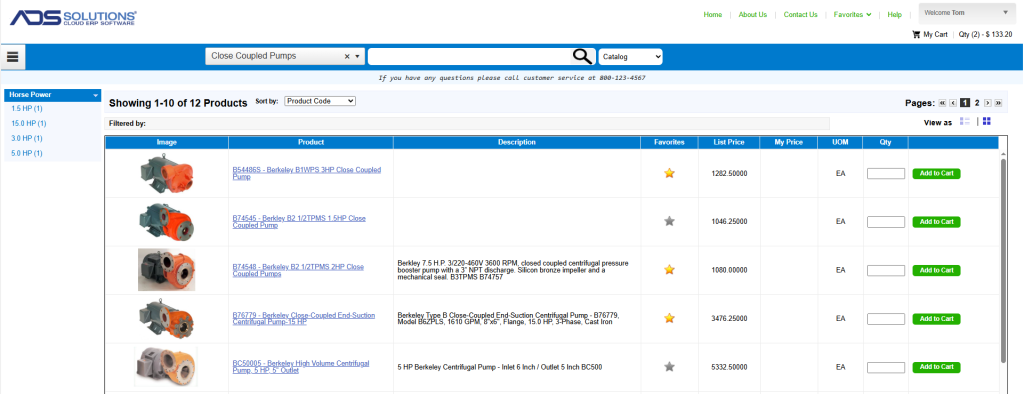
- Click on the 3.0 HP Filter to filter the list and display B54486S, the only 3.0 HP pump.
