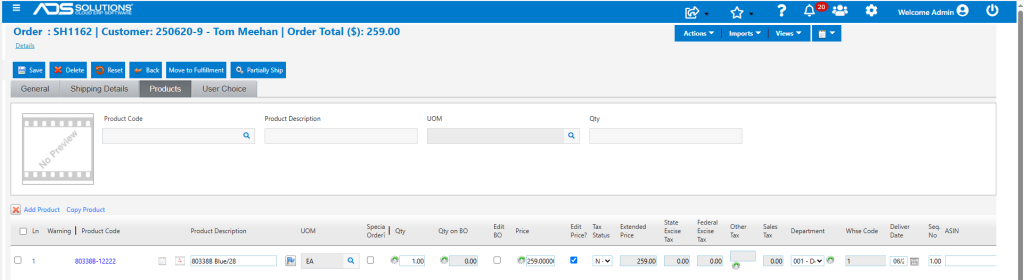
Accolent ERP supports Configurable Products and Variants. A Configurable Product is not a single product, but rather a family of identical products that vary based only on the values selected for certain Attributes associated with the product. For example, PaigeWomen brand of Women’s jeans may be stocked in different colors and sizes. The Configurable Product is the base pair of jeans with Product Attributes for Color and Size associated with the product. Each combination of the Attribute values (e.g., Color=Blue and Size=28) corresponds to a Variant with its own unique product code. When a Configurable Product is made, Accolent ERP can automatically make all possible Variants based on the allowable Attribute values. Online shopping carts linked to Accolent ERP will display only the Configurable Product and the Attribute choices. When an online shopper selects values for the Attributes and clicks Add to Cart, the specific Variant corresponding the selected Attribute values is then added to the shopping cart.
Product Attributes
- Just as with Sub-Categories, Products can also use filters which are referred to as Product Attributes. The only use of Products Attributes is to create Configurable Products.
- Go to > Settings > Value Lists > Product Only > Product Attributes.
- Create a new or select an existing Attribute Code (e.g., Color) then add the Possible Values; there is no limit on the Possible Values that can be added.
- Each Possible Value stores 2 columns (but the 2nd column is not required) for Value | Description. The Description field can be used for Hex Color Codes or for Euro Sizes or anything else (e.g., Red | #FF0000).

- Do the same for other Product Attributes (e.g., Size).

Create a Configurable Product
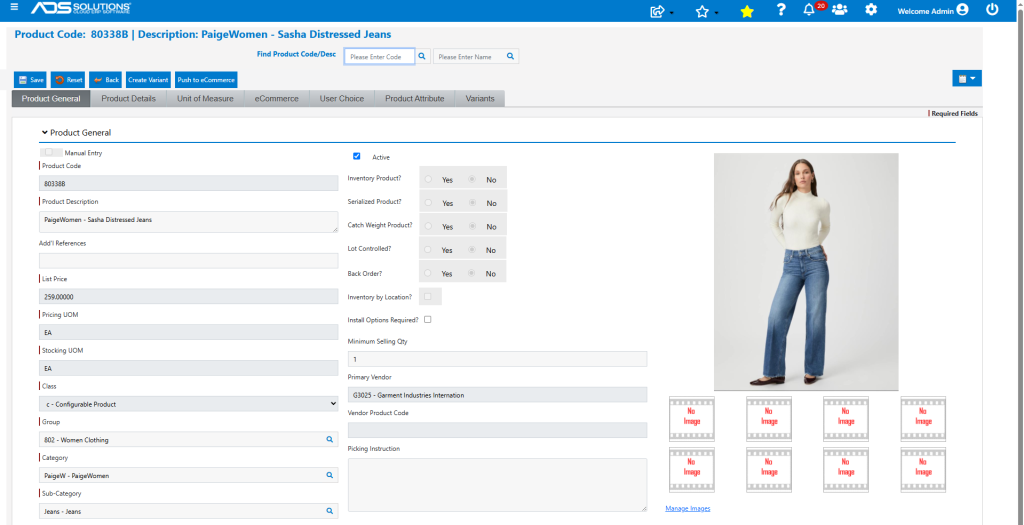
- Create a Configurable Product 80338B with Class C-Configurable Product and Group=802-Womens Clothing (this is typically used to organize by Gender, Age etc.), Category=PaigeW-PaigeWomen (this is typically the Brand), and Sub-Category=Jeans-Jeans (this is typically the Product Type).
- A Configurable Product is a place holder representing all the Variants corresponding to the different Product Attribute values.
- Since a selection of Class C-Configurable Product means that this is a product family not a real product, all the product configurations will be greyed out, and that there are no Actions | Views for the Configurable Product.
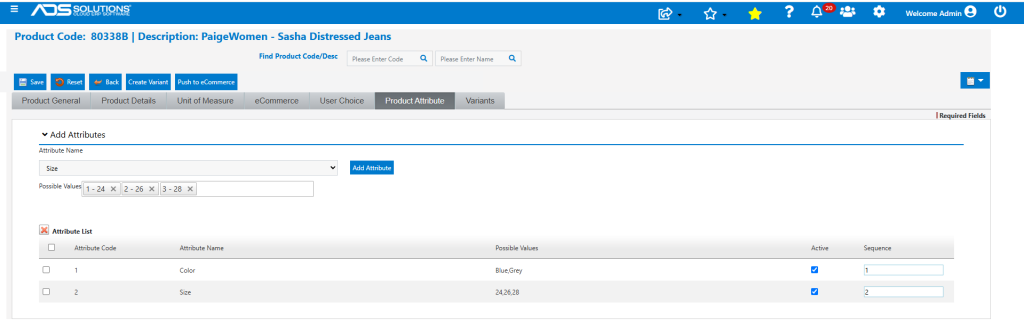
- On the Product Attributes tab, all the Attributes and Possible Values that apply to this product can be selected from records that were previously set up.
- Select a Product Attribute (e.g., Color) then select the Possible Values (e.g., Blue, Grey) and click Add Attribute to display it in the Attribute List.
- Select another Product Attribute (e.g., Size) then select the Possible Values (e.g., 24, 26, 28) and click Add Attribute to display it in the Attribute List.
- The 2 Attributes Color and Size are set up below with the Possible Values shown in the grid.
Create Variant Products
- A Variant Product in the Configurable Product family is a real Product corresponding to a unique combination of the filters.
- A separate SKU is needed for each Variant Product that can be created from combinations of the Product Attributes.
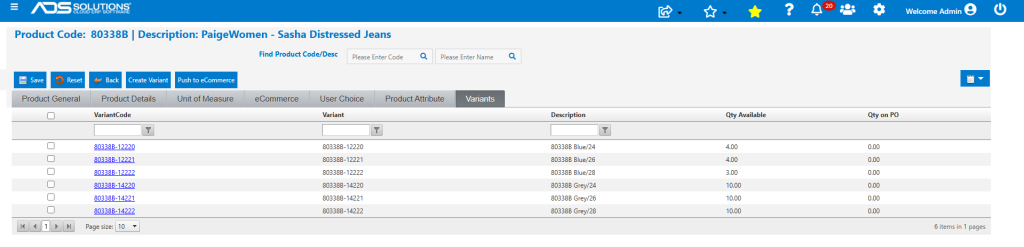
- For 80338B, the number of possible Variants is (Color) 2 x (Size) 3 = 6.
- Go to the Variants tab and click on the Create Variants button to automatically create the Variants for this product.
- The Product Variants that are created will have Product Codes of the form: 80338B-xxxxxxxx, where 80338B is the Configurable Product Code, and the digits following the hyphen create a unique SKU for each possible combination of the Attribute values.
- This is the output from the Create Variants function:
Look up Variant Products
- Note that because the Variants tab shows all Variants for the Configurable Product together with the inventory values for Qty Available and Qty on PO, this screen can be used to manage orders and POs for all the Variants.
- From the Variants tab of the Configurable Product, click on the hyperlink for any Variant to open the specific Variant Product. This is the easiest way to manage Variants by Configurable Product.
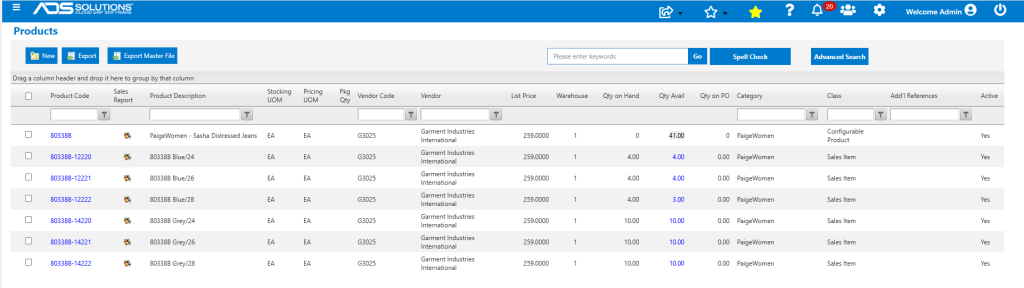
- The Variant Products can also be looked up from the List Products screen by searching for “80338” for example.
- Note that the Qty Avail and Qty on PO for Configurable Products on the List Products screen are greyed out.
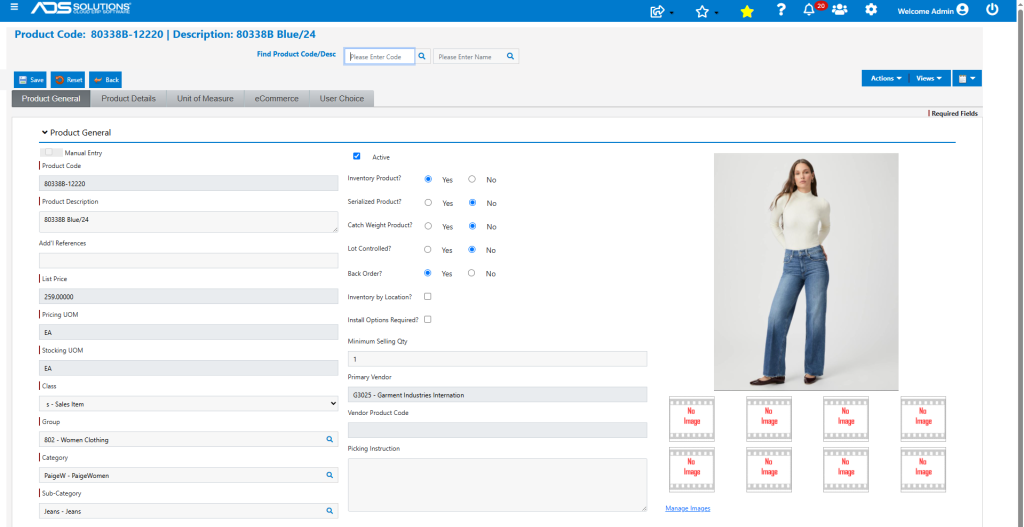
- Open any specific Variant (e.g., 80338B-12220).
- All the product options are now available.
Creating and Receiving POs for Variant Products
- Place a PO to purchase the Variant products.
- Note that there is a validation preventing Class C-Configurable Products from being put on POs (or orders), only the Variants of the Configurable Product may be purchased.
- Create PO No C11416 to order quantity of all 80338B Variants.
- POs or orders for Variant products will frequently be for multiple Variants. To enter the Variant products efficiently, use the Imports menu > Product Search and enter “80338B-” this is the Configurable Product number plus a hyphen which is common to all these Variant products.
- From this screen, all Variants can be ordered efficiently at one time.
- For example, order 10 EA of each Variant.
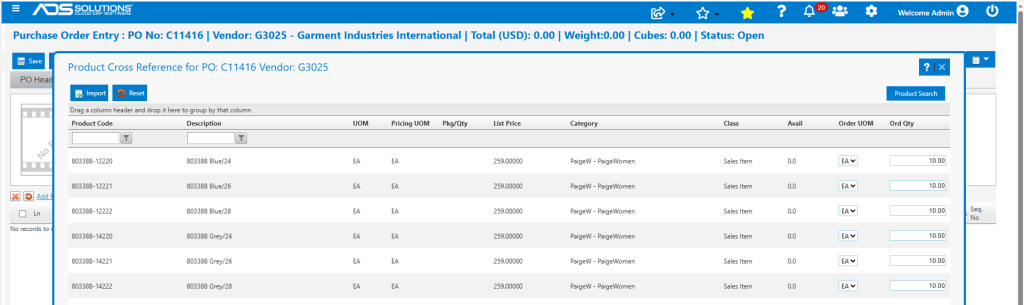
- Click import to automatically make all PO lines.
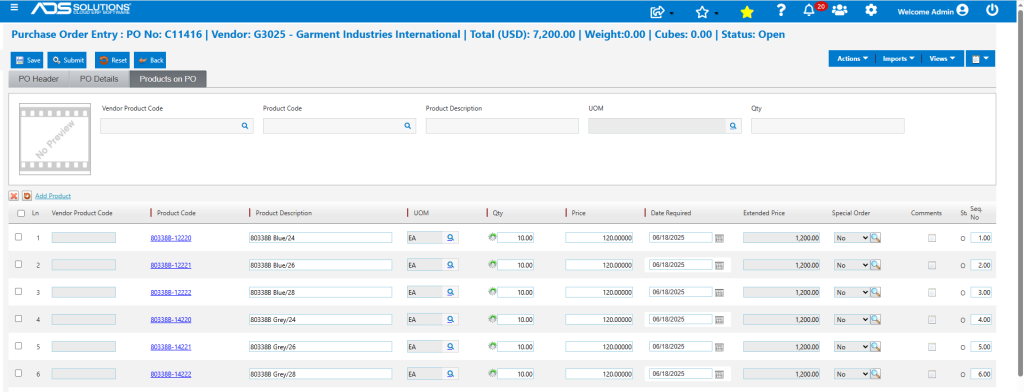
- Submit the PO. Then Receive the PO.
Creating Orders to Sell Variant Products
- Place an Order to sell the Variant products.
- Note that there is a validation preventing Class C-Configurable Products from being put on orders (or POs), only the Variants of the Configurable Product may be sold.
- Create Order 80150 to sell quantity of several 80338B Variants.
- POs or orders for Variant products will frequently be for multiple Variants. To enter the Variant products efficiently, use the Imports menu > Product Search and enter “80338B-” this is the Configurable Product number plus a hyphen which common to all these Variant products.
- From this screen, all Variants can be ordered efficiently at one time.
- For example, sell 6 EA of all the Blue Variant sizes.
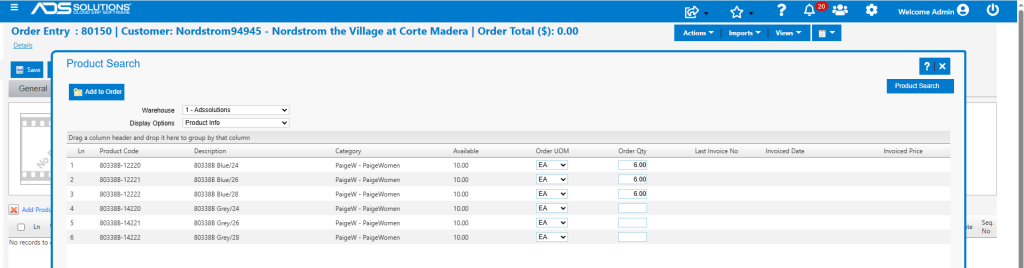
- Click on the Add to Order button to make all the order lines automatically.
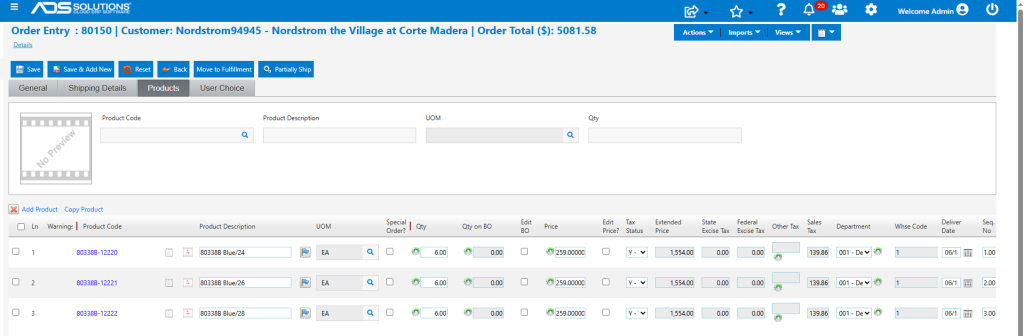
- Move to Fulfillment then when picked, packed and shipped, move to invoice.
Check the Inventory of Variants
- Note that at any time, the Variants tab of a Configurable Product shows on one screen the Qty Available and Qty on PO of all the Variants.
- For example, go back to the Configurable Product 80338B and click on the Variants tab.
- The Blue Variants show the result of the sale.
- To view all the transactions for any Variant (e.g., 80338B-Blue/28), click on the Variant hyperlink then go to Views > Ledger.
- This shows the original PO and the subsequent sale to Nordstom’s.

Display on eCommerce Stores
- Mark Configurable product for Online Stores display.
- Select the eCommerce store linked to Accolent ERP (e.g., Shopify).
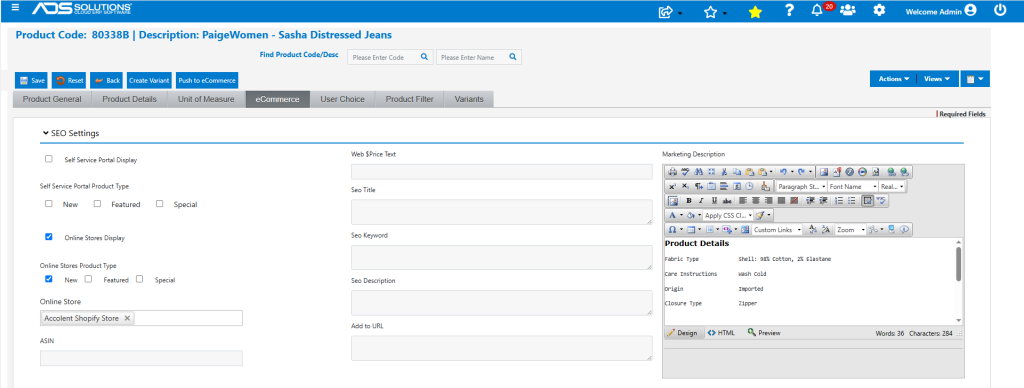
- This is how the Configurable Product appears in Shopify.
- User will select the specific Product Attributes for Blue, Size 28.
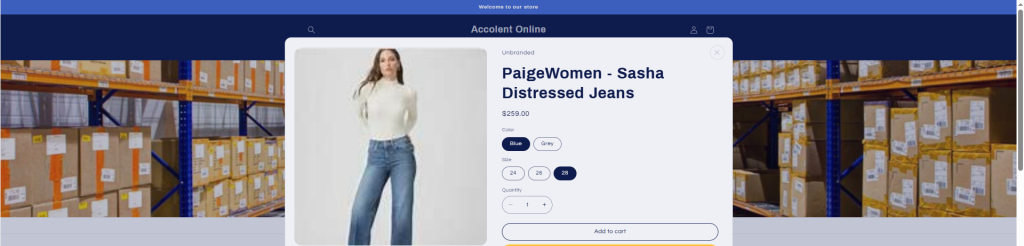
- When the order is placed, it appears in Accolent ERP.

- The Configurable Product with the Product Attribute values for Blue and Size 28 are translated into the specific Variant Product.