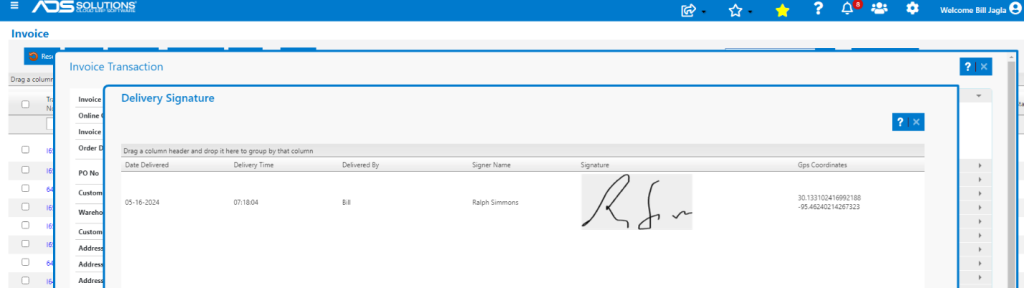
The ADS Solutions Proof-of-Delivery App (“POD App”) is one of the mobile user apps available for use with Accolent ERP. Use of the POD App requires an annual subscription for mobile users that need not be Accolent ERP users. Once they are set up in Accolent ERP, orders may be assigned to these mobile users for delivery. Orders may be assigned individually or by delivery route. Using the POD App running on any mobile device, mobile users can see the customer orders assigned to them, deliver the orders, and obtain the name, signature and GPS coordinates of the customer’s representative receiving each order. This information together with the updated delivery status is immediately updated to Accolent ERP. The POD App works even if the mobile user’s device is out of cell coverage and will automatically update once again within cell coverage.
Download the App
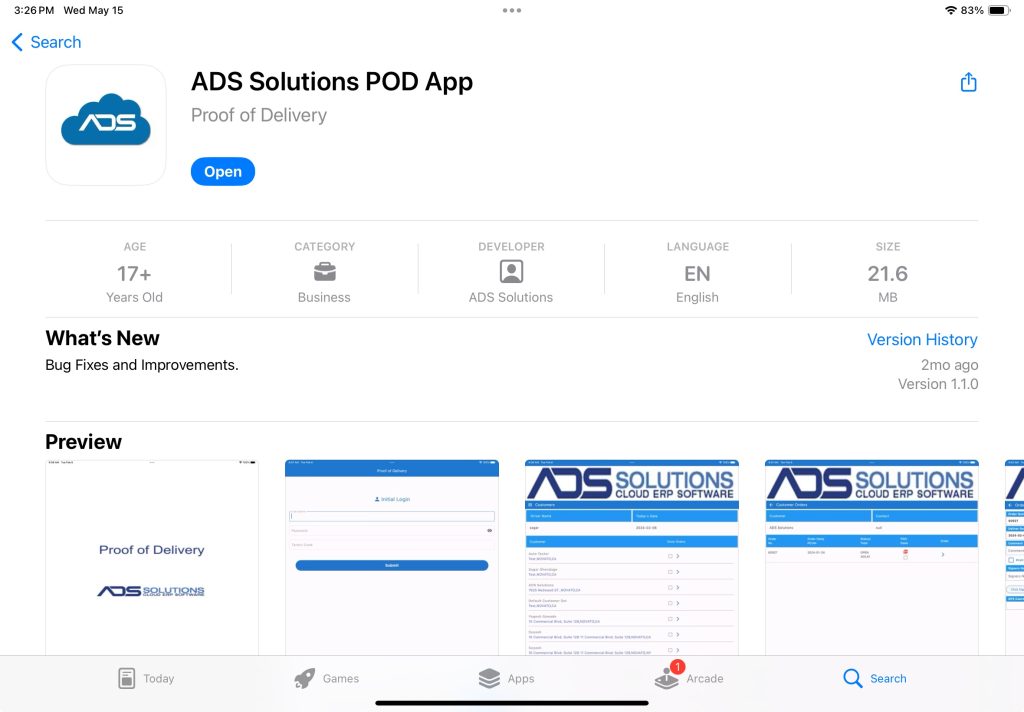
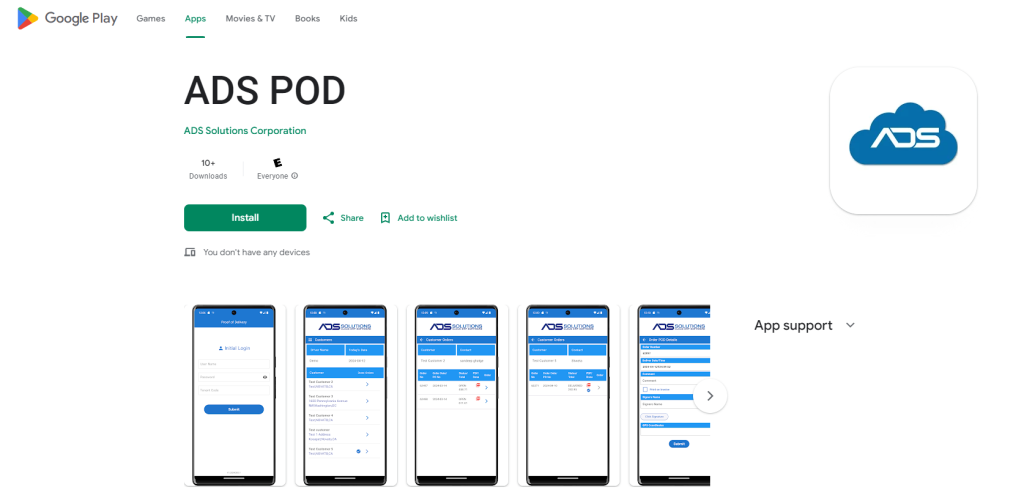
- The App is available for both iOS and Android.
- From the Apple App Store download the ADS Solutions App.
- From Google Play Store download the ADS POD App
Set Up Mobile Users
- To set up mobile users that can use the ADS Solutions POD App (“App”), go to Settings > Value Lists > Other Value Lists (M to Z) > Mobile Users.
- Mobile users are assigned various types corresponding to the roles they have and the mobile apps they use.
- For this App, the mobile users have the type of Driver.
- Note if the password for a mobile user is changed, the App must be uninstalled and reinstalled before use.

Assign Orders to Mobile Users
- Go to Sales > Fulfillment > List Fulfillments.
- Select orders in one or more batches to be assigned to a mobile user.
- If the orders to be delivered are on a specified Delivery Route, filter by that and select orders.
- Select orders then click on Create and Assign Batch, to create one or more batches assigned to mobile user 15-Bill.

Initial and Subsequent Login to App
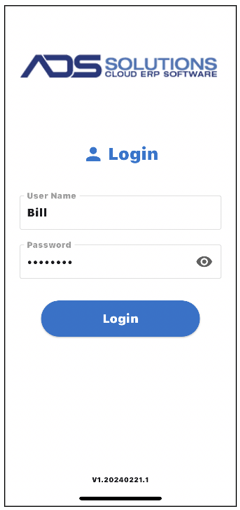
- On the initial login, the mobile user will need to enter the User Name, Password and Tenant Code credentials already set up in Accolent ERP.
- During the initial login the system will capture this information as well as the device’s UID and will verify this with each login.
- Because the app seamlessly works online or locally on the device, the app requires the driver to always use the initially registered device.
- For subsequent logins, only User Name and Password will be required.
Customers Screen
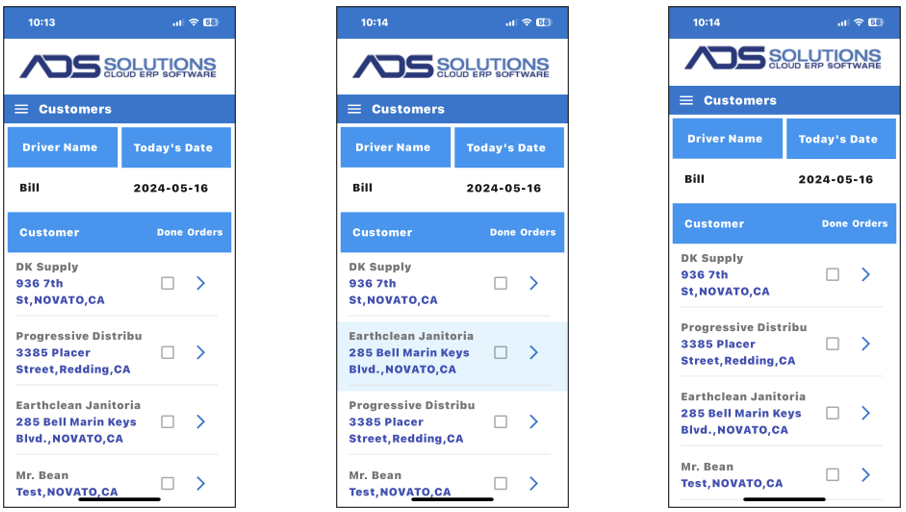
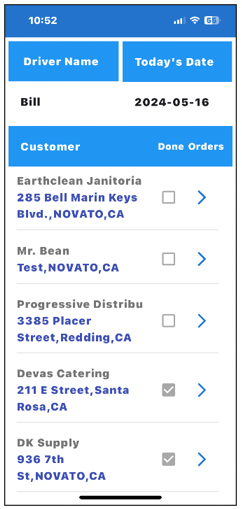
- After Login the app will bring up the Customers screen which lists those customers with orders assigned to this driver
- The Customers screen may be re-sorted to reflect the driver’s desired delivery sequence.
- To re-sort the screen, place a finger over a row until it turns blue then drag to move the row up or down.
Customer Orders Screen
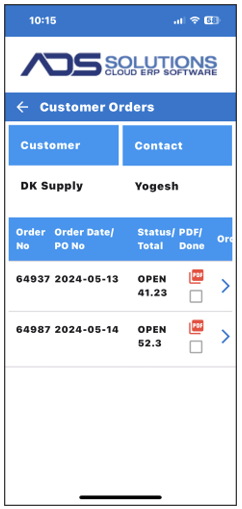
- Select a Customer and click on the right-facing Orders arrow.
- This will bring up the Customer Orders screen which lists the orders to be delivered for that Customer.
Display Delivery Invoice
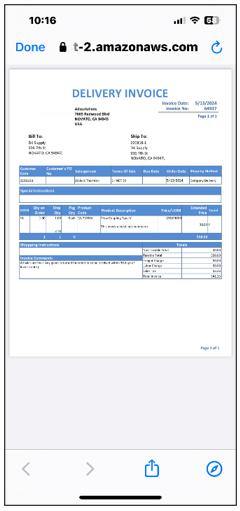
- Click on the PDF icon to display the delivery invoice for that order.
Order POD Details Screen
- Click on the right-facing arrow to go to the Order POD Details screen for Order 64937.
- On this screen, a comment can be entered that may be printed on the Invoice or not, and the recipient’s name, signature and GPS Coordinates can be captured.
- Note: the device has to have the GPS settings enabled in order to capture the GPS Coordinates
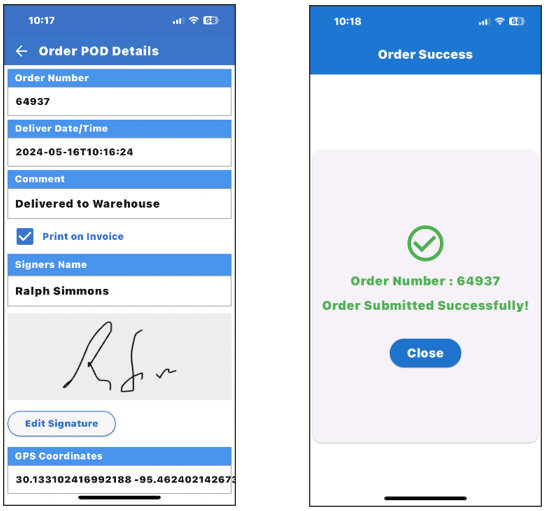
- When all Order POD Details are collected, click Submit to save.
Customer Orders Delivered
- When all of a Customer’s orders are delivered, the Customers screen shows those marked as Done.
- Customers that are Done automatically move to the bottom of the list.
Menus and History
- The ADS Solutions POD App automatically syncs the data with Accolent ERP whenever there is connectivity.
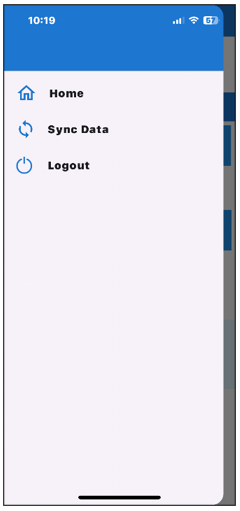
- If needed, from the Customers screen click on the menu (three horizontal lines in the top left corner) the menu gives the option to sync the data manually, if needed.
- The ADS Solutions POD App saves the history of orders delivered for 7 days and then deletes these; the full history of orders delivered is maintained in Accolent ERP.
Automatic Sync of Data to Accolent ERP
- The ADS Solutions POD App automatically updates:
- The name, signature and GPS coordinates to Accolent ERP; this information is available on the order, and
- Updates the Accolent ERP List Fulfillments screen to display the Delivery Date and Delivery Status

- To view the signature capture information, open a delivered order, go to Shipping Details tab and click on Delivery Signature hyperlink.