
Accolent ERP has a very comprehensive pricing system. One of the core pricing features is Quantity Breaks, which are essentially tables specifying volume discounts. To use Quantity Break Pricing, first set up the Quantity Break Pricing table to define discounts for different purchase levels. Once set up a Quantity Break can be applied to a specific product, multiple products or multiple categories of products. Quantity Break Pricing can be used in two ways: (1) as part of Contract Pricing or (2) in conjunction with Price Lists and Warehouse discounts. When used in conjunction with Price Lists and Warehouse discounts, the Pricing Tier will specify the “method” used to combine these discounts.
Quantity Break Pricing Overview
- Quantity Breaks are essentially volume discounts that can be specified for different volume tiers.
- Once specified a Quantity Break may be applied through (1) Contract Pricing or (2) in conjunction with Price List and Warehouse discounts.
- In the latter case, the Pricing Tier of the customer specified the “method” used to combine the Quantity Break, Price List and Warehouse discounts.
- Once set up, a Quantity Break may be selected as a Pricing Type on a Contract or directly assigned to a product, or multiple products, or multiple categories.
Creating a Quantity Break
- To enter a Quantity Break, select Settings > Value Lists > Other Value Lists (M to Z) > Quantity Breaks.
- Click the Add button to enter a new Quantity Break.
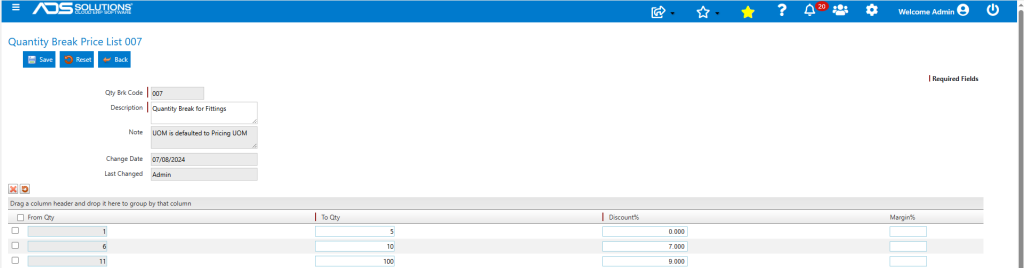
- Enter a new Quantity Break Code, Description, From and To volume break points and Discounts.
- This is a Quantity Break entered for Fittings.
Using A Quantity Break in a Contract
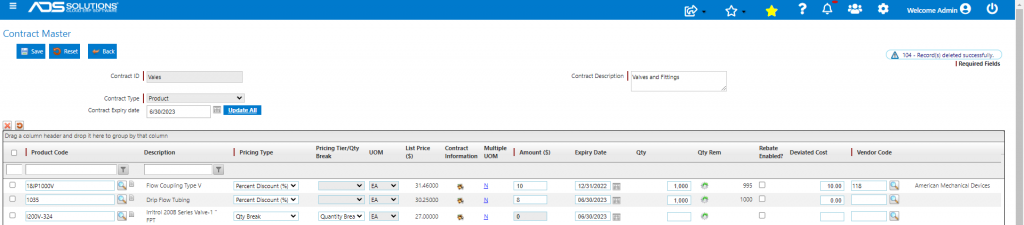
- Create a Customer Contract that specifies pricing type as Quantity Break and select Qty Break 007.
- Product I200V-324 is covered under contract Valves that is assigned to Customer 011.
- Customer 011 also has a Special Pricing overall discount of 1%; however, because the Qty Break is applied through a Contract, the Special Pricing discount on Customer 011 will not apply.
- To verify the pricing, go to Customer 011 Views > Price Quote.
- Enter product I200V-324 with Qty of 1 EA, discount from Qty Break 007 is 5%.

- Price reflects the 5% Qty Break discount for a Qty of 1 EA; the Special Pricing discount does not apply to Contracts.
- Net price is List Price of $27.00 x (100% – 5%) = $25.65000.
- Increase Qty to 6 EA and discount is 7%.

- Price reflects the 7% Qty Break discount for a Qty of 6 EA; the Special Pricing discount does not apply to Contracts.
- Net price is List Price of $27.00 x (100% – 7%) = $25.11000.
Assign Quantity Break Directly to a Product
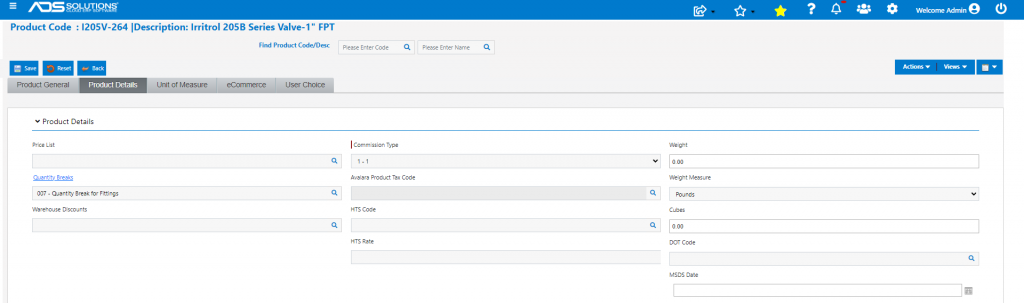
- Go to product I205V-264 and assign Quantity Break 007 that was already set up directly to the product.
- Customer 011 also has a Special Pricing overall discount of 1%; in this case, since the Qty Break is applied directly to the Product, the Special Pricing discount on Customer 011 will apply.
- To verify pricing, go to Customer 011 Views > Price Quote.
- Enter product I205V-264 with Qty of 1 EA, discount from Qty Break 007 is 5%.

- Price reflects the 5% Qty Break discount for a Qty of 1 EA as well as the 1% Special Pricing overall discount.
- Net price is List Price of $24.30 x (100% – 5%) x (100% – 1%) = $22.85415.
- Increase Qty to 11 EA and discount is 9%.

- Price reflects the 9% Qty Break discount for a Qty of 11 EA as well as the 1% Special Pricing overall discount.
- Net price is List Price of $24.30 x (100% – 9%) x (100% – 1%) = $21.89187.
Combining Price Lists, Warehouse and Quantity Break Discounts
- A Quantity Break may be the only discount offered on the product, or it may work in conjunction with Price Lists and Warehouse discounts.
- If a Quantity Break is the only discount, it will be applied to the List Price of the product.
- If a Quantity Break is used in conjunction with Price Lists and Warehouse discounts, Accolent ERP provides 4 “methods” by which the discounts are combined.
- The 4 methods available are:
- Combine discounts from Price Lists and Warehouse discounts then apply, then apply Quantity Breaks,
- Combine discounts from Price Lists and Warehouse discounts then apply, ignore Quantity Breaks,
- Combine discounts from Price Lists and Warehouse discounts then apply only the higher of this discount or the Quantity Breaks, and
- Combine discounts from Price Lists and Warehouse discounts then apply only the lower of this discount or the Quantity Breaks.
- The method to be used is defined in the customer Pricing Tier.

- See this wiki: Using Price Lists to see examples of how multiple product level discounts are combined using these methods.