Accolent ERP has a complete Bill of Materials (BOM) functionality for use in assembly or other light manufacturing operations. There are two types of BOMs (1) Manufacturing BOMs and (2) Complex BOMs (see below). In either case, the manufactured BOM Product can be defined in terms of an unlimited number of BOM components which can include raw materials, non-inventory products (e.g., Labor), inventory products or products that are themselves BOMs. Accolent ERP supports unlimited levels of nested BOMs. Recipes or assembly instructions can be attached to the BOM Product and will be available whenever the BOM for that product is worked on.
Manufacturing BOM vs Complex BOM
- Both Manufacturing BOMs and Complex BOMs take components and combine these through a set of process steps to create BOM Products.
- In addition, Complex BOMs support catchweight, serial numbers and lots and locations which will typically be required for both the components and the BoM Products.
- Complex BOMs are covered in a separate wiki.
- Most food processing and pharmacetical processes require Complex BOMs.
Set up BOM Product and BOM List
- Set up BOM Product SS995 which will be manufactured from the components on the BOM List.
- The Class should be set as b – Bill of Materials.
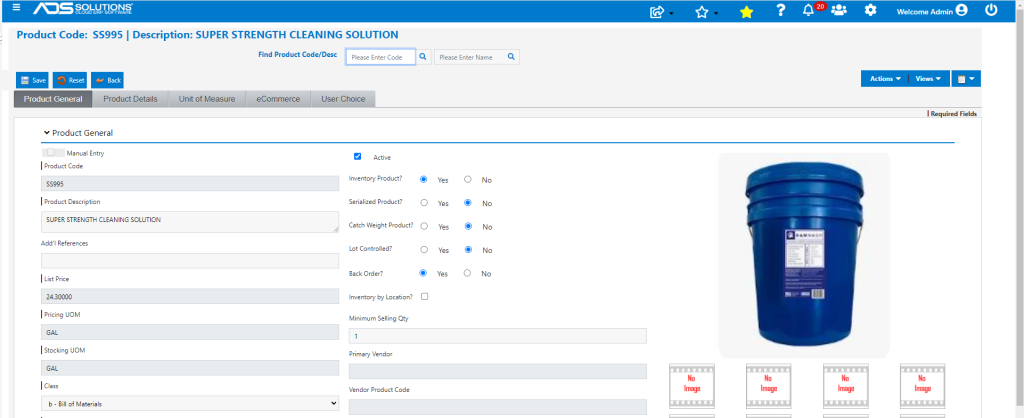
- BOM products can only be defined in one UOM; if the BOM Product is offered in multiple UOMs, create separate SKUs for each manufactured UOM and define BOM Lists for each.
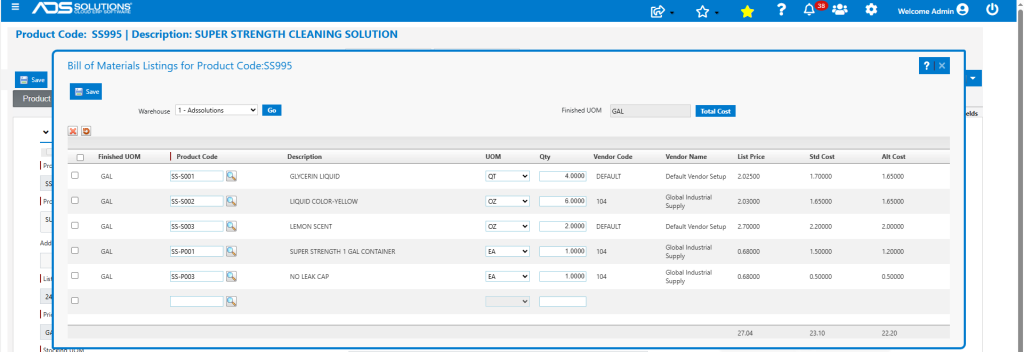
- Go to Actions > Bill of Materials and set up the BOM for SS995.
BOM Product Cost
- The BOM List screen displays the current Standard Cost and Alternate Cost of the components extended to show totals for the BOM Product.
- The calculated values of Standard and Alternate Cost shown for the BOM product will always reflect the most current costs of the components.
- Clicking the Total Cost button opens a pop-up that compares the calculated values of Standard and Alternate Cost for the BOM product to prior saved values and provides an Update button to update if needed.
- Average Cost for the BOM product will be calculated automatically based on the Average Costs of the components and the manufactured/wastage results of each manufacturing batch.
- NOTE: If non-inventory components (e.g., Labor or Fuel) are used in a BOM List, there will be no cost for these items included in the BOM Product; instead the costs of these non-inventory components will be picked up as period costs or overhead expense. If it is intended that the costs of these components be fully captured in the BOM Product costs, the components should be made into inventory items. See this wiki: Cost of Labor in Assembled Products.
Component Product Quantities and Costs
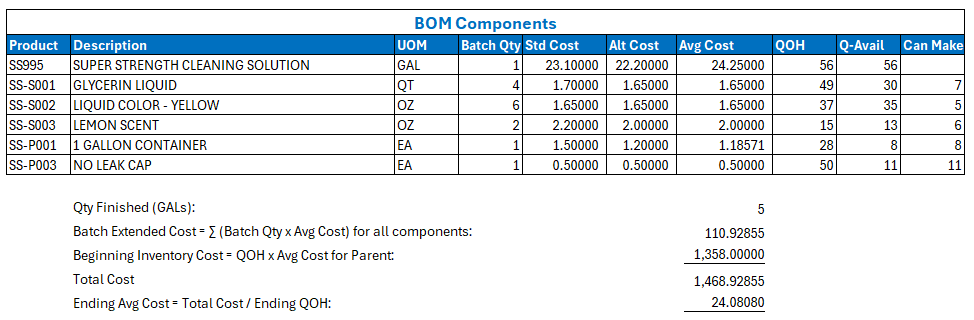
- In this example, the current component costs and quantities in the system are as follows:

List Batches
- Go to Inventory/Products > Bill of Materials > List Batches and click Search to display the list of all batches.
- Use the Product Code and Date Range filters to search within the list of batches.
- Batches can have Batch Status of Created or Finished.
Create Batch
- Go to Inventory/Products > Bill of Materials > Create Batch.
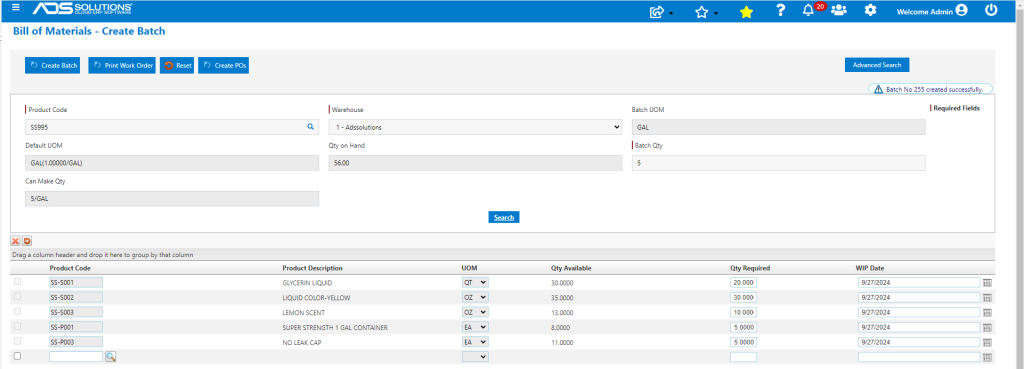
- Enter Product Code, Warehouse, and select Batch UOM to populate the Can Make Qty field, which shows the largest Qty that can be made based on Qty Available of the components.
- Enter the Batch Qty to be made and click Search to populate the grid with the components required, then click Create Batch.
- If the Batch Qty exceeds the Can Make Qty, a pop-up will ask if the POs should be created for the shortfall. These can be created and printed using the Create POs button.
- Create Batch reduces the QOH of components in inventory and puts these in WIP for the BOM product.
- Create Batch 255 to make 5 GAL of SS995 Super Strength Cleaning Solution.
- A Work Order may be then be printed to start the assembly/manufacturing process.
- NOTE: Additional items may be added for this Batch (e.g., Labor) and/or products switched out as needed.
Edit Batch
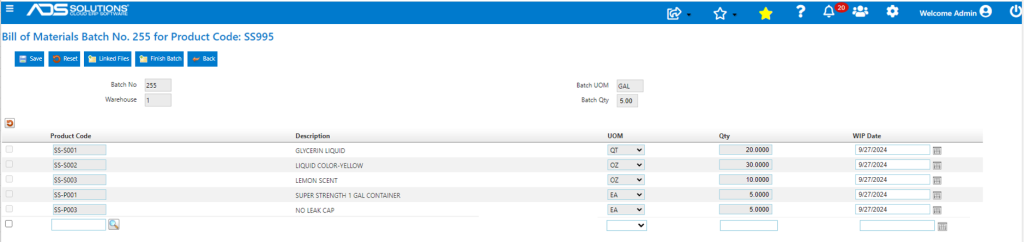
- Opening the Batch from from the List Batches screen, pulls up the Edit Batch screen from which any recipes, process descriptions or assembly instructions attached to the BOM product can be pulled up using the Linked Files button.
- Additional items may be added for this Batch, or items may be removed or swapped, if desired.
- When the manufacturing process is complete, click the Finish Batch button.
Finish Batch
- To complete, check the Finish Batch checkbox, then specify Finish Qty and Waste Qty.
- Then click Save.
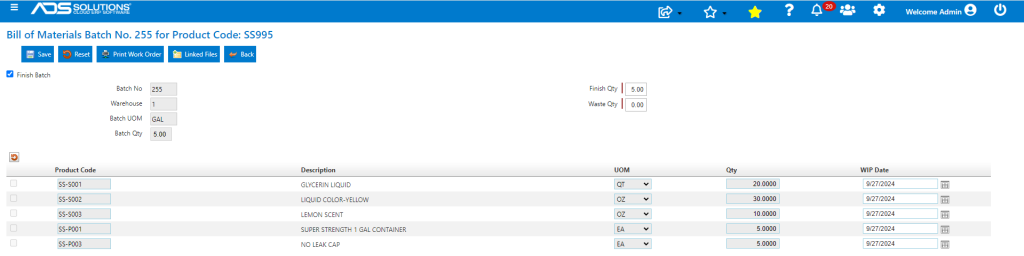
- Finish Batch moves the Finish Qty out of WIP into the QOH of the BOM product and updates the BOM product’s Average Cost.
- The total extended cost of the Batch is spread over the Finish Qty of the BOM product.
- Any components making up the Waste Qty that can be salvaged, should be returned to Inventory by making a Manual Inventory Adjustment.
- This is how the Average Cost of Batch 255 for g GAL of SS995 is calculated based on the components.
- This is what is recorded in the Average Cost screen for product SS995.

- Similarly, the Ledger Card for product SS995 has been increased by 5 GAL created on Batch 255.

- The Ledger Cards for all the components (e.g., SS-S001) have been decreased to reflect Batch 255.

GL Postings
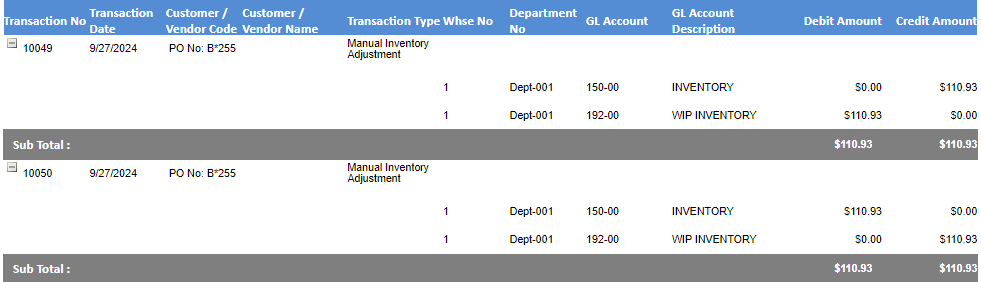
- GL posting on Create Batch debits WIP for BOM product and credits Inventory for components.
- GL posting for Finish Batch debits Inventory for BOM product and credits WIP.