
Accolent ERP distinguishes between current orders and Future Orders. Unlike current orders, Future Orders do not allocate inventory. To create a Future Order first specify in the system configurations the number of days in the future (e.g., 5 days) an order needs to be dated to constitute a Future Order. Once this setting is saved, create an order. If the order date is further out than the number of days specified, the order will automatically become a Future Order. Each day the system tests all Future Order dates against the current system date. When a Future Order date is less than or equal to the number of days specified, the Future Order will be moved to a current order and inventory allocated against it.
Specify Number of Days out for Future Orders
- Go to Settings > System Configuration > ID 77 – Future Order to Order.
- Enter desired setting as an integer number of days (e.g., 5 days) and Save.

- This setting means that:
- An order entered with a date > 5 days out will be saved as a Future Order; and
- A Future Order with a date ≤ 5 days out will be moved back to a current order.
- The system tests Future Order dates every night automatically.
Create a Future Order
- The Inventory Status screen for product I102P-1.50 has a QOH (Quantity on Hand) of 12.00, and Q-Avail (Quantity Available) of 12.00.
- Note that Q-Order (Quantity on Order) is 0.00 and Q-Future (Quantity on Future Orders) is also 0.00.

- On 5/17/25, create order 78855 with an order date of 5/26/25 for 2 EA of I102P-1.50 and Save.
- Also, on 5/17/25 create order 78856 with an order date of 5/23/25 for several products including 1 EA of I102P-1.50 and Save.
- Since both orders 78855 and 78856 are more than 5 days out, they will both automatically be saved as a Future Orders.
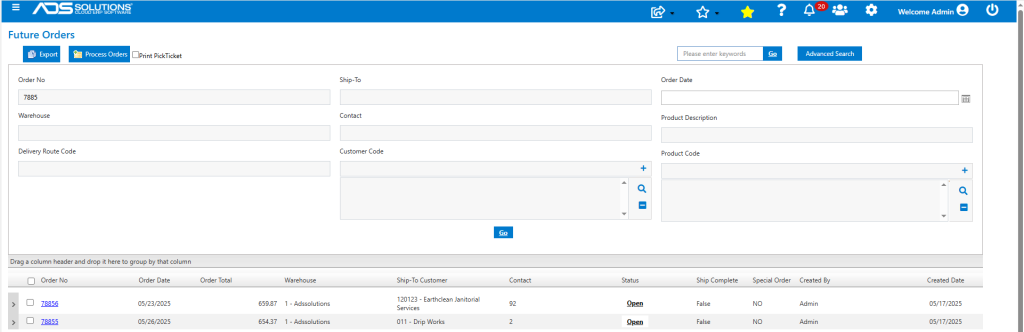
- The Inventory Status screen for product I102P-1.50 doesn’t reflect the order quantity of 3 EA in Q-Order but does show a quantity of 3 EA under Q-Future.

- Order 78856 was moved to a current order and inventory was allocated on 5/18/25 (i.e., 5 days prior to the order date of 5/23/25).
- Order 78855 will remain as a Future Order until 5/21/25 (i.e., 5 days prior to the order date of 5/26/25).
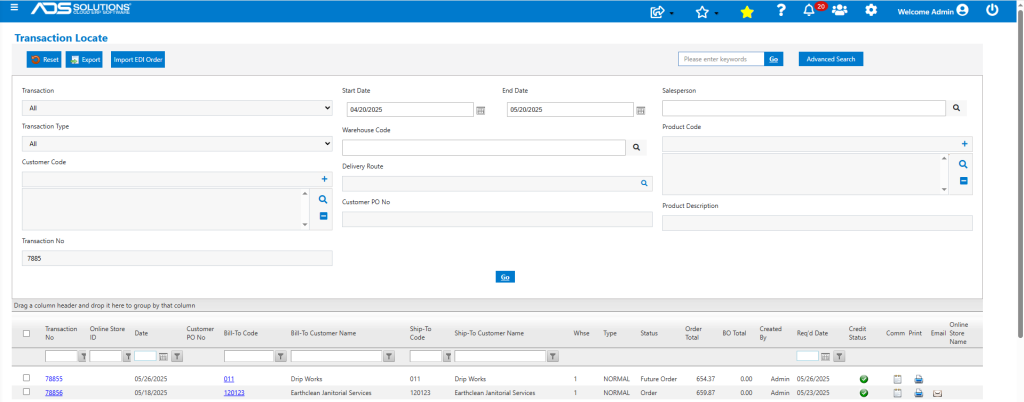
- Inventory was allocated on order 78856 but not 78855.


Force-Process a Future Order
- Order 78855 is still a Future Order and may be force-processed to an order.
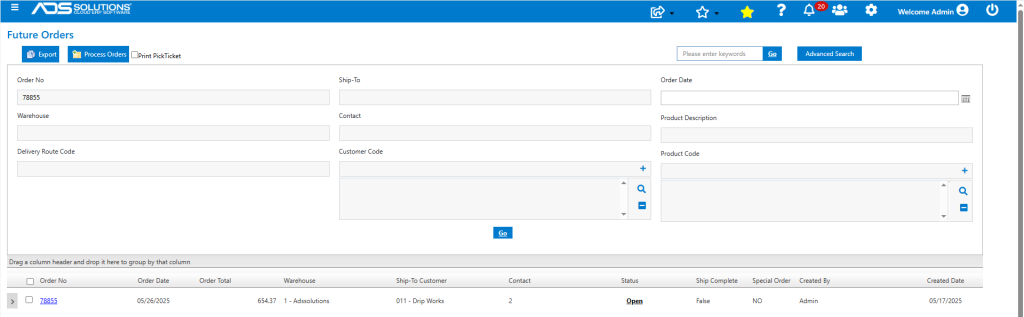
- Click on the Order No hyperlink to force-process order 78855.
- Select the line item(s) to force-process and click on Move to Order.

- Creates order 78855 with current date 5/20/25 for the items moved.

- Now inventory is allocated for 78855.

