
Accolent ERP allows interactions with Prospects to be tracked, calendared, with call notes recorded and follow-up tasks assigned to other users. At any time, Calendar tasks may be filtered by user by Customer or Prospect to see the chronological history of the interactions. While not required, Deals can be created and associated with the Prospect. Deals can be used to further facilitate tracking of multiple transactions for the Prospect with projected sales revenues which can be used to create Salespersons’ sales pipelines. With or without a Deal a Quote may be created for a Prospect and if/when a sale is made, the Prospect can be moved to a Customer and the Quote moved to an Order.
Create Contact and Prospect
- For a new incoming sales lead, create a Contact.

- Then create Prospect 000123-Apex Irrigation Solutions. The only required fields on the Prospect are (i) Prospect Code, (ii) Prospect Name, (iii) Salesperson and (iv) Contact.
- Without an address and Tax Jurisdiction the Taxable Status will default to N-Non Taxable.
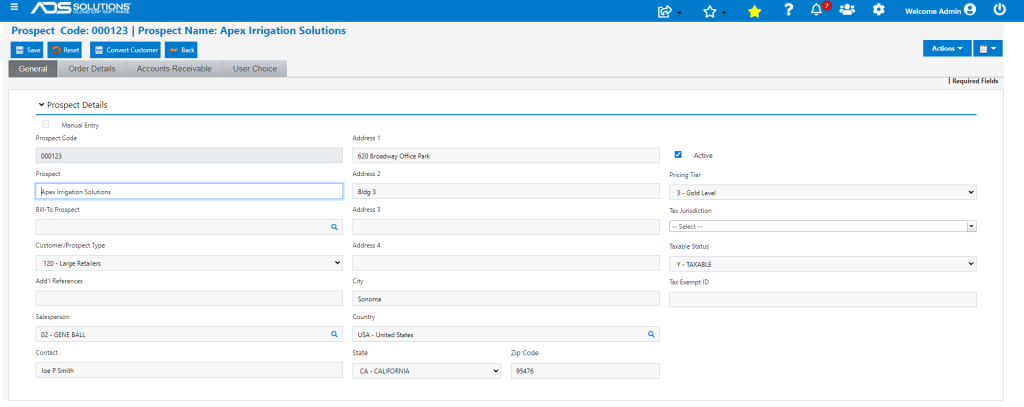
- Link Contact to Prospect.

Create Calendar Task to Qualify Prospect
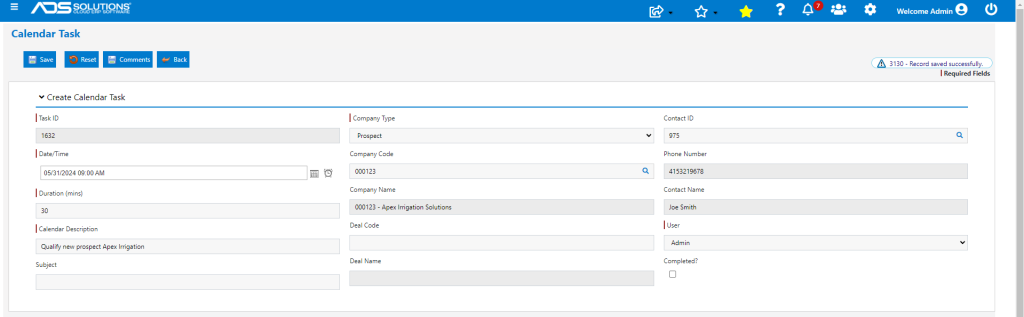
- The salesperson can create a Calendar Task to qualify/follow-up with the Prospect and Save.
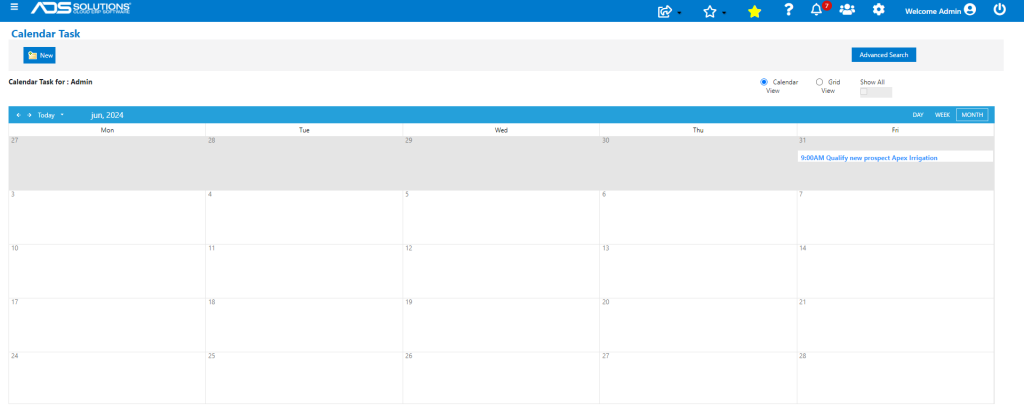
- The Calendar Task entry is displayed on the Salesperson’s calendar.
- The Salesperson can hold an introductory call with the Prospect and then update the Task Notes.
- At any time, the Prospect record can also be updated with additional details (such as Address, Tax Status, Tax Jurisdiction) obtained from the Prospect.
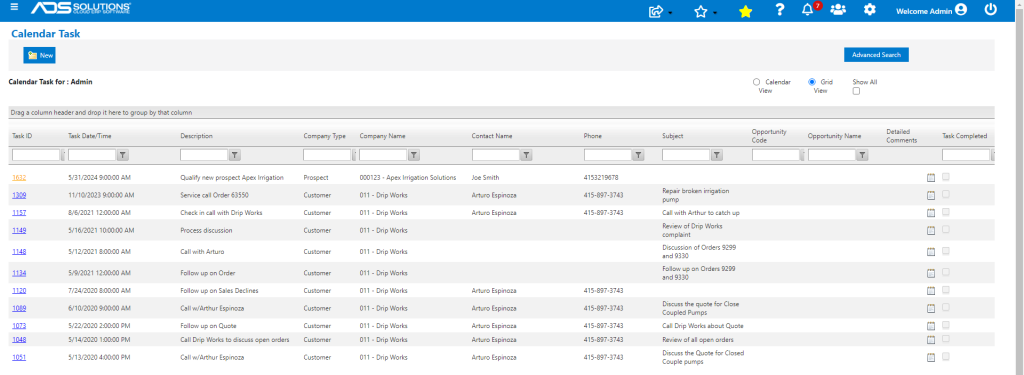
- The Task Notes can be edited and updated as needed and additional Tasks can be added.
- Then by filtering the List Tasks screen by the Prospect, a full history of all the Tasks and follow up with the Prospect can be maintained.

- In addition, all Tasks as well as all email interactions with the Prospect are tracked on the Recent Interactions tab to maintain a full record of all activities that is directly accessible from the Prospect record.
Create Quote for Prospect
- A Quote can be created directly for the Prospect or the Quote may be created through a Deal linked to the Prospect.
- Deals facilitate the tracking of multiple possible transactions with the Prospect through the sales process and can be used to create sales pipelines.
- To create a Quote for the Prospect, the Prospect record must be updated to capture all the required data for the Prospect.
- This requires, among other things, a Prospect Type, Address, Pricing Tier, Tax Jurisdiction and Taxable Status.
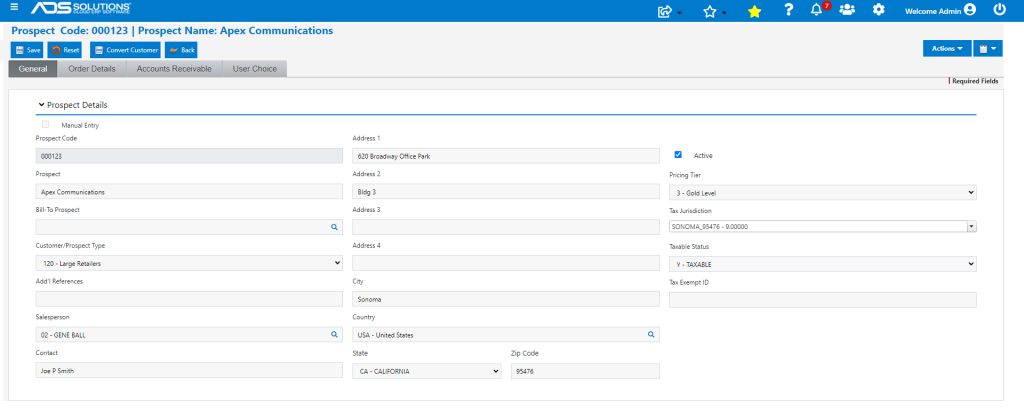
- Once the Prospect record is updated, a Quote can be created for 000123-Apex Irrigation Solutions.
- Creating a Quote for a Prospect follows the same steps as creating a Quote for an existing Customer.
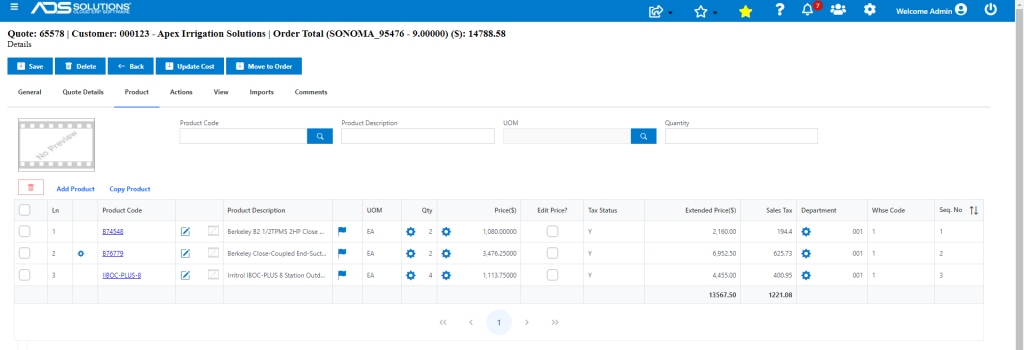
- A new Calendar Task can be created to follow up with the Prospect on the Quote that was created and emailed to the Prospect.
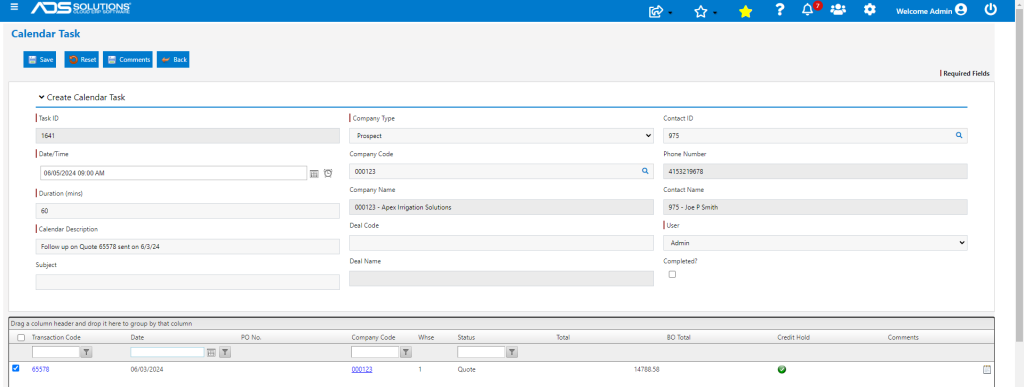
- Calendar a follow up call for (say) 2 days in the future. Based on the follow up call, make any modifications required, update call notes and adjust the Quote if required.
- Make any notes that are specific to the Quote and/or its fulfillment requirements directly in the Internal Notes of the Quote – these will follow the transaction throughout its life cycle.
- The Internal Notes can be accessed from any of the List Quotes, List Orders, List Shipments or List Invoices screens and updated without having to open the transaction.
Making the Sale
- Once the Quote is accepted, the Task Notes can be updated.
- New Calendar Tasks can be created and assigned to personnel responsible for fulfilling the transaction.
- Then to turn the Quote into an Order, the Prospect has to first be moved to a Customer by clicking on the Convert to Customer button.
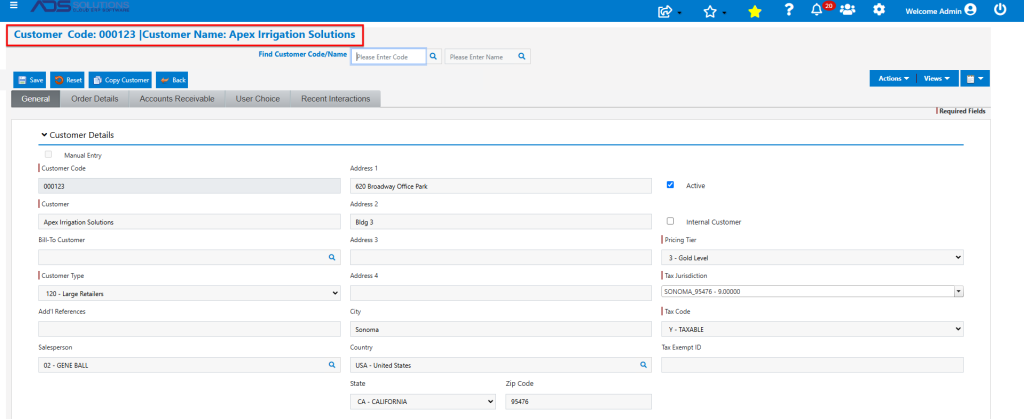
- Then move the Quote to an Order.
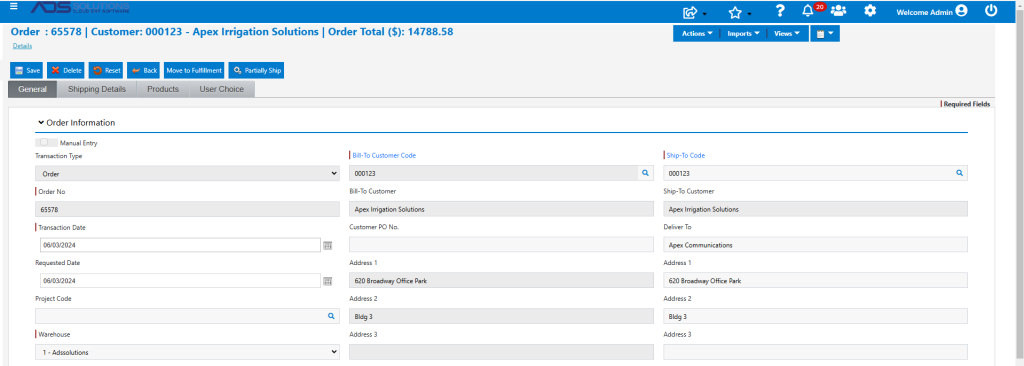
- The former prospect is now a Customer with an open order.