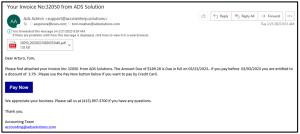
Accolent ERP allows invoices to be auto emailed to the contact set up for the customer. When set up, an email with the invoice as an attachment will be sent to the customer’s contact(s) set up for the invoice form in the Email/Fax defaults. The invoice gets auto emailed when the Move to Invoice button is clicked, either from the Fulfill Order screen or from the List Fulfillments screen.
Set Configuration Setting
- Go to Settings > System > System Configuration and set Auto Email Invoice to Y.

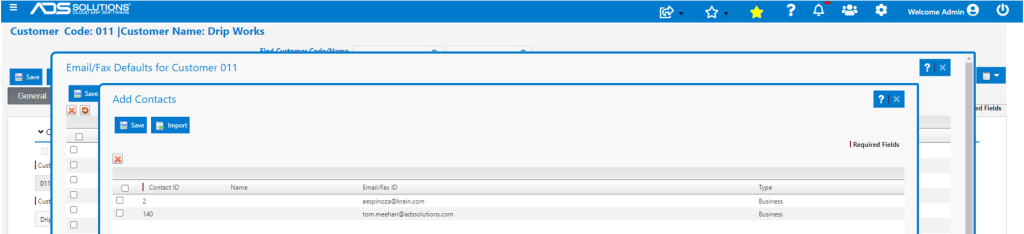
Set Email/Fax Defaults
- Go to Customer, select Actions > Email/Fax Default.
- Set Email/Fax Defaults for Invoices.
Configure Email Template
- The email template can be configured from Settings > Printing & Sending > Email Templates.
Create Order and Move to Invoice
- Create order 32050 and move to fulfillment.
- Open order 32050 for Customer 011 in fulfillment.
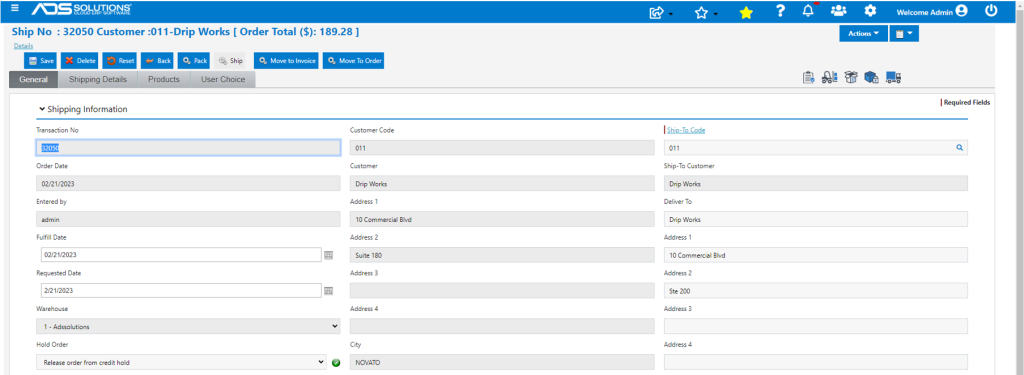
- Click on Move to Invoice button.

Invoice is Auto Emailed
- Automatically sends the configured email to the recipients set up in the email/fax defaults.