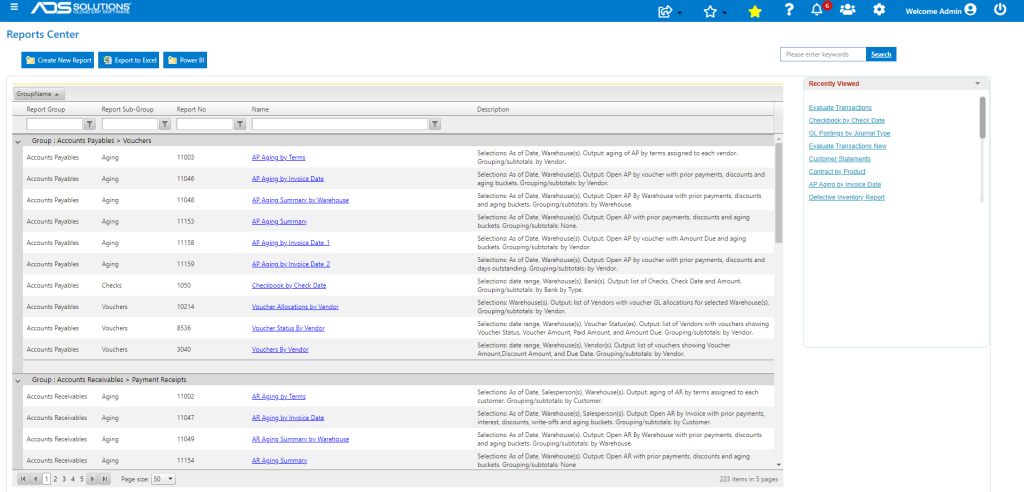
Accolent ERP uses an embedded third-party Business Intelligence and Reporting solution to deliver reports across the system. There are a very large number of standard Accolent ERP reports that are available in the system. Reports are all accessible from Reports Center or, in some cases, from specific menus. To find a report in Reports Center, use the Search bar in the page header.
Accolent ERP Reports
- Accolent ERP has a very large number of standard reports that are available “out-of-the-box.”
- Reports are generally grouped by topic in the Reports Center but in some cases, specific reports may be accessed directly from menus in the application (e.g., GL > Manage General Ledger > Evaluate Transactions).
Reports Center
- Go to Reports > Report Center, search for a report using the Search bar.
- Click on the link to open the report.
Finding a Report
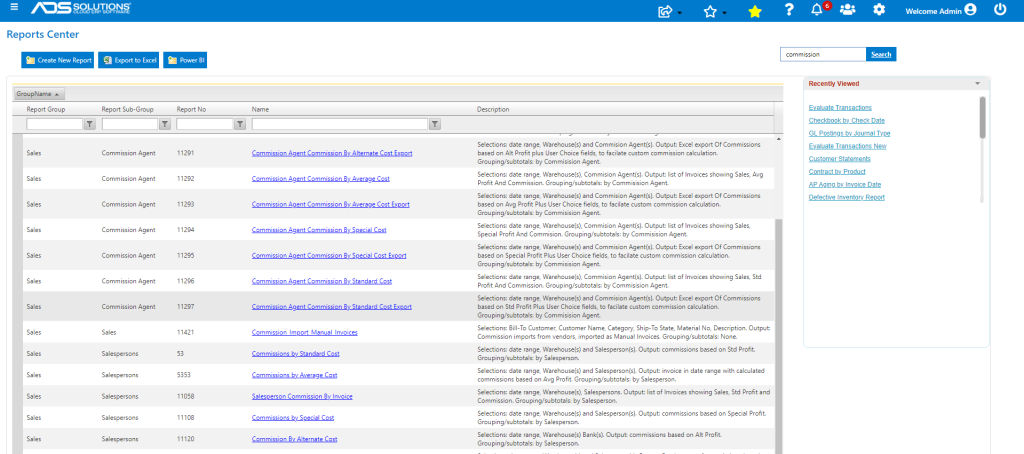
- Search for a topic (e.g., commission).
- In the grid, the Description summarizes the content of the report; however, many reports are fairly similar, and you may have to run the report to decide whether it is exactly what you need.
- Click on the link to open a report.
Running the Report
- Reports have multiple parameters (e.g., date range, warehouse(s), category(s), salesperson(s)), Detail, and Summary settings, are sub-totaled by grouping and have a grand total.
- Fill in report parameters at the top of the screen and click the Submit button.
- Select whether to run in Summary or Detail mode.
- Once run, the parameter window can be hidden to increase the screen viewing area.
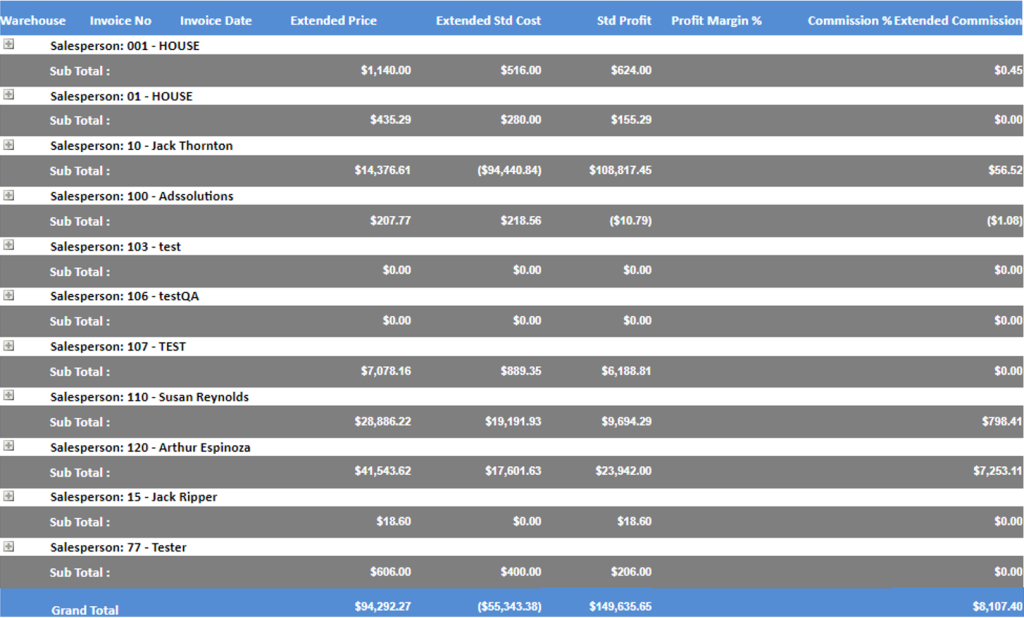
- To expand the Summary view, click on the plus sign on the left-hand side to expand only one salesperson.
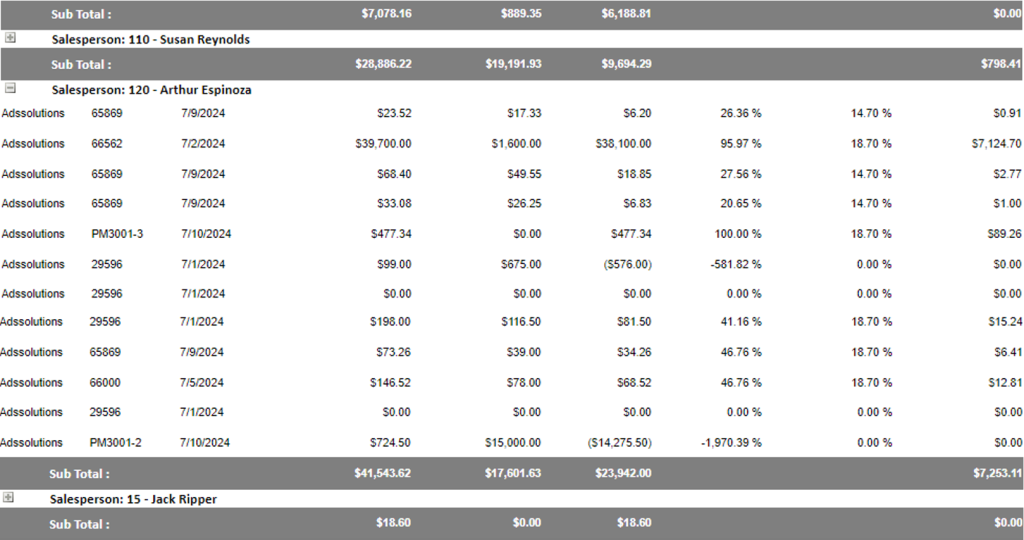
- To expand all, run the report in Detail mode.
- All reports can be sorted by all headings. To use this feature, after you run a report, click on one of the grid headings to resort within the sub-total groupings.
- All reports include sub-totals and grand totals, and all are formatted to print on US Letter 8.5″ x 11″ paper.
- All reports can be displayed as a single page, a continuous scrolling page or as multiple pages.

- All reports have a Zoom capability and can be viewed in full screen mode.
- All reports may be searched on-screen.
- If you have to print a report, it is recommended that you download it first then print it as this will deliver the formatting in the most readable form.
Exporting Reports
- All Accolent ERP reports can be exported in multiple formats and are Excel-friendly.
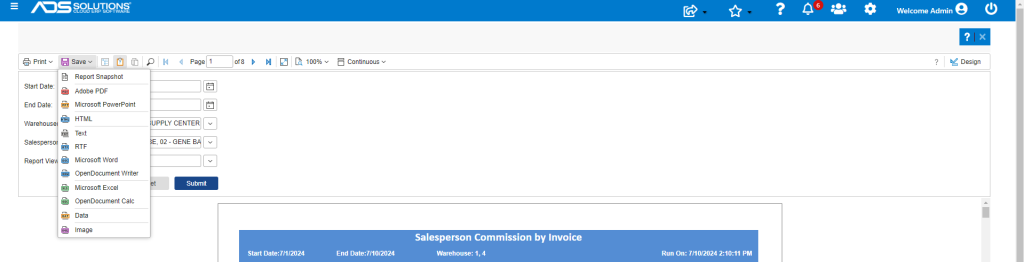
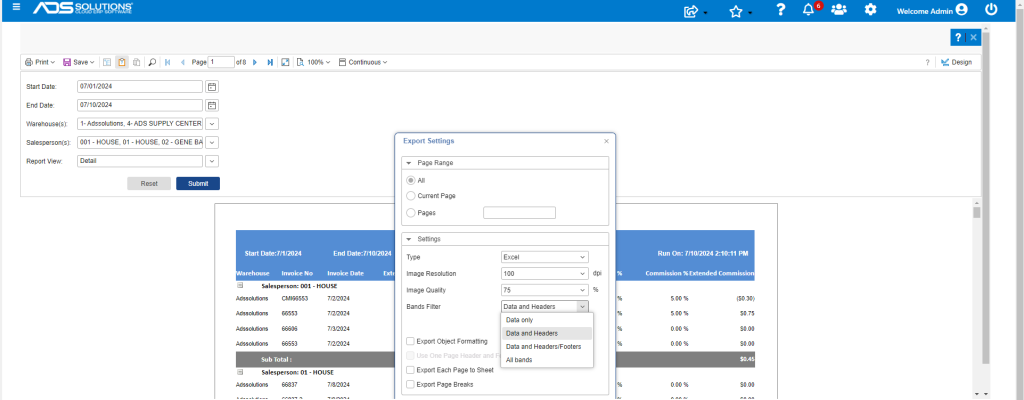
- Saving Reports to Excel using the Data and Headers only option removes all the formatting making the files easily manipulable in Excel.