
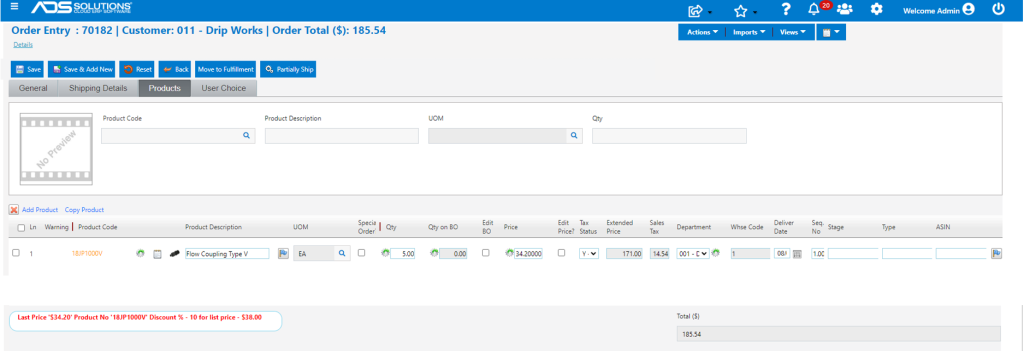
Whenever a product is entered on an order for a customer, Accolent ERP displays an information panel that shows the Last Price paid for the product by that customer. Also, Accolent ERP provides a setting for the minimum product margin allowed when entering quotes or orders or if the price is edited in fulfillment. If the edited price for a product, results in a profit margin based on Standard Cost that is less than the minimum, a warning will be created. The quote or order or shipment cannot be processed until all the line item Warnings have been resolved.
Set the Minimum Margin
- Go to Settings > Application Defaults > Sales > SO104 to set the minimum allowed profit margin based on Standard Cost.

Create Quote or Order
- Go to Sales > Create Order 70182.
- Enter product 18JP1000V.
Last Price Notification
- The lower left-hand side of the screen displays the Last Price for this Product and how calculated.
Low Price Warning
- Edit the product price to reduce to $20.00.
- The screen creates a Warning (W1) that will have to be addressed before the order can be saved or moved to fulfillment.
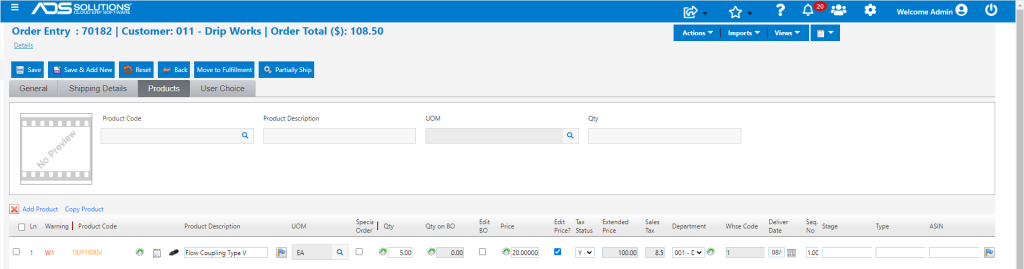
- The Minimum Price is based on margin setting and Standard Cost.
- Open product Actions > Cost, to see that Standard Cost for this product is $24.775.
- Based on the 15% threshold set on SO104, minimum price is $24.775 / 85% = $29.14706.
- Click on the Warning hyperlink – which will bring up the Low Price Warning screen.
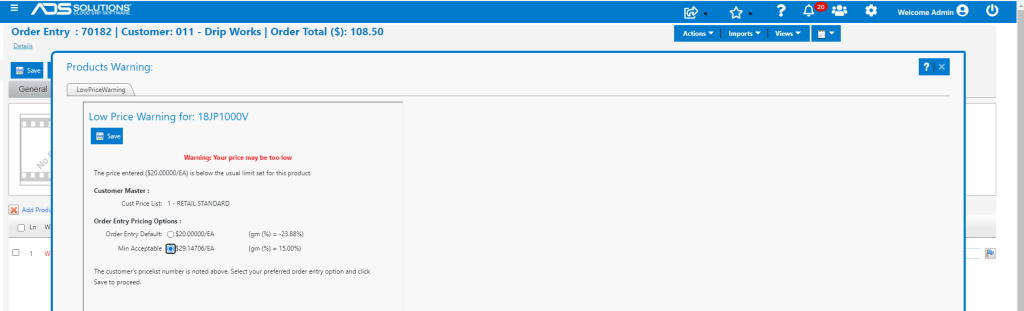
- User can select to proceed with the entered price (with the permission to do so) or select the Minimum price = $24.775 / 0.85 = $29.14706.
- Select the Min Acceptable and Save the screen.
- The Warning (W1) is resolved, and the order can now be processed.
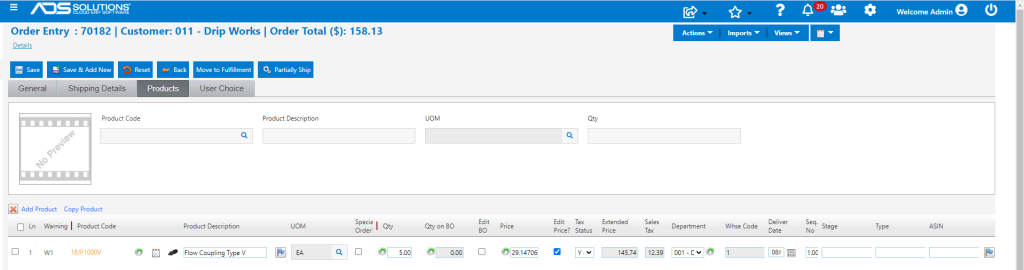
- The order can now be saved.
