
Accolent ERP provides a comprehensive GAAP-compliant accounting system and General Ledger (“GL”). The GL is the means by which records are stored of all the financial accounts and transactions in the system. The GL is the basis of all the financial and accounting reporting provided by the system. To use the accounting system, the General Ledger Chart of Accounts, Financial Statements and GL Settings have to all be properly entered before entering transactions.
Set Up Required for GL Usage
- All of the following steps need to be completed to initiate the Accolent ERP accounting system:
-
- Import/set up the GL Chart of Accounts you will use.
- Complete the Warehouse GL Account Defaults.
- Set up the Financial Statements.
- Set the Accounting Start Date.
- Set the Fiscal Year End.
- Enter a starting Balance Sheet as a GL Journal Entry.
GL Chart of Accounts
- The General Ledger Chart of Accounts represents the list of all the accounts that transactions will post to.
- Accolent ERP is delivered with a simple default Chart of Accounts that may be used or your existing Chart of Accounts may be imported.
- If you intend to import your own Chart of Accounts, you must first delete the delivered Chart of Accounts.
- The delivered Chart of Accounts may be deleted using the Utilities > Data Management menus.
- See https://help.accolent.net/delete-gl-chart-of-accounts/.
Warehouse GL Account Defaults
- Every transaction is posted to the GL, by Warehouse by Department, to a pre-defined set of GL Accounts based on the type of transaction.
- The Warehouse GL Account Defaults represent the minimum set of GL Accounts that have to be designated in order for each warehouse to correctly post transactions.
- The GL Account Defaults must be entered for each warehouse after the GL Chart of Accounts has been set up.
Financial Statements Set Up
Balance Sheet
- See https://help.accolent.net/balance-sheet-set-up/.
- To set up the Balance Sheet, go to GL > Financial Statement Set Up > Balance Sheet Set Up.
- Every Balance Sheet GL Account has to have one of the following standard Account Types: Asset, Liability, and Capital.
- In addition, the following Account Sub-Types are defined:
Assets
-
- Current Assets
- Other Current Assets
- Property, Plant & Equipment
- Fixed Assets
- Other Assets
Liabilities
-
- Current Liabilities
- Other Current Liability
- Long Term Liability
Shareholders’ Equity
-
- Equity
- Retained Earnings
- Each Account Sub-Type has positional significance and will appear on the printed Balance Sheet in the order shown above (e.g., Current Assets will always come before Other Current Assets).
- The Balance Sheet will show totals by Account Sub-Type and by Account Type.
- You can choose to use some or all of the Account Sub-Types.
- You can also create multiples of the same Account Sub-Types and determine the order they appear (within the Account Sub-Type) on the Balance Sheet (e.g., break down Property, Plant & Equipment to Property (1), Plant (2), and Equipment (3)).
- Account Sub-Types may be given any kind of user-defined label (e.g., Property, Plant & Equipment can be labeled Machinery).
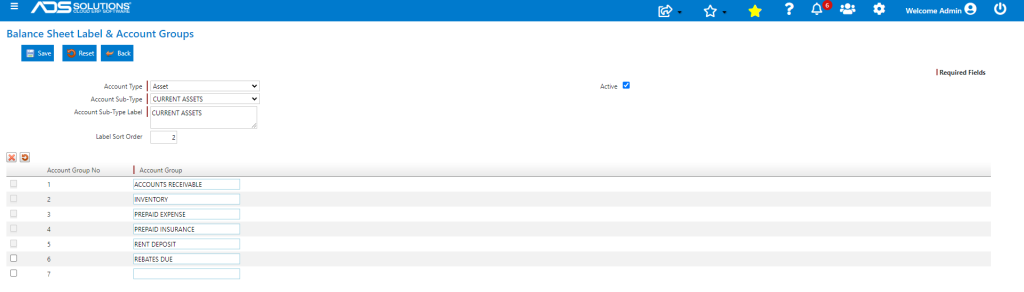
- Below the Account Sub-Types are Account Groups which can consist of one or more GL Accounts.
- Account Groups are used to identify the financial statement line items that every account in the Chart of Accounts posts to.
- The Account Group number determines the order that the Account Group appears on the financial statement.
- There are no predefined Account Groups. These groupings are user defined and there can be as many as you wish.
- Here is an example of account groups set up to itemize Current Assets:
Income Statement
- See https://help.accolent.net/income-statement-set-up/.
- To set up the Income Statement, go to GL > Financial Statement Set Up > Income Statement Set Up.
- Every Income Statement GL Account has to have one of the following standard Account Types: Income or Expense.
- In addition, the following Account Sub-Types are defined:
Income
-
- Sales
- Other Revenue
Expense
-
- Cost of Sales
- Operating Expenses
- Depreciation & Amortization
- Interest
- Taxes
- Other Income/Expense
- Each Account Sub-Type has positional significance and will appear on the printed Income Statement in the order shown above (e.g., Sales will always come before Other Revenue).
- The Income Statement will show totals by Account Sub-Type and by Account Type.
- The Income Statement also has the following built in sub totals that conform to GAAP income subtotals:
- Gross Profit comes after Cost of Goods Sold and is calculated as Sales plus Other Revenue minus Cost of Goods Sold.
- EBITDA, earnings before interest, taxes, depreciation and amortization, comes after Operating Expenses and is calculated as Gross Profit minus Operating Expenses.
- EBIT, earnings before interest and taxes, comes after Depreciation & Amortization and is calculated as EBITDA minus Depreciation & Amortization.
- EBT, earnings before taxes comes after Interest and is calculated as EBIT minus Interest.
- Net Income is calculated as EBT minus Taxes minus Other Income/Expense (which is an Expense Account Type).
- You can choose to use some or all of the Account Sub-Types.
- You can also create multiples of the same Account Sub-Types and determine the order they appear (within the Account Sub-Type) to on the Income Statement (e.g., break down Operating Expenses to General & Administrative (1), Sales & Marketing (2), and Other Operating Expenses (3)).
- Account Sub-Types may be given any kind of user-defined label (e.g., Operating Expenses can be labeled Sales & Marketing).
- Below the Account Sub-Types are Account Groups which can consist of one or more GL Accounts.
- Account Groups are used to identify the financial statement line items every account in you Chart of Accounts posts to.
- There are no predefined Account Groups. These groupings are user defined and there can be as many as you wish.
Assigning All GL Accounts to Account Groups
- The Chart of Accounts can have as many GL Accounts as you want; however, each GL Account has to post to a specific Account Group.
- The GL Account to Account Group can be a one to one relationship or a many to one relationship, depending on the detail and nature of the transaction being tracked to the financial statements
- Here is a sample of the Chart of Accounts set up page:
- Note that to be properly set up, every GL Account has an assigned Account Type, Account Sub Type, and Account Group; if not the financial statements will not balance.

Retained Earnings
- Retained Earnings is a special Account Type/Account Group in the Balance Sheet.
- It contains the sum of all previous net income amounts as well as the current net income amount; this is not obvious as in most balance sheets all you see is one figure for retained earnings.
- When you run your balance sheet during the fiscal year the current net income is added to the Prior Retained Earnings, the software does this in the background.
Accounting Start Date
- Before using the accounting system, you must set the Accounting Start Date.
- To set the Accounting Start Date go to Settings > System > System Configuration, then select config setting ID 85 and enter the desired date.
- The Accounting Start Date should be the date of your opening balance sheet, and should be the date you go-live on the system.
- Transactions dated before the Accounting Start Date will not be posted to the GL; so, any test transactions prior to the Accounting Start Date will not affect the GL.
- Similarly, sales, purchasing, or inventory transactions prior to the Accounting Start Date may be imported for history purposes, but will not post to the GL.
- In contrast, after the Accounting Start Date, all transactions will be posted to the GL. This means that after the Accounting Start Date transactions must be entered into and completed in Accolent ERP for the accounting to make sense.
Fiscal Year End
- Before using the accounting system, you must enter the Fiscal Year End.
- To enter the Fiscal Year End and define your fiscal year numbering system, go to Settings > System Settings > Finance > General Ledger.
- Enter the starting month of the Fiscal Year.
- The system will calculate the first full Fiscal Year following the Accounting Start date and you can enter the numbering label you wish to assign that year.
- When done, click the Save button.
Starting Balance Sheet
- Enter the starting Balance Sheet as a GL Adjustment dated as of the Accounting Start Date.
- The starting Balance Sheet can also be imported using one of the system import templates.
- If you are not ready to enter the starting Balance Sheet at the go-live date, you can start with a zero Balance Sheet and later go back and enter the starting Balance Sheet.