
Accolent ERP allows you to define the sections for the Balance Sheet. Getting the Balance Sheet right is one of the main objectives of good accounting practice. The process for setting up the Balance Sheet uses Account Types (Asset, Liability, Capital) and Account Sub-Types (e.g., Current Assets, Other Current Assets, PP&E) which all have positional significance to determine the layout of the Balance Sheet. Within each Account Sub-Type there are Account Groups which contain one or more GL Accounts.
Balance Sheet Set Up
- To set up the Balance Sheet, go to GL > Financial Statement Set Up > Balance Sheet Set Up.
- The first thing to consider is the Account Type: Asset, Liability, or Equity.
- After that select the Account Sub-Type: Current Assets, Other Current Assets, Property and Equipment, Fixed Assets, Other Assets, Current Liabilities, Other Current Liabilities, Long Term Liabilities, Other Liabilities, Stockholders Equity, Paid-In Capital, and Retained Earnings.
- You don’t have to use all the Accounts Sub-Types that are available, choose which ones you want to use, and Account Sub-Types can be reused if you want to (e.g., have two sections for Current Assets with different Account Sub-Type Labels).
- Note that all the Account Sub-Types have positional significance on the Balance Sheet (e.g., Current Assets will appear before Property and Equipment).
- Below is the ordinary sequence of the Account Sub-Types. You will notice the blue hyperlinks that are the next step in the setup process.
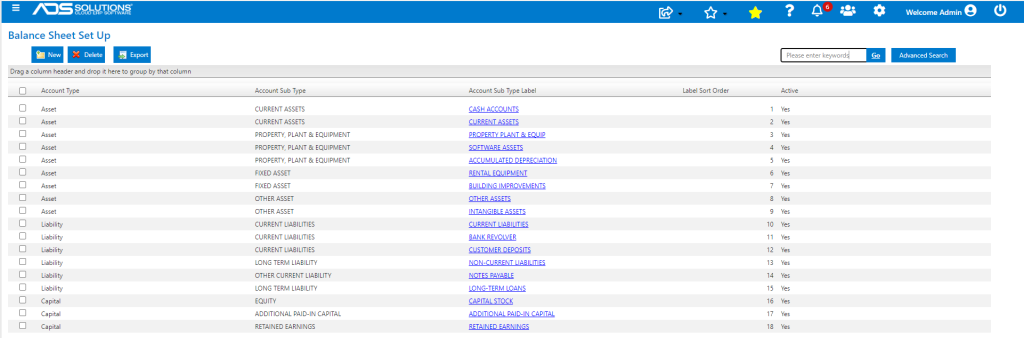
- Now build your Account Groups under the Account Sub-Types.
- You can create as many Accounts Groups as you want but remember each Account Group can contain many actual GL Accounts set up in the Chart of Accounts.
- Each of the Account Groups is a sub total unto itself; for example, you may have many bank accounts (checking, savings, payroll, etc.) that will be totaled as Cash in Bank on the Balance Sheet.
- Click on the Account Sub-Type hyperlink for CASH ACCOUNTS, for example.
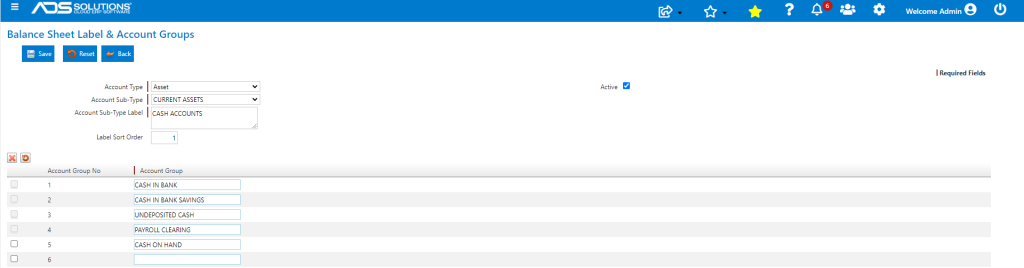
- The Account Group No determines the top to bottom order in which the Account Groups will appear on the Balance Sheet.
- If you need to add an Account Group in between two other Account Groups, you will need to reenter the Account Group name in the next space down, and so on.
- You will need to be careful to reenter the exact Account Group name as you will see that accounts are assigned to that specific group name.
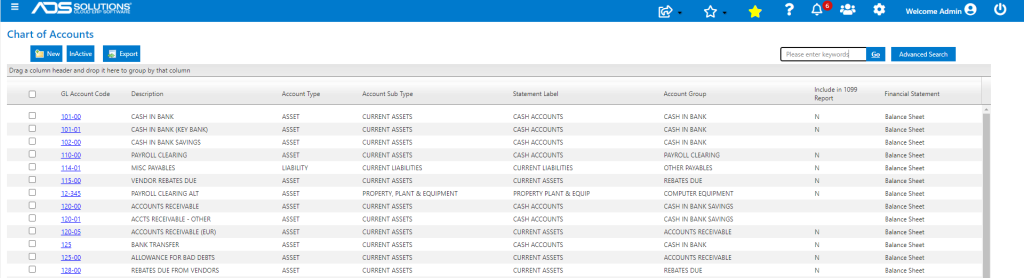
- In this example accounts 101-00 and 102-00 are assigned to the Account Group CASH IN BANK. Accounts 120-00, 120-01, and 125-00 are assigned to ACCOUNTS RECEIVABLE.
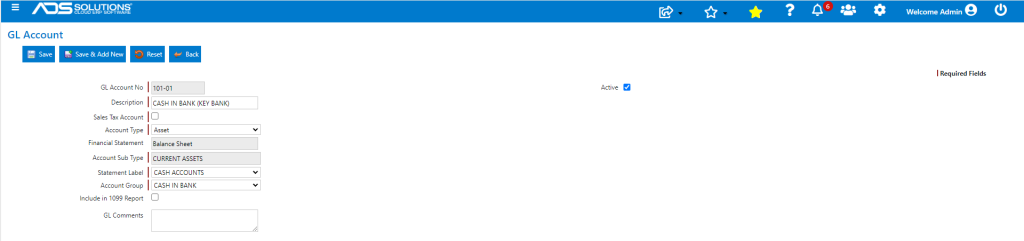
- These Account Groups will be displayed on the Balance Sheet according to their number sequence, and are in turn grouped by the statement label CURRENT ASSETS
- When you need to check on how your statement structure is looking you can go to Reports > Reports Center > General Ledger > Financial Statements by GL Account, select Balance Sheet, and Generate Report