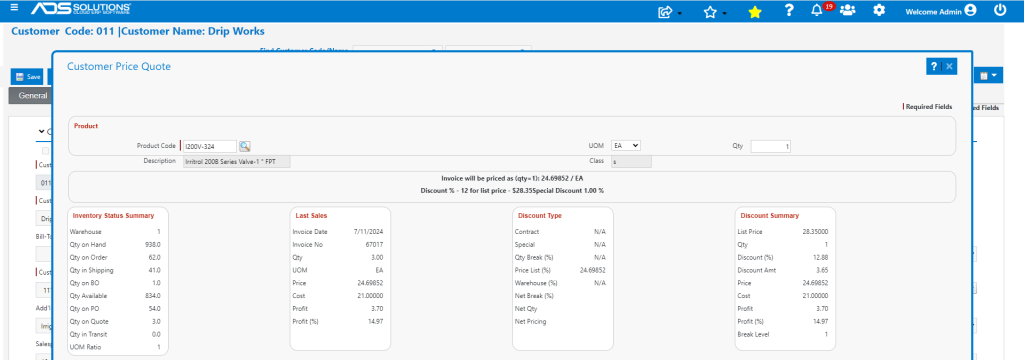
Accolent ERP displays at the bottom of the order entry screen how the pricing is being calculated for each product as that product is entered into the product grid. There are two different settings for this information, controlled by System Configuration ID 100.
System Configuration Setting
- Go to Settings > System > System Configuration, select System Config 100.

Display Last Price Only
- Depending on the value of this System Configuration, the red box at the bottom of the order entry screen will display different information.
- A setting of “Y” on System Configuration ID 100 will show the last price that product was sold to this Customer.
- Create order 67017 for Customer 011 and add product I200B-NPT-1.50.
- The red box at the bottom of the screen shows Last Price was $73.26.
Display Last Price and Calculation
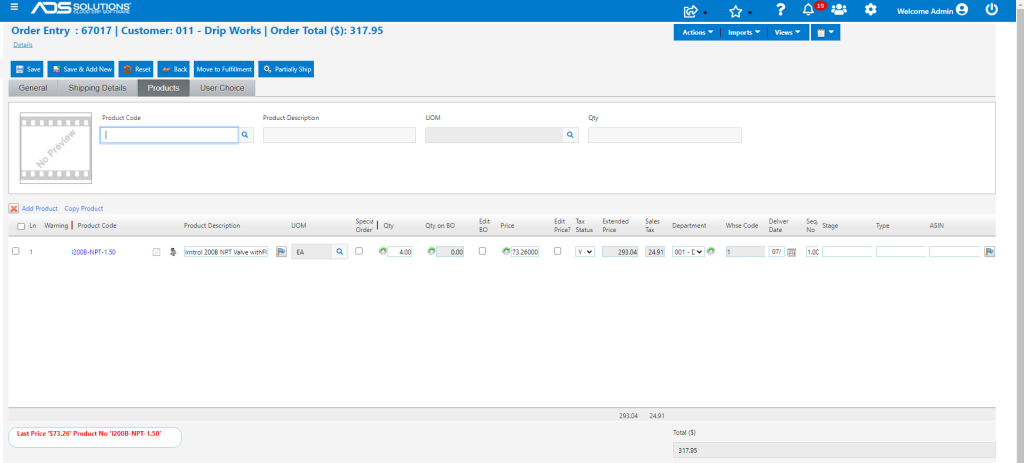
- If System Configuration ID 100 is set to “N”, the red box at the bottom left hand side of the screen will show both the Last Price and how it was calculated.
- Go to System > System Configuration ID 100 and change setting to “N.”
- Then go back to order 67017 and add another product I200V-324.
- Now when product I200V-234 is added, the red box shows that (i) this customer last purchased this product at $24.71, and (ii) the price was calculated at a 12% discount off a list price of $28.35 and also included a special discount of 1.0% (i.e., $28.35 x (1 – 12%) x (1 – 1%) = $24.69852).
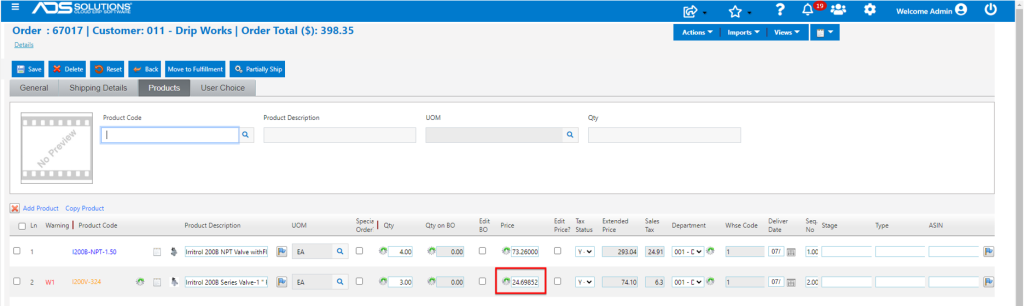

- Open Customer 011 then Views > Price Quote to verify pricing.
- Product I200B-NPT-1.50 shows pricing of $73.26.
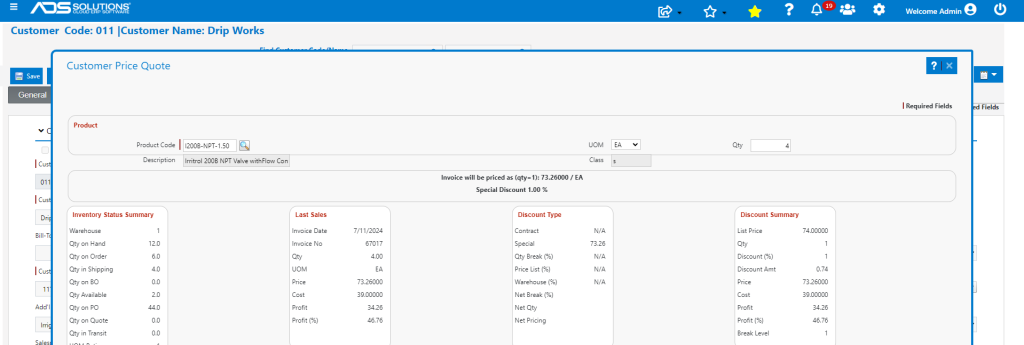
- Product I200V-324 shows pricing of $24.69852.