
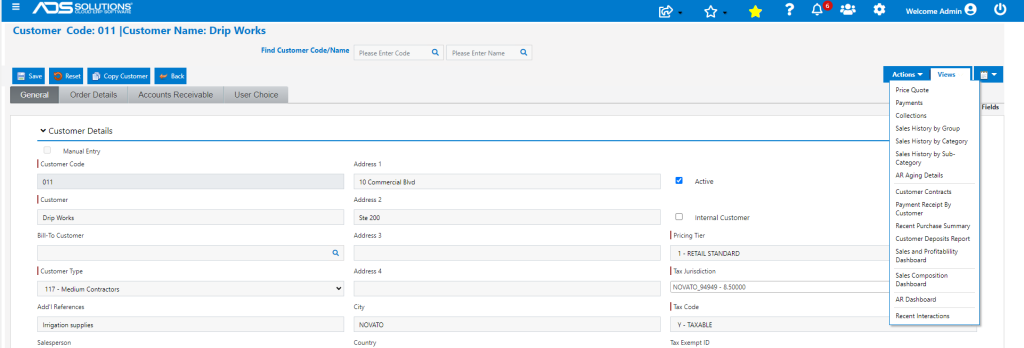
Selecting the red Views button on the upper right hand side of the Customer screen, provides access to a series of menus that provide certain views of data specific to this customer.
Customer Views Menus
- From the Customer, select Views to see a number of options available
- These options display information specific to this customer
Price Quote
- This option is used to quote pricing of a product in a specified quantity to a particular customer
- You can also access this screen from Inventory/Products > List Products, then select a product > Views > Price Quote
Price Quote Fields
| Fields and Functions | Description |
| Product Code | Product code. (Available when viewing from the Customer record.) |
| Customer No | Customer code. (Available when viewing from the Product record.) |
| Description | Customer or product description based on customer or product number. |
| UOM | Unit of Measure. |
| Class | Product class. |
| Quantity | Quantity quoted. |
Price Quote – Display Area
| Fields and Functions | Description |
| Price Display | Calculated price for the product for this customer. This price is the same one that would show as the default price during order entry. |
| Inventory Status Summary | Inventory status of the product in the customer’s default warehouse. |
| Last Sales | Details for the last invoice for this customer. |
| Discount Type | Discounts that apply to this customer including all discount types like contract pricing (Contract), special pricing (Special), and others. |
| Discount Summary | Summary of the pricing including the list price, total discount, profit, and break level. |
Payments
- The most recent posted cash receipts for this customer
- Click the Payment No to see a summary of the payment receipt
Collections Screen
- Allows user to view the customer’s collections screen which provides access to the detail of open and paid invoices along with payment and adjustment history
- Comments are available by customer statement and invoice by clicking the appropriate documents icon
- Clicking the invoice No shows a summary of the invoice
- The Collections screen shows for this customer:
- Total Balance Due
- Listing of Open and Paid Accounts Receivable
- Payments made and applied
- The days an invoice has been open is shown in the Days column
- The Amount Due field shows the current invoice balance including the cash discount
Sales History by Group
- The Sales History by Group screen displays sales and profit information for this customer
- Select the Customer Code, the Date Range required and the Group
- The screen displays the Sales Total, Invoice count, Profit and Profit Percentage for the selection made
Sales History by Category
- The Sales History by Category screen displays sales and profit information for this customer
- Select the Customer Code, the Date Range required and the Category
- The screen displays the Sales Total, Invoice count, Profit and Profit Percentage for the selection made
Sales History by Sub-Category
- The Sales History by Sub-Category screen shows the Total Sales Invoice count Profit and Profit Percentage for the Date Range and Subcategory selected for this customer
Accounts Receivable Aging
- The Accounts Receivable Aging screen provides a current view of the amount the customer owes together with an aging of the Accounts Receivable
- Aging is done from the invoice creation date
- To see Aging by Terms, run the report from Reports Center
Customer Contracts
- The Customer Contracts Report shows all Contracts, by Contract Type that are linked to this Customer
Payment Receipts by Customer
- The Payment Receipts report shows all payment receipts for this Customer in a specified date range and by warehouse
Recent Purchase Summary
- The Recent Purchases Summary screen shows all products purchased by this Customer over a specified date range
- Ability to search by Product or Category Code
- Includes the Ability to drill down to see all purchase of a specific Product
Customer Deposits Report
- The Customer Deposits Report shows all deposits taken for this Customer over a specified date range.
- Customer Deposits are created by payments taken on orders that have not yet been invoiced
- Customer Deposits automatically offer the ability to apply these when the linked orders are invoiced
Sales and Profitability Dashboard
- Sales and profitability dsashboard for this Customer
Sales Composition Dashboard
- Sales composition dashboard for this Customer
AR Dashboard
- AR dashboard for this Customer
Recent Interactions
- Displays all Calendar Tasks linked to this Customer
- Also captures all Emails sent to this customer from the CRM system.