Accolent ERP supports Immediate Invoices and an expedited POS (Point of Sale) screen designed for use by retail/front-counter sales personnel that are not necessarily familiar with product codes or the group/category/sub-category organization of products. Typically, the customer will already have selected the products to be purchased. Products can then be entered easily by scanning a barcode or by displaying a category of products or by searching on the product name or product code.
Create a POS Transaction
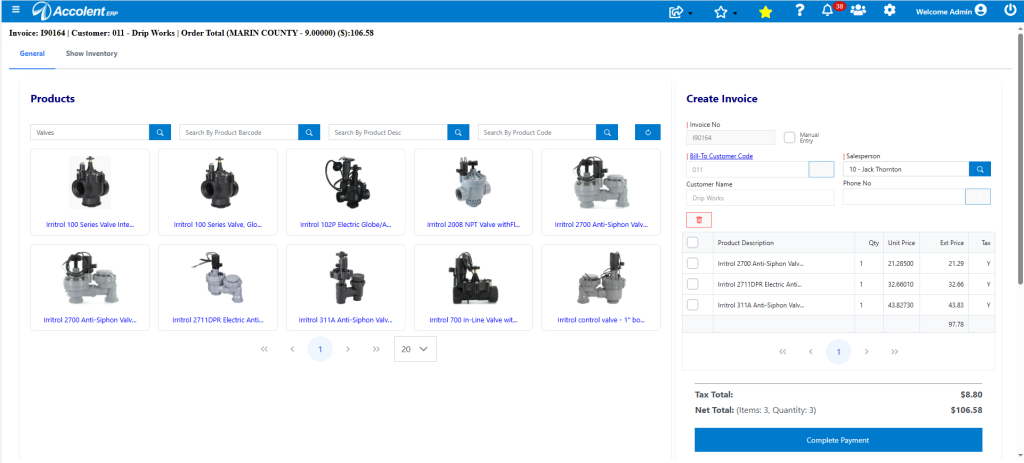
- Go to Sales > Invoices > Create POS – the POS screen populates the next available invoice no I90164, or another invoice no can be manually entered.
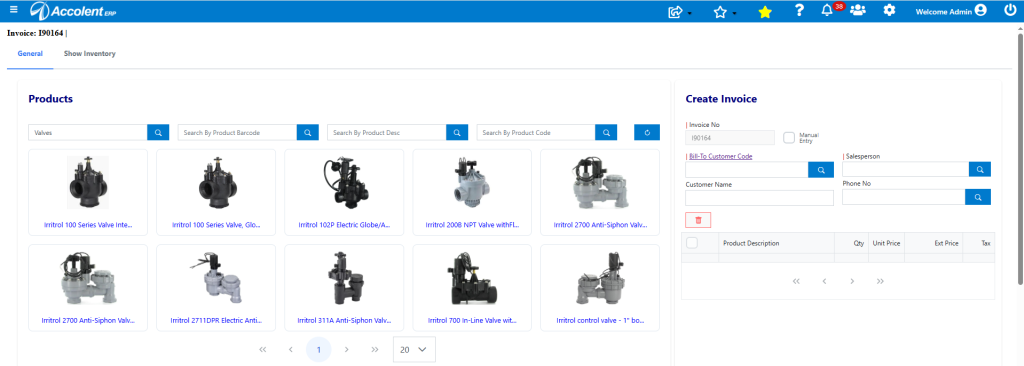
- The Product selection shown in the left-hand pane is all products in the warehouse.
- Enter a Category, scan a Barcode, enter a Product Description or a Product Code to find products.
- In this case, select a Category (e.g., 530-Valves), to change the display.
- The selection made persists to allow the search to be subsequently refined.
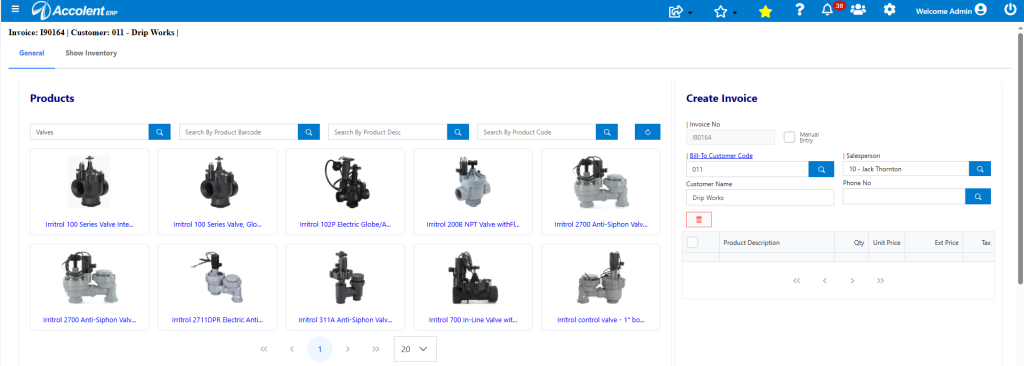
- Search/enter the Customer Code (e.g., 011) in the right hand pane and the Customer Name Drip Works will auto populate.
- If neither the Customer’s Code or Name is known, an entry in the Phone No field will search all customer contact phone no’s and return the Customer Code.
- If the user is a Salesperson, the Salesperson field will auto populate, if not select a Salesperson.
- To add Products, either scan a barcode or click on the product name in any tile that is displayed.
- Add product I2700-Irritrol Anti-Siphon Valve and it is automatically added to the grid with a quantity of 1. To change the quantity simply click on the quantity in the grid and change.
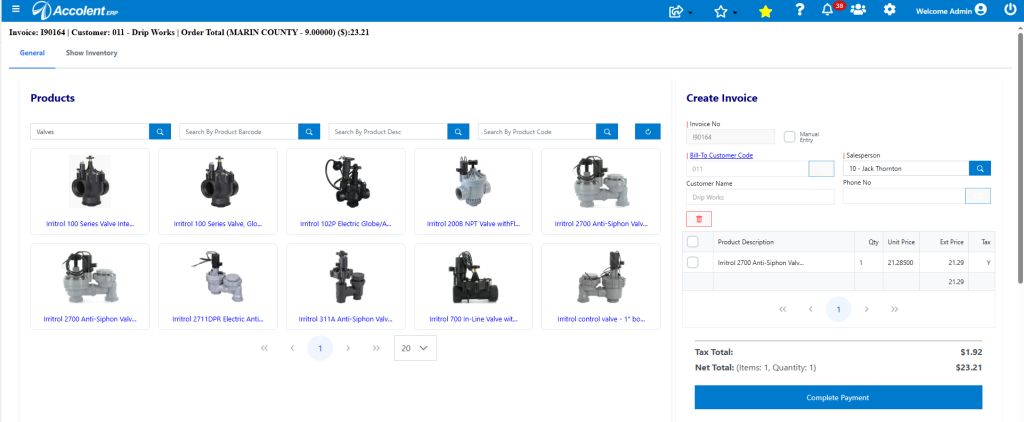
- Similarly add products I2711-DPR and I311A to the grid.
- The product total of $97.78 is shown and the warehouse tax jurisdiction of Marin County-9.0% calculates the sales tax at $8.80, for a total of $106.58.
Take Payment
- To finish the transaction, click the Complete Payment button.
- Select Payment Type of Credit Card, select Card Type (e.g., Visa) and then click the Process Payment button.
- If the Customer has a card saved in Fiserv, this may be selected, otherwise enter the credit card credentials, which generate a Token Code for the payment.
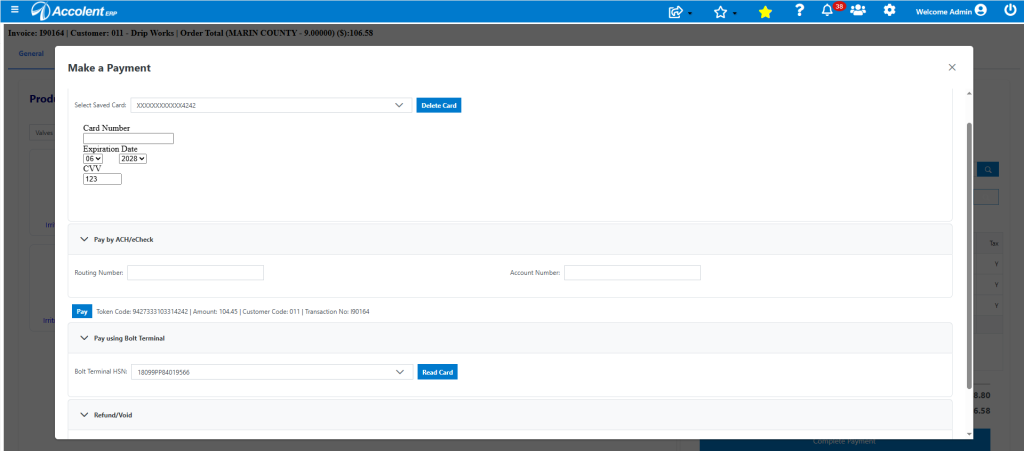
- Then click the Pay button to create the payment.
Complete POS Transaction
- The Payment Approval then comes up.
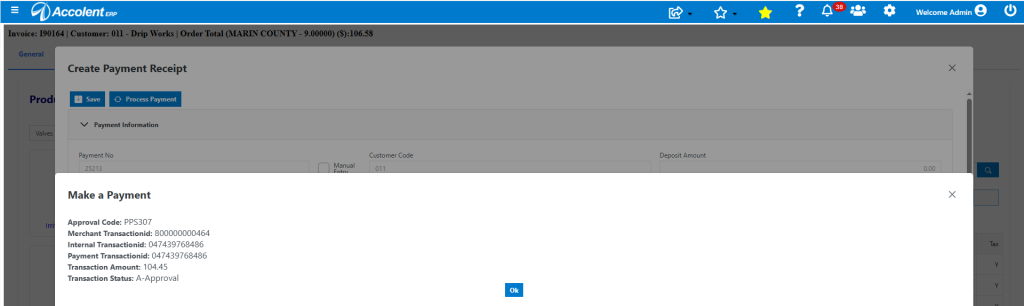
- Click OK.
- This will complete invoice I90164 and its associated payment.

- If set up to auto print the invoice will print to the printer set up for this.
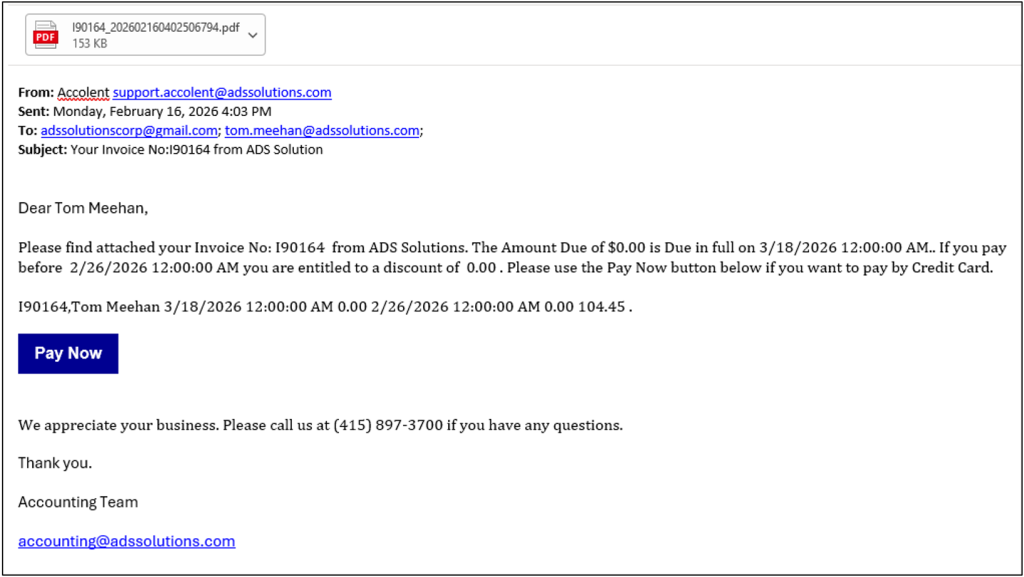
- If set up to auto email the invoice this will be sent to the customer’s email address in the system.
Customer Records Updated
- The records for Customer 011-Drip Works were automatically updated for the transaction.
- The invoice is shown as paid on customer’s Collections screen.
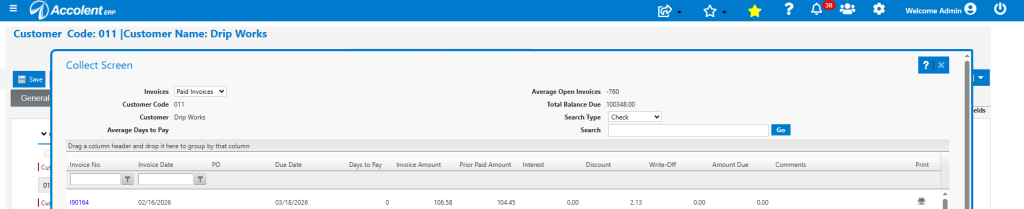
- The payment receipt 25213 was automatically created and applied to the invoice.

Products Inventory Updated
- The products’ inventory ledger cards were also automatically updated for the transaction.
- For example, open product I2700 and go to Views > Ledger Card.
- This shows the reduction of inventory by 1 EA on transaction I90164.

Look Up Inventory
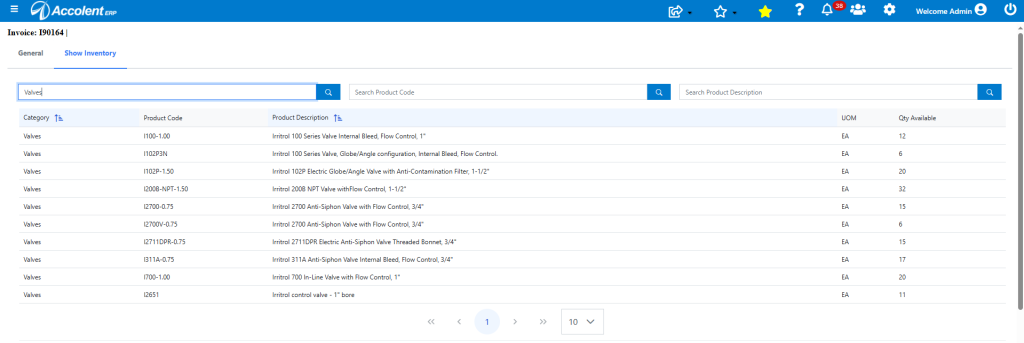
- While in the middle of entering a POS transaction, the user can click on the Show Inventory tab if desired, to see a listing of the inventory quantities available for all the products in the warehouse.
- The display can be searched by Category or Product Code or Product Description.