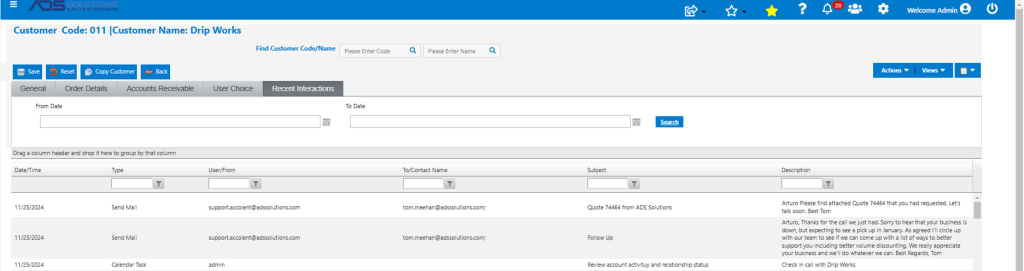
Accolent ERP provides a CRM summary of recent interactions with Customers, Prospects and Vendors. This summary of recent interactions is maintained for each Customer, Prospect or Vendor and is easily accessible from that Customer, Prospect or Vendor master. The recent interactions summary includes all Calendar Tasks, Call Notes, Meeting Notes and Emails sent from Accolent ERP to the Customer, Prospect or Vendor. Tracking the full list of interactions on the Customer, Prospect or Vendor allows all team members to see the full communications history and stay abreast of relationship issues. The full list of the recent interactions’ entries can be filtered by date or subject and searched or description allowing a user to find specific items.
Recent Interactions Tab
- Open any customer, prospect, or vendor master, (e.g., Customer 011) then click on the Recent Interactions tab.
- This is a complete listing of all Calendar Tasks related to, or emails sent to, this customer.
- The record can be searched by date by type of interaction, by Contact/addressee by subject or by description, allowing users to find specific items.
Create CRM Calendar Task
- Go to CRM > Create Calendar Task to create a new task 1704.
- Enter Date/Time, Duration (in minutes) Calendar Description and select Company Type from Customer, Prospect or Other.
- The User will default the user’s name, but this can be changed to assign to any other Accolent ERP user.
- Save to put this call on the user’s shared calendar.
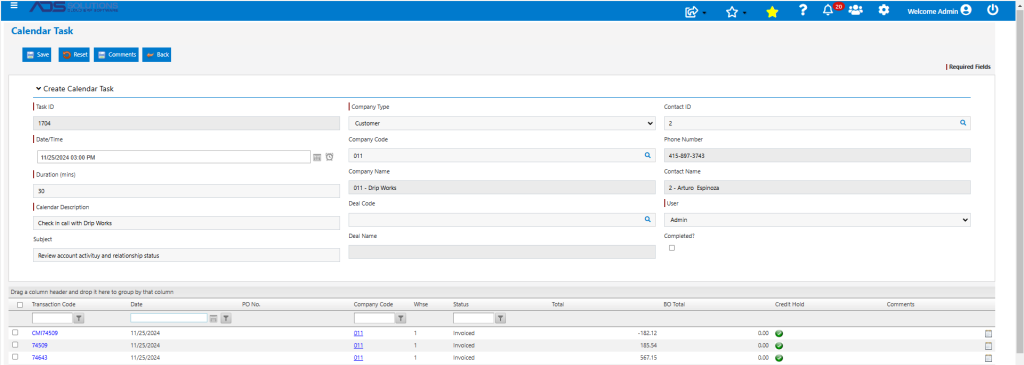
- The task appears in the user’s calendar and can also be accessed from the CRM > List Calendar Tasks grid view.
- Following the call, the user can record call notes which will be saved in the List Calendar Tasks grid and will also be recorded in the Recent Interactions tab for Customer 011.

Send CRM Email
- Go to the Customer > Actions > Send CRM Email.
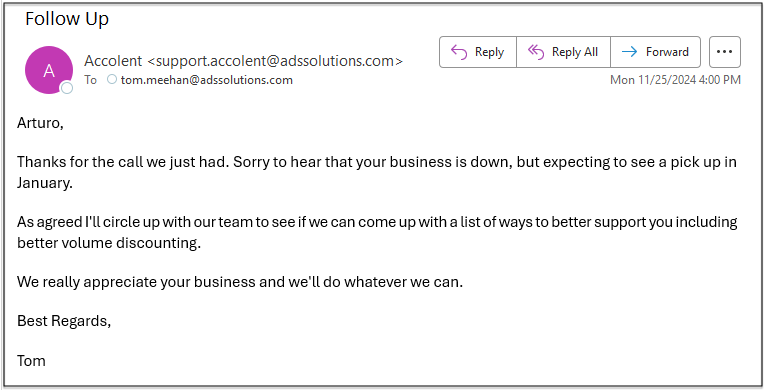
- This gives the user the ability to send a free-form email to the customer contacts.
- The email could be a quick follow-up to confirm the results of the call, for example.
- When sent, the email will be recorded in the Recent Interactions tab.
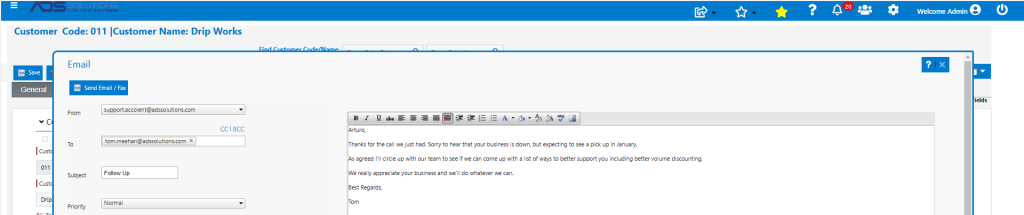
- Once sent, a record of the email is saved in the Recent Interactions tab.
Send Transmittal Email
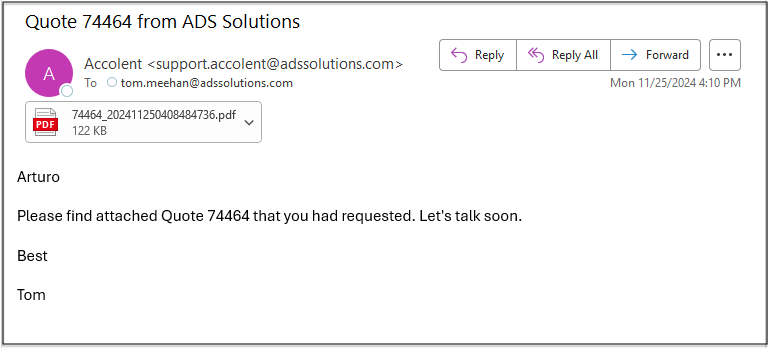
- Any transmittal emails sent with transaction forms from the system will also be recorded in the Recent Interactions tab.
- For example, send a Quote with a free-form transmittal email.
Recent Interactions Captured
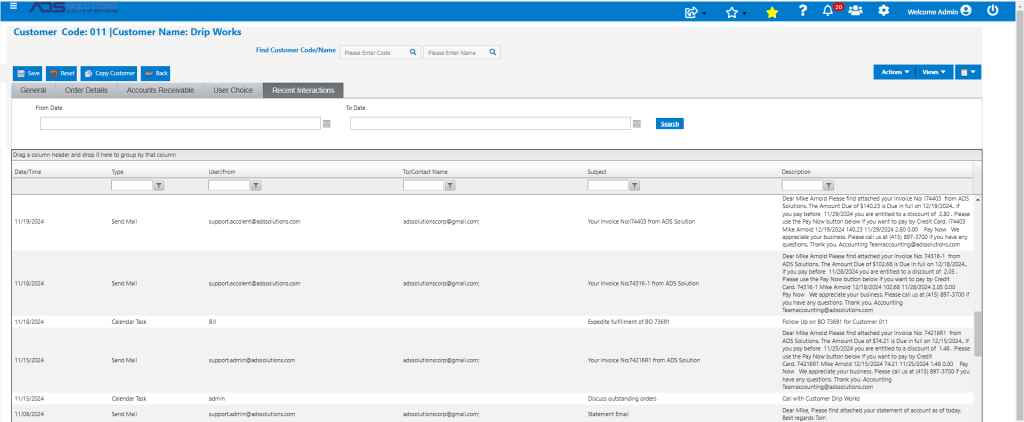
- All these communications appear chronologically in the Recent Interactions tab on Customer 011.
- This allows users to easily see and stay abreast of all relationship interactions.