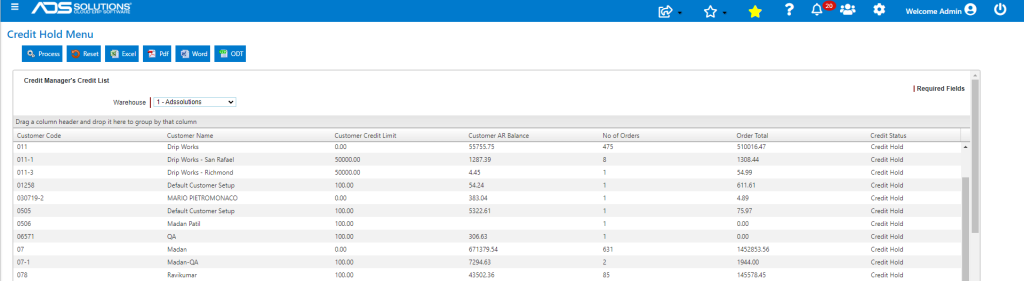
Accolent ERP has a comprehensive Credit Hold system. Credit Statuses may be defined based on a number of different parameters. Once created, specific Credit Statuses can then be assigned to customers together with customer-specific Credit Limits. Orders or shipments for any customer that fail various credit checks are placed on Credit Hold and may only be fulfilled if released.
Credit Statuses
- To set up Credit Statuses, go to Settings > Value Lists > Other Value Lists (A to L) > Credit Statuses.
- Credit Statuses are set up to define certain actions that are allowed or not allowed; for example:
- On Standard Credit, a customer may be able to place orders, and have open AR up to 120 days
- On Credit Hold, a customer may be able to place orders but required to pay in full upon receipt
- Specific Credit Status options are as follows:
- Order OK? – If this is set to Y, the system allows the order to be taken (subject to further tests); if N the system does not allow taking the order.
- No of Open AR Days Allowed? – This allows user to specify for this customer how many days of open AR are allowed (e.g., 120 days) before orders for this customer are put on Credit Hold.
- Deposit Required?– If this is set to Y, the system requires a Deposit to be taken for an order, and the Deposit Percentage between 0 and 100% can be specified. Upon saving an order or moving to shipping, user is redirected to the Take Payment screen to take a deposit. The system will not allow the order to be saved unless a deposit greater than or equal to the required Deposit Amount has been taken. If this is set to N, the system does not require a deposit on the order.
- COD? – If this is set to Y, the system requires payment in full upon delivery (i.e., at ship confirm). When the order is moved to invoice, user is redirected to the Take Payment screen to take payment in full, and the system does not allow the order to be invoiced unless payment in full has been taken. If this is set to N, the system does not require payment on ship confirm.
- PO Required? – If this is set to Y, the system requires a PO No for an order; if N the system does not require a PO No.
- Signature Required – If this is set to Y, the system requires a Signature on the Invoice.
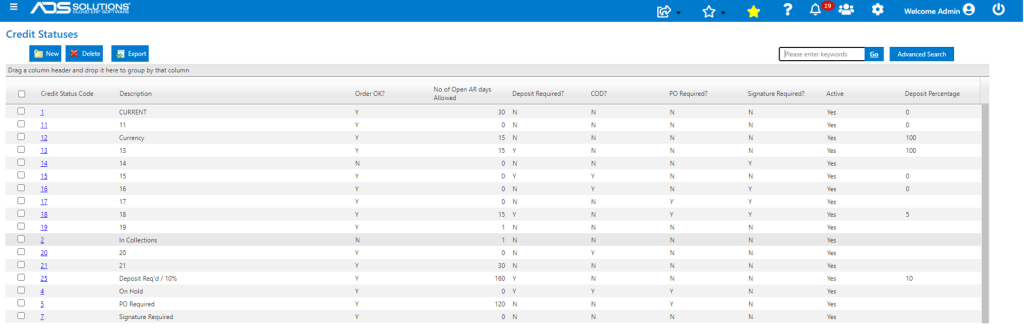
- Using these different parameters, specific Credit Statuses can be defined to cover a variety of different situations.
- Each customer is assigned a specific Credit Status code.
Credit Checks Performed
- A credit check is always performed when:
- Starting a new order,
- Saving an order,
- Moving an order to fulfillment,
- Saving an order in fulfillment, and
- Moving an order to invoice.
- Credit checks are not performed for Quotes, or Warehouse Transfer orders or Credit Memos.
- The credit check evaluates whether either of the following conditions are met:
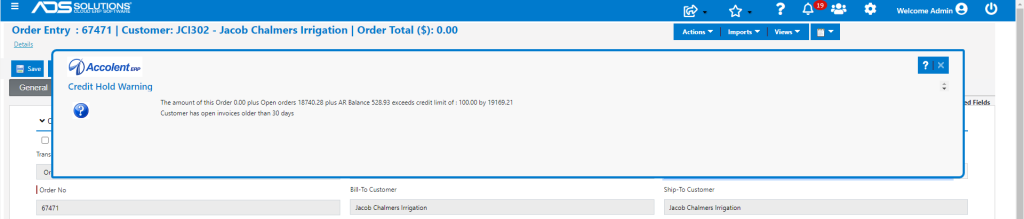
- The order or shipment would cause the customer’s AR Balance plus the sum of all open orders net of deposits, to exceed the assigned Credit Limit set on the customer screen; or
- The customer has open AR beyond the specified number of days allowed in the Credit Status assigned. Note the number of open AR Days may be different than the number of days allowed by the Terms; for example, set terms as Net 30 but don’t trigger a Credit Warning until invoices are 45 days past due.
- If either of these tests fail, a Credit Hold warning comes up.
Credit Hold Warning
- For example, create a new order for Customer JCI302 and a credit hold warning is displayed.
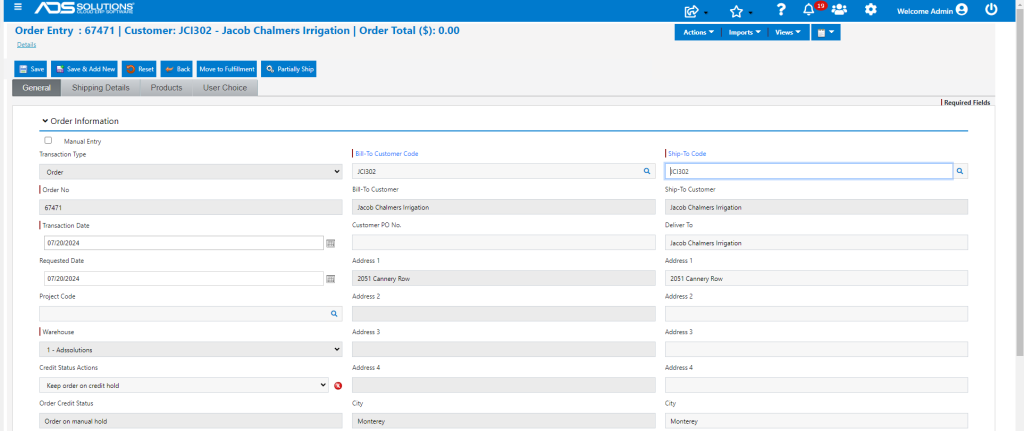
- Click on the red X button to see details.
Orders with Credit Hold Warning
- For a new order that shows a Credit Hold Warning, if the Customer’s Credit Status has Order OK?=N, the system will not accept the order.
- A new order that shows a Credit Hold Warning but the Customer’s Credit Status has Order OK?=Y, the order can be entered.
- If the order is entered with a Credit Hold Warning, the user can:
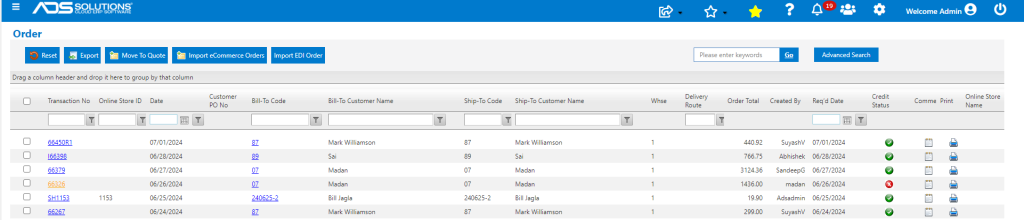
- Keep the order on Credit Hold – an order on Credit Hold may be saved or moved to fulfillment but cannot be moved to invoice until released. At each of these steps the Credit Hold tests will be reassessed based on then current information. Orders and fulfillments on Credit Hold will display the red X Credit Hold warning on the general tab of the order or shipment and also on the List Orders or List Fulfillments screens; or
- Release from Credit Hold – once released, the Credit Hold tests will no longer be applied as the order is saved or moved to fulfillment and can then be invoiced. If the Credit Hold is not released on the order, it can be released once the order is moved to fulfillment.
Orders on Credit Hold
- Orders on Credit Hold are marked as such on the List screens which display a green check mark or red X.
- Also, the Order Credit Status field on the general tab of an individual order indicates whether it is on Credit Hold or not.
- Orders on Credit Hold are held until the underlying issue is resolved and cannot be delivered to the customer unless released.
- Orders on Credit Hold may be released whenever the order is opened, or from the Sales > Orders > Authorize Orders menus.
Authorize Orders
- To manage orders on Credit Hold, go to Orders > Authorize Orders which offers options to release multiple orders from Credit Hold, or to place multiple orders on Credit Hold.
I. Release Orders on Credit Hold
- This menu opens a lookup which displays all orders on Credit Hold.
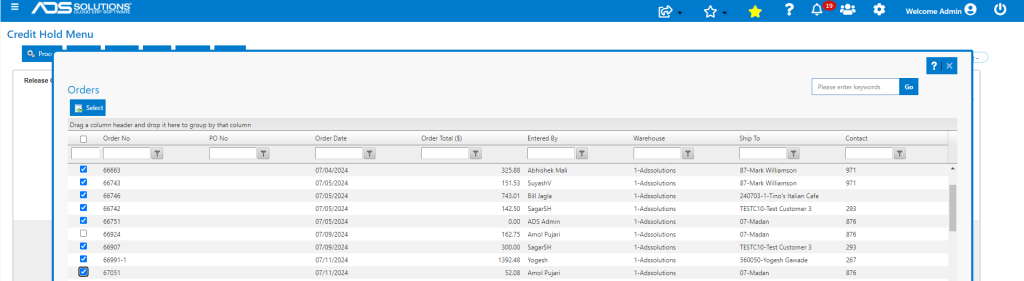
- From the list of orders on Credit Hold, mark multiple that should be released and click Select.

- Then click on the Process button to release all selected orders from Credit Hold.

II. Put Orders on Credit Hold
- This option allows multiple orders to be placed on Credit Hold quickly. For example, upon news of a bankruptcy, select all orders for that Customer and put them on Credit Hold immediately.
- The lookup lists all open orders and allows user to select and bring back the list.
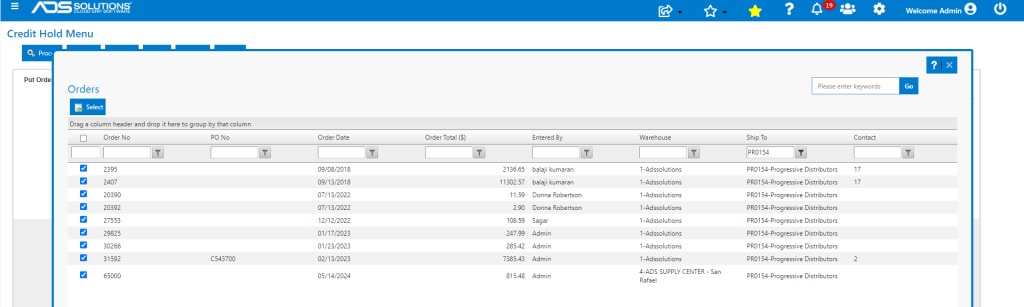
- Then click the Process button to put all selected orders on Credit Hold.

III. Customer Credit Status Report
- This selection gives the user a report of Customer Credit Status by warehouse.
- Select Warehouse and click Process for the report.