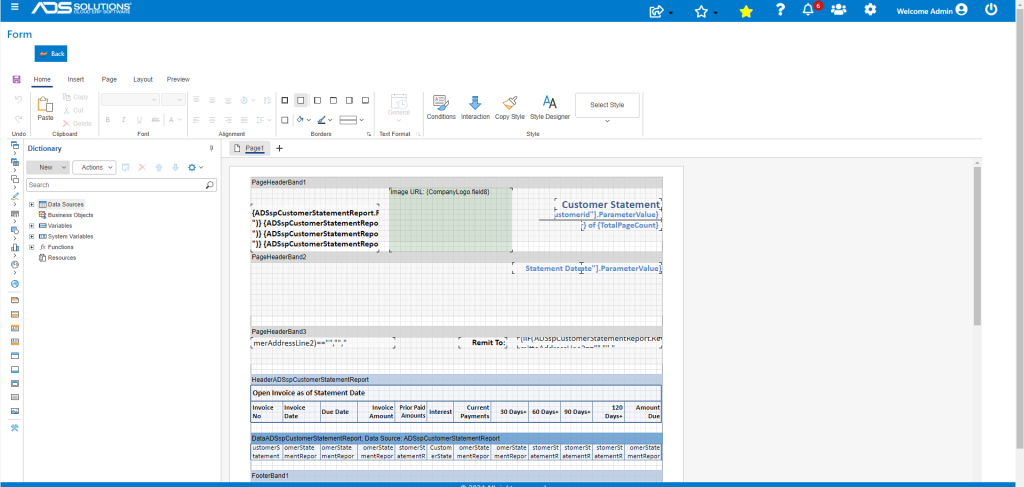
Accolent ERP allows for the creation of Customer Statements at any time. Typically, Customer Statements are created for all Customers usually at the end of each calendar month. There is an option to charge interest on overdue invoices; if this is selected, interest charges on overdue balances are included in the Customer Statement. If interest is not charged, the Customer Statement form can be modified to remove the interest column.
Charging Interest on Overdue Balances
- See this wiki: Charging Interest on Overdue Balances.
Set Statement Defaults
- By default, Customer Statements will be printed for all customers.
- To suppress Customer Statements for a specific customer, select the Don’t Print Statement checkbox on the customer.
- Save the record.
Customer Statement Report
- Go to Report Center > Reports > Customer Statements.
- The system saves the last version of the Customer Statement that was run, so unless a reprint of a previously run month-end statement is needed, files should first be cleared.
- To clear the last version of Customer Statements that were saved, click the Clear Files button.
- Select parameters for the current statement run; for example, to run statements as of 6/30/24 for all warehouses, and all customers, make these selections.
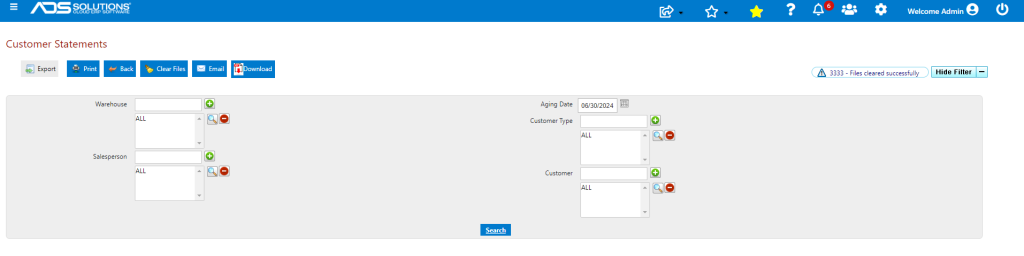
- Then click Search.
- The system will generate a grid with one row for each selected customer.
- From the grid, individual statements may be previewed, printed or emailed.
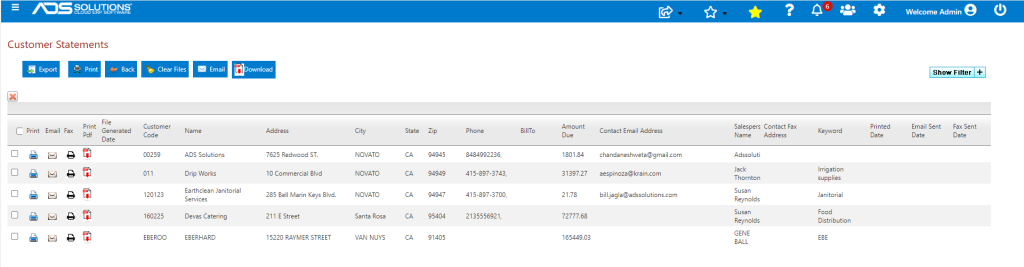
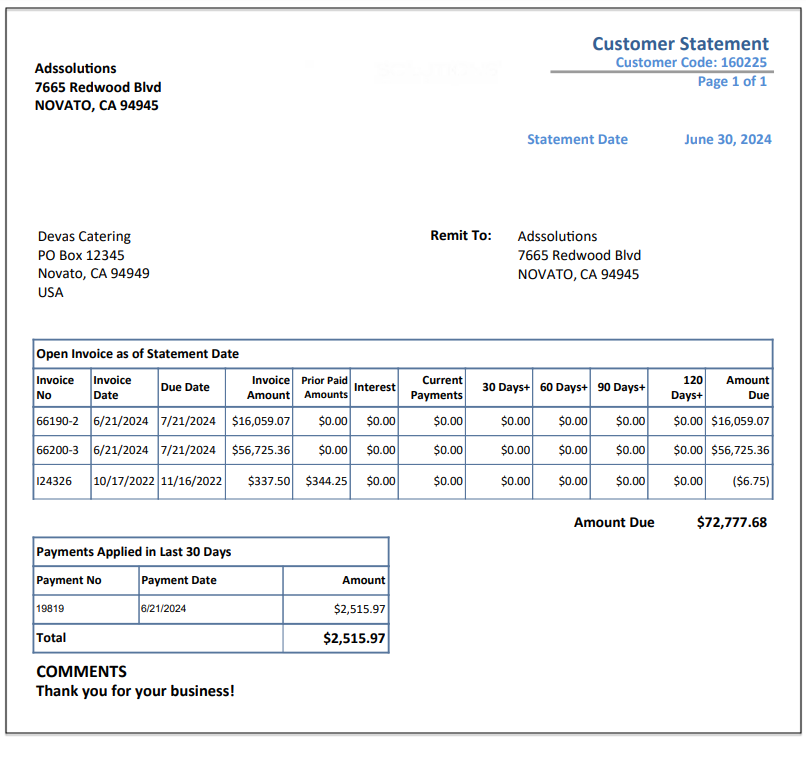
- To preview, a partcular Customer Statement, click on the PDF icon in the grid for that Customer.
- To print, click on the print icon which will print the statement to the default printer selected for that form type
- To email, click on the envelope icon to open and edit the transmittal email which already has the default email contact information for the customer populated
- The statement will be sent as an attachment to the email.
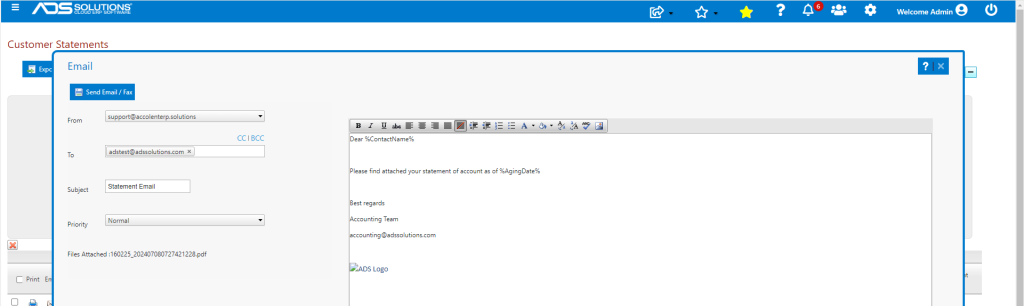
- To print or email to multiple customers, select rows in the grid using the checkbox on the LHS of the grid.
- Then click the multiple Print button or the multiple email button in the page toolbar.
Printing All Statements
- To print all customer statements, use report 11128.
- This will create a single report including all customer statements with each starting on a new page.
- The whole report can then be sent to a high-speed printer if desired.
Modifying the Transmittal email
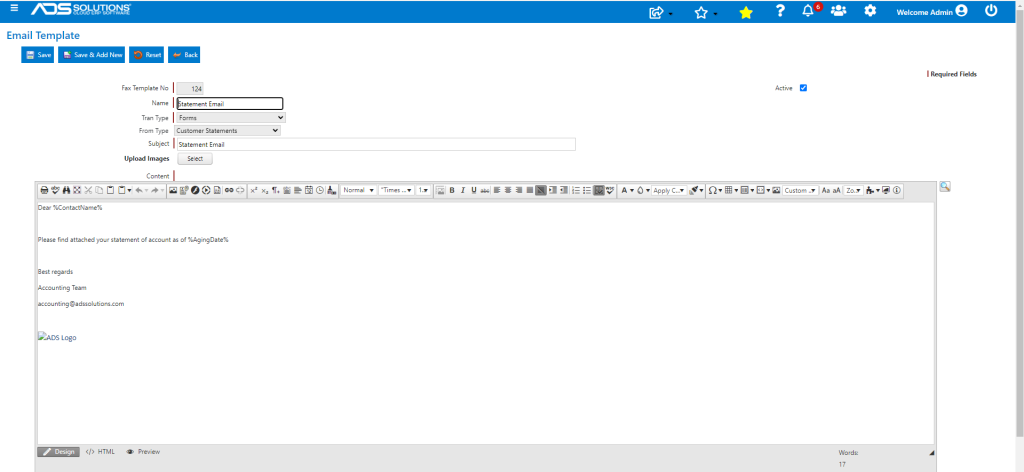
- To set up the transmittal email, go to Settings > Printing & Sending > Email Templates, select Form 124, then use the HTML editor to construct the email template.
- You can click on the lookup button at the top right next to the template to see the variables that are available.
Modifying Statement Forms
- All of the Accolent ERP forms can be modified using the built-in HTML forms editor.
- You can modify the forms yourself, or one of our developers can do this for you as chargeable professional services.
- To modify the form, go to Settings > Printing & Sending > Forms Setup, select Form 112, select Variation desired, then click on the Design button at the top right of the form.