
Accolent ERP includes the ability to create Calendar Tasks that can be linked to a Company Type (Customer, Prospect or Other) as well as a Contact and a Deal. Once created, Calendar Tasks will be displayed on the user’s calendar by date and time and can be edited as needed. In addition, a user can enter detailed comments that will be stored with that Calendar Task. All Calendar Tasks can also be displayed as a grid with the ability to search, filter and sort the grid. Calendar Tasks can also be assigned to a different user and will then appear on the assigned user’s calendar.
Create a Calendar Task
- To create a Calendar Task, go to CRM > Create Calendar Task.
- A Task ID will be auto-assigned by the system.
- Select Date and Time; note that the time can be edited to create time slots that fall between hours.
- Select Calendar Task Duration in minutes.
- Select User.
- Enter a Calendar Description that will be displayed on the calendar as well as a Subject that will facilitate searching.
- Select the Company Type which can be Customer, Prospect or Other; then select the Customer or Prospect if required.
- Customers and Prospects must already be set up within the system.
- Other can be used as a catchall for Calendar Tasks not linked to a specific Customer or Prospect such as internal meetings, sales campaigns, etc.
- Once the Company Code is entered, the grid at the bottom of the screen will be populated with all the transactions in the system for this Customer/Prospect Code over the last 30 days.
- This transaction listing can be useful for making notes on what to follow up on and/or to discuss when on a call with that Customer/Prospect.
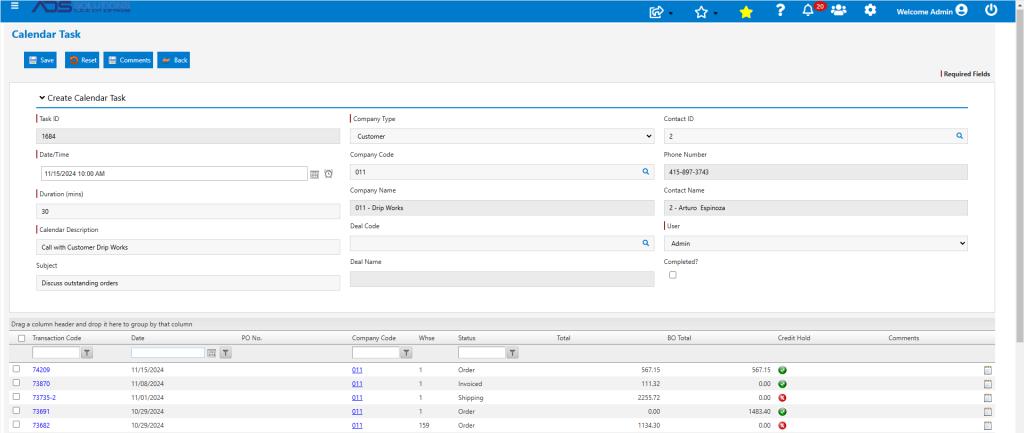
- Select the Contact which must already be set up in the system.
- Enter a Deal Code, if desired.
- If desired, enter notes under the Detailed Comments field.

- When done, save the Calendar Task
- It will then be visible from the user’s calendar
- To create Calendar Tasks unrelated to a Customer or Prospect, use the type of Other (e.g., for internal meetings)
User’s Calendar Display
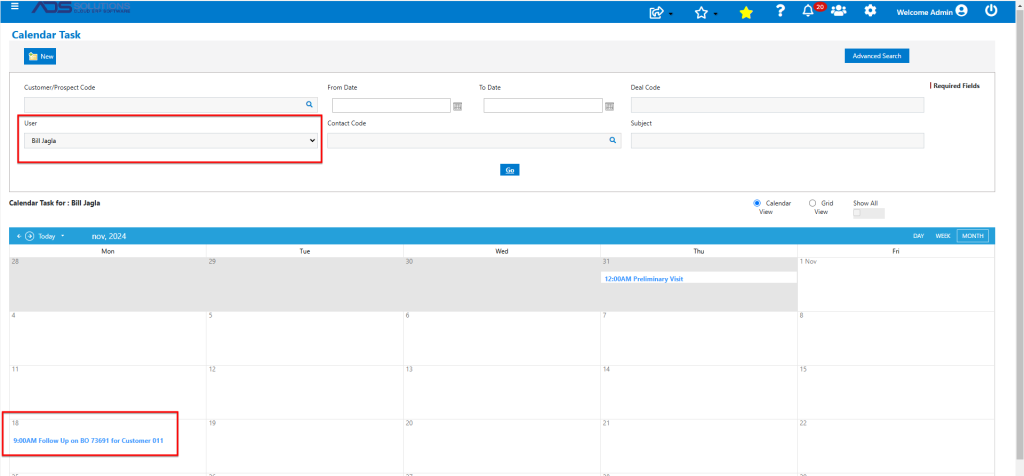
- Go to CRM > List Calendar Tasks, by default this will display the users Calendar Tasks in a grid view; if desired select calendar format.
- Select Day, Week or Month display format.
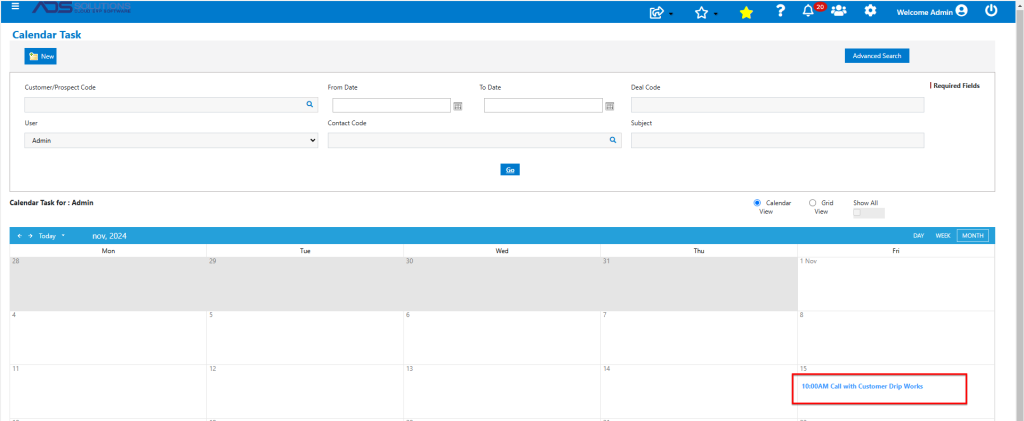
- To see another user’s calendar, select the user from the filters and click Go.
Update Calendar Tasks and/or Enter Call Notes
- To open a Calendar Task, just click on it from the calendar entry or the grid view.
- To record call notes, edit and /or add to the Detailed Comments on the Calendar Task then click Save and this will redirect to the Grid view or select the Calendar view.

Directly Update Transactions as Needed
- The grid of all transactions for this Customer/Prospect Code is directly visible in the Calendar Task.
- To make a comment directly into the transaction.
- Search the grid to find the transaction.
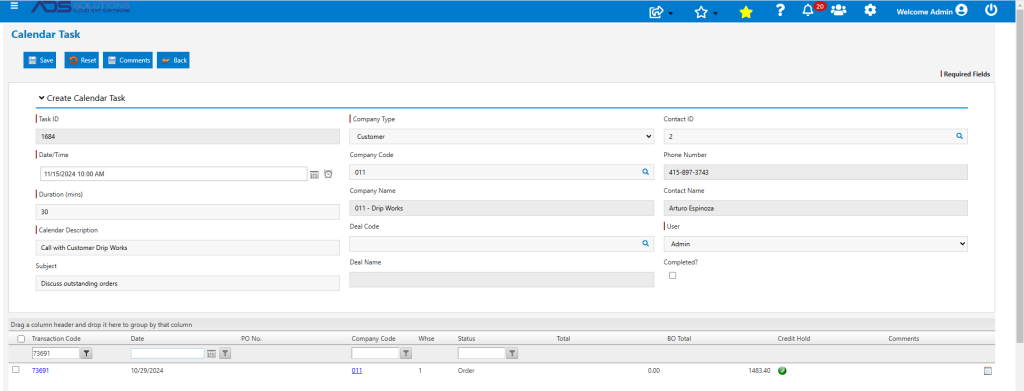
-
- Then click on the Comments icon in the grid to enter the comment
- User doesn’t have to open the transaction to enter a comment that will stay with the transaction throughout its lifecycle
- Users can make as many comments on the transaction as desired – these will be displayed in chronological order

- To open the transaction to see the products on the Quote, for example, click on the Transaction Code hyperlink, this will open the transaction in a new browser tab.
- User has complete control from the new browser tab to edit the transaction if desired based on the Customer’s input.
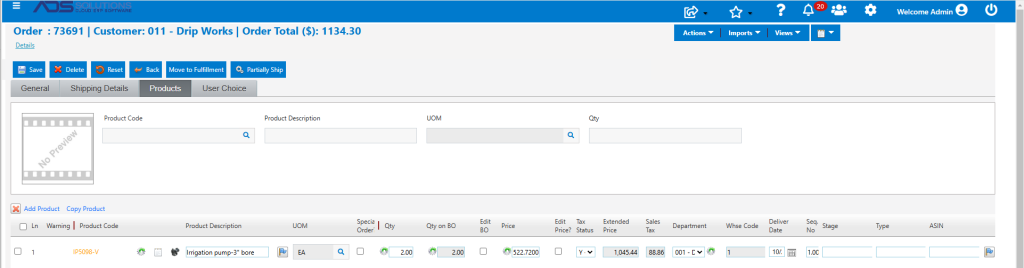
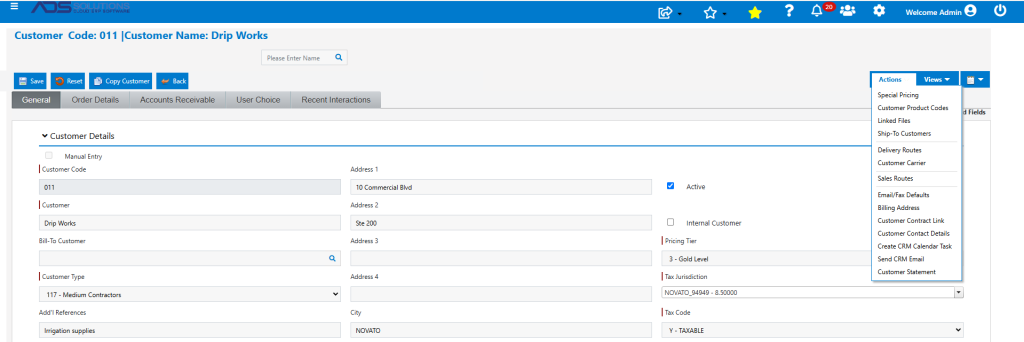
- Similarly, to see the complete Customer master, click on the Customer Code hyperlink to open the Customer master in a new browser tab; user has full access from this new browser tab to all the Customer master look ups available under Actions and Views.
- When done with the call and recording the call notes, Save the Calendar task.
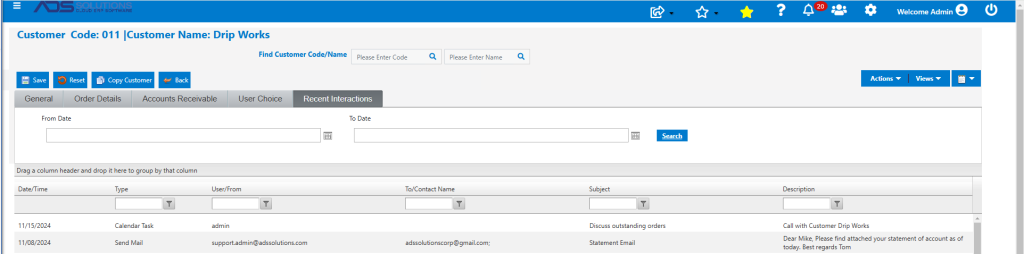
- The call notes are updated, and the Calendar Task is automatically written to the Recent Interactions tab on the Customer.
- When Done, user can mark a Calendar Task as Completed so it won’t show up in the default grid listing.
Create Follow Up Calendar Task for Another User
- To create a follow up Calendar Task for this user or another user, click New and enter Calendar Task (e.g., enter a task for user Bill to follow up on 11/18/24) and Save.
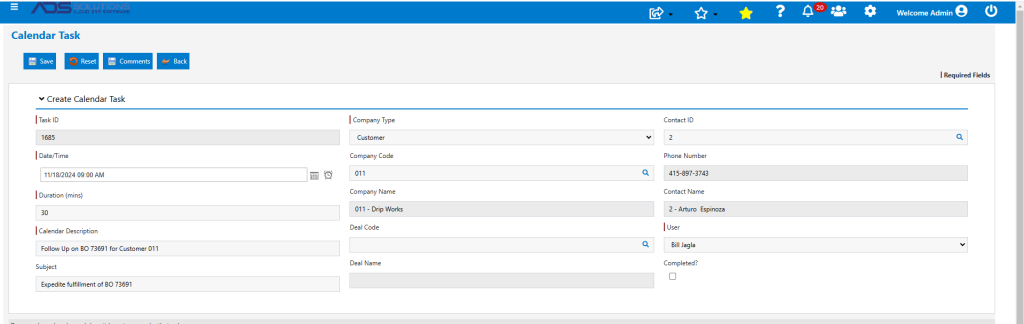
- Add a Comment, if desired.

- The follow up Calendar Task is created on user’s calendar.
Display Calendar Tasks in Grid Format
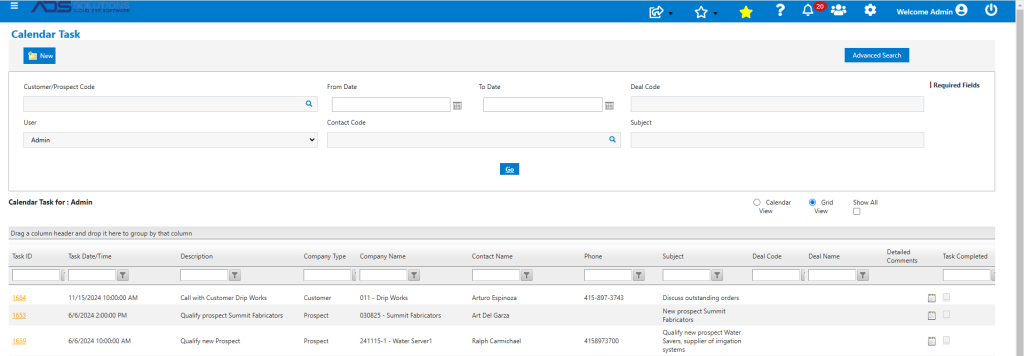
- To see Calendar Tasks in a Grid format, select the Grid View radio button.
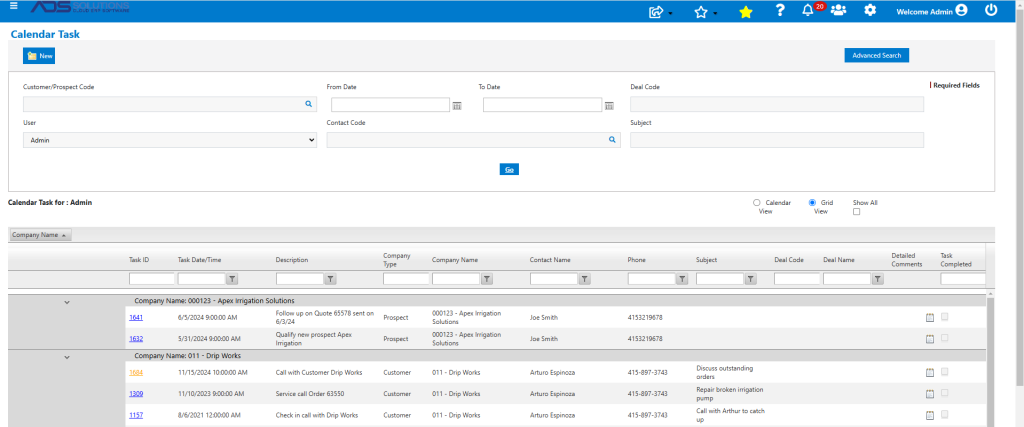
- Grid may be searched, filtered or sorted to show Calendar Tasks and call notes or meeting notes by Date, by Customer or Prospect, by Opportunity Code or Subject.
- Grid may also be grouped and sorted.
Using Calendar Tasks
- The Calendar Tasks functionality provides an easy way to:
- Schedule User/Salesperson tasks, calls and/or meetings and retain history.
- Record call notes or meeting notes and schedule follow up for that User or others.
- See details of and update comments on transactions for that Customer/Prospect without having to open the transaction.
- Retain history of interactions by Customer, Prospect, Contact or Deal.
- Report on Deals by close date, expected revenue, etc.
- Create sales pipeline reports.