Accolent ERP allows creation of a Credit Memo for any Invoice already in the system. Credit Memos can be one-step or two-step Credit Memos. As an audit and security measure, Credit Memos can normally be created only against existing Invoices. However, although this is not recommended, if desired, this security measure may be overridden to allow free entry of Credit Memos.
Create the Credit Memo
- Just as with Sales Orders, there are Immediate Credit Memos and Two-Step Credit Memos
- Use an Immediate Credit Memo for over-the-counter transactions
- Use the Two-Step Credit Memo for a traditional process where the goods are received back at the warehouse before the Credit Memo is confirmed
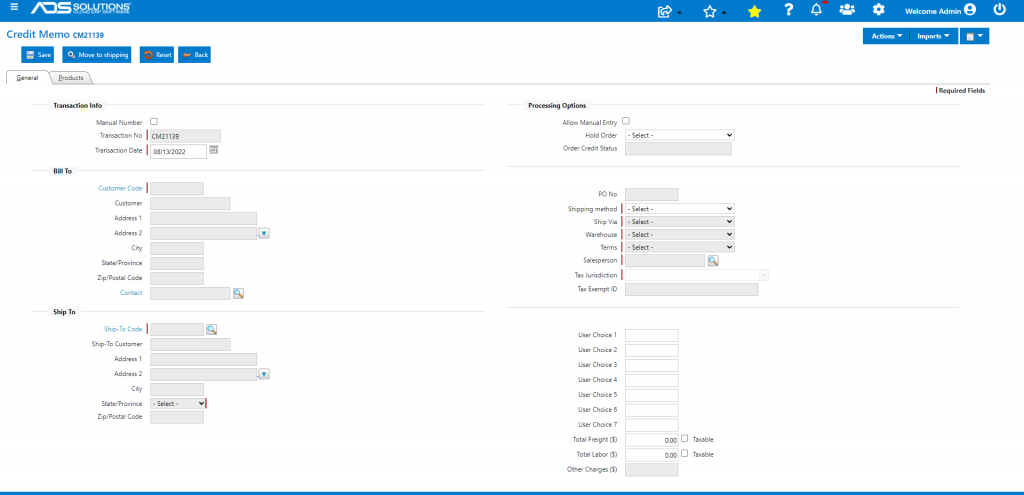
- Go to Sales > Credit Memos > Create Two-Step Credit Memo
- Note that most of the screen is grayed out, since a Credit Memo should normally be created from an existing Invoice
- Note: to override the requirement that the Credit Memo be created against an existing invoice, select the Allow Manual Entry checkbox
- Go to Imports and click on the Import Products to Credit Memo menu
- Enter or lookup Customer
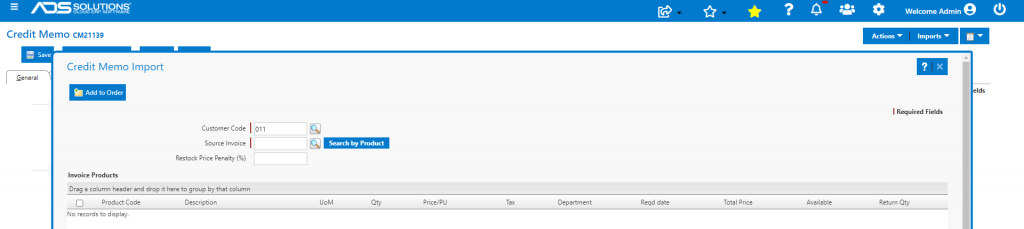
- Enter or lookup Source Invoice
- The lookup will show a list of Invoices for this customer from which one can be selected
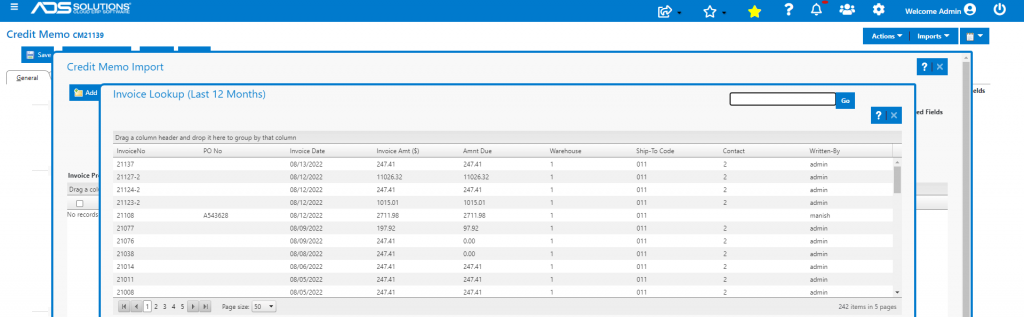
- Alternatively, to find the Source Invoice from the Product, click on Search by Products
- This will bring up a list of products and then selecting a product will show all the invoices on which that product appeared
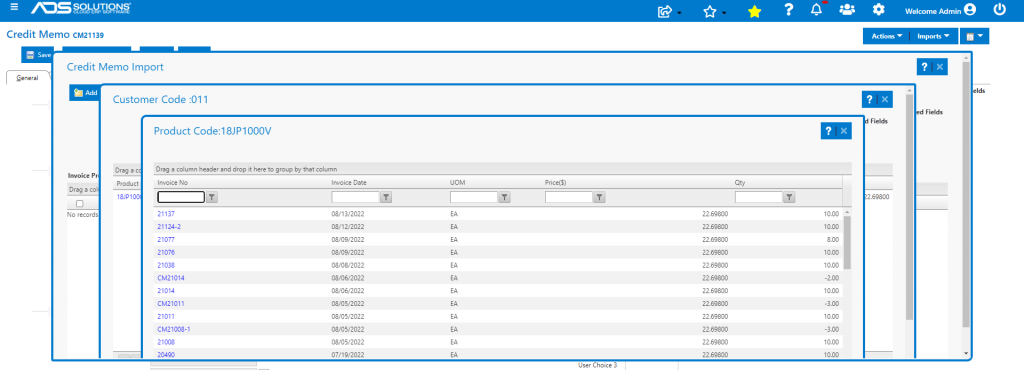
- Using one of the methods described, select a Source Invoice
- Optionally add a Restock Penalty
- Enter the quantity to be returned
- In this case, invoice 21137 was previously created for 10 EA of 18JP1000V and 4 are being returned
- Click on Add to Order button
- The full amount of the freight charged, if any, will be defaulted into the Credit Memo, edit as appropriate
- This will create the Credit Memo for the items to be returned, in this example, Credit Memo CM21137

- Move to Shipping to generate the Return Merchandise Authorization form which can be printed and sent to the customer
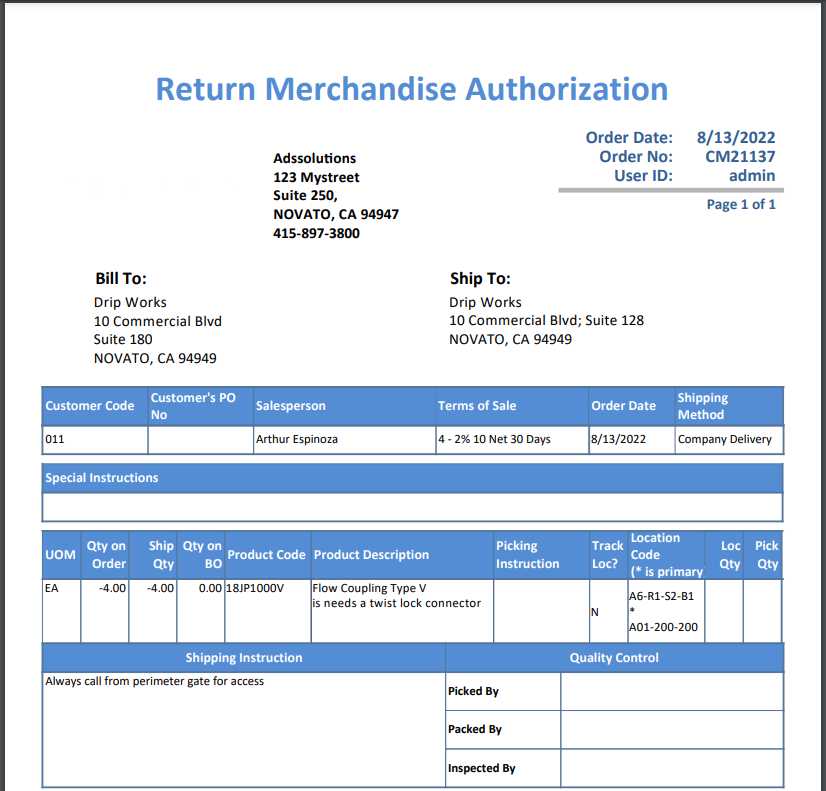
Return of Goods
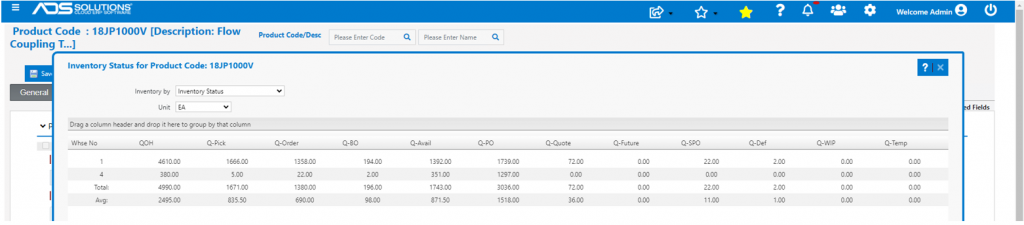
- Prior to receipt of goods, product 18JP100V had QOH of 4610, Q-Avail of 1392 and Q-Def of 2
- When the goods are returned to the warehouse with the RMA form, the Credit Memo can be confirmed and moved to invoice
- Record total of 4 credited (i.e., refunded), 2 returned to Inventory, 1 entered as defective and 1 not returned
- Defective items are those that are damaged but still may have some salvage value – they are written off and carried in the system at zero cost until the salvage value can be realized
- Not returned items are those that are damaged with no salvage value, and therefore not worth paying for the freight to ask customer to return
- All these quantities need to be entered as negative numbers and the sum of the Qty to Inventory, Qty Defective and Qty Not Returned should equal the Qty to be credited
- Entries are Qty to Inventory = -2, Qty Defective = -1, Qty Not Returned = -1

- Move to Invoice
- This will move the credit memo to AR and the credit amount will be available to offset open invoices

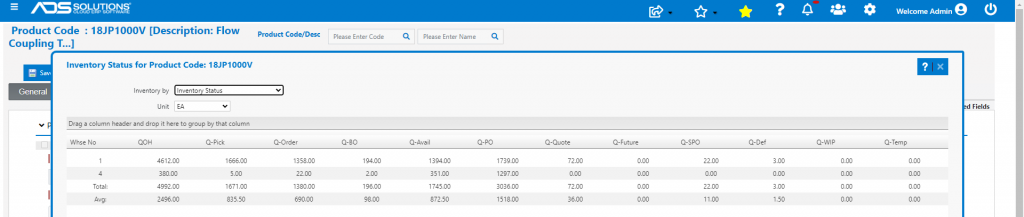
- Now lookup inventory effect on 18JP1000V
- QOH increased by 2 from 4610 to 4612; Q-Avail went up by 2 from 1392 to 1394 and Qty Defective went from 2 to 3
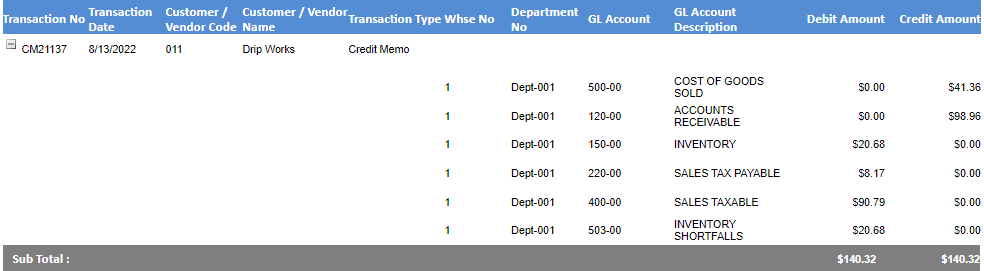
- To see the GL Posting of the transaction go to GL > Manage GL > Evaluate Transactions