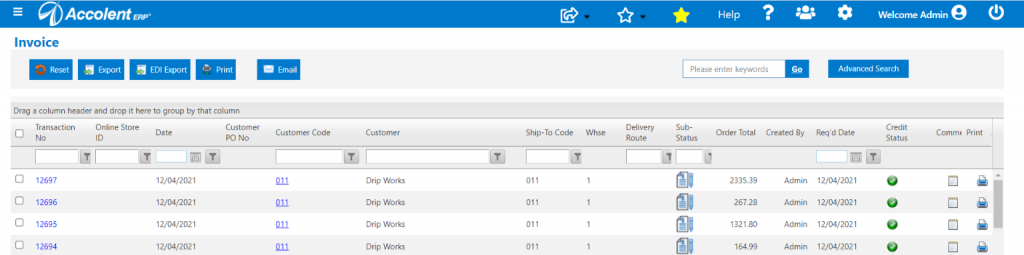
Accolent ERP supports batch picking either using the WMS system and handheld scanning devices or manually using a Master Pick Ticket. The warehouse manager first selects the orders to batch pick based on Customer, Delivery Route, Req’d Date, or some other criteria, then creates and assigns these to a batch. The warehouse manager may sort the batch by location or some other criteria and save the batch sequence. If using the WMS system, a handheld device will guide the picker through the warehouse following this assigned picking sequence. If using a Master Pick Ticket, this will be displayed in the assigned picking sequence. The batch may then be selected and a Master Pick Ticket generated.
Select Orders to Pick
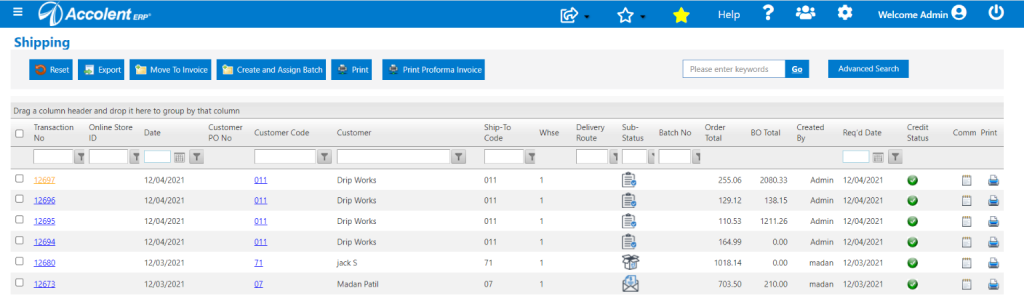
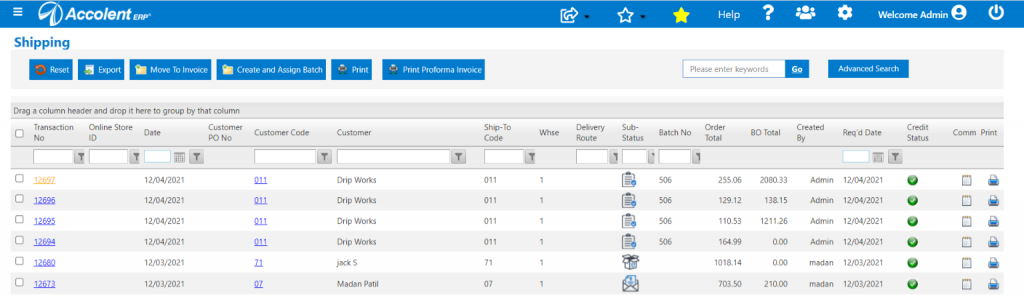
- The Fulfillment screen displays orders in fulfillment and indicates fulfillment stage by a sub-status icon.
- Orders 12964 through 12967 are for Customer 011 and are all in sub-status Ready to Pick.
Create and Assign Batch
- Create a batch to pick orders 12694, 12695, 12696 and 12697 together using a master pick ticket.
- To be on a batch, all the orders selected have to be in the same status, sub-status and warehouse.
- Select orders and click the Create and Assign Batch button.
- Select Assignee, this will automatically show up on Assignee’s handheld scanning device if using the WMS system.
- On the Assign Batch screen, the orders display in ascending order number sequence.
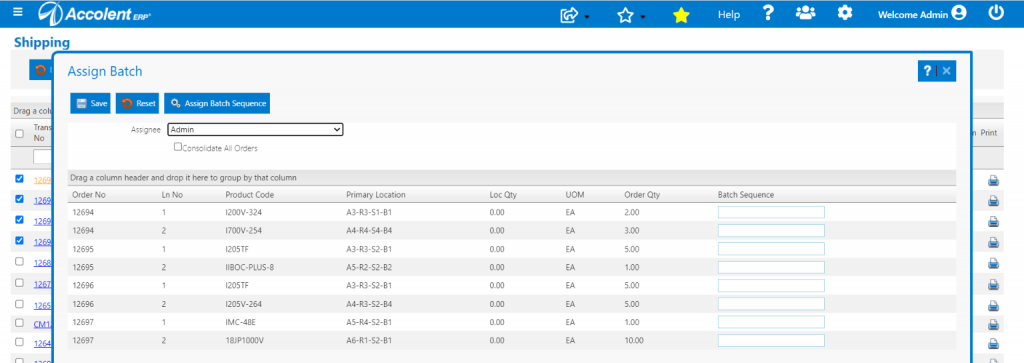
- The user can sort the grid by Primary Location or enter another batch sequence.
- Note that the same items on different orders are not consolidated – this means that the picker can separate the items by order while picking, so that after picking the orders will not have to be de-consolidated.
- Sort by ascending order of Location.
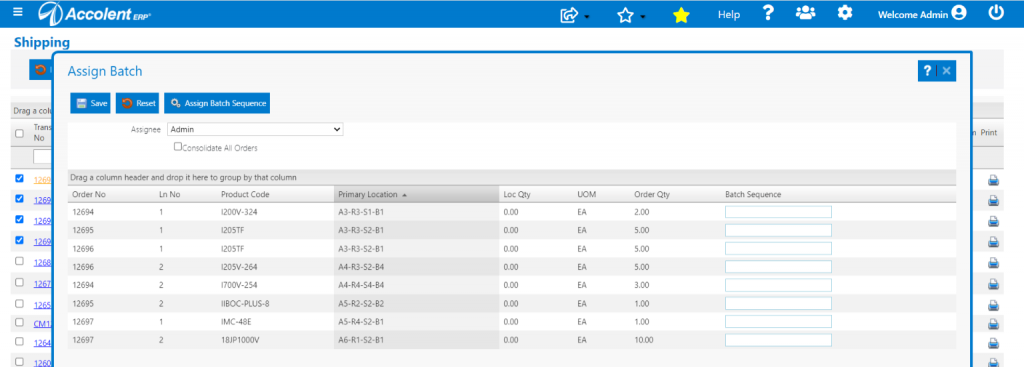
- Then click Assign Batch Sequence or enter manually to change the sequence displayed in the grid – the items will appear on the Master Pick ticket and in WMS in this sequence.
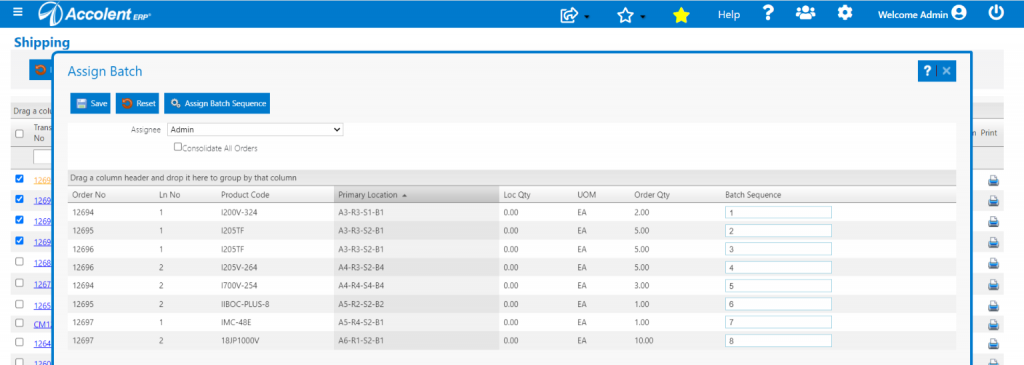
- Save and these 4 orders are assigned to Batch 506.
Batch Pick
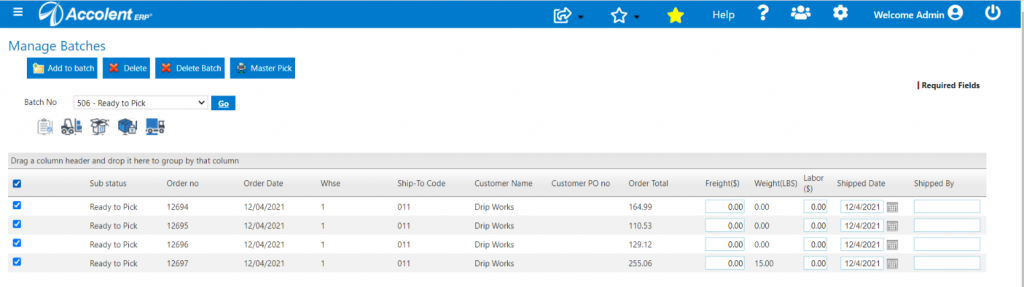
- Go to Ship Confirmation > Manage Batches.
- Select Batch 506 and select all orders, click on the Forklift icon to change sub-status to In Picking then print the Master Pick Ticket.
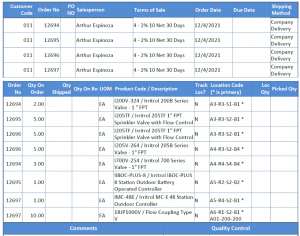
Print the Master Pick Ticket
- Set up the number of boxes on the picking cart corresponding to the number of orders in the header.
- Then go through the warehouse in the pick sequence.
- On the Shipping screen, all orders are now in the sub-status of In Picking.
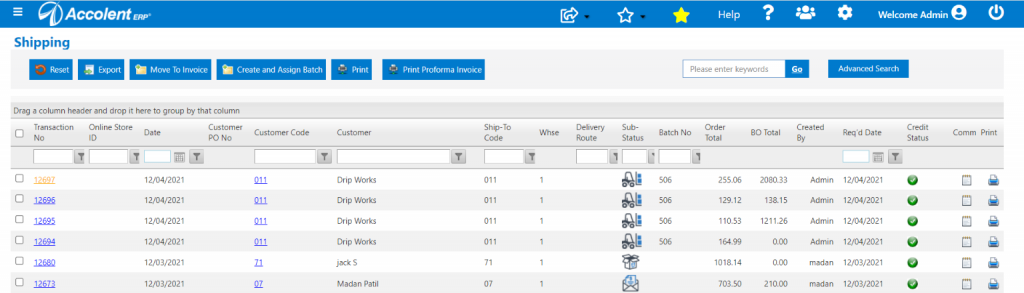
- If using the WMS system, items are recorded as picked when picked using the handheld scanning device.
- If using the master pick ticket, all the pick quantities and locations will be handwritten on the master pick ticket and then entered into Accolent ERP.
- Once picked, update batch status to picked.
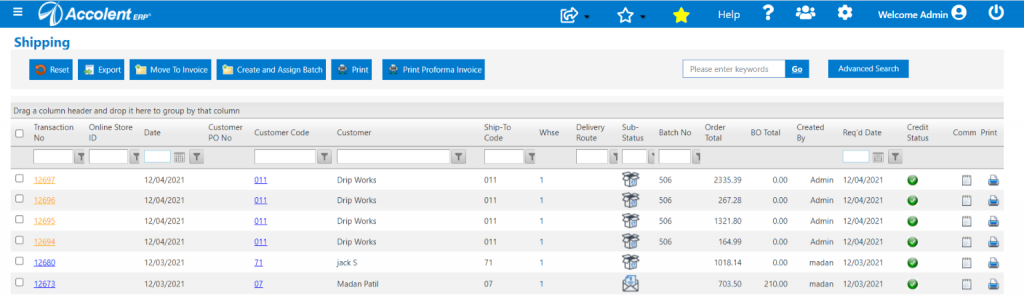
- Then when these orders are packed their status can be updated andagain updated when the orders are shipped.
- Note that the packing and shipping of these orders can be done in this batch or can be assigned to different batches or the orders can be processed individually.
- Then once doen, all of the orders may be moved to invoice.