
Accolent ERP allows a product to be associated with one or more specific Locations. Based on the warehouse numbering plan first create Locations then, assign a product to its Locations. The Locations associated with that product will be shown on all pick tickets and PO put-away documents on which the product appears. Unless the product has the Track Inventory by Location checkbox selected, the system will not record the inventory at each Location associated with the product. Unless products have multiple Locations, it will not generally be necessary to track inventory by location.
Set up Locations
- Go to Settings > Value Lists > Product Only > Location Codes to set up locations.
- Based on the warehouse numbering plan, create Location Codes.
- Each Location can have up to four segments in the code which could correspond to the traditional Row, Aisle, Shelf, Bin, for example, or any other numbering system adopted.
- Each segment can be up to three alpha-numeric characters.
- Enter a Location Description.
Assign Product to Location
- To associate products with Locations, open the product then select Actions > Locations.
- Enter the Locations that have already been set up.
- Multiple Locations may be entered if desired select one as Primary.
- Unless it is intended to Track Inventory by Location, make sure the checkbox for this is unchecked.
- If the Track Inventory by Location checkbox is checked, the system will require that Location be specified for every product picked, received and/or adjusted.
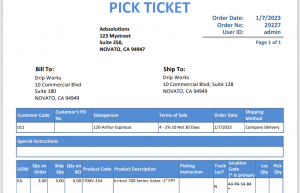
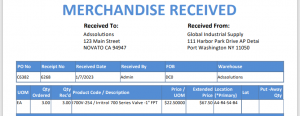
- Product I700V-254 has Primary Location A4-R4-S4-B4.

Create Order
- Create Order 29227 for product I700V-254.
- Move to shipping and print Pick Ticket.
- The pick ticket shows the Location(s) associated with the product.
Receive PO
- Receive PO C6382 for product I700V-254.
- The PO Receiver also shows the Location(s) associated with the product.
Tracking Inventory by Location
- For users with multiple locations for each product, it may be necessary to track inventory at each location.
- This is also needed if you choose to use the wireless WMS solution.
- If tracking inventory by location is needed, see this wiki: Tracking Inventory by Location