
Accolent ERP includes comprehensive functionality for short-term equipment rentals. In accordance with FAS13 and US GAAP, Accolent ERP accounts for short term equipment rentals as operating leases in which the lessor retains legal and accounting ownership of the rental equipment. Rental items are treated as fixed assets on the lessor’s Balance Sheet and costs are recorded periodically through depreciation expense. Rental items are always non-inventory items and may be serialized or not serialized.
GL Posting of Rental Transactions
- In accordance with FAS 13, rental transactions are treated as short-term operating leases in which the lessor retains legal and accounting ownership of the rental equipment
- Rental items when purchased should be booked to a Fixed Asset account such as Rental Equipment
- The sales side of rental transactions records rental income
- The cost side of rental transactions records no cost at the transaction level, instead, the cost is recorded periodically through the recording of depreciation expense
Purchase of Rental Equipment
- Because the vendor is a non-inventory vendor, the purchase of rental equipment is recorded not upon PO Receipt but upon entry of the Vendor’s Invoice
- The transaction is posted through the Accounts Payable Accounting Journal
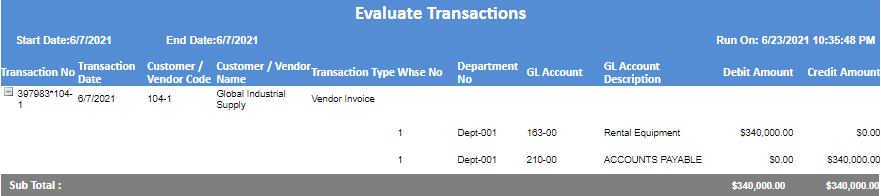
- For example, purchase 5 x BobcatE171.5T for $68,000 each from Vendor 104-1 and this is the GL Posting
- This is how the purchase shows up in the Rental Products Status screen

- This is the purchase transaction

Rental Transactions
- When rental order 10161 is invoiced only the sales side of the transaction is posted, no costs are recorded

- In this example, the standard sales taxable account is used; however, if desired, rental items can be set up as a separate category and the GL posting can be directed to Rental Income instead

Depreciated Cost of Rental Products
- Go to Rental Products > Rental Products Depreciated Cost
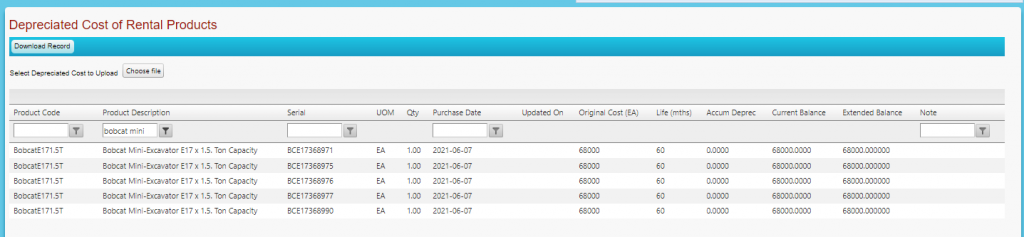
- This screen shows all rental products with the depreciable life (in months) that was set on the product master as well as the original purchase date and cost
- For example, the purchase of 5 x BobcatE171.5T is shown as follows with each serialized product as a separate entry
- For non-serialized rental products, there is a single entry for the product and quantity purchased by PO date – there is a dummy serial no created as “PONo_PO Rec’d Date”
- For example, a purchase of 50 x CFP6x12 Temporary Lightweight Fence Panels is shown as a single entry

- All entries in the Depreciated Cost table can be downloaded as an Excel file
- For example, downloading the selection for “Bobcat Mini” Excavators above gives this

- The downloaded spreadsheet can be used to calculate depreciation by row as follows:
- Use any of the columns to the right of column M to enter the logic to calculate depreciation, based on the depreciation schedule desired
- The Depreciation value by row should be entered in column L
- Use column M to enter the Comment desired
- Once satisfied, save the spreadsheet as an Excel file if saving the formulae is desired

- Also save as a CSV file, which will save only the data not the formulae
- Then select the CSV file using the Choose File button and click Update Depreciation Cost
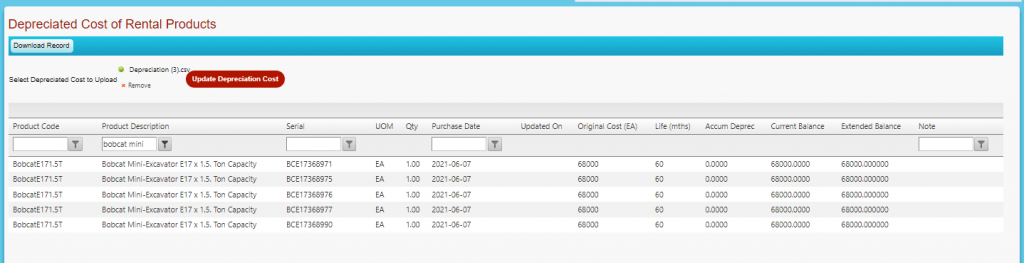
- The “Depreciation” value in column L and “Comment” in column M is imported by row
- The “Updated On” column is automatically filled in
- The value of the depreciation is added to the “Accumulated Depreciation” balance and the depreciation as of date is recorded in the table
GL Posting of Depreciation
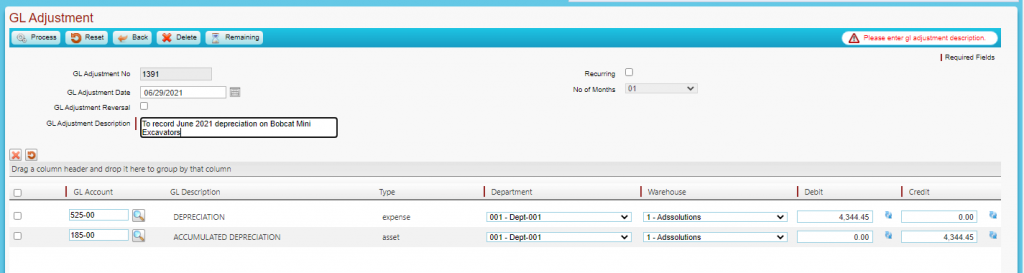
- Upon completing the import, the system automatically redirects to the GL Adjustment screen to make a single posting to record the sum of the Depreciation taken for all items in the spreadsheet as Depreciation Expense
- A GL Adjustment Description is required
- Edit the posting if desired then click Process
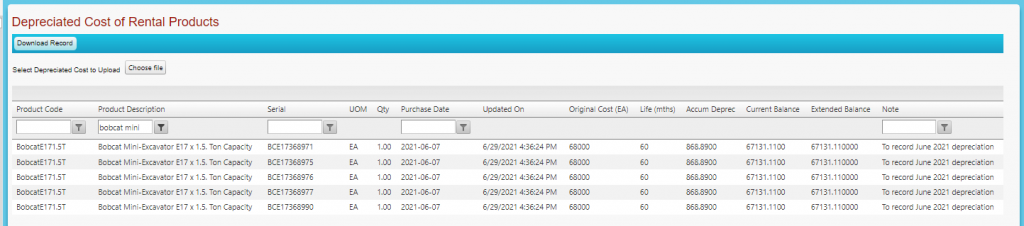
- This is the updated Depreciated Cost table
- This is the GL Posting
