
Accolent ERP tracks multiple dates on sales transactions that are used for a variety of purposes in the system. Many dates are common to all sales transactions as they move through their workflow stages of quote à order à fulfillment à back order / invoice, while some are specific to the specific workflow stage. Most of these sales transaction dates are managed by the system, but in some cases can be utilized by users to track elements of their specific process flows. In addition, there are several user-defined fields that may be used to store other dates or other data elements.
Quotes
- To create a quote, go to Sales > Quotes > Create Quotes.
- Once created and saved, quotes are displayed on the Sales > Quotes > List Quotes screen.
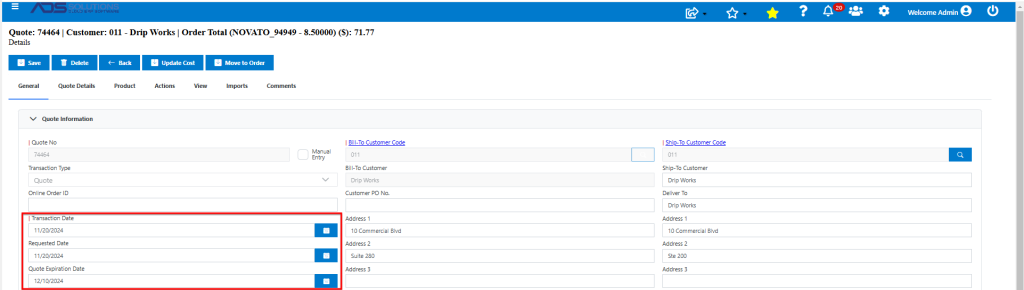
Transaction Date
- The Transaction Date for a quote is the date the quote was created.
- To change the Transaction Date, open the quote and change it then save the quote.
- The quote will then appear in the List Quotes screen with the new Transaction Date.
Quote Expiration Date
- The Quote Expiration Date is assigned to the quote when created.
- To change the Quote Expiration Date, open the quote and change it then save the quote.
- Opening a quote that has expired will trigger a warning message.
List Quotes
- The List Quotes screen shows all open (i.e., unexpired) quotes in the system.
- The List Quotes screen displays the Quote Date as well as the Req’d Date (Requested Date).

Orders
- To create an order, go to Sales > Orders > Create Orders.
- Once created and saved, orders are displayed on the Sales > Orders > List Orders screen.
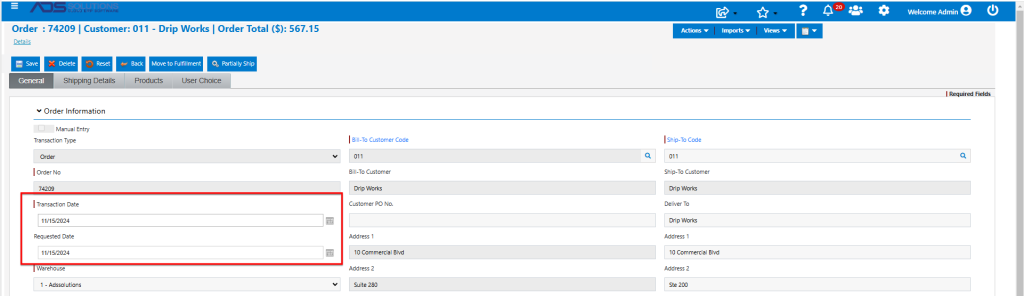
Transaction Date
- The Transaction Date is the date the order was created.
- To change the Transaction Date, open the order and change it then save the order.
- The order will then appear in the List Orders screen with the new Transaction Date.
Requested Date
- This Requested Date field is a date field that applies to the whole order and that is editable by the user.
- The Requested Date can be used for any purpose, but its most common use is to record the date on which the Customer requested delivery.
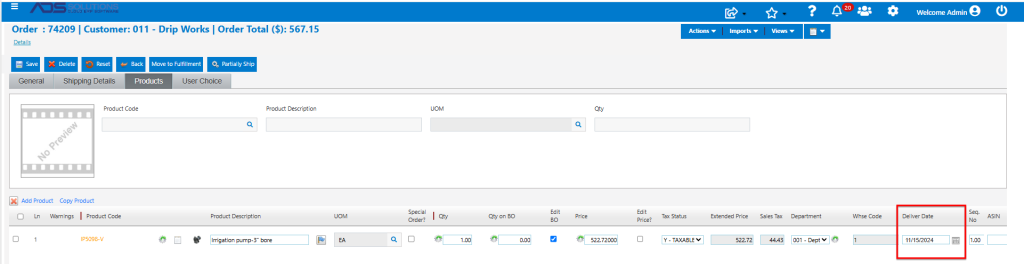
Deliver Date
- The Deliver Date field is a line-item level field that appears in the product line items grid on the products tab of the order.
- When entering product line items on the grid, the Deliver Date will automatically default as the Transaction Date, but this can be changed line item by line item.
- The Deliver Date field can be used, for example, to record a line item delivery date that differs from the Requested Date for the whole order.
- It is also used for orders that consist of many lines representing different project stages that must be partially shipped on various Deliver Dates, such as for construction projects.
List Orders
- The List Orders screen shows all orders in the system with the status of order.
- The List Order screen displays the Order Date as well as the Req’d Date (Requested Date).

Orders in Fulfillment
- Fulfillments are created when orders are moved to fulfillment.
- Once moved to fulfillment, the orders are displayed on the Sales > Fulfillment > List Fulfillments screen.
- On the List Fulfillments screen, orders are displayed by the original Transaction Date and also show the Requested Date.
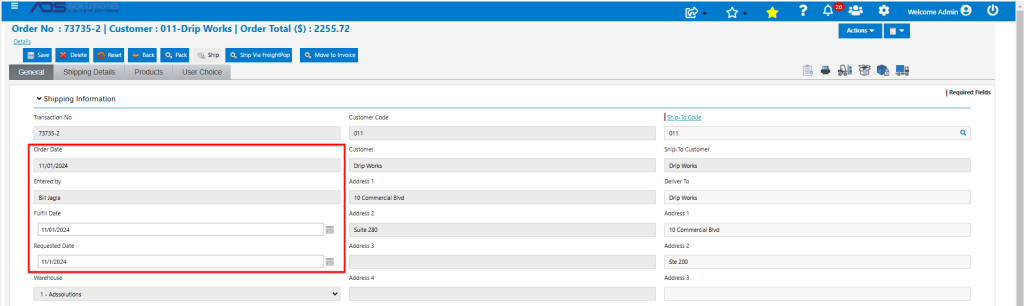
Fulfill Date
- This is the date the order is moved to fulfillment.
- To change the Fulfill Date at any time, open the order and change it then save the order.
- The order also shows the original Order Date which cannot be changed in fulfillment.
Requested Date
- This Requested Date field is a date field that applies to the whole order and that is editable by the user.
- The Requested Date can be used for any purpose, but its most common use is to record the date on which the Customer requested delivery.
Shipped Date
- The Shipped Date appears on the shipping details tab of the order and is the date the order is shipped out of the warehouse.
- The Shipped Date will be populated automatically from the Ship screen or can be populated manually on this screen or from the Manage Batches screen.
- Once shipped, the order may be moved to an invoice.
List Fulfillments
- The List Orders in Fulfillment screen shows all orders in the system with the status of fulfillment.
- The List Fulfillments screen displays the Order Date as well as the Req’d Date (Requested Date).

Manage Batches screen
- Batches are used to organize warehouse pick, pack and ship operations.
- Typically, orders in fulfillment will be picked in a batch, may be packed individually or in a batch and typically are shipped out in a batch.
- From the Manage Batches screen users can update the Freight, Labor, Shipped Date, Shipped By fields.

Back Orders
- Back Orders (BOs)are created when orders in fulfillment that cannot be fully filled, are moved to Invoice.
- In the case of Special Orders, the BO is created when the order is moved to fulfillment.
- BOs are displayed on the Sales > Manage Back Orders > List Back Orders screen.

Back Order Date
- The BO Date is the date of the original order that gave rise to the BO.
- When the BO is moved to fulfillment the date it will have is controlled by Application Defaults > Sales Orders > SO109 which allows two choices: (1) either the date will be changed to the current date that the BO was moved to fulfillment or (2) it will retain the original Order Date.
- Application Default SO109 applies whether the BO is individually Force Processed, moved as Process BOs or moved automatically in the case of a Special Order BO.
Invoices
- Invoices are created when orders in fulfillment are shipped from the warehouse, and the orders then moved to Invoice.
Invoice Date
- The Invoice Date is the actual date an order in fulfillment is moved to invoice or the date an Immediate Invoice is created.
- As of this date the revenue recognition process is completed, and the transaction is posted to the General Ledger.
- This date is automatically assigned by the system and cannot be overridden.
- If an Invoice is subsequently unconfirmed, the unconfirm date will be the actual date the Invoice was unconfirmed.
- If the unconfirmed Invoice is subsequently changed and then reconfirmed, the new Invoice Date will be the date the Invoice was reconfirmed.
- In accordance with GAAP, no changes to the assigned Invoice Date are permitted as this date drives the GL postings and affects the integrity of the GL and Financial Statements.
List Invoices
- Once moved to invoice, orders are displayed on the Sales > Invoices > List Invoices screen.
- On the List Fulfillments screen, Orders are displayed by the Invoice Date and also show the Req’d Date.
