
Accolent ERP includes an integrated Business Intelligence and reporting solution (“Report Writer”) that allows end-users to view and edit standard forms and reports directly from a web browser using HTML5 technology. This in-browser editing is an extremely powerful and versatile feature of the Report Writer. Using the Report Writer, end-users can edit and save their changes to existing forms and reports; end-users can also create and save new custom reports. Access to the Report Writer is included with the basic Accolent ERP SaaS subscription.
Existing Accolent ERP Reports
- Standard Accolent ERP reports may be accessed by going to Reports > Report Center.
- Reports are organized by Group (e.g., Accounts Payable) and by sub-group (e.g., Checks).
- Find a report based on the groupings, the report number, the Recently Viewed hyperlinks or use the Search bar at the top right of the screen.
- For example, search for “Commissions” to bring up this list of reports.

Modifying Existing Reports
- Accolent ERP forms and reports are delivered by Stimulsoft which allows all forms and reports to be customized using the in-browser report designer and editor.
- The report designer is fairly intuitive and there are several how-to videos that can be viewed on the Stimulsoft YouTube Channel.
- Using the report designer, Accolent ERP users can modify existing forms and reports or create new reports.
- All the data for reports are delivered through SQL Views.
- Use of these pre-made SQL Views means that users do not have to query the SQL database, understand the database schema or have to worry about table joins.
- Each SQL View has all the fields available to the reports in that functional area.
- All report views are labeled as ADSv{FunctionalArea}_Master, in this case the FunctionalArea is CommissionsReport.
- There is an Accolent ERP wiki for each report view, detailing the fields available in that report view.
- Our professional services team is available to: (1) do the modifications for you if you wish, (2) help you to complete modifications you started, (3) troubleshoot/fix some changes you attempted that failed, or (4) add a field that is not already available in the View, if it is appropriate to that functional area.
Types of changes
- Some types of report changes can be done easily, and others are more complicated.
- Modifying existing reports to change the format or labels is very straightforward.
- Adding fields that are already in the SQL View to an existing report is straightforward and should be within the capabilities of most users.
- Changing sorts, groupings and sub-totals on existing reports is a little involved but may be possible for some users; however, there is some possibility that you will break the report and need our assistance.
- Creating new reports from scratch using an existing SQL View is quite challenging, but may be possible for technically proficient users; we will probably need to help you troubleshoot/fix problems.
- Adding fields to an SQL View should not be attempted as you will need to understand how to write SQL queries and will need to understand the database schema; also writing incorrect SQL queries can hang your whole system.
Adding Fields to Existing Reports
- Open the Commissions by Standard Cost report, for example.
- Click the Design button at the top right-hand side of the screen.
- This opens the report designer.
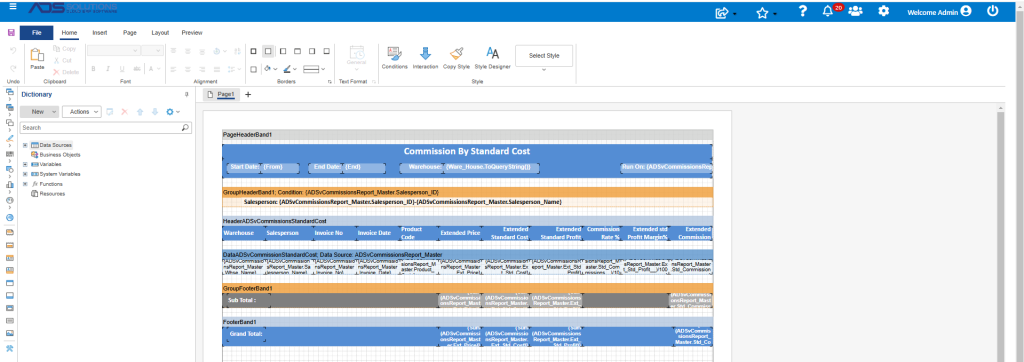
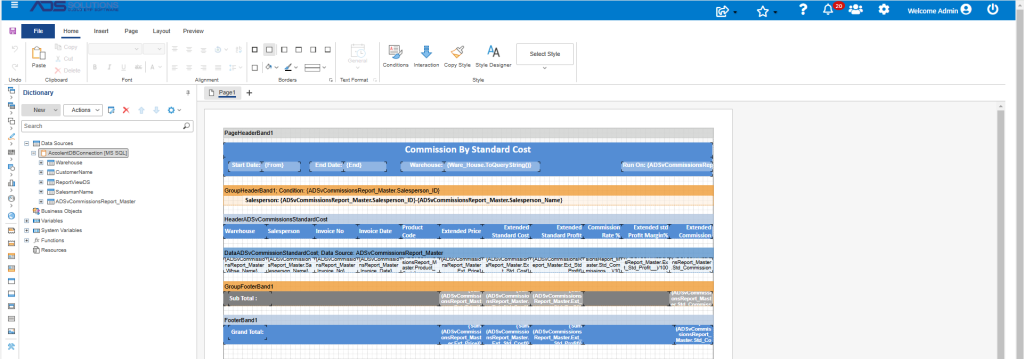
- In the Dictionary pane, expand the Data Sources and expand the AccolentDBConnection to see the data sources
- Warehouse, CustomerName, SalesmanName data sources provide the report with respectively, the warehouses, customers and salespersons available.
- The ReportViewDS source provides the report identifier.
- The ADSvCommissionsReport_Master source provides the data for the report.
- Expand ADSvCommissionsReport_Master.
- This shows all the fields available to modify an existing Commissions report or to create a new Commissions report.
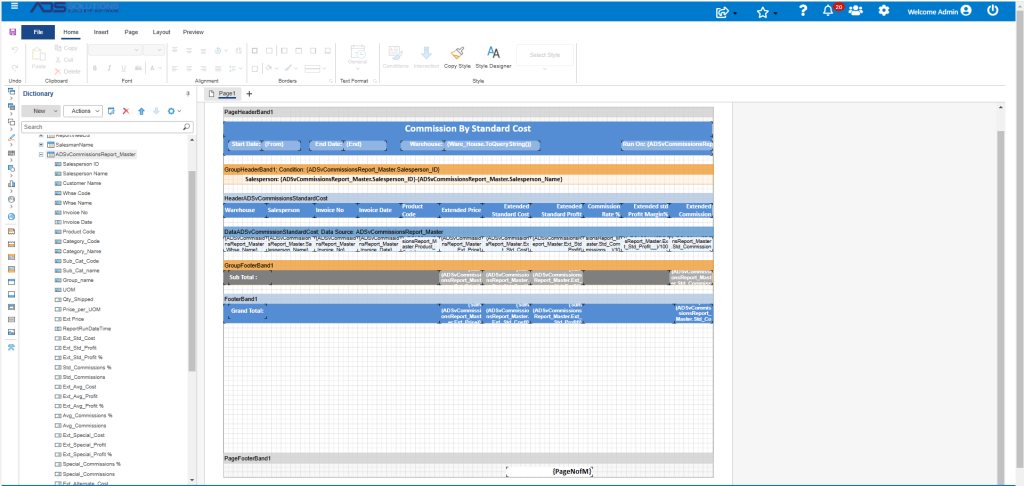
- Using these fields, the report can be modified to add a new field to the grid.
- To add a new field to the grid, first modify the grid to create a placeholder for the field to be added, then drag and drop from the list of fields on the left.
- To remove a field select the field and delete it.
- To Edit a field or change its properties, select the field in the grid and right click.
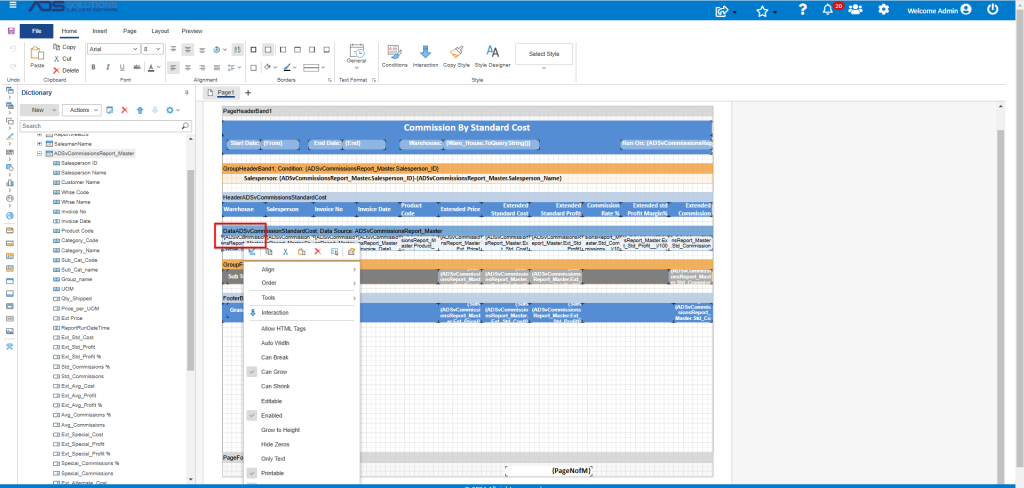
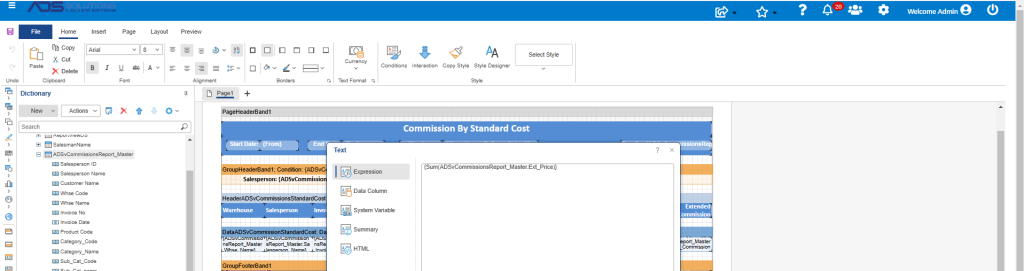
- To create the subtotals or grand totals, click on the field (e.g. Ext_Price) and right click, then click on the design icon to see the syntax.
Saving the Modified Report
- Once a report is modified, Save will create a customized version of the standard report; the standard report will not be overwritten.
- The new customized report will show up in the group Custom Reports.

- The new custom report can be selected and run just as with any other standard report.