
Accolent ERP allows users to create recurring orders. To create a recurring order, a user will first create the initial order, then specify the number of recurrences and the periodicity. The initial order will have a transaction number of the form nnnnR1 and will be created as a current Order. All subsequent recurrences of the order will be sequentially numbered R2, R3, etc. and will initially be created as Future Orders. Each day, the system automatically moves Future Orders to current Orders when at the configured number of days from the order date.
Set up Recurring Order
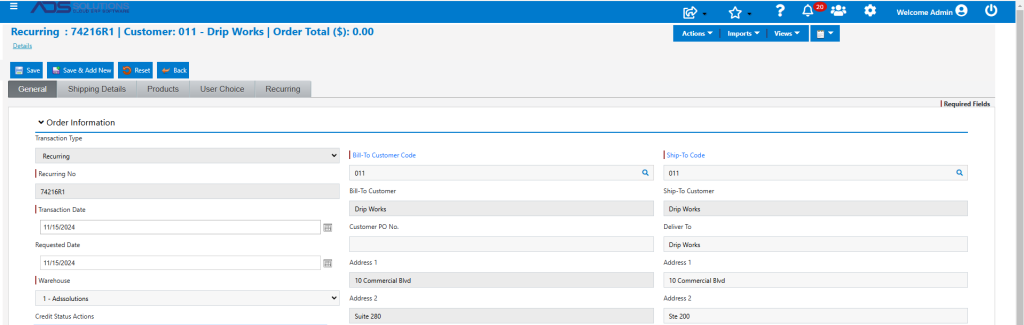
- Go to Sales > Orders > Create Recurring, create order 74216R1.
- Enter the recurring order header details.
- Note: the order number is suffixed with R1 (indicating the first of a series of recurring orders).
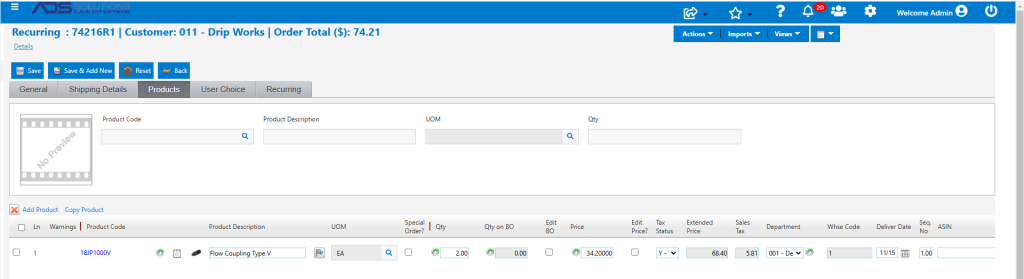
- Go to Products tab to enter products.
- Then click on the Recurring tab to specify the recurrence details.
- For example, set at monthly periodicity, with a total of 4 orders.
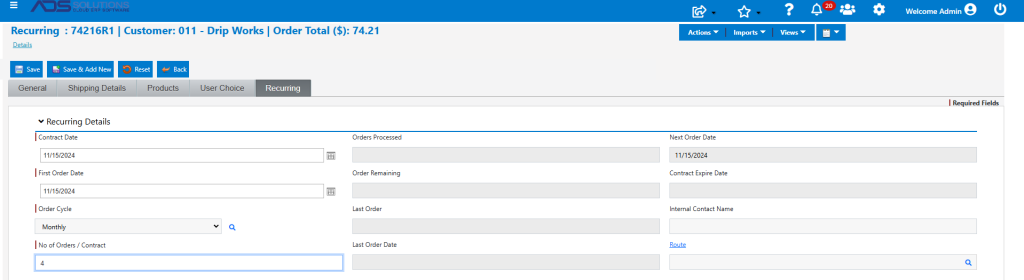
- Clicking Save creates recurring order 74216R1 and redirects to the List Orders screen.

- Once a recurring order is created it is the same as any other order and may be processed in exactly the same way.
- Open order 74216R1 then move to fulfillment then invoice.

Future Orders
- Go to Sales > Manage Future Orders > List and Process Future Orders to see the recurring orders.
- Created Future Orders 74216R2, 74216R3, 74216R4 with order dates 12/15/2024, 1/15/2024 and 2/15/2024 respectively.

- As long as these are Future Orders, inventory will not be allocated.
- Every day the system will check all Future Orders against the current date and the value entered on Config ID 77.

- When the date of a Future Order is less than or equal to the current date plus the number of days configured (in this example, 5 days), the system will move this to a current order.