
The Accolent WMS system allows one or more orders to be picked in a batch. From the List Fulfillments screen one or more orders can be grouped in a batch, the batch can be assigned to a WMS user to pick, and a batch sequence may be set. The batch sequence will guide the WMS user through the warehouse to pick the batch. For each order line item, the WMS user will pick a product and scan which will stop the user if the wrong product is picked. Then the WMS user can scan or enter the required pick quantities. When all line items have been picked WMS will update the orders and the batch to the status of picked. At that point the orders may be packed, shipped and invoiced.
Create Batch and Assign Picker in Accolent ERP
- Create orders 95148 and 95149 in Accolent ERP and then move them to Fulfillment.
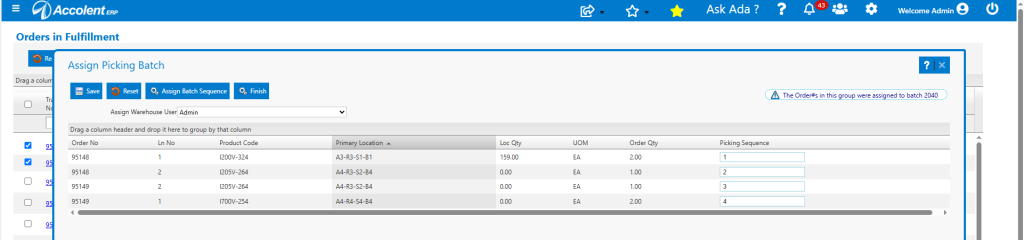
- From the List Fulfillments screen, select these 2 orders and click on the Create Picking Batch button.
- For the selected orders, all line items are displayed in a grid sorted by Order No and Ln No.
- These products are associated with locations but are not location-tracked.
- The grid can be resorted (e.g., by Location) and then click Assign Batch Sequence, or a batch sequence can be manually entered.
- The Batch Sequence will guide the picker through the warehouse.
- Assign the WMS user and click Save to create Batch 2040.
WMS Batch Picking
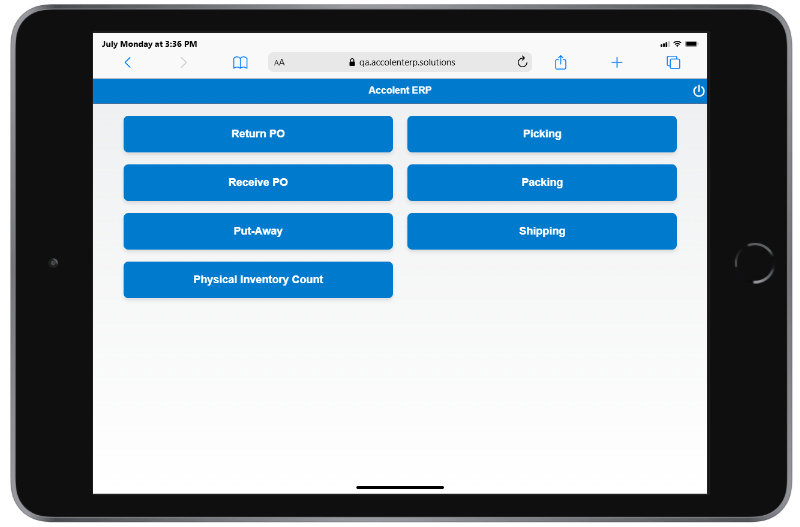
- Login to WMS on the handheld device.
- Select Picking > Batch Picking – shows all batches assigned to this user with status of Ready to Pick and the Orders Count for each batch.
- Note that Batch 2040 must be in sub-status Ready to Pick, so this means that the auto print Pick Ticket should be unchecked if using the WMS system.
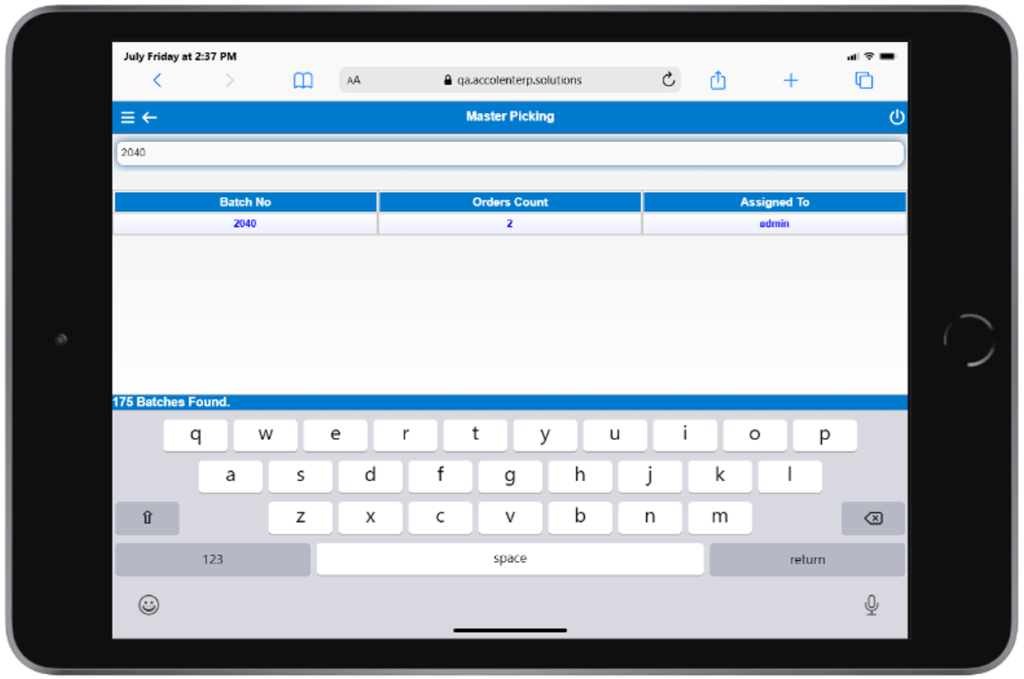
- The Orders Count column allows the picker to keep the orders separate (to avoid the need to disaggregate everything at the end).
- Batch 2040 has 2 orders, so the picker would create 2 boxes on the picking cart.
- Selecting a batch displays all the line items to be picked, sorted in the batch sequence.
- Selecting any line opens the Pick Screen for that line and allows items to be picked
- Once picked, click Save and the line disappears.
- In this way, the picker works down the list in assigned sequence to pick all items in the batch.
Pick Batch 2040
- Select batch 2040 which pulls up the list of 4 lines.
- Because the batch was sequenced by Location, the lines for I205V-264 on different orders appear together.
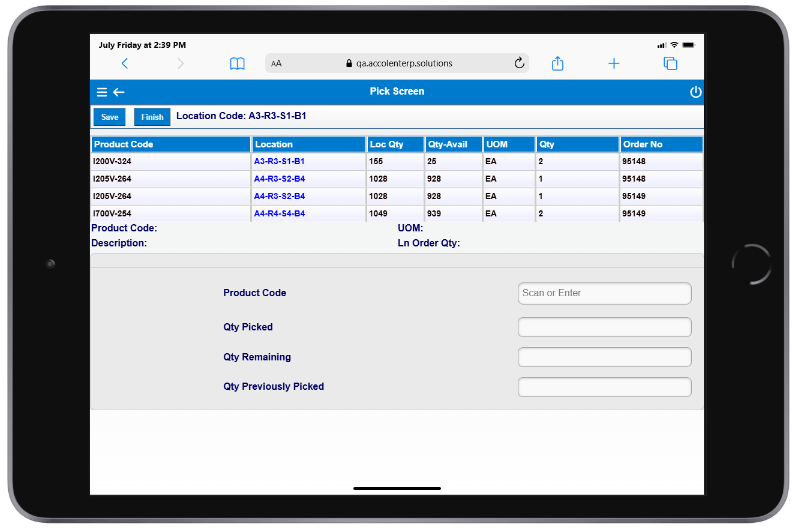
- Clicking on the product code for the first item opens the Pick Screen; then scan or enter Qty Picked of 2.
- Note there is a confirmatory auditory beep when the correct item is picked and scanned. If the wrong item is picked, the scan will deliver a multi-beep alert, and the product will not be accepted.
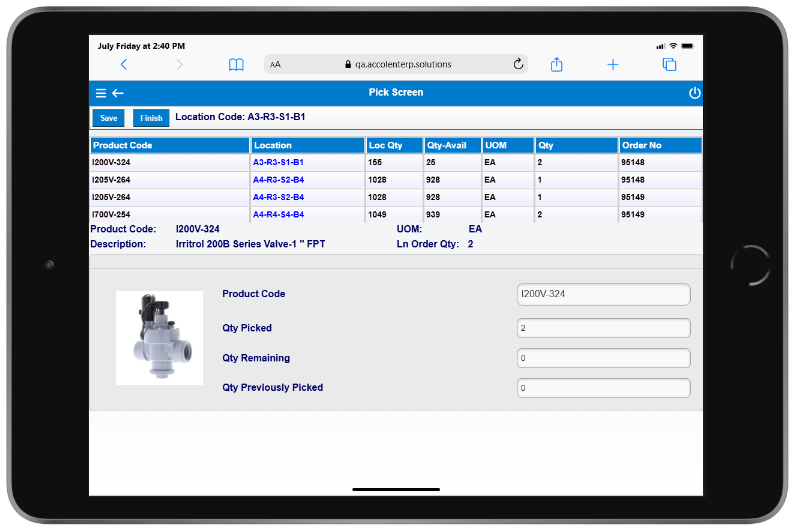
- Click Save – displays message: “Line item saved” and the first line disappears.
- Then select I205V-264 for order 95148, scan or enter Qty Picked of 1.
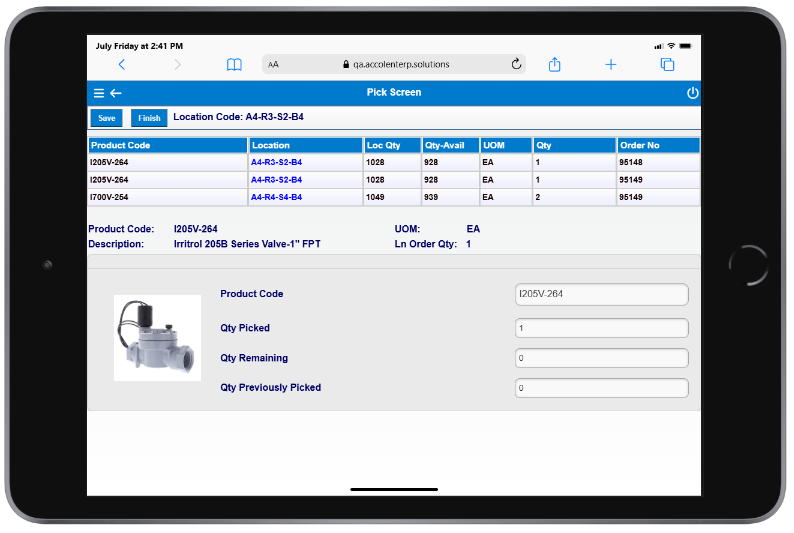
- Click Save and the second line disappears.
- Then select I205V-264 for order 95149, scan or enter Qty Picked of 1.
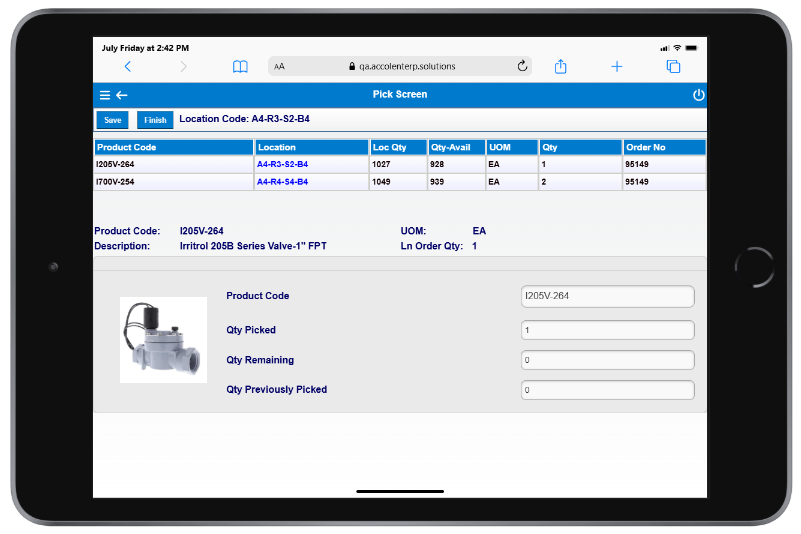
- Then Save and the third line will then disappear.
- Then select I700V-254, scan or enter Qty Picked of 2.
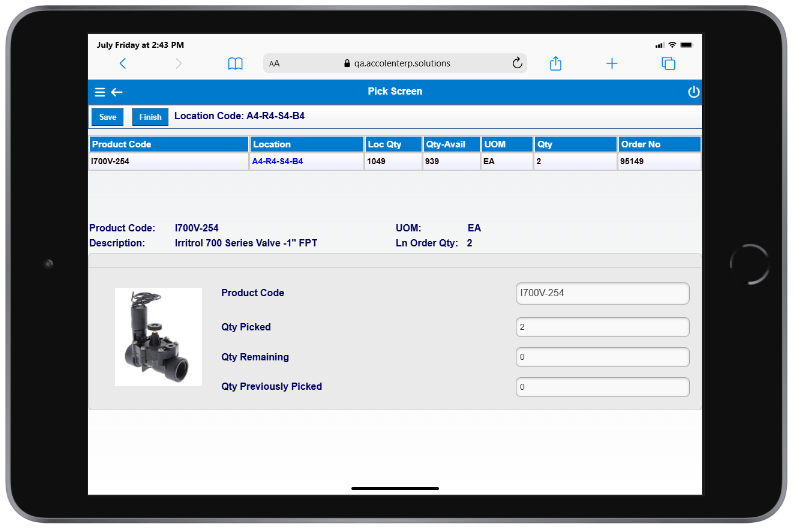
- Click Save and then, since all lines are picked, click Finish.
Review Pick Summary and Complete
- This brings up the Pick Summary.
- Review then click Accept Qty to complete the picking of the batch.
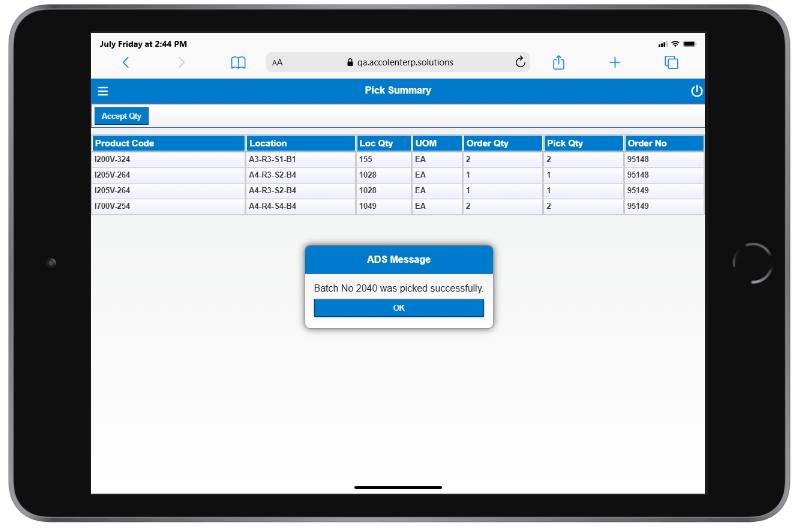
- Click OK to complete and return to the Home screen.
Accolent ERP Updated
- Go to List Fulfillments screen in Accolent ERP, and upon refresh, the screen shows Orders 95148 and 95149 on Batch 2040 with sub-status of picked.

- These 2 orders are now picked and can be packed, shipped and then moved to invoice.
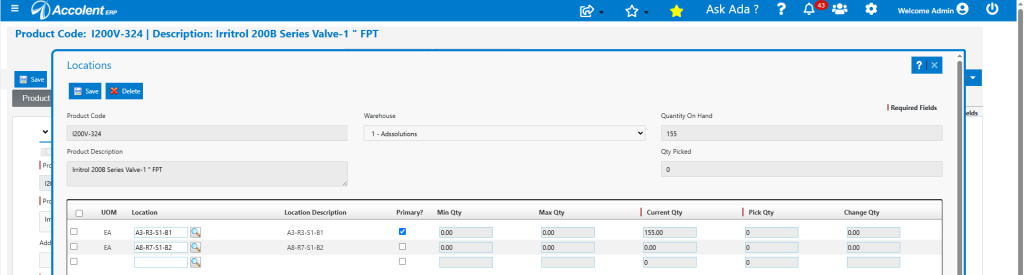
- Look up Location screen for any of these non-Location Tracked products (e.g., I200V-324).
- Since inventory by Location is not tracked:
- All quantity is shown only at the Primary Location.
- There is no update of the Picked Qty or Qty Picked.
- Also, Batch 2040 is completed and is now deleted.
