
The Accolent WMS system allows for Receiving a PO that was previously entered into Accolent ERP. There is a system configuration that specifies whether PO quantity verification and put-away happen together or separately. The default is that both processes happen together. Upon delivery of the goods by the vendor, using the WMS system, the warehouse personnel can either auto receive the PO or receive the PO line by line. Auto receive cannot be used for Location-tracked products. When all line items have been received the system will automatically update all the PO line items to the status of received and update all the product Locations. The PO will need to be saved in Accolent ERP and any Landed Costs added to complete the PO Receipt process and update all the records.
Create a PO in Accolent ERP
- Go to Settings > System Configuration (Config ID 137) and set whether Qty Verification and Put-Away happen separately or not; the default is that both processes happen together
- Create PO No C3036 in Accolent ERP
WMS PO Receiving
- Login to WMS on the handheld device
- Select Receive PO menu
- Enter, scan or lookup the PO No of the PO to be received or search using the lookups
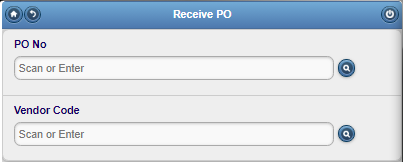
- Click on the search icon next to PO No to display the POs in the system
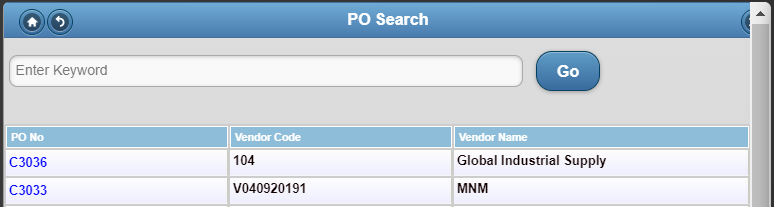
- Click on the hyperlink to select or enter PO No C3036 to be received
- The selected PO is retrieved and displayed on the screen
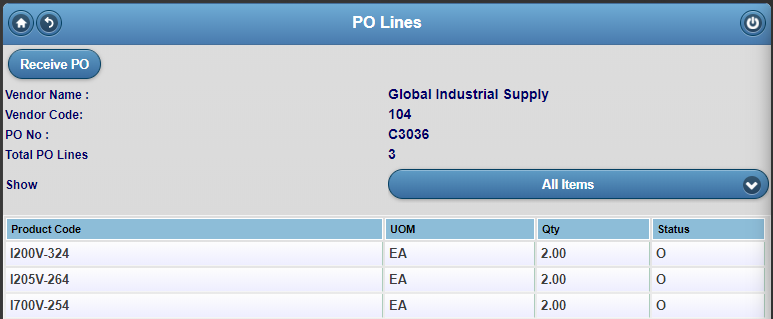
- To start the PO receiving process, click the Receive PO button
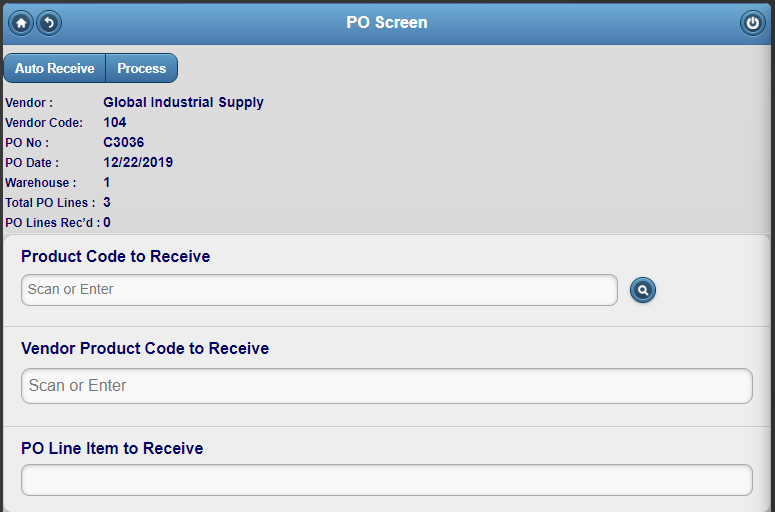
Receive PO Lines One-at-a-Time
- Scan or enter the Product Code or PO Line Item to Receive
- E.g., select I200V-324 from the lookup
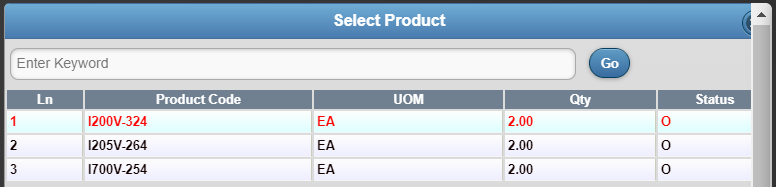
- Click on the Product to open the PO Line Item screen
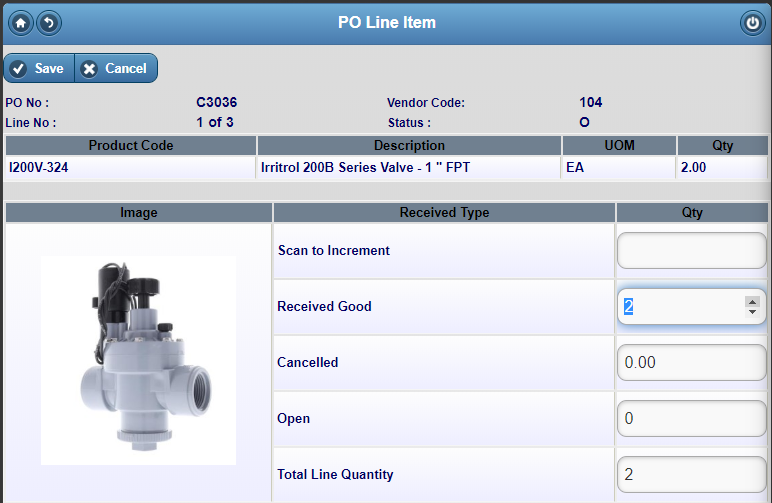
- Scan or enter Qty Received and click Save
- First line disappears from the list
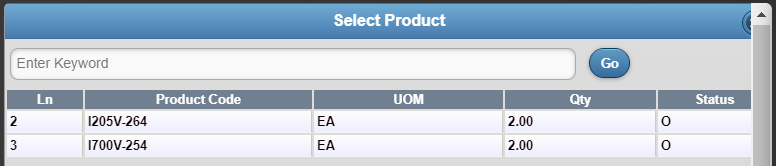
- Continue line by line until all lines are received
- Then click Process to complete
- Brings up the PO Summary
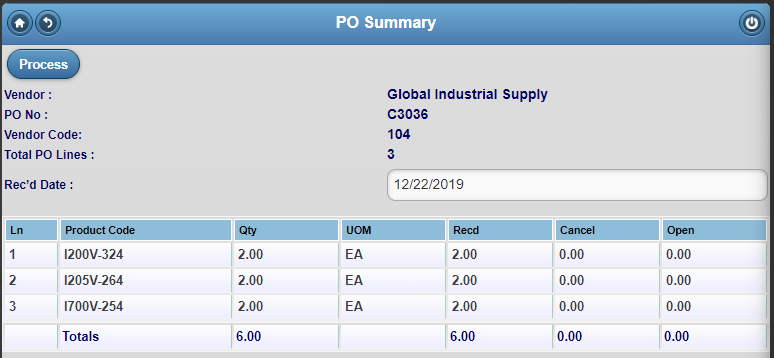
- Verify then click Process
- Brings up the PO Received pop-up indicating that PO No C3036 was successfully updated
- Click OK
Complete PO Receipt in Accolent ERP
- Go to Receive Purchase Orders in Accolent ERP and select PO C3036 and save
- This will give the user the opportunity to add any Landed Costs, if needed
- Then click Process to complete receipt of PO C3036
- PO C3036 is marked as closed in Accolent ERP and all line item records are updated


- Ledger Card updated, for example, for I700V-254
