The Accolent WMS system allows for Batch Picking. To use this, from the Accolent ERP Shipping screen, group several orders in a batch, assign a Batch Sequence and a picker. Then, using the WMS system, the picker will be guided through the warehouse by batch sequence. At each Location, the picker can scan or enter the required pick quantities and the WMS system will record this. When all line items have been picked the system will automatically update the orders and the batch to the status of picked and update all the Shipped Qtys and Locations. At that point the orders may be packed, shipped and invoiced.
WMS Batch Picking Process Overview
- Create a Batch, assign a Batch Sequence and a picker in Accolent ERP
- Picker is guided through the warehouse by Batch Sequence based on Location
- At each location, scan or enter the required pick quantity
- If there is insufficient quantity at a location, click on the location hyperlink to select other Locations for that product
- Continue line by line until all lines are picked, then Finish
- Orders, order locations for each line item and the batch will all be updated to a status of Picked
Create Batch and Assign Picker in Accolent ERP
- Create orders 5488 and 5489 in Accolent ERP and move to Shipping
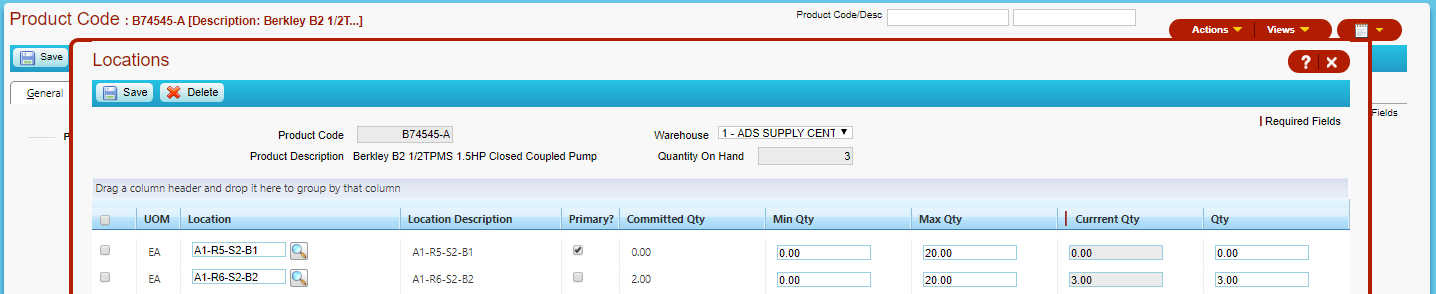
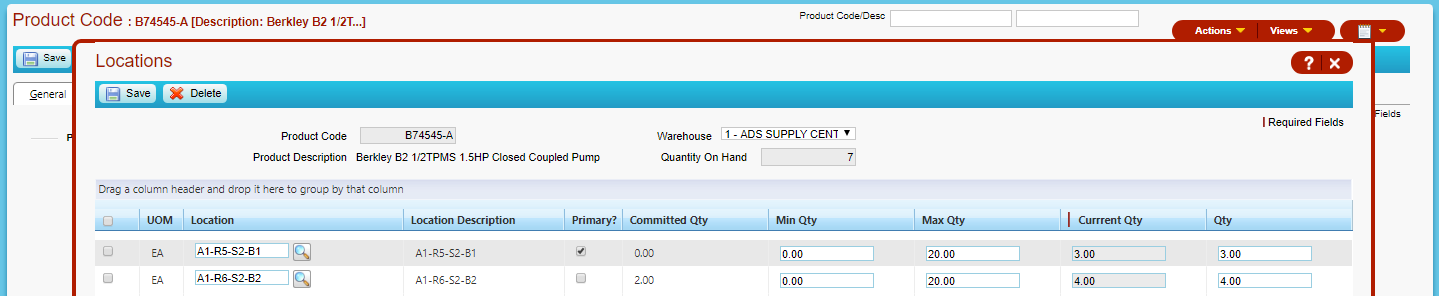
- Immediately prior to picking, this is the Location screen for B74545-A, for example
Location screen for B74545-A
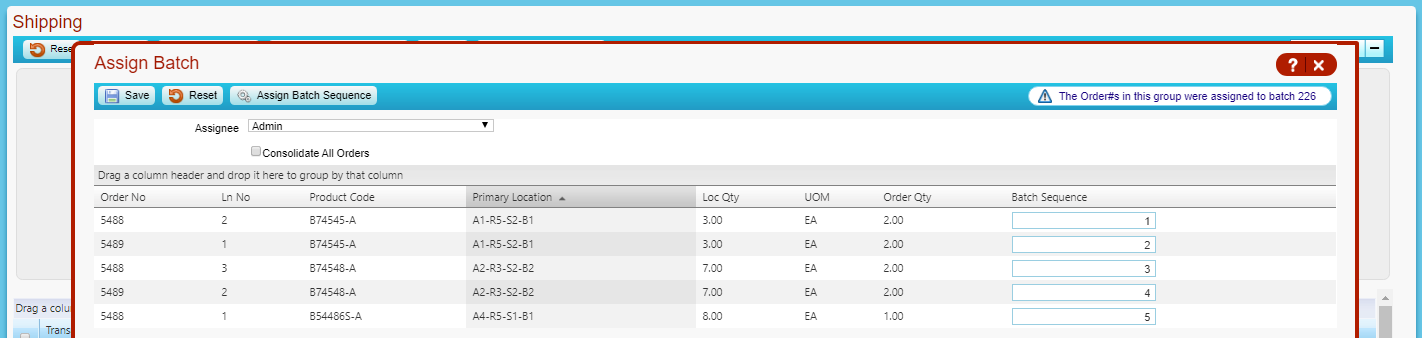
- From the List Shipments screen, select orders 5488 and 5489 and click on Create and Assign Batch button
- For selected orders, all line items will be displayed in a grid sorted by Order No and Ln No
- The grid can be resorted by primary location and click Assign Batch Sequence to the new sort, or manually enter desired batch sequence, then Save
- The batch sequence will guide the picker through the warehouse
WMS Batch Picking
- Login to WMS on the handheld device
- Select Picking > Master Picking – shows all batches assigned to this user with status of Ready to Pick and the Orders Count for each batch
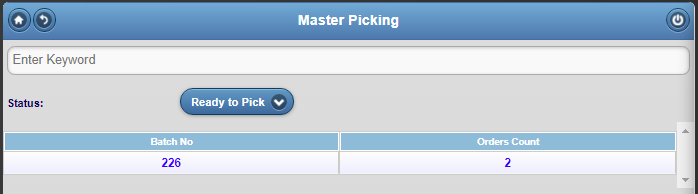
- The Orders Count column allows picker to keep the orders separate (so there is no need to disaggregate everything at the end)
- Batch 226 has 2 orders, so picker would create 2 boxes on the picking cart
- Selecting a batch displays all the line items to be picked, sorted in the Batch Sequence
- Each line shows Loc Qty which is the quantity available to be picked at that location; it is calculated as Qty minus Committed Qty
- Committed Qty at any location is the quantity already picked from that location
- Picking from a given location adds the picked quantity to the Committed Qty at that location – when a picked order is invoiced, both the Committed Qty and the Qty are reduced
- Selecting any line opens the Pick Screen for that line and allows items to be picked
- Once picked, click Save and the line disappears
- In this way, the picker works down the list in assigned sequence by location to pick all items in the batch
Pick Batch 226
- Select batch 226 which pulls up the list of 5 lines
- For B74545-A, primary location is A1-R5-S2-B1 with Loc Qty of 3
- For B74548-A, primary location is A2-R3-S2-B2, with Loc Qty of 3
- For B54486S-A primary location is A4-R5-S1-B1 with a Loc Qty of 5
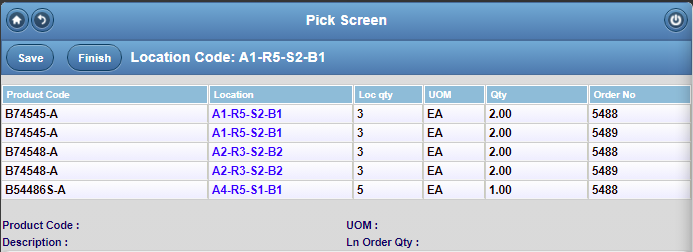
- Picker is directed to A1-R5-S2-B1
- Clicking on the product code for the first item opens up the Pick Screen; then scan or enter Qty Picked of 2
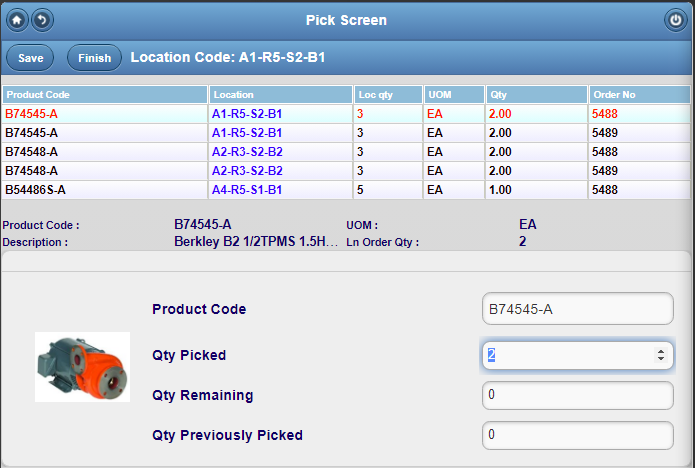
- Click Save and the line disappears
- The Loc Qty for the second line is now 1 reflecting the Qty Picked for the first line
- Scan or enter Qty Picked of 1 from this location – shows Qty Remaining of 1
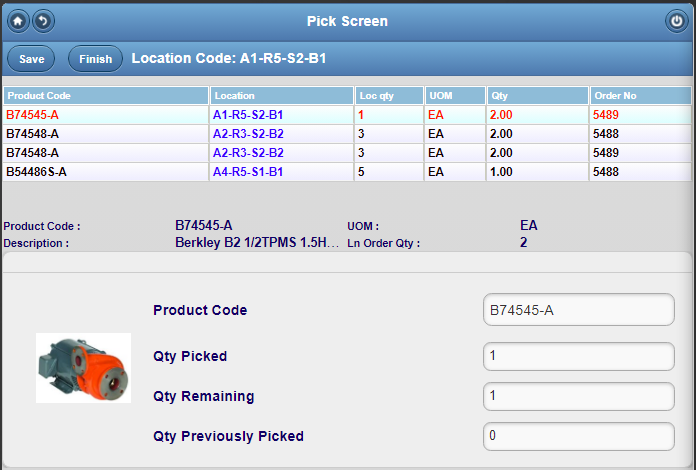
- Click Save and the second line disappears but now a new third line is added for the Qty Remaining of 1
- The primary location of A1-R5-S2-B1 shows Loc Qty of zero
- Click on the Location hyperlink to show other Locations for this product and select A1-R6-S2-B2 with Loc Qty of 2
- Scan or enter the Qty Picked of 1
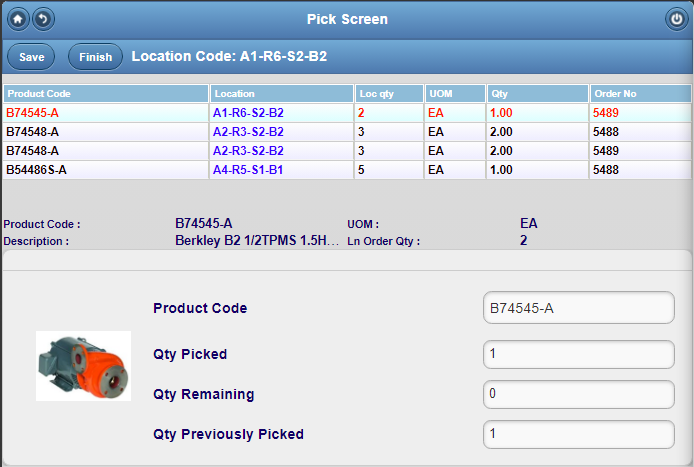
- On Save the line disappears
- Product B74545-A on orders 5488 and 5489 has now been fully picked
- Continue in the same way for all products line by line
- Once all lines have been picked, click Finish and get the message that Batch 226 was picked

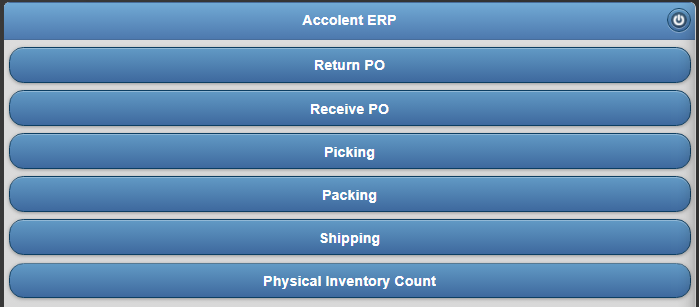
- Click OK to return to the Home screen
Accolent ERP Updated
- Go to List Shipments screen in Accolent ERP, which shows orders 5488 and 5489 on batch 226 with status of picked

- Pack and ship and then move both orders to invoice
- Upon being invoiced, both the Committed Qty and the Current Qty will be reduced at each location
- Open location screen for Product B74545-A, for example, which reflects the following steps
- Qty Picked of 2 for order 5488 from location A1-R5-S2-B2
- Qty Picked of 1 for order 5489 from location A1-R5-S2-B2
- Qty Picked of 1 for order 5489 from location A1-R6-S2-B2