
Accolent ERP supports over-the-counter orders, which are also referred to as immediate invoices. Immediate invoices are typically used for retail or walk-in sales and will usually be fulfilled on the spot. They differ from traditional two-step orders in that there is no picking, packing or shipping of the order required.
Create Immediate Invoice
- To create an Immediate Invoice, go to Sales > Invoices > Create Immediate Invoice.
- Immediate invoices are automatically prefixed with the letter “I” to facilitate easy identification.
- For example, create I67600, enter Customer Code and Ship-To Code.
- For retail customers, create a generic Customer Code and Ship-To Code with the Deliver To address as the address of the warehouse sales counter.
- For wholesale customers that typically receive deliveries, but in this case are picking up in person, use the warehouse address and tax jurisdiction.
- Use the Products tab to enter products.
- NOTE: by definition, Immediate Invoices are fulfilled on the spot and so do not support Lot-Controlled or Inventory by Location products.
- Although not typically used in Immediate Invoices, the Freight and Labor fields on the General tab are editable just as on the Create Order screen, so, for example, a Freight charge can be easily added.
- Out-of-stock products will show the shortfall relative to the ordered quantity as Qty on BO; however, Immediate Invoices DO NOT create Back Orders.
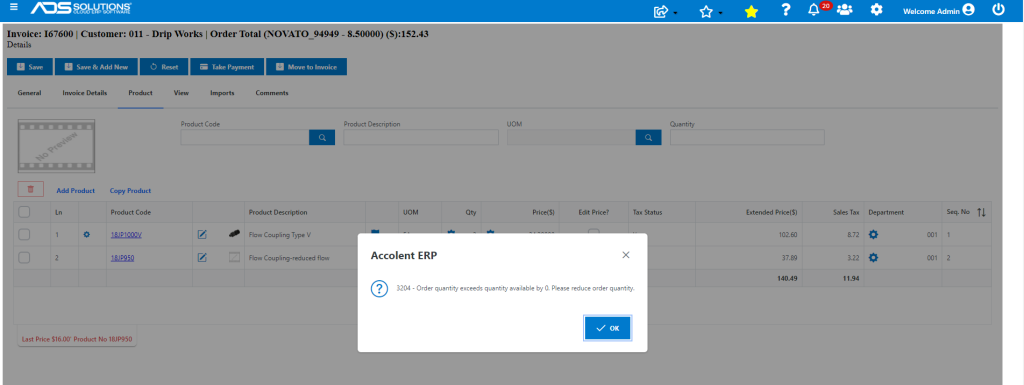
- Delete line 2 since there is no stock.
Save as Order
- If there is some reason not to immediately complete the transaction (e.g., the customer wants to add more items), the Immediate Invoice may be saved as an Order.
- Saving as an Order is not strictly accurate; the transaction will still be an Immediate Invoice not a two-step order – as can be seen by the fact that it can still be moved directly to Invoice without having to first move to fulfillment.
- Click Save and the Immediate Invoice will be saved as an order and is displayed on the List Orders screen.
- To later complete the Immediate Invoice, find it on the List Orders screen and open it to complete as below.

Move to Invoice
- To complete the transaction, select the Immediate Invoice and open.
- Note that although it was displayed in the List Orders screen, the transaction is still an Immediate Invoice not a two-step order.
- Depending on assigned Credit Status, go to Actions > Take Payment to collect payment for a walk-in customer, or skip this step to allow an established customer to purchase on account.
- Then click on Move to Invoice.

Out of Stock Products
- If, despite the earlier warning to remove out-of-stock products, they are put on the invoice there will be a warning that Back Orders are not created. Click Yes to proceed.
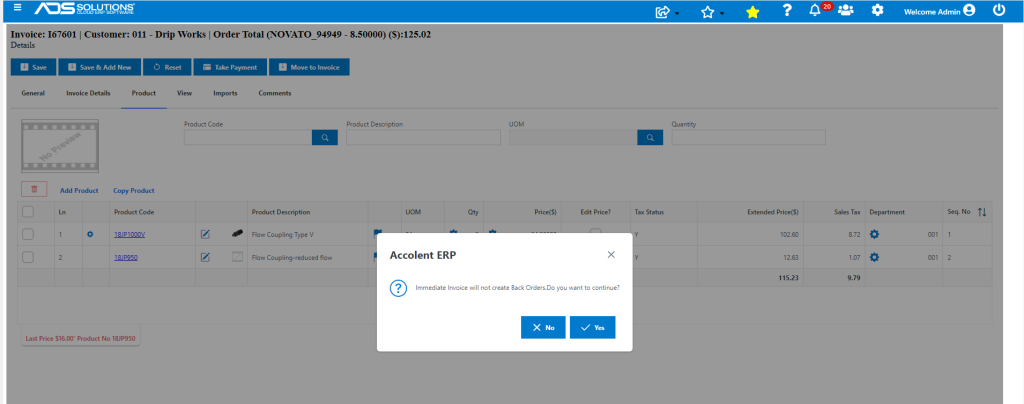
- When I67601 is invoiced, no Back Order will be created.
- Inventory of the out-of-stock product will just be reduced, making Q-Available negative.

Unconfirm Immediate Invoice
- To unconfirm an Immediate Invoice, go to Sales > Orders > Manage Orders > Move Invoice Back to Order.
- Enter Invoice No, then Save. On the next screen, select move to Order and Save.

- The Immediate Invoice will be moved back to Order and shown in the List Orders screen.

- The Immediate Invoice can then be opened and edited and re-invoiced or deleted as desired.