Accolent ERP allows for Back Orders to be evaluated periodically to determine which can be filled, partially filled or cannot be filled. Any back orders that can be filled or partially filled may be processed to move to fulfillment. Any back order that cannot be filled can be “force processed” to create an order with the original order date. There is an option to change the order date to the date force processed using a system setting. Once a back order is force processed to an order, the Qty on BO may be overwritten.
Processing a Back Order to Fulfillment
- Go to Sales > Manage Back Orders > List Back Orders and Process.
- Select back orders and click Evaluate Back Orders.
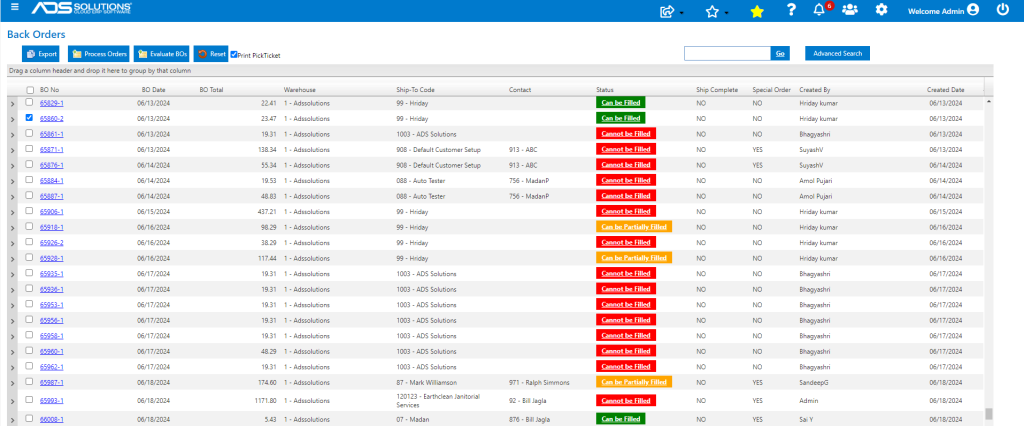
- Any back order that “can be filled” or “can be partially filled” may be processed directly to fulfillment.
- Back order 65860-2 can be filled.
- The original order date on this back order is 6/13/24.
- Select and click Process Orders to move to fulfillment.
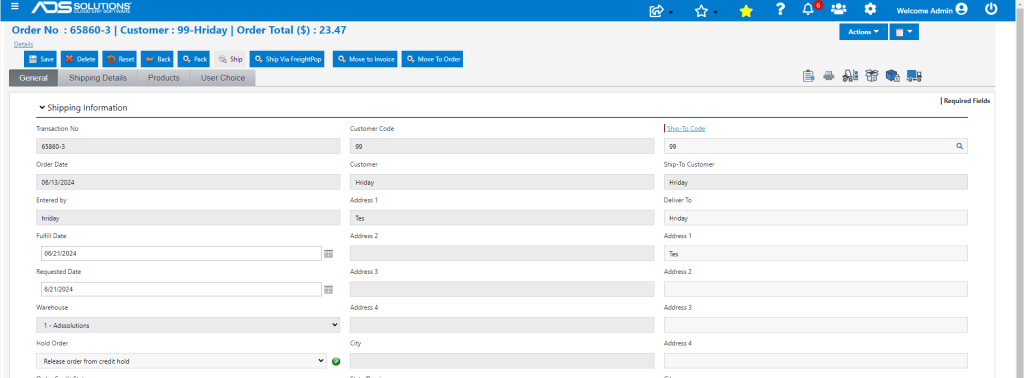
- Created order 65860-3 with order date of 6/13/24 and fulfill date of 6/21/24.
Force Processing a Back Order to an Order
- A back order that “cannot be filled,” may be “force processed” by opening the back order and clicking Move to Order.
- A force processed back order moves to an order allowing the user to overwrite the BO Qty calculation and force the Q-Avail to go negative.
- This would be done if, for example, the user knew the quantities in the system were wrong and wanted to override the system.
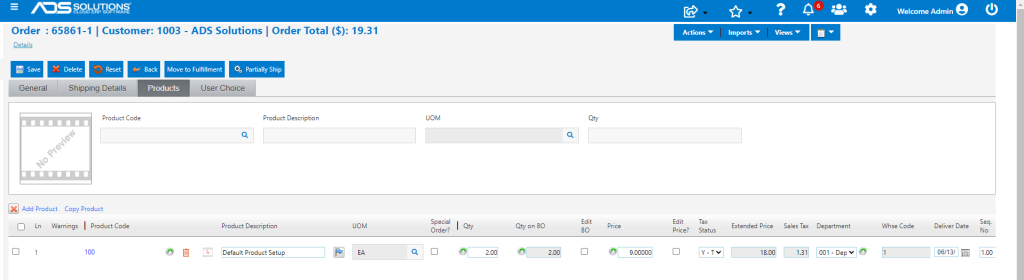
- Force process back order 65861-1 with order date 6/13/24 and move to order.
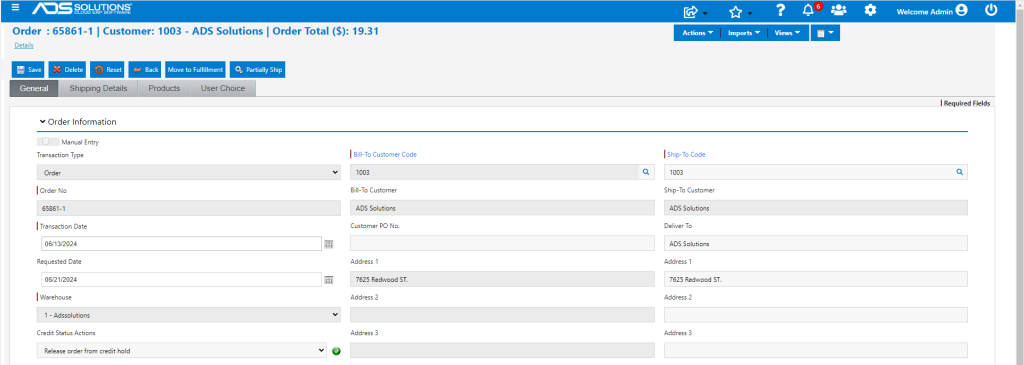
- Note that the force processed back order is not renumbered as an order but retains its original number.
- The Qty on BO can now be overwritten to process the order.
Force Processing Back Order with Today’s Date
- A back order may also be force processed to an order with today’s date.
- To do this, go to Settings > Application Defaults, select SO109 and change value to 1.

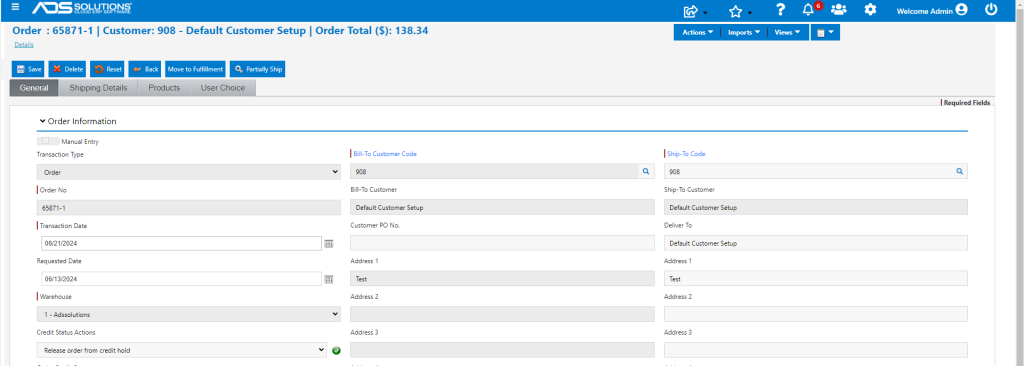
- Now select back order 65871-1 with order date of 6/13/24.
- Force Process by opening the back order and clicking on the Move to Order button.
- This time the order is created with today’s date 6/21/24 as the order date.