Accolent ERP allows for sales commissions to be calculated based either on gross sales or on profit. This is a global setting and should be set up once upfront for the system. Commission Types can be set up and assigned to Products, and a commission Profit Matrix set up for each Salesperson. The Profit Matrix defines the different commission rates that apply to different profit ranges. If commissions are paid on gross sales, the Profit Matrix can be set up with a fixed rate at all profit levels. If commissions are paid based on profit, the profit may be defined based on Standard Cost, Alternate Cost, Special Cost or Accounting (Average) Cost. Various commissions reports can be generated for specific date ranges by Salesperson. Then using the commissions reports, create vouchers and checks to pay salesperson commissions.
Global Setting for Commissions
- Sales commissions may be set up to be calculated based either on gross sales or on profit; to set this go to Settings > Application Defaults > Sales > SO116-1.
- A null value on SO116-1 applies the commission rate to the extended value of the line item; a value of 1 applies the commission rate to the profit amount on the line item.
- If the selection is to calculate sales commissions based on profit, the profit may be derived using Standard Cost, Alternate Cost, Special Cost or Average Cost.
Commission Types
- Set up the allowed Commission Types as a value list
- Go to Settings > Value Lists > Product Only > Commission Types.

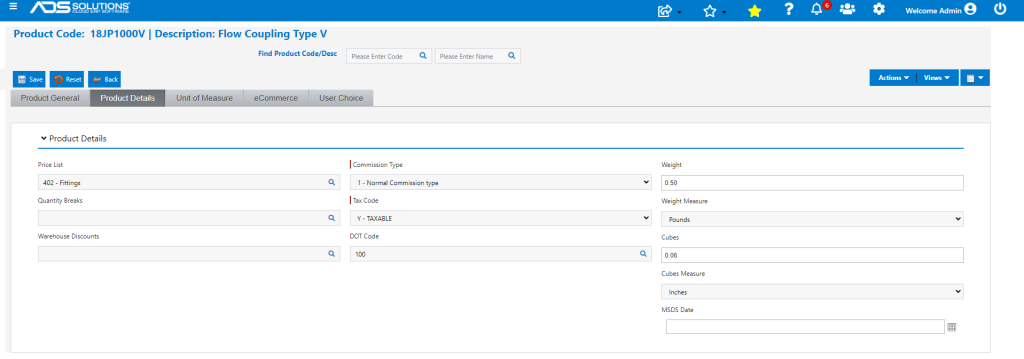
Set Commission Type on the Product
- Commission Types are assigned to products on the product master screen.
- Different products may be assigned to different Commission Types.
- The assignment of Commission Type may be done individually by product or for a selection of products, using the product master import utility.
Set Up the Profit Matrix
- Once the Commission Types have been assigned to products, set up the Profit Matrix.
- Go to Customers > Salespersons and select a Salesperson (e.g., 10-Jack Thornton).
- From the Actions tab dropdown, select Profit Matrix.
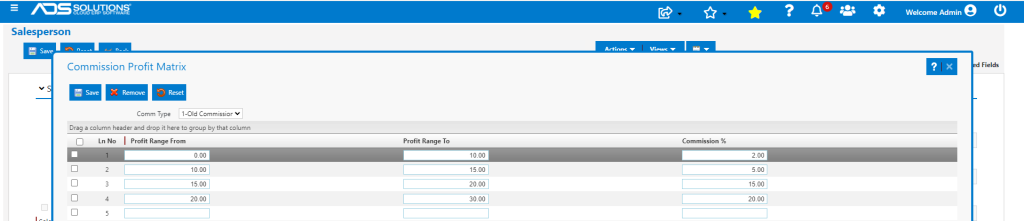
- A Profit Matrix for a particular Commission Type specifies the commission rates at different profit percentages.
- Select the Commission Type from the dropdown and enter the Profit Matrix ranges from lowest to highest.
- The Profit Matrix ranges should be continuous.
- Entering a Profit To percentage and clicking Enter will create the next Profit From automatically.
- The Profit From percentage is interpreted as greater than, and the Profit To percentage is interpreted as less than or equal to.
- For example, if the standard commission is 15% and the target profit margin percentage is 20%, you may wish to design a schedule that provides: (1) at 0% profit the commission is 0%, (2) up to 10% profit the commission is 2%, (3) between 10 and 15% profit the commission is 5% (4) between 15% and 20% profit the commission is 15% and (4) above 20% profit the commission is 20%.
- Then Save.
Commission Calculations
- When this product is put on a sales order, the commission will calculate based on the profit at the rate defined in the Profit Matrix.
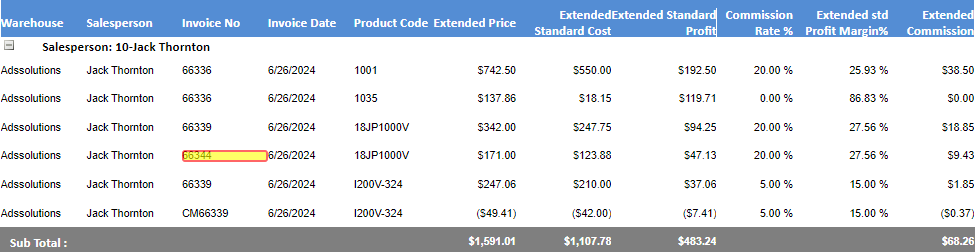
- Create order 66344 for 5 x 18JP1000V at a price of $34.20 and a standard cost of $24.775.
- Profit is ($34.20 – $24.775) / $34.20 = 27.56%, so commission rate is 20%.
- Commission is calculated on profit of ($34.20 – $24.775) x 5 EA to give a commission of $9.43.
Commission Reports
- If the commission is calculated based on sales, use any commission report.
- If commission is calculated based on profit, there are commissions reports that calculate the profit by Standard Cost, Alternate Cost, Special Cost or Average Cost.
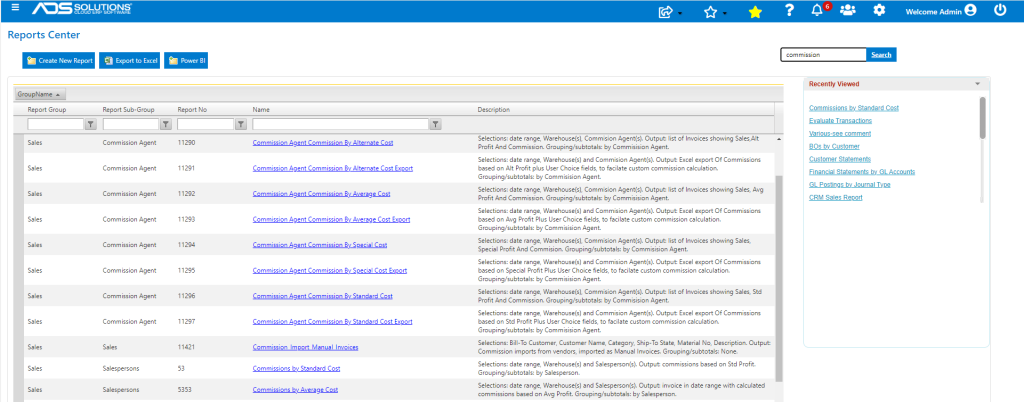
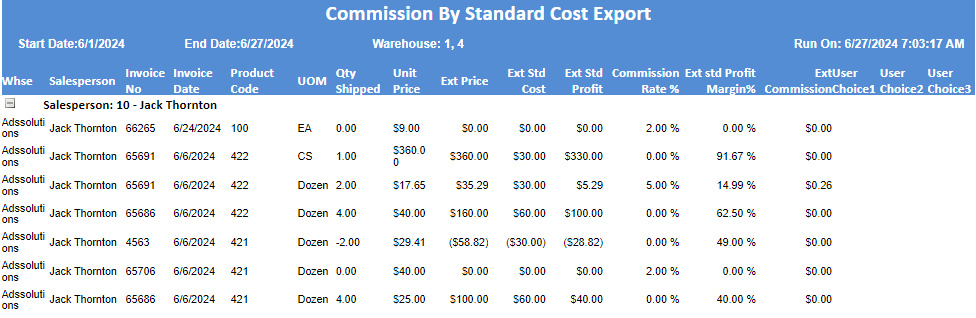
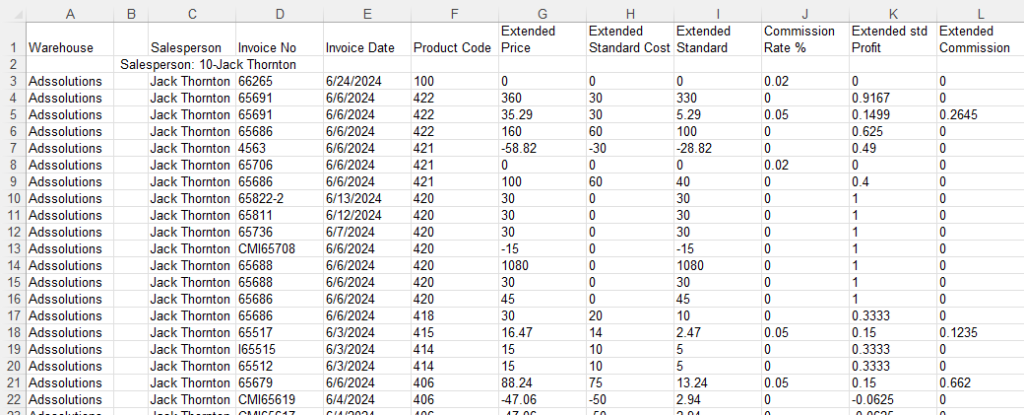
- This is the Commission by Standard Cost report.
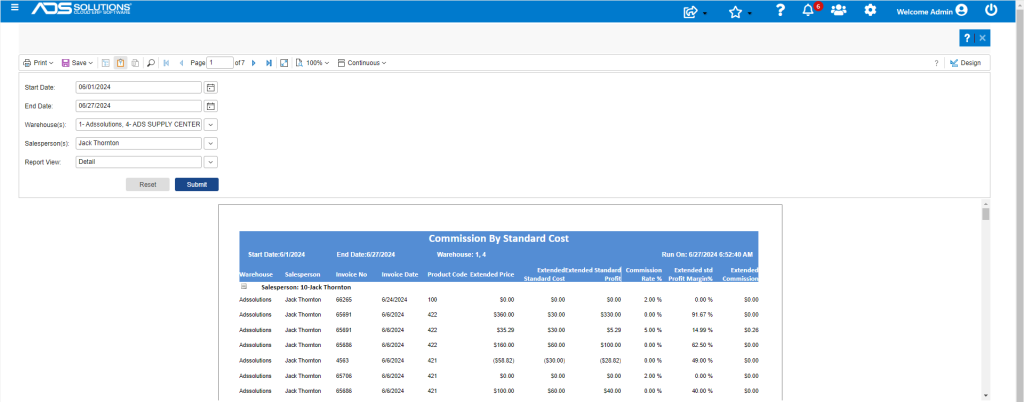
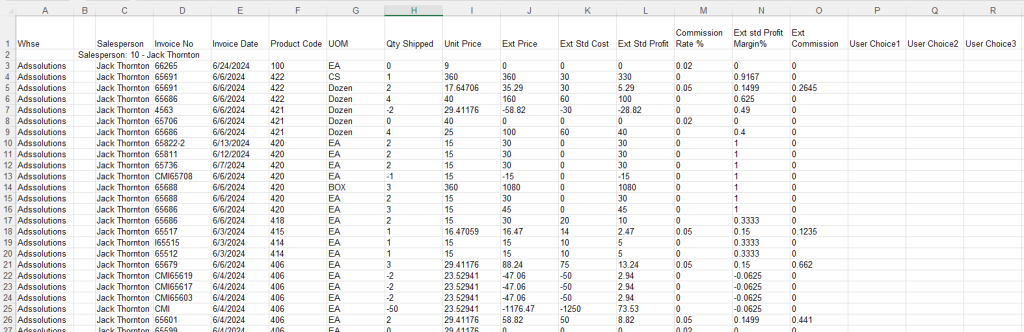
- Click on the Save dropdown and select Excel and Export Data Only, to allow for easy export to and manipulation in Excel if you want to create custom commissions calculations.
- Using the Bands Filter options, select export Data and Headers Only which will remove all the subtotals and unselect the Export Object Formatting to clear all the formatting.
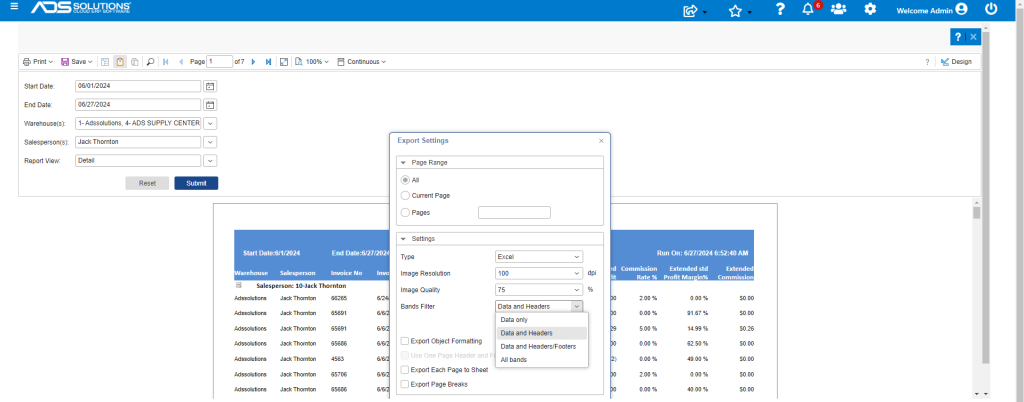
- With minor formatting cleanup to (1) Delete Column B (which corresponds to the Salesperson header rows) and (2) fix column widths, the Excel file can be used to change the commission calculations.
- There are also “export” versions of these reports that include many additional fields that can be used in a custom commission calculation.
- For example, this is the Commission by Standard Cost Export and columns to the right of Column S can be used to create a custom calculation.