Accolent ERP supports Federal and State excise taxes collected on gasoline and diesel fuel. In addition, many States also collect a variety of Local, Inspection and other Pollutant-related taxes, which like excise taxes, are levied on a per-unit (gallons) basis on fuel sold. These excise and other taxes are passed through to the end customer. The excise tax screens in Accolent ERP allow the specification of such other Local, Inspection and Pollutant-related taxes.
Federal, State, Local and Other Taxes
- The Federal government and most States charge excise taxes on the sale of gasoline, diesel fuel and related products.
- In addition, in most States there are further State-wide, Local, Inspection, and other Pollutant-related taxes.
- Excise taxes, like other State-wide, Local, Inspection and other Pollutant-related taxes are charged on a per-unit (gallons) basis and are passed through to the end consumer.
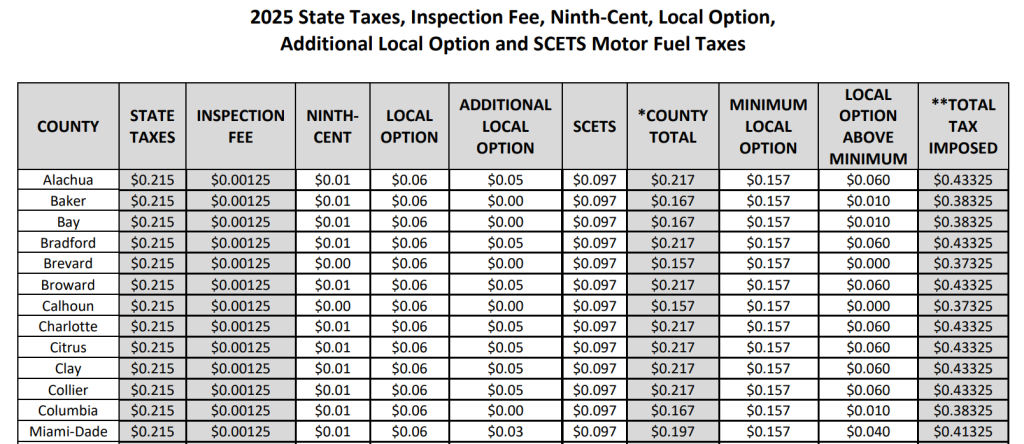
- Below, for example, are the Federal, State, Local and Other Taxes applied in Florida.
Products/Federal, State and OtherTaxes
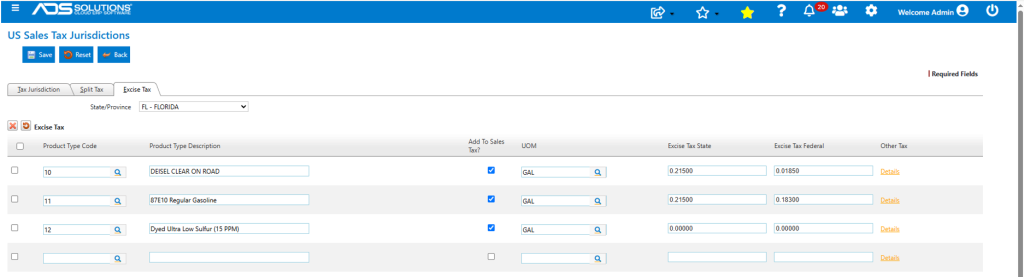
- Products can be set up in Accolent ERP with all the Federal and State Excise Taxes and Other Taxes specifiedby Local tax jurisdiction, (e.g., Indian River County).
- Whenever a product is sold, the Federal and State Excise Taxes and Other Taxes are then automatically calculated on the product for the Local tax jurisdiction.
- The Local tax jurisdiction defaults onto an order based on the ship-to location on the order.
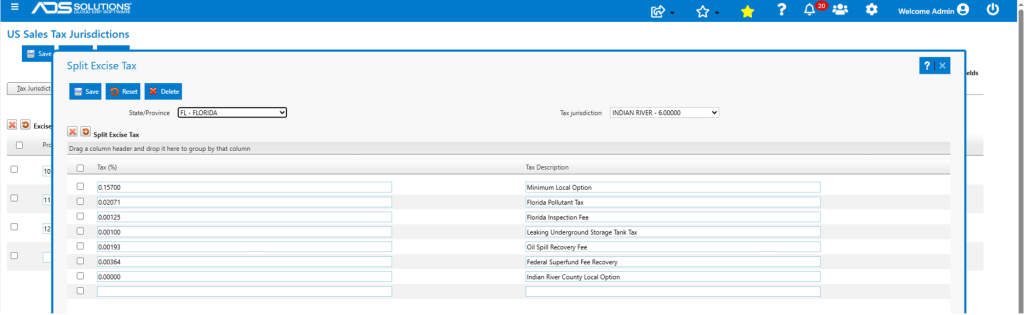
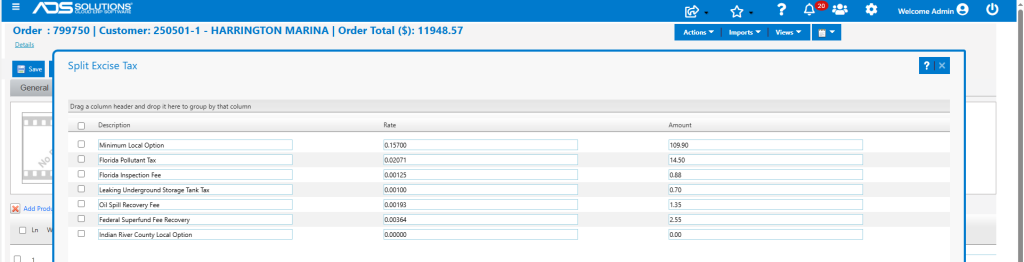
- Using the Details pop-up the Other Taxes may be specified by Local jurisdiction (e.g., Indian River County).
Tankers set up as Virtual Warehouses
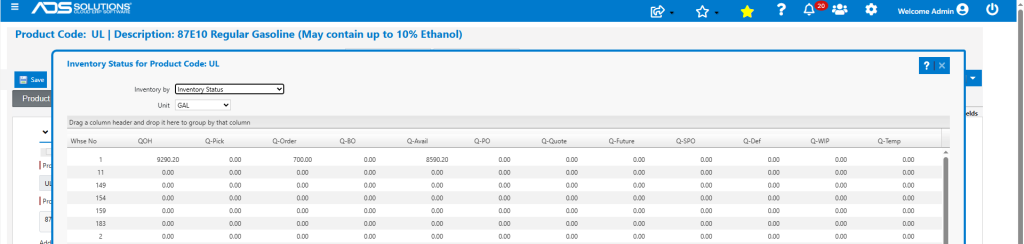
- For a fuel transportation application, tankers are typically set up in Accolent ERP as virtual warehouses.
- This allows for products and inventory to be viewed easily by warehouse.
- Dispatchers are therefore able at any time to see for each tanker what fuel product(s) it is carrying and what the quantity is available to deliver.
Tracking Tankers/Dispatch
- To enable tracking of tankers’ physical locations, drivers can be provided with mobile phones with a GPS location tracking app installed. There are multiple free and commercial GPS tracking apps available.
- In addition, drivers would have the ADS POD (Proof of Delivery) app installed on their mobile phones, allowing orders to be automatically sent from Accolent ERP to drivers’ mobile phones.
- When drivers complete fuel deliveries the ADS POD app automatically sends notifications of quantities actually pumped and the signature obtained upon receipt.
Refilling Tankers
- Periodically tankers are dispatched to local refineries or other storage facilities to fill up.
- The driver of a tanker will send the beginning and ending meter readings as well as any other documents by email to the purchasing personnel who then create and receive a PO for the quantity of fuel purchased.
- The receipt of the PO increases the quantity available on the tanker to reflect the amount of the fill up.
Taking Orders
- Orders placed by customers may be assigned by a dispatcher to a specific tanker based on the fuel product required, the quantity available on that tanker and the physical location of that tanker.
- Once assigned to a specific tanker, the order entry personnel create the customer order for that tanker.
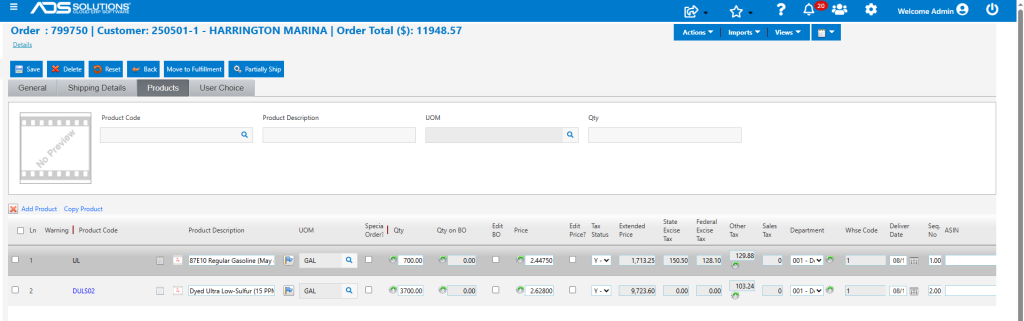
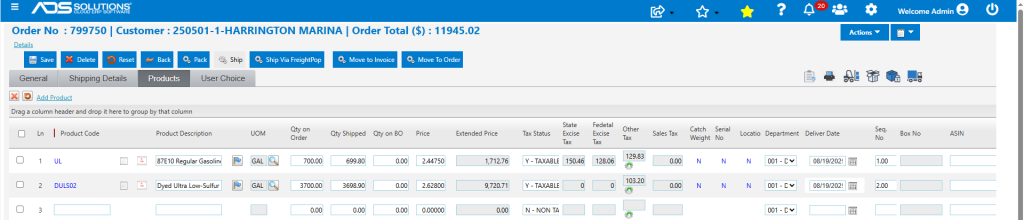
- Customer orders display the Federal and State Excise Taxes and Other Taxes associated with the nominal quantity ordered.
- Clicking on the icon next to Other Taxes displays all the component taxes for that product line.
- The order is then saved, moved to fulfillment and assigned to a specific tanker/driver.

Delivering Orders to Customers/Invoicing
- When an order is created for a customer, the quantity on the order is allocated and reduces the quantity available on the tanker ensuring it cannot be offered to another customer.
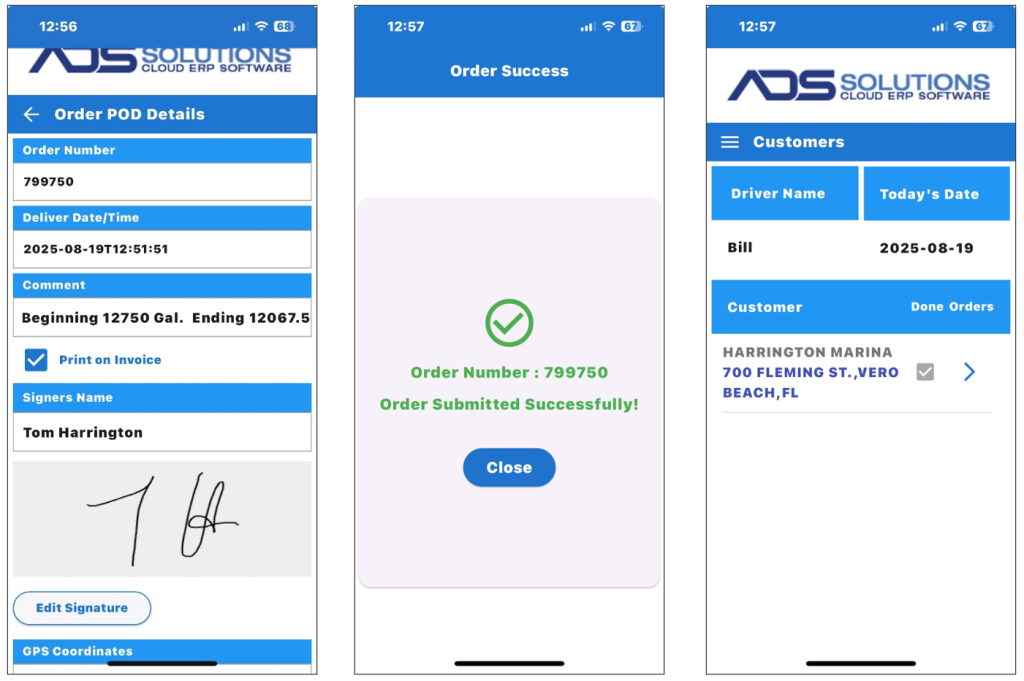
- The ADS POD app tracks all orders assigned to the driver, records all deliveries made and obtains proof of delivery. See this ADS POD app wiki: Using the ADS POD app.
- Once assigned to a specific driver, the order appears on the driver’s ADS POD app.
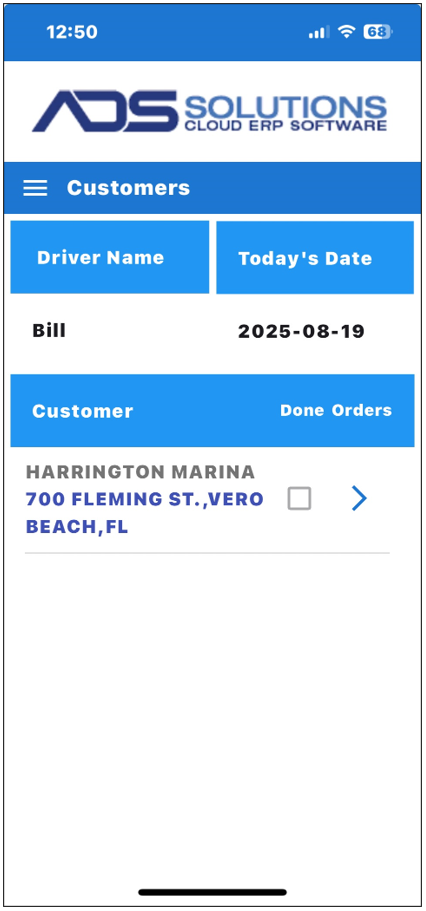
- The driver then drives to the customer’s location to make the delivery.
- Using the ADS POD app the driver records the beginning and ending meter readings which are automatically communicated back to Accolent ERP.
- The driver also collects the customer’s signature and GPS coordinates evidencing delivery.
- Order entry personnel then enter into Accolent ERP the “Qty Shipped” which is the actual quantity pumped based on the beginning and ending meter readings.
- The order can now be invoiced from Accolent ERP and automatically sent to the customer by email with a Pay Now button that the customer can use to enter payment if desired.
- There is also an Accolent ERP payment portal that can be provided to customers from which they can pay open invoices. See this wiki: Accolent Payment Portal.
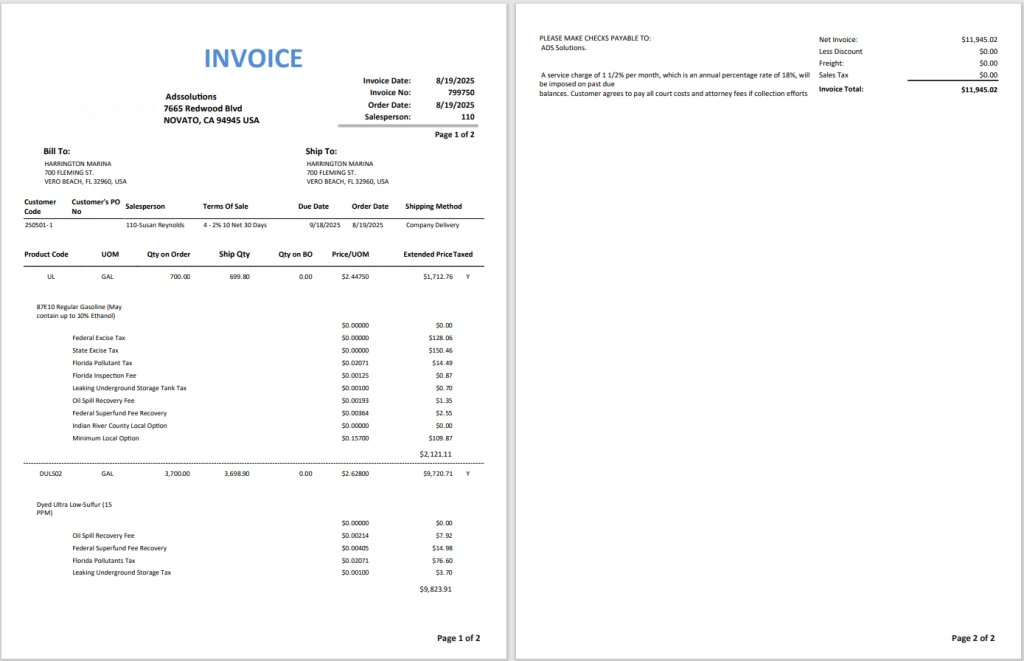
Invoice Form Shows all Taxes
- If desired, Accolent ERP has a customized invoice template form for fuel transportation that displays all taxes by product.